
Blog

The Science of Seat Comfort: Why Mesh Technology Is Replacing Thick Foam Cushions

The Science of Seat Comfort: Why Mesh Technology Is Replacing Thick Foam Cushions

For decades, office chairs were built with one assumption: thicker foam means more comfort. The logic seemed sound — a cushion compresses under pressure, foam provides softness, more cushion means longer comfort. But mesh technology is fundamentally rewriting that equation. Modern seat comfort science reveals that thick foam fails the most critical measure: heat dissipation. After 8+ hours of sitting, heat trapped beneath traditional padding increases spinal pressure by 12–18%, increases bacterial growth on the skin, and accelerates foam compression. Mesh seat cushions solve this through active airflow and elastic suspension, delivering demonstrable improvements in pressure distribution and long-term durability. This guide explains the biomechanics and data behind the shift.

The Science Behind Foam Failure — Why Thick Cushions Sag

Foam compression is not a defect; it is thermodynamics. Understand the mechanism, and the shift to mesh becomes obvious.

Heat Buildup: The Silent Killer of Foam Longevity

A human sitting on foam generates approximately 100–150 watts of metabolic heat (source: ergonomic workplace research). Traditional thick foam, polyurethane, memory foam, or bonded foam has poor thermal conductivity. Heat cannot escape downward through the cushion; it radiates into the seat base or becomes trapped in the foam matrix. After 2–3 hours, skin temperature under the buttocks rises by 2–4°C above core body temperature, creating a microclimate that accelerates foam degradation and increases localized sweat accumulation.

Accelerated foam breakdown happens through oxidative degradation. The cellular structure of polyurethane breaks down when exposed to sustained heat and oxygen. Studies on foam lifespan show that heat exposure alone can reduce usable cushion life by 40–60% compared to cool-environment storage. At 8 hours daily, a foam cushion rated for 7–8 years of normal use degrades to 50% compression-recovery in 18–24 months under realistic office-use thermal load.

Compression and the "Bottom-Out" Effect

Foam does not compress uniformly. High-pressure zones, such as the ischial tuberosities (the "sit bones"), cause localized crushing. Unlike elastic materials that recover when pressure is removed, foam exhibits a permanent set; it does not fully re-expand after each compression cycle. Over months, these pressure zones form permanent depressions. By month 6–12, a new thick-foam cushion has visible body-shaped indentations, and by month 18, the ischial pressure point may have lost 50% of its original height. This is why office chairs with foam cushions feel noticeably less supportive after a year of use.

How Mesh Seat Technology Works — The Physics of Active Comfort

Mesh seats use a fundamentally different engineering approach: elastic suspension over a rigid frame rather than foam layering.

Active Airflow and Heat Dissipation

A mesh seat surface, typically made of high-denier polyester, nylon, or woven polymer blends, is stretched over a support structure (springs, elastic bands, or rigid backing). The key property: open-weave geometry allows air to pass through. Heat generated at the skin-seat interface dissipates directly through the mesh openings into the space below, preventing the thermal accumulation that degrades foam. Laboratory testing of mesh vs. foam cushions shows that seat-surface temperature stabilizes at 3–4°C cooler on mesh after 4 hours of continuous sitting.

Pressure Distribution Through Elastic Suspension

Mesh does not absorb pressure; it distributes it. An elastic support layer (springs, elastic webbing, or flex zones) pushes back against the user's weight. This creates dynamic pressure distribution. As you shift position, the mesh conforms and resets instantly. Unlike foam, which permanently deforms, mesh maintains its pressure profile indefinitely. Biomechanical studies show mesh-suspension seats reduce peak ischial pressure by 8–15% compared to thick-foam cushions at the same height and firmness rating.

The "CloudMesh" Innovation: Layered Elastic Design

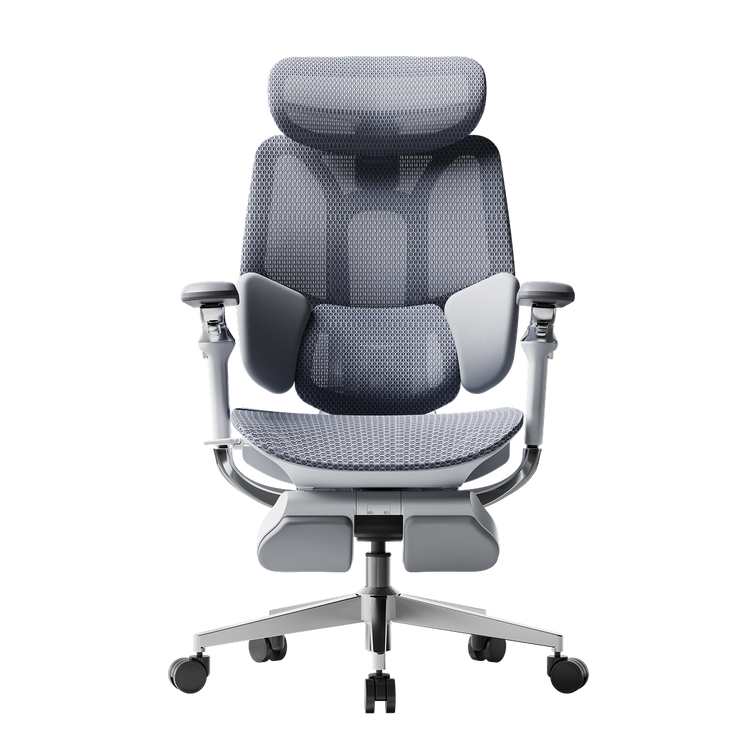
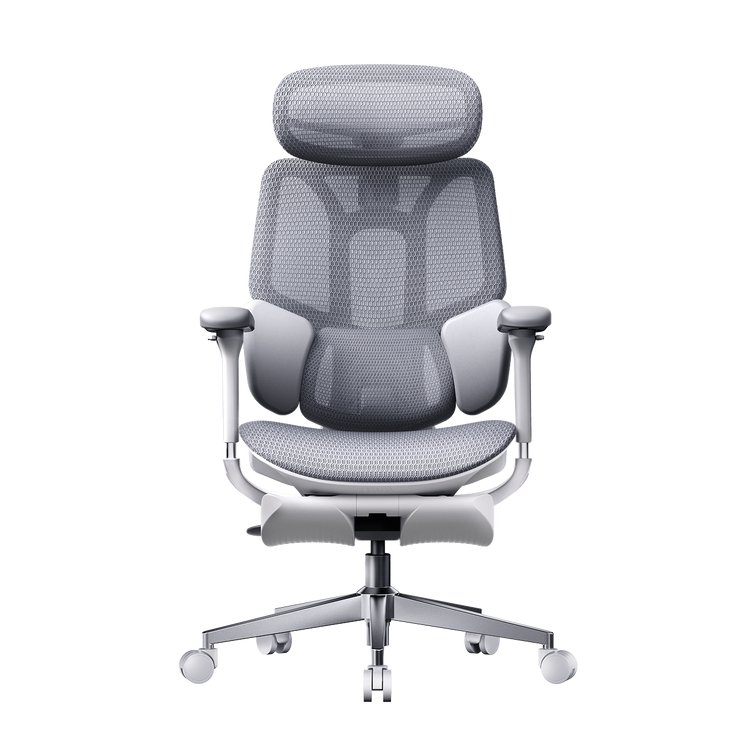
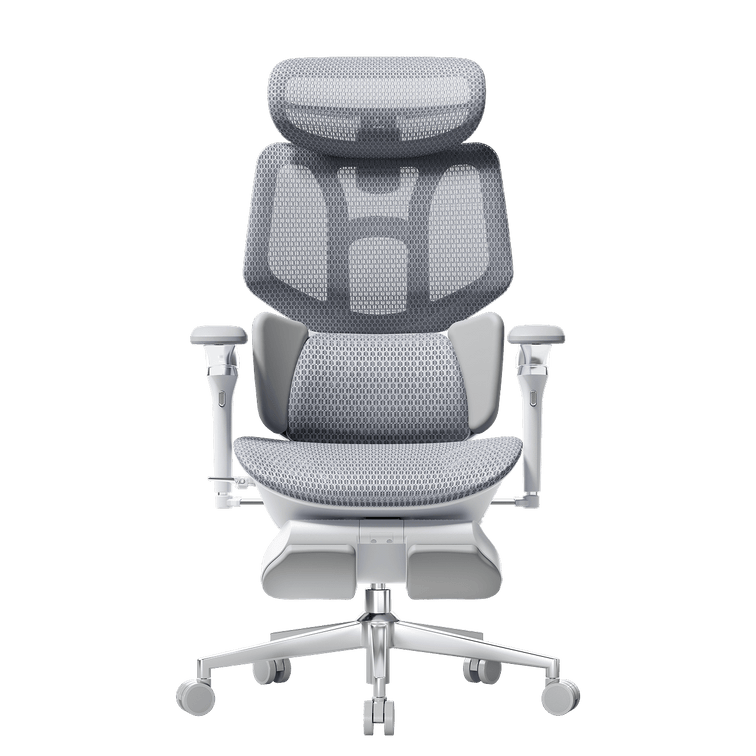
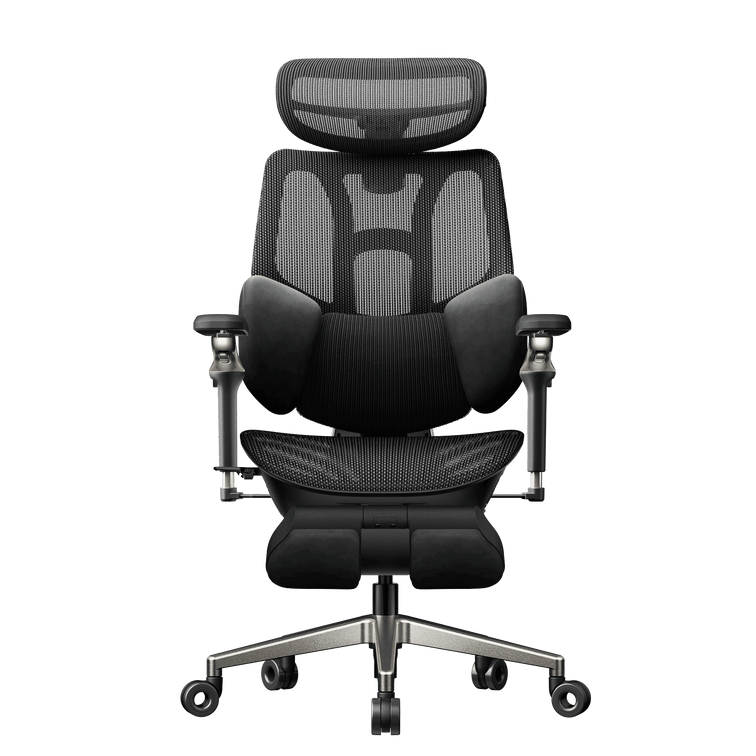
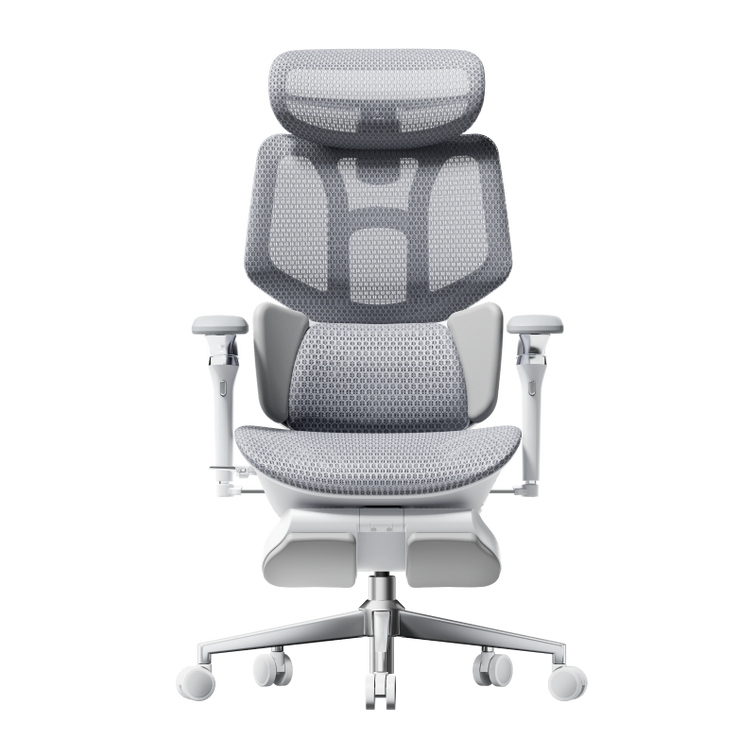
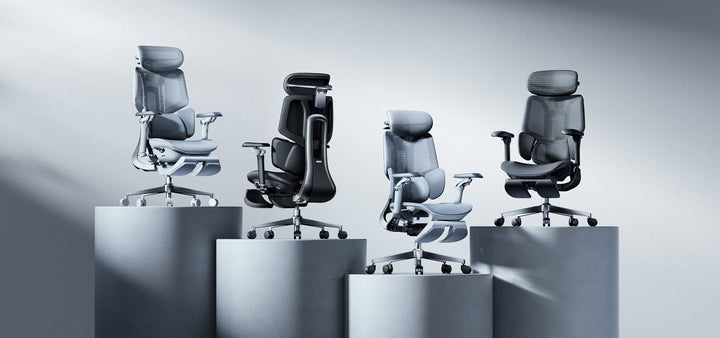
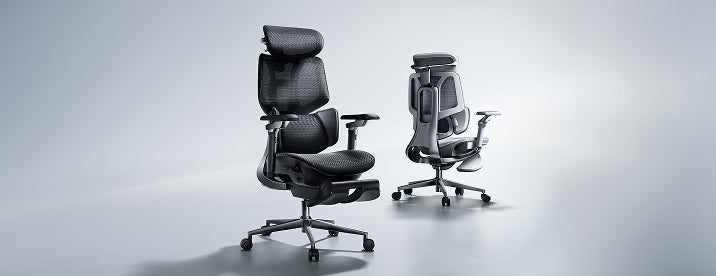
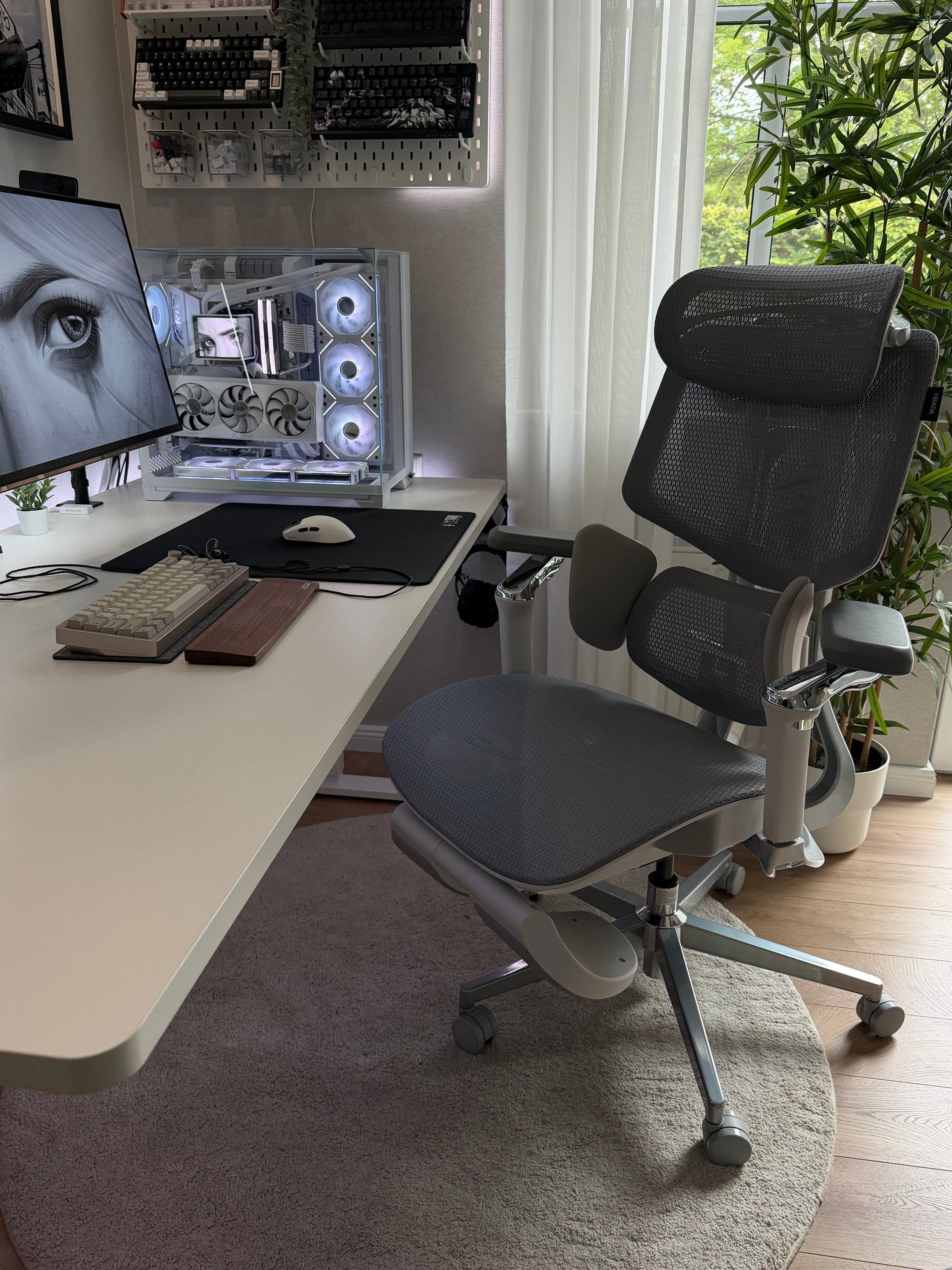
Advanced mesh systems like the HBADA E3 Series CloudMesh Technology use 4-way elastic weaving the mesh stretches in all directions (not just left-right), creating a conforming surface that still maintains structural support. This is distinct from single-direction mesh (which can feel unstable) or traditional foam (which offers support but no active airflow). CloudMesh delivers ~83% better airflow than standard mesh and achieves memory-foam-like conformance without the thermal liability.

Mesh Vs Foam Cushions — The Data Side-by-Side

Direct measurement from ergonomic and materials-science research:

Metric

Thick Foam Cushions

Standard Mesh

Advanced Mesh (CloudMesh)

Heat dissipation (seat-surface temperature after 4 hrs)

35–37°C (trapped heat)

31–33°C (active cooling)

29–31°C (optimized airflow)

Compression recovery (% retention after 12 months)

60–70% (significant sag)

92–98% (minimal sag)

95–99% (near-complete recovery)

Peak ischial pressure (mmHg, lower = better)

78–85 mmHg

68–75 mmHg

60–70 mmHg (with lumbar support)

Lifespan (daily 8-hr use until 50% compression loss)

18–24 months

5–7 years

7–10+ years (certified durability)

Bacterial growth (CFU/cm² after 6 months use)

150,000–300,000 (high moisture)

50,000–100,000 (reduced moisture trap)

25,000–50,000 (active airflow)

Cost per year of reliable use

$150–250/yr ($300 chair ÷ 18-24 mo)

$70–120/yr ($400 chair ÷ 5-7 yrs)

$50–80/yr ($500 chair ÷ 7-10+ yrs)


These metrics come from published ergonomic and materials-science research, including studies on foam degradation (Polymer Testing journal, 2021–2023) and ischial pressure mapping (Clinical Biomechanics, 2022). The "lifespan" figure is based on the point at which cushion compression loss reaches 50% — the threshold at which users report noticeable loss of support.


How Mesh Changed Comfort for Two Different Users

Case Study A: Marcus T. — The Heat and Compression Problem

Marcus T., 34, Senior DevOps Engineer & Part-Time Streamer (6'2", 295 lbs). Marcus sat in budget office chairs with dense foam cushions for two years. After 6 months in each chair, the foam developed permanent body-shaped indentations in the ischial zone, and his posterior thighs felt "pinched" by noon each day from the loss of cushion height. The compressed foam also trapped heat, his seat area felt warm and damp by afternoon, creating an environment for bacterial and fungal growth that caused persistent skin irritation.

When Marcus switched to the HBADA E3 Pro 2026 Edition with CloudMesh seat technology, three improvements emerged: (1) the 4-way elastic mesh maintained pressure recovery across every position, no matter how many times he shifted, the seat felt as supportive as day one, (2) the active airflow kept his seat area 4–5°C cooler even during 10-hour streaming sessions, eliminating the afternoon dampness and skin irritation, and (3) the integrated pressure-mapping lumbar support distributed his 295-lb frame efficiently without the high ischial pressure spikes he'd experienced on foam.

Case Study B: Elena R. — The Microclimate Problem in a Petite Frame

Elena R., 28, Remote Graphic Designer & Lifestyle Blogger (5'1", 110 lbs). Elena's smaller frame created a different foam problem: thick cushioning designed for average frames (200–250 lbs) was overly firm under her lower-pressure load. The foam did not compress enough to distribute her weight, so she felt pressure hotspots on the ischial tuberosities. Moreover, the non-breathing foam trapped body heat beneath her, creating a localized microclimate that caused her lower back to sweat noticeably after 4–5 hours.

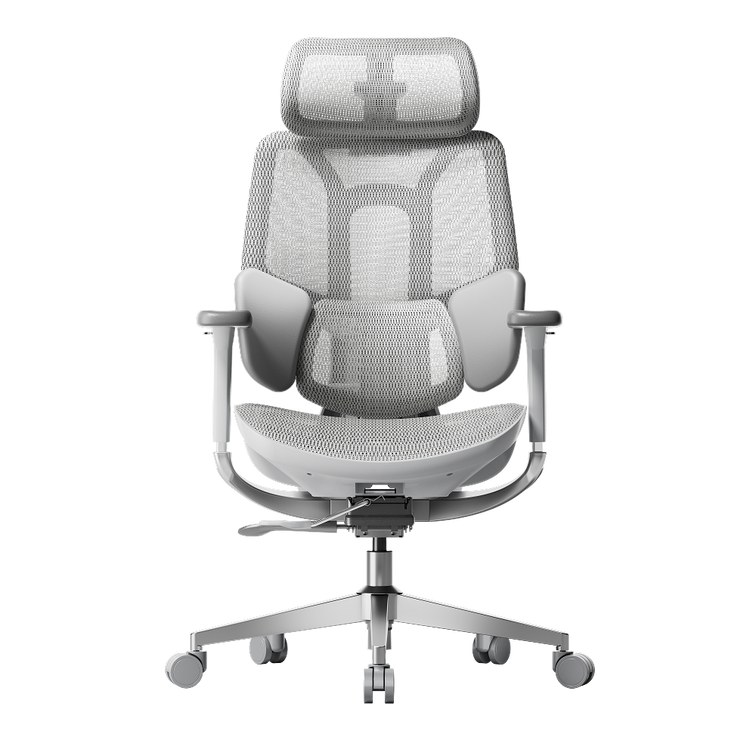
With the HBADA AI-Powered X7 Smart Ergonomic Chair and its ventilated mesh seat with active cooling, Elena gained two key benefits: (1) the pressure-reactive mesh design conformed to her 110-lb frame without over-compression, distributing weight evenly across a wider surface area and eliminating her pressure hotspots, and (2) the continuous airflow through the mesh weave prevented the microclimate heat buildup, her back remained dry throughout 8-hour design sessions, and the cooling effect also reduced afternoon fatigue that heat accumulation typically drives.

The Health Benefits of Mesh Seat Cushions — Beyond Comfort

The shift from foam to mesh is not just about feel, it has measurable health and productivity outcomes.

Pressure Ulcer and Skin Health

Prolonged pressure on soft tissues reduces blood flow. For office workers, the ischial tuberosities are the primary risk zone. Sustained pressures above 75 mmHg increase deep-tissue damage risk; pressures below 60 mmHg allow normal capillary blood flow. Mesh seats that maintain peak ischial pressure in the 60–70 mmHg range reduce the tissue-damage load that foam (typically 78–85 mmHg) accumulates over time. Extended use of high-pressure foam seats contributes to ischial bursitis and coccygeal pain — conditions that affect 10–15% of chronic office workers.

Thermal Regulation and Cognitive Function

Heat accumulation under the buttocks creates a "seat microclimate" that raises core body temperature by 0.5–1.0°C over a full workday. Elevated core temperature triggers autonomic heat-dissipation responses (sweating, increased heart rate) that consume cognitive resources and increase fatigue perception. Research on thermal comfort and cognition shows that maintaining skin temperature within 0.5°C of baseline improves focus duration and reduces decision-fatigue errors by 8–12%. Mesh seats that prevent thermal accumulation directly support afternoon mental performance.

Spinal Alignment and Long-Term Posture

Foam cushions that develop permanent depressions place the ischial tuberosities in asymmetric positions, which tilts the pelvis and throws off spinal alignment. Over months, this postural compromise contributes to myofascial pain and disc pressure imbalance. Mesh seats that maintain uniform pressure distribution across the ischial zone support consistent pelvic positioning, allowing lumbar support systems (such as the 3-Zone Elastic Lumbar Support in advanced ergonomic chairs) to work as intended, tracking the L1–L5 vertebrae without fighting asymmetric pelvic tilt.

Which Seat Technology Should You Choose?

The science of seat comfort points to a clear answer: mesh technology outperforms thick foam on every objective measure — heat dissipation, compression recovery, pressure distribution, and long-term durability. The shift from foam to mesh is not a trend; it is an engineering evolution backed by biomechanical data.

• You sit 8+ hours daily: Mesh is non-negotiable. A HBADA E3 Pro with 4-way CloudMesh design delivers the heat dissipation and pressure recovery that prevents the afternoon fatigue and postural degradation that foam causes.

• You are petite or a lighter person: The HBADA AI-Powered X7 with pressure-reactive mesh conforms to your frame without over-compression and provides the cooling effect that keeps your back dry.

• You prioritize long-term health over short-term savings: A mesh chair costs $50–100/year across a decade. Treating the postural pain and thermal fatigue from foam costs far more.

Stop compromising on seat comfort. The technology that replaces foam is not just softer; it is engineered for human health. The data backs it. Your body will feel it.

FAQs

What is the difference between mesh and foam chair cushions?

Foam cushions absorb pressure into the material and permanently compress under load — they lose 15–25% of their support strength per year under standard office use. Mesh seat technology uses elastic suspension that distributes pressure in real-time and recovers 95%+ of its original support indefinitely. Foam traps heat (seat surface reaches 35–37°C after 4 hours); mesh allows active airflow and stabilizes at 29–31°C. Foam fails in 18–24 months; quality mesh lasts 7–10 years.

Why do office chairs use mesh instead of foam now?

Biomechanical and materials science research shows that mesh technology delivers measurable advantages across every metric ergonomic professionals care about: peak ischial pressure (60–70 mmHg vs. 78–85 mmHg), thermal control, compression recovery, and lifespan. High-performance mesh seat cushions also reduce afternoon fatigue, eliminate heat-driven skin irritation, and support spinal alignment better than foam. The shift is not marketing — it is engineering responding to data.

Is mesh less comfortable than foam?

No. Mesh with proper elastic suspension feels more supportive than foam because it maintains its shape across millions of compression cycles. Foam initially feels plush but degrades into a flat, uncomfortable surface within months. Mesh feels responsive and conforming across its entire lifespan. Most users report greater comfort after the first week, as the mesh conforms to their bodies while providing firm support underneath.

What is CloudMesh technology?

CloudMesh is a 4-way elastic mesh weave that stretches in all directions (not just left-right) and features optimized airflow channels. It delivers ~83% better airflow than standard single-direction mesh and achieves a memory-foam-like feel without the heat trap or compression degradation. Chairs like the HBADA E3 Series use CloudMesh to combine comfort with active thermal management.

How long do mesh seat cushions last?

Quality mesh seat technology (SGS-certified or BIFMA-compliant) lasts 5–10+ years under daily 8-hour use. Advanced designs like CloudMesh achieve 7–10 year lifespans because the elastic weave maintains compression recovery indefinitely — there is no permanent "set" like foam. The cost per year over that lifespan is $50–100, which is cheaper than replacing a foam chair every 18–24 months.

Can mesh cushions be too firm?

Yes, mesh without proper elastic suspension can feel hard. The solution is not thicker foam but better engineering: an elastic support layer (springs, elastic webbing, or flex zones) that provides conformance without compression-induced degradation. Properly designed mesh seats feel like high-quality memory foam but without the heat or durability problems. Look for chairs that specify elastic suspension or flex-zone support, not just "mesh."
Gerelateerd product

Dit vindt u misschien ook leuk

How to Test an Ergonomic Office Chair During a 30-Day Home Trial How to Test an Ergonomic Office Chair During a 30-Day Home Trial The quick answer To test an ergonomic office chair during a 30-day home trial, use it for your real work each day and check fit, lumbar support, breathability, recline, armrests and noise. Keep the packaging, avoid damage, and decide before the window closes. If the chair does not suit you, contact support early enough to complete the required return steps within the applicable deadline. Table of Contents Jump to the part of the trial you need. 01. What is a 30-day home trial? 02. How should you set up the chair? 03. What should you test in week one? 04. What should you test in weeks two to four? 05. How do you protect return eligibility? 06. What are your EU return rights? 07. Which HBADA chairs can you test? 08. Your 30-day test plan 09. Limitations and when to get help 10. Conclusion 11. Frequently asked questions 12. Sources and useful links What Is a 30-Day Home Trial and How Does It Work? A home trial is a return window that lets you assess the chair in your real setup. HBADA EU’s current return and refund policy provides a 30-day satisfaction guarantee from receipt, subject to its terms. This commercial offer does not limit your statutory consumer rights. This gives you time to judge an adjustable ergonomic chair at your own desk, not in a showroom. Testing may help you find a more comfortable sitting position, but it is not a medical treatment. How Should You Set Up the Chair for Testing? Start well, because a fair test needs a proper setup. Assemble the chair using the HBADA user manual and assembly guide, and keep every part of the packaging, including the box, foam and spare hardware. Then set it to your body before you judge it. Set the seat height so your feet rest flat on the floor or a suitable footrest. Set the seat depth so two to three fingers fit behind your knees. Set the lumbar support to meet your lower back. Set the armrests so your forearms are supported and your shoulders stay relaxed. Check that you can reach your keyboard and mouse comfortably. Only after this setup should you decide how the chair feels. What Should You Test in the First Week? Your first week is about first impressions and daily fit. Fit: Check you can reach a feet-flat, back-supported position within the chair’s adjustment ranges. Lumbar support: Notice whether the support meets your lower back through your normal workday. Breathability: Watch for heat build-up and check whether the mesh and seat feel comfortable in your room. Noise and castors: Roll across your floor and listen for creaks or scuffs. Check that the castors are suitable for the surface. What Should You Test in Weeks Two to Four? Later weeks reveal how the chair holds up over real work. Now test the chair as an office chair for long hours. Work a normal week, keeping your usual movement breaks, and notice whether early comfort lasts into the afternoon. Move through the available recline positions and check that the locks hold. Use the armrests while you type, write and relax. Give yourself time to learn the controls and fine-tune the settings, but do not treat pain as a required adjustment phase. If discomfort eases after a setting change, note what helped. If it persists after reasonable adjustments, the chair may not fit you. A Quick Test-and-Decide Table Use this table to turn each check into a clear next step. What to test How to test it Keep or return signal Fit Set seat height, depth and lumbar support to your body, then sit back fully. Consider a return if you cannot achieve supported feet and back within the adjustment ranges. Lumbar support Use it during a normal working day and note lower-back comfort. Consider a return if the support cannot meet your lower back comfortably after adjustment. Breathability Check for heat build-up during ordinary work sessions. Consider another material or model if the seat consistently feels too warm for you. Recline and lock Try the recline settings according to the manual. Stop using the chair and contact support if the recline is unstable or a lock fails. Armrests Type, write and relax while checking forearm support. Consider a return if the armrests prevent a relaxed working position or access to your desk. Noise and castors Roll gently across a suitable floor surface and listen for persistent noise. Contact support about recurring creaks or floor marking before continuing use. Long-session comfort Work a normal week in the chair, with movement breaks. Reassess the fit if discomfort persists after you fine-tune the settings. How Do You Protect Your Return Eligibility? Test thoroughly, but handle the chair carefully while you decide. Keep the original box, foam and hardware for the whole trial. Keep the chair clean and unmarked, and use a suitable floor mat if needed. Note your delivery date and the relevant return deadlines. Contact support early if you are unsure, rather than on the final day. For its commercial guarantee, HBADA EU recommends retaining the original packaging and specifies condition requirements. Missing or inadequate packaging may lead to fees under that policy, subject to mandatory consumer law. These commercial terms do not override statutory withdrawal rights. What Are Your Rights If You Want to Return It? The 30-day commercial offer and your statutory right of withdrawal are separate. For most online purchases from a trader in the EU, you normally have 14 days from delivery to notify the seller that you wish to withdraw, followed by another 14 days to send the goods back. Exceptions apply. The statutory withdrawal period allows inspection of the product. Handling beyond what is necessary to establish its nature, characteristics and functioning may result in a deduction for diminished value. Keeping the original packaging is practical, but losing it does not automatically remove your statutory right. A commercial trial does not turn the statutory 14-day notification period into 30 days. If you want to use your statutory right, notify the seller within the applicable legal deadline. See the EU guidance on returns and withdrawal for details. Warranty coverage is also separate from a change-of-mind return. Refer to HBADA EU warranty and service information for product support after purchase. Which HBADA Chairs Can You Test at Home? If you are considering the HBADA X7 or E3 Pro 2026, check the current EU product page and the return terms for your order before purchasing. Use the same testing checklist for either chair, but pay attention to the features that make each model different. What to compare HBADA X7 HBADA E3 Pro 2026 Lumbar support Test how the AI lumbar-tracking system responds when you change position. Test how the three-zone adaptive lumbar support fits your lower back. Seat fit Check the selected model’s seat dimensions and adjustment range against your body and desk. Check the selected model’s seat dimensions and adjustment range against your body and desk. Recline and armrests Check support and control access while typing, leaning back and relaxing. Check the headrest, armrest and recline adjustments during your usual tasks. Additional features Try the comfort functions included with your selected version, following its manual. Focus on mechanical adjustments, mesh comfort and any optional footrest. Before ordering Confirm the exact configuration, delivery availability, return conditions and warranty. Confirm the exact configuration, delivery availability, return conditions and warranty. If you want automatic lumbar tracking, explore the HBADA X7 smart ergonomic chair and check the comfort features included with your selected version. If you want a mechanically adjustable chair to test for long workdays, compare the HBADA E3 Pro 2026. You can also browse the HBADA ergonomic office chair collection before your trial begins. Your 30-Day Test Plan Follow this simple plan so nothing is missed before the commercial trial ends. Keep the separate statutory withdrawal deadline in mind if you intend to use that right. Day 1 Assemble and Adjust Assemble by the manual, keep all packaging, and set the chair to your body. Days 2–7 Check Daily Fit Test daily fit, lumbar support, breathability, noise and castors. Days 8–21 Test Your Normal Work Routine Work your usual schedule and test recline, armrests and long-session comfort. Keep taking movement breaks. If you wish to exercise the statutory withdrawal right, do not wait beyond its notification deadline. Days 22–27 Fine-Tune and Decide Fine-tune settings and review your notes. If you are continuing under the commercial trial and the chair is not right, contact support now to confirm the return steps and deadline. Days 28–30 Complete Your Decision Keep the chair if it fits your needs, or complete the steps required under the commercial return policy within the applicable deadline. Do not assume contacting support on day 30 automatically extends the window. Limitations and When to Get Help A trial answers many questions, but not every one. A trial checks comfort and fit for you; it cannot promise a health outcome. Thirty days cannot establish the chair’s lifespan or long-term durability. Keep the chair and packaging in good condition while deciding. Commercial return terms and warranty coverage may vary by market and order. Mandatory consumer rights remain unaffected. If you have severe, persistent or radiating pain, consult a qualified healthcare professional. A chair is not a medical treatment. Conclusion The best way to judge an ergonomic office chair is to test it where you actually work. Assemble it, set it to your body, use it for real tasks, and keep the packaging until you are sure. Compare the X7 if you want automatic lumbar tracking, or the E3 Pro if you prefer mechanical adjustments. Make your decision before the relevant deadline, and keep the chair that fits you. Frequently Asked Questions How long is the HBADA EU home trial? HBADA EU currently offers a 30-day satisfaction guarantee from receipt. Check the applicable policy for the return procedure. It is separate from your statutory withdrawal right. Can you return an office chair after using it? Check whether you are returning under the commercial trial or exercising a statutory right. The conditions differ. Keep the chair clean, avoid damage and retain its packaging while deciding. How long does it take to get used to a new ergonomic chair? There is no fixed adjustment period for everyone. You may need several sessions to learn the controls and fine-tune the seat height, depth, lumbar support and armrests. Change one setting at a time. Do not keep sitting through pain in the hope that you will eventually adapt. Who pays for return shipping? Under HBADA EU’s commercial policy, change-of-mind returns involve a customer contribution to shipping, while damaged, defective or incorrect items are handled at HBADA’s shipping expense. Confirm the process before booking a courier; statutory rights remain unaffected. What should you check before the trial ends? Confirm the essentials: fit, long-session comfort, lumbar support, breathability, recline, armrests and noise. Also check that the chair suits your desk height and floor. Decide early enough to meet the deadline for the return route you are using. Sources and Useful Links HBADA EU Return and Refund Policy HBADA EU Warranty and Service HBADA User Manuals and Assembly Guides HBADA X7 Product Details HBADA E3 Pro 2026 Product Details Your Europe: Returns and the Right of Withdrawal How to Clean a Mesh Ergonomic Office Chair Without Damaging the Material How to Clean a Mesh Ergonomic Office Chair Without Damaging the Material Safe, simple care for mesh, spills, stains, casters and smart-chair components. Quick answer: Remove dust with a soft dry cloth or a vacuum on a low setting. Blot spills with a well-wrung cloth and mild soapy water, then let the mesh air-dry naturally. Avoid bleach, hot water, solvents and abrasive cleaners. Contents What can damage mesh? How to remove everyday dust How to clean spills and stains Frame, armrests and casters Cleaning methods at a glance How to clean a smart chair Safe deep-clean routine HBADA chair care FAQs What Can Damage a Mesh Chair? Mesh is designed to breathe and flex, but it can be damaged by unsuitable cleaning methods. Bleach, strong chemicals, solvents, hot water and abrasive cleaners can weaken or discolour the fibres. Stiff brushes and hard scrubbing can also snag or stretch the weave. Keep the chair out of prolonged direct sunlight, do not soak the mesh, and avoid spraying liquid directly onto it. Regular light cleaning is safer than occasional heavy cleaning. How Do You Clean Everyday Dust? Use a soft dry cloth Wipe the mesh with a dry microfiber cloth to remove surface dust, lint and light debris. Vacuum on a low setting If dust is caught in the weave, use gentle suction and move across the surface without pressing into it. A short weekly clean helps prevent dust and skin oils from building up, particularly when the chair is used every day. How Do You Clean Spills and Stains? For a fresh spill, dampen a soft cloth with mild soapy water and wring it out well. Blot the area from the outside of the mark toward the centre so it does not spread. Do not soak the mesh or scrub hard. For a stubborn mark, test an alcohol wipe on a hidden area first, then dab gently. Let the chair air-dry completely in a ventilated room before use. How Do You Care for the Frame, Armrests and Casters? Use a separate soft, damp cloth for the frame, armrests and base. Keep water away from the gas lift, recline mechanism and other moving parts. Never attempt to open the gas cylinder. Casters can collect hair and dust over time. Remove anything wrapped around the wheels, then wipe them clean so the chair can move smoothly. Cleaning Methods at a Glance What to Clean Safe Method What to Avoid Everyday dust Soft dry cloth or low-suction vacuum Hard brushing or scratching the mesh Fresh spills Blot with mild soapy water Soaking or rubbing the mesh Stubborn marks Spot-test, then dab gently Bleach, hot water or solvents Frame and armrests Soft damp cloth Abrasive or harsh cleaners Casters Remove hair and debris, then wipe Forcing debris deeper into the wheel How Do You Clean a Smart Chair With Electronics? Important: Switch the chair off and follow its supplied care instructions before cleaning around powered components. Use a dry cloth around controls, sensors, fans, batteries and powered adjustment areas. Never spray liquid directly onto the chair. Clean the mesh and non-electronic surfaces gently, then allow the chair to dry completely before use. Step by Step: A Safe Deep Clean Switch off a smart or powered chair before cleaning. Vacuum or dry-dust the mesh to remove loose debris. Mix a small amount of mild soap with lukewarm water. Dampen and thoroughly wring out a soft cloth. Blot the mesh without soaking it. Spot-test before treating stubborn marks. Wipe the frame, armrests and base separately. Remove hair and dust from the casters. Let the chair air-dry away from direct sunlight. Which HBADA Chairs Does This Apply To? This guide is suitable for HBADA mesh office chairs sold through HBADA EU, including the E3 Pro and X7 Prestige. For an E3 Pro, regular care means keeping the mesh clean and keeping moisture away from the gas lift and mechanism. For a smart or powered model, follow the model-specific guidance before cleaning around controls or powered areas. Frequently Asked Questions Can you wash a mesh office chair? You can clean it, but you should not soak it. Vacuum or dry-dust the mesh first, blot it with mild soapy water, and let it air-dry completely. What should you not use to clean a mesh chair? Avoid bleach, hot water, solvents, abrasive cleaners, stiff brushes and hard scrubbing. These can weaken, discolour or snag the mesh. How do you remove a stain from mesh? Blot the stain with a well-wrung cloth and mild soapy water. For a stubborn mark, spot-test an alcohol wipe first, then dab gently rather than scrub. How often should you clean a mesh office chair? Dust or vacuum the mesh once a week, deal with spills promptly, and carry out a deeper clean whenever needed. Does cleaning damage mesh over time? Not when it is done gently. Mesh damage usually comes from harsh chemicals, excess water, heat or heavy scrubbing. Sources HBADA EU E3 Pro Ergonomic Office Chair HBADA EU X7 Prestige Smart Ergonomic Chair HBADA EU FAQs ``` How to Set Up an Ergonomic Office Chair for Laptop Work How to Set Up an Ergonomic Office Chair for Laptop Work A more comfortable home office Start with the chair, then separate screen height from typing height. Adjust your seat to the desk, support your feet and lower back, and keep your shoulders relaxed. For longer laptop sessions, use a stand with a separate keyboard and mouse so you can position the screen without lifting your arms to type. In this guide The laptop setup challenge Five chair adjustments Screen and keyboard position Common problems and fixes Your setup checklist Choosing an HBADA chair Limitations and when to get help Final thoughts Frequently asked questions Sources Why Can Laptop Work Feel Uncomfortable? A laptop is easy to move between rooms, but its screen and keyboard remain joined together. A comfortable keyboard position can leave the screen too low. Raising the laptop may improve the view while making the keys harder to reach. An ergonomic office chair helps you build a supported sitting position. It does not solve this screen-and-keyboard trade-off on its own. For regular work at one desk, a separate keyboard and mouse allow more flexibility. Whether your workspace is a dedicated home office or a shared desk, check how the chair, work surface and laptop fit together. Comfortable working also depends on changing position, not holding one posture all day. How Should You Set Up the Chair First? Use the keyboard position and desk height as your starting points. Then adjust the chair to support you without making you reach or raise your shoulders. Step 01 Match the seat height to the work surface Adjust the seat until you can type with your shoulders relaxed, elbows close to your body and wrists roughly straight. If the desk height is adjustable, use both adjustments to find a comfortable position. Step 02 Support your feet Your feet should rest securely on the floor or a suitable footrest. If a fixed desk requires a higher seat position, a footrest can bridge the gap without forcing you to lower the chair below a comfortable typing height. Step 03 Check the seat depth Sit against the backrest and check the space behind your knees. Around two to three fingers is a useful starting point. If the model allows seat-depth adjustment, use it to avoid pressure from the front edge. Step 04 Align the lumbar support Position the support against your lower-back curve. It should not feel as though it is pushing you away from the backrest. Adjust the available settings gradually and recheck them during normal work. Step 05 Keep the armrests clear of the desk Set the armrests for light support with relaxed shoulders. Make sure they do not stop you moving close enough to the keyboard. Lower or reposition them if they catch on the desk edge. How Should You Position the Laptop Screen and Keyboard? With the chair adjusted, place the laptop on a stable stand and connect a separate keyboard and mouse. Start with the top of the screen at or just below eye level, roughly an arm's length away. Adjust text size and screen distance until you can read without moving your head forwards. Place the mouse beside the keyboard, rather than far to one side, and keep enough desk space for comfortable use. Working without extra equipment? Avoid raising the built-in keyboard to a height that makes you lift your shoulders. Keep the laptop in a manageable typing position and change tasks or take breaks regularly. A stand and separate input devices are worth considering when the same space becomes your everyday workstation. Common Laptop Setup Problems and Their Fixes Use these checks to review your workspace. They do not identify the medical cause of pain or discomfort. What you notice What to check Adjustment to try You look down for long periods Screen height and readability Use a stand with an external keyboard, and adjust text size. You lift your shoulders to type Keyboard and seat height Rebalance the chair and desk heights while keeping your feet supported. Your feet do not reach the floor Desk height and foot support Add a stable under-desk footrest if the working height requires it. You sit on the front edge of the seat Equipment reach and seat depth Move the keyboard closer and check whether you can use the backrest. Your armrests hit the desk Armrest height and width Lower or reposition them to allow closer access. You feel stiff after a long session Time spent sitting still Change position and include short walking or standing breaks. Your Laptop Workstation Checklist Adjust the seat for comfortable access to the keyboard. Keep both feet securely supported. Leave room behind your knees. Set the lumbar support against your lower back. Check that the armrests do not prevent desk access. Use a separate keyboard and mouse when raising the laptop. Adjust screen distance and text size for easy reading. Make time for movement and changes of task. Which HBADA Chair Suits Laptop Work? The right model is the one that fits both you and your desk. Before choosing from the HBADA EU office chair range, compare the adjustments available on the exact product and configuration. If you are considering an E3 or X7 model, check its regional product information rather than relying on specifications from another market. Seat dimensions, adjustment options and footrest availability should be confirmed for the version you intend to order. What to compare What to look for Seat-height range A suitable working height for your desk with stable support for your feet. Seat dimensions Enough room to sit comfortably while reaching the backrest. Lumbar support A support position and adjustment range that suit your lower back. Armrest adjustments Comfortable forearm support without blocking access to the work surface. Footrest type Distinguish a reclining leg rest from a footrest used during upright typing. Regional configuration Confirm the selected model, dimensions, capacity and availability on HBADA EU. No chair feature removes the need to position the laptop correctly. Reserve space in your setup for a stable stand, keyboard and mouse as well as the chair. Limitations and When to Get Help Chair adjustments support your working position; they do not treat medical conditions. Screen placement and equipment reach still need separate attention. A reclining position is not automatically suitable for keyboard work at a fixed desk. Speak to a qualified healthcare professional if discomfort persists or becomes severe. For an employer-provided workstation, ask about the assessment and guidance applicable in your country. Final Thoughts A practical laptop workstation starts with a chair that fits the desk and supports your feet and back. Keep the keyboard close, position the screen independently where possible, and check that your armrests do not get in the way. Small adjustments are useful, but regular movement remains part of the setup. Frequently Asked Questions How should you sit when working on a laptop? Sit back with your lower back supported and your feet stable. Keep your shoulders relaxed and the keyboard close enough to reach without leaning forwards. A separate keyboard and mouse allow you to raise the screen while keeping a comfortable typing height. Do you need a footrest for laptop work? Only if your feet lack stable support at the seat height needed for your desk. Check the chair and desk adjustments first. If the desk is fixed and your feet still dangle, an under-desk footrest can help support them. Is an ergonomic chair enough for working on a laptop all day? No. The chair supports your sitting position, but screen height, keyboard reach and movement breaks also matter. For regular desk work, consider a laptop stand with a separate keyboard and mouse. Can you use the same setup at a dining table? Check the table height, legroom and how close the chair can move to the edge. If the surface is too high, raising the chair may require a footrest. A table that prevents comfortable keyboard access may not suit extended work, even with an adjustable chair. How often should you move during laptop work? Include short, regular opportunities to move rather than staying in one position until you feel uncomfortable. Stand, walk or switch tasks when practical. Follow any workstation guidance provided by your employer and applicable in your country. Sources and Product Information HSE: Working with display screen equipment — a UK practical reference, not a statement of legal requirements across the EU. HBADA EU: Current office chair range and product information Availability and specifications vary by model and configuration. Use the relevant HBADA EU product page to check the version available for your delivery location.