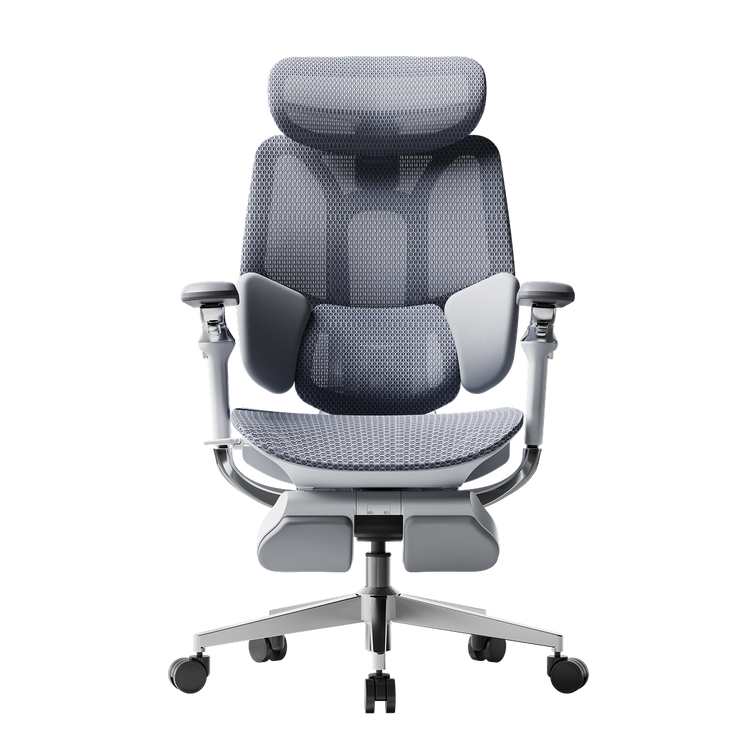
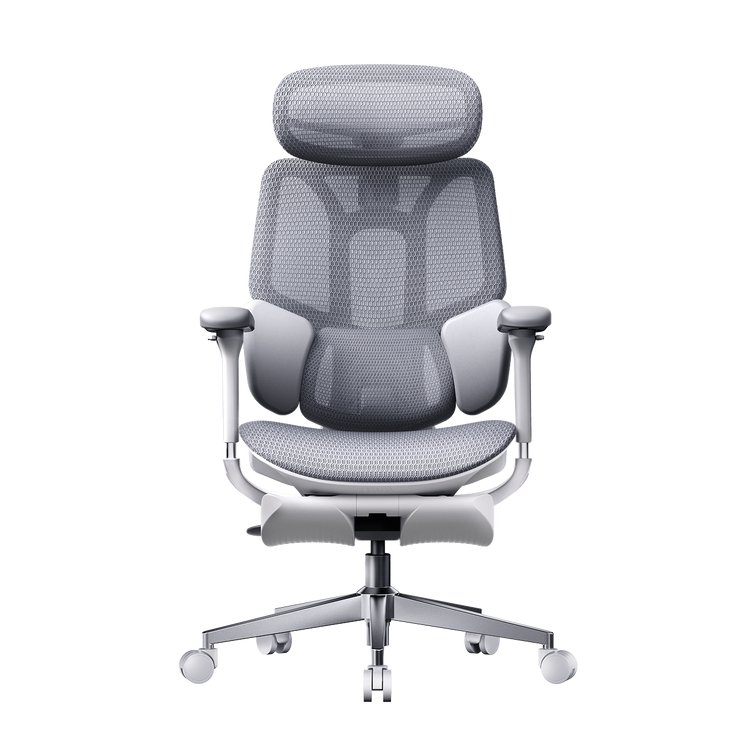
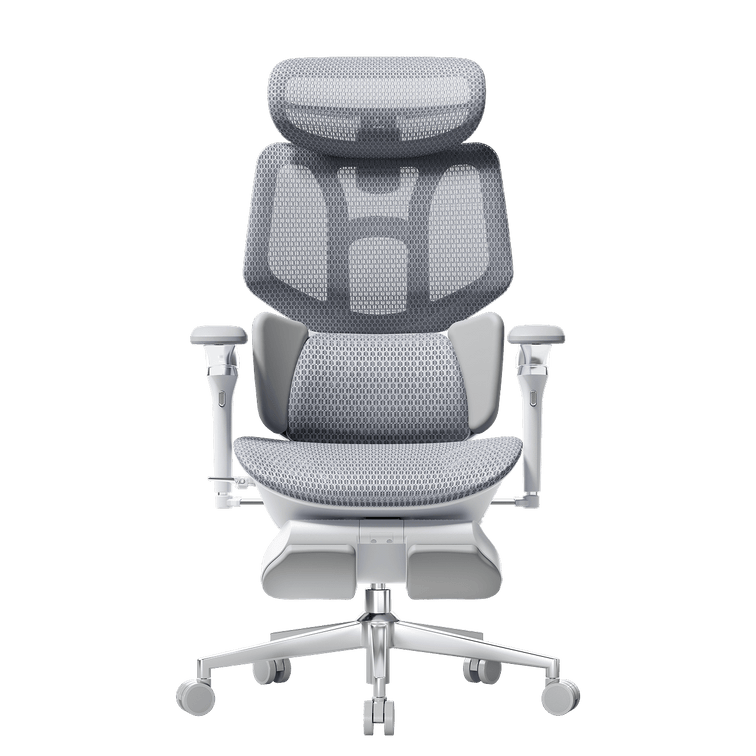
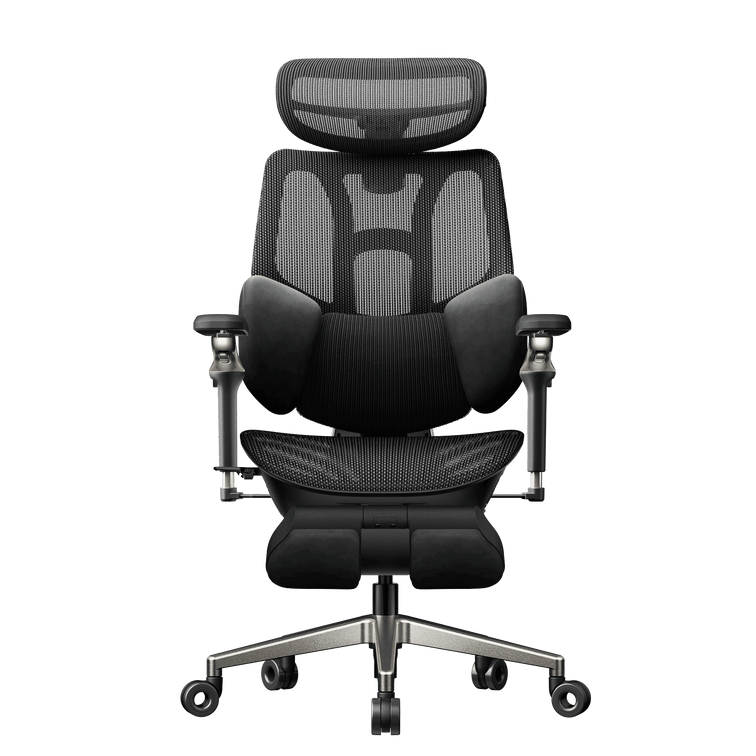

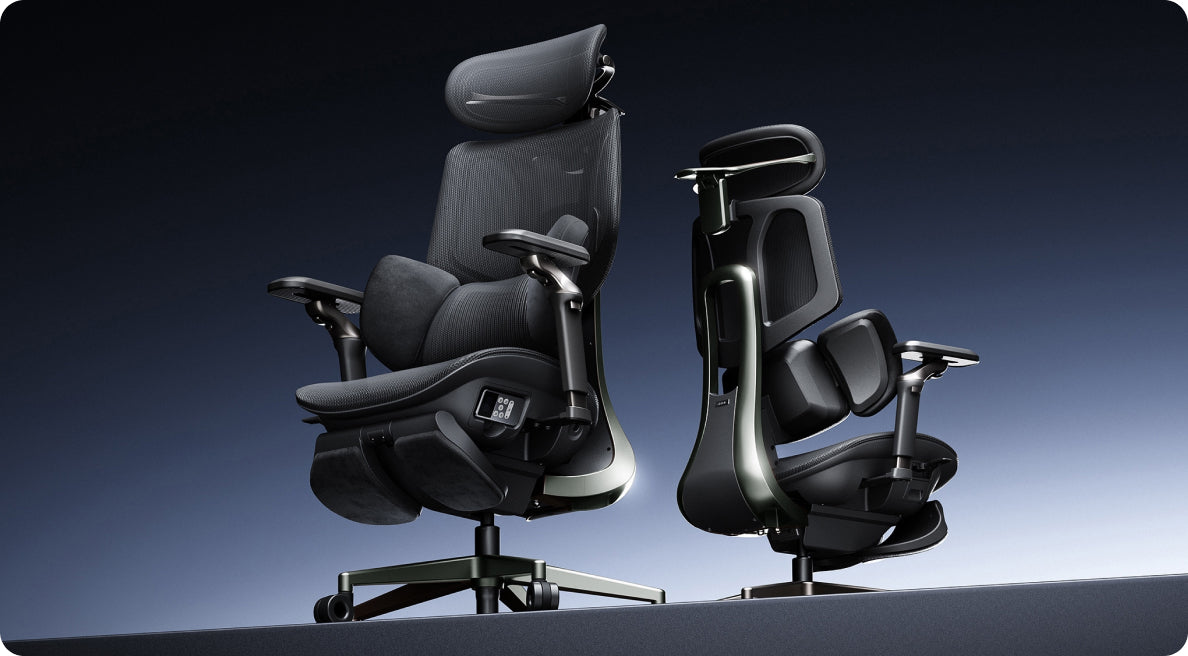

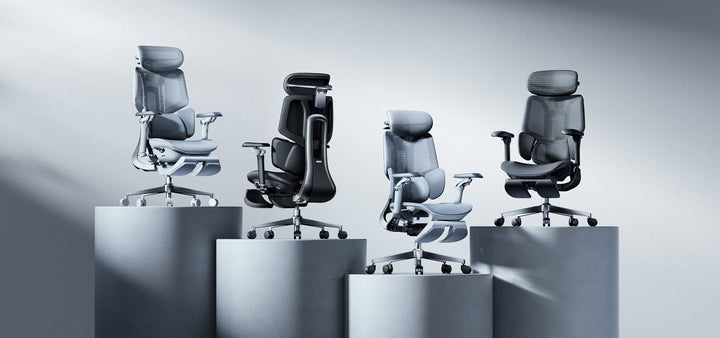
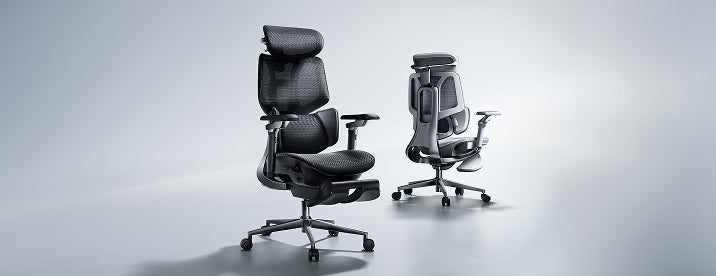
Your chair. Your fit.
Better support starts with the setup.
A well-designed chair is only part of the picture. The way you adjust it determines how comfortably you can reach your desk, use the backrest and change position throughout the day.
Quick answer: A practical starting sequence is seat height, seat depth, lumbar support, backrest recline and finally armrests. Then recheck the complete setup at your desk. These adjustments work together, so treat the sequence as a useful guide rather than a rigid rule.
Buying an adjustable chair does not finish the job. Without a comfortable starting position, you may still find yourself perching forwards, reaching for the keyboard or sitting away from the backrest by mid-afternoon.
This guide walks through the adjustments in a practical order so you can make better use of your chair's support. Before starting, identify the controls on your exact model and follow the instructions supplied with it. Available adjustments differ by model and generation.
Why the Order of Adjustment Actually Matters
It is easy to adjust a chair piecemeal: raising the seat here, nudging the lumbar support there, without checking how one change affects the next. Seat height changes your relationship to the floor and desk. Seat depth influences whether you can sit back comfortably. Both affect where your lower back meets the lumbar support.
Setting the seat first gives you a more consistent starting point for the rest of your ergonomic office chair setup. Once the other adjustments are in place, return to the seat and check the overall fit again.
Think beyond the chair: Desk height, keyboard position, screen placement and footwear also affect your setup. If one adjustment solves a problem but creates another, review the whole workstation.
Step 1: Seat Height
Start with your feet supported on the floor and your thighs resting comfortably on the seat. Your knees should be bent comfortably, around a right angle as a starting point, without pressure from the front edge of the seat.
If your feet dangle, the seat may be too high for unsupported sitting. If your knees are pushed noticeably upwards and your hips feel cramped, the seat may be too low. Adjust gradually rather than chasing an exact angle.
Next, check your desk. If lowering the seat makes the keyboard too high, you may need to adjust the desk or use a stable desk footrest while keeping the seat at a workable height. A reclining chair's built-in leg rest is not the same as a footrest used to support your feet during upright desk work.
Quick check: Feet supported, no pressure behind the knees, and no need to lift your shoulders to reach the keyboard.
Step 2: Seat Depth
Once the height is comfortable, sit back against the backrest. Check the space between the front edge of the seat and the back of your knees. Roughly two to three finger-widths is a useful starting check, not a universal measurement.
If the seat is too deep, its front edge may press behind your knees and encourage you to slide forwards, away from the backrest. If it is too shallow, it may provide less thigh support than you need.
If your chair has a sliding seat, adjust it until you can use the backrest comfortably while leaving clearance behind your knees. Follow the model's instructions for operating and securing the seat-depth mechanism.
Quick check: You can sit back without the seat edge pressing into your knees or needing to perch on the front of the chair.
Step 3: Lumbar Support Setup
With seat height and depth established, position the lumbar support around the natural inward curve of your lower back. Use the feel of the support rather than your belt line alone to find a comfortable position.
If your chair allows it, adjust lumbar height first, then depth or tension. Aim for gentle contact rather than a hard push that forces you into an exaggerated arch. More pressure is not automatically more support.
If the chair has adaptive lumbar support, check how it feels when you shift or lean back, not only while sitting still. An adaptive mechanism still needs an appropriate initial fit.
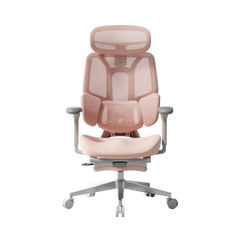
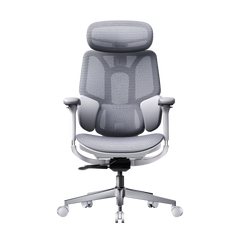
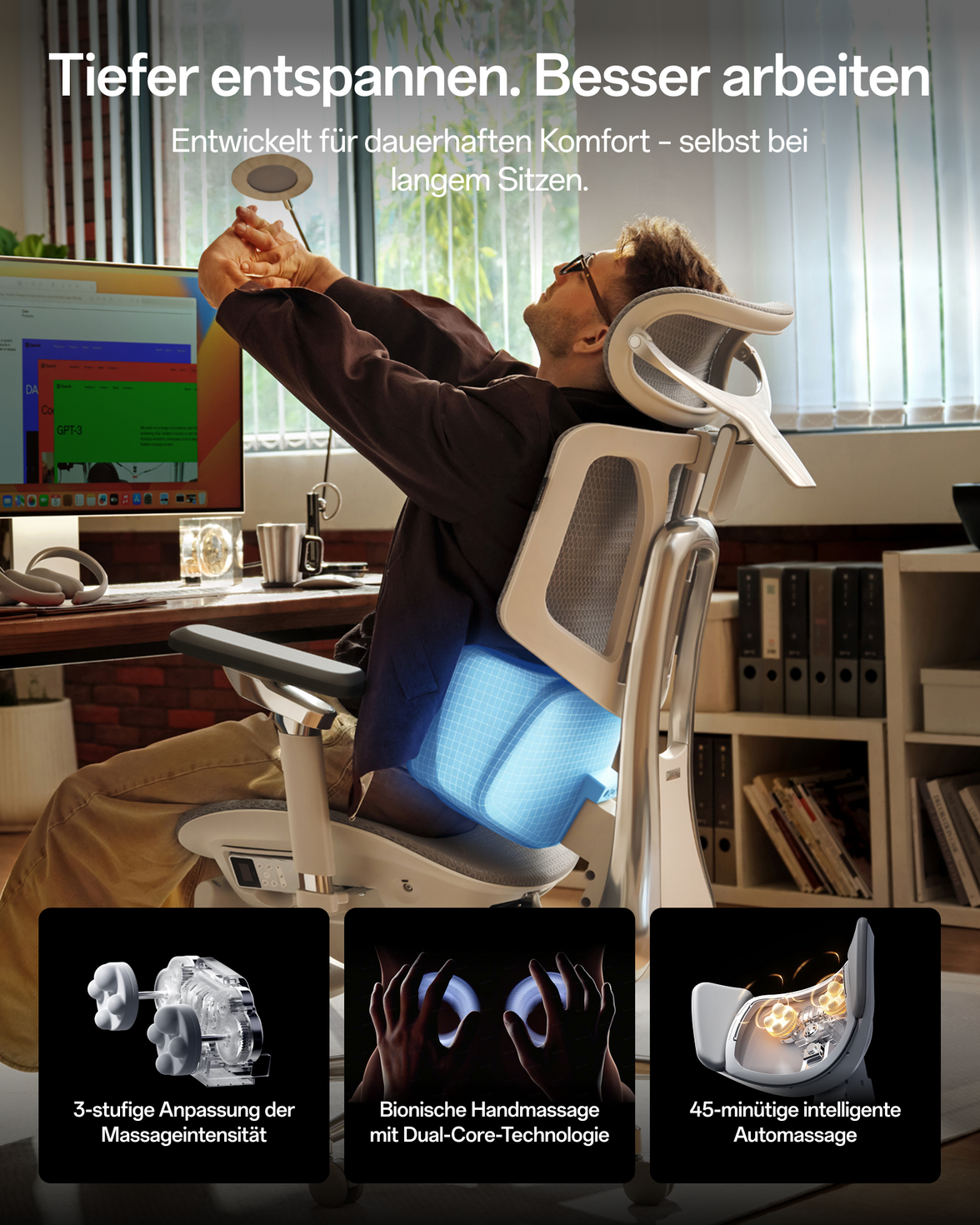
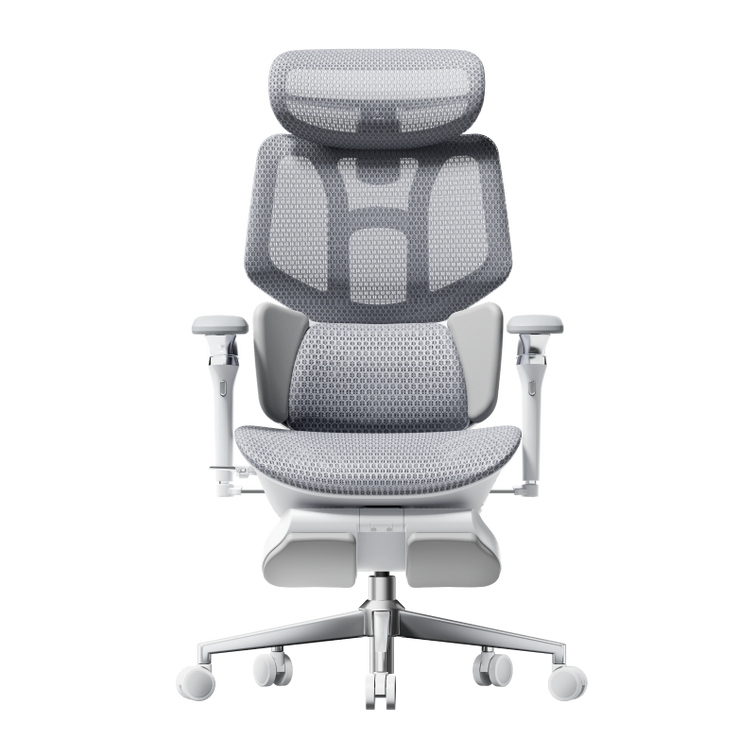
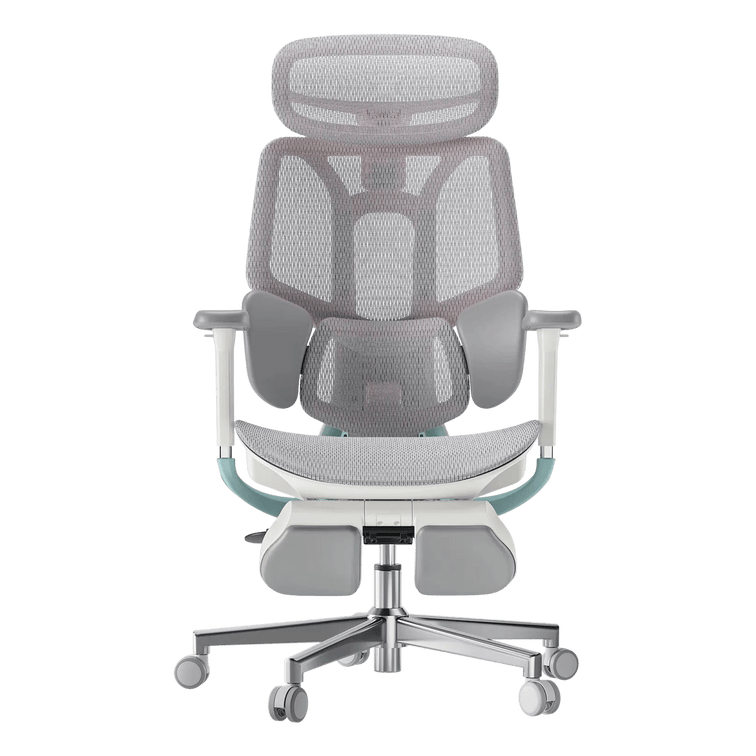
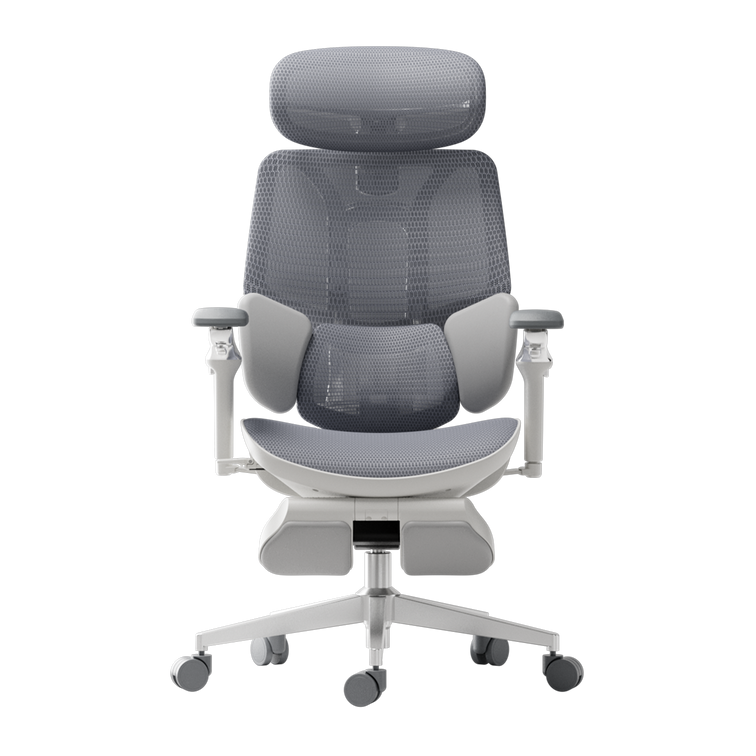
For a closer look at how support features work together, explore our E3 Ultra feature overview . Use the controls and instructions for your exact chair rather than assuming every lumbar system adjusts in the same way.
Quick check: The support meets your lower back comfortably, without making you slide forwards to escape the pressure.
Step 4: Backrest Recline
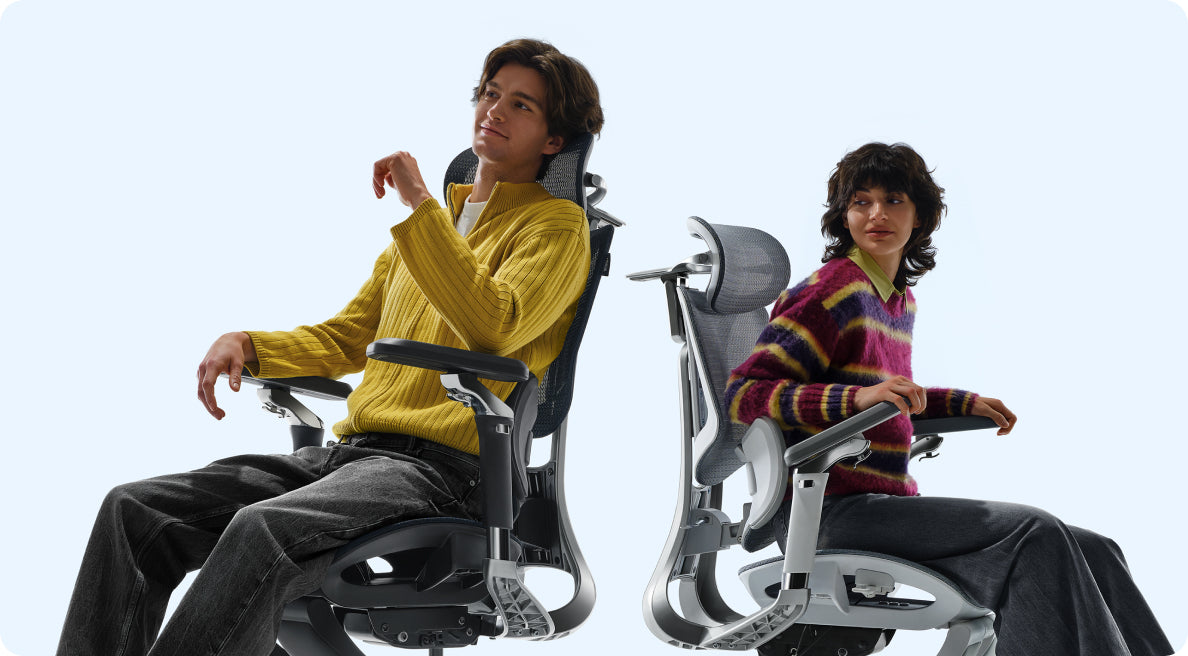
With lumbar support in place, explore a comfortable backrest position. A modest recline can be useful, but there is no single angle that suits every person, chair and task.
For keyboard work, choose a supported position that lets you reach the desk without stretching your arms or leaning your head forwards. A deeper recline may suit a seated break better than typing at a fixed desk.
If your chair has adjustable tilt tension, set it so you can lean back and return smoothly without feeling that the backrest is fighting you or dropping away unexpectedly. Use the chair's locking controls as instructed.
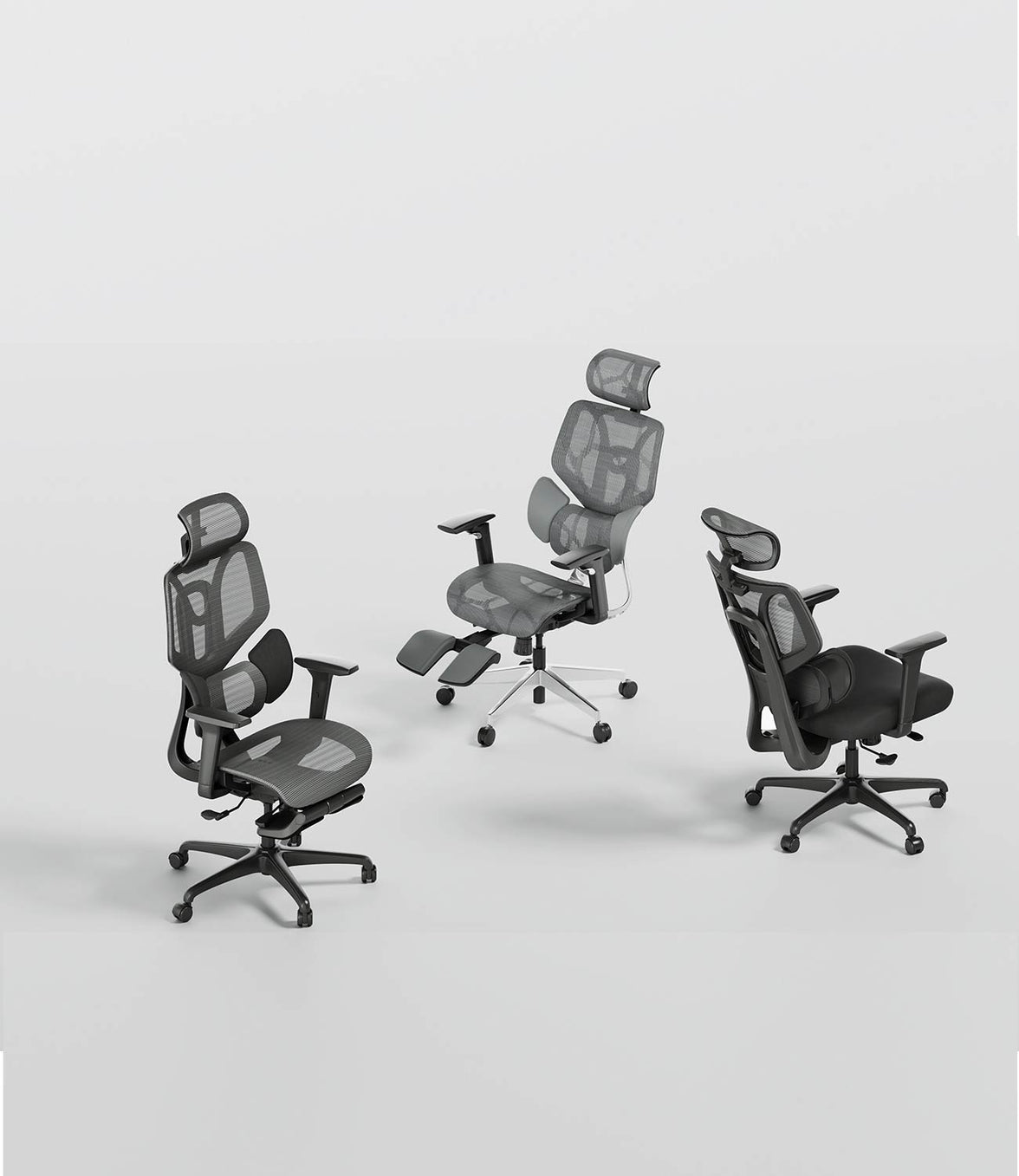
For example, our E3 Ultra Gen 5 offers several recline positions. The maximum recline is an available feature, not a target posture for desk work.
Quick check: Your back remains supported and your keyboard stays within easy reach. Change position during the day rather than holding one angle for hours.
Step 5: Armrests
Set the armrests after checking your seat and desk position. They should support your forearms lightly without pushing your shoulders upwards or forcing your elbows away from your body.
If the pads slide or rotate, position them to match your working posture. There is no need to turn them inwards if that makes your forearms or wrists uncomfortable.
Check that the armrests do not stop the chair from moving close enough to the desk. If they collide with the desk, adjust them within the model's permitted range and recheck your reach to the keyboard and mouse.
Quick check: Shoulders relaxed, elbows comfortably close to your sides, and no need to reach forwards around the armrests.
Quick Reference: Office Chair Adjustments Checklist
Use this checklist after the first setup and whenever your desk, footwear or main task changes.

| Adjustment | Starting point | What to check |
|---|---|---|
| Seat height | Feet supported; legs comfortably positioned. | No dangling feet or pressure behind the knees. |
| Seat depth | A small gap behind the knees. | You can sit back while your thighs remain supported. |
| Lumbar support | Gentle contact with the lower-back curve. | No forced arch or need to move away from the support. |
| Backrest recline | A supported angle suited to your task. | You can reach the desk without leaning forwards. |
| Armrests | Light forearm support with relaxed shoulders. | The pads do not spread your elbows or block desk access. |
Common Mistakes That Undermine Spinal Support
- Adjusting lumbar support without rechecking the seat. Changes to seat height and depth can alter how your back meets the support.
- Setting maximum lumbar tension. Aim for comfortable contact, not the strongest pressure the chair can produce.
- Treating one upright position as mandatory. A useful setup allows supported changes in posture.
- Ignoring seat depth. A backrest cannot do much for you if you are sitting too far forwards to use it.
- Adjusting the chair but ignoring the desk. Keyboard reach and desk clearance can undo an otherwise comfortable seating position.
- Setting everything once and never rechecking. A different task or pair of shoes may call for a small adjustment.
Signs Your Setup Needs Rechecking

Even a comfortable setup benefits from an occasional review. Look for these practical signs:
- You repeatedly slide towards the front of the seat.
- Your feet lose support when you move into a working position.
- Your shoulders rise when you use the keyboard or armrests.
- The lumbar support feels too high, too low or too firm.
- You lean forwards to reach the screen, keyboard or mouse.
Recheck the five steps, then test the chair during your usual task. Change one setting at a time so you can tell what actually improves the fit.
Comfort is not a diagnosis. New or persistent pain should not automatically be blamed on chair settings. Seek professional advice for ongoing symptoms. Chair adjustment does not replace movement breaks or medical care.
Frequently Asked Questions
What's the correct order for an ergonomic office chair setup?
A practical sequence is seat height, seat depth, lumbar support, backrest recline and armrests. Then recheck the complete setup at your desk. You may need to revisit earlier settings as the overall fit improves.
How do I know if my lumbar support setup is correct?
It should make comfortable contact with the curve of your lower back without forcing an exaggerated arch. If you slide forwards to avoid the pressure, reduce the pressure or adjust its position.
What backrest angle is best for spinal support?
There is no universal best angle. Choose a supported position that suits your task and lets you reach your desk comfortably. Use the recline settings available on your chair and vary your position during the day.
Do office chair adjustments need to be redone regularly?
Recheck them when your task, desk arrangement, footwear or comfort changes, and whenever someone else has used the chair. You do not need a complete reset every day if the setup remains comfortable.
Can armrests really affect spinal support?
They can affect your overall working posture. Armrests that are too high may lift your shoulders, while pads that block the desk may make you reach forwards. Set them for relaxed shoulders and easy desk access.
What's a common mistake when setting up a spinal support chair?
Focusing on lumbar pressure while overlooking seat fit. Check that your feet are supported and that you can sit back comfortably before fine-tuning the lumbar support.
A Chair That Works With Your Spine, Not Against It

A useful ergonomic office chair setup is not about choosing the maximum setting on every control. It is about finding a comfortable relationship between the seat, your lower back, the armrests and your workspace.
Start with the five-step sequence, check the result during real desk work and make small changes when needed. At HBADA, we encourage you to use the adjustments your model provides rather than assume that an adjustable chair arrives already fitted to you.
Explore the support system
See how the E3 Ultra brings together dynamic support, adjustable seating and relaxation features.
Explore E3 Ultra features →Check the details before choosing
Review the E3 Ultra's product information alongside your workspace and fit requirements. Check the applicable delivery and return terms for your country.
View E3 Ultra product details →