




Panier
Votre panier est vide
Continuer mes achats
Chaque commande, garantie par HBADA
Essai à domicile de 30 jours
Livraison gratuite en 3–5 jours ouvrés
Garantie de 5 ans sans souci
Assistance client 24/7
Retirer cet article du panier ?
Panier
Le premier fauteuil ergonomique au monde avec suivi lombaire par IA
A partir de €999.00
Cuir inspiré des supercars. Ailettes lombaires rabattables. Intelligence 100 % IA.
€1,629.00
 HBADA X7 Long-Term Review: Smart Features After 90 Days
HBADA The X7 ownership review
Beyond thefirst impression.Into real life.
Unboxing is only the beginning. Here is a closer look at the HBADA X7’s smart features, everyday comfort and long-term ownership experience.
90 DAYS
01 Setup & assembly 02 Responsive support 03 Everyday ownership
A smart ergonomic office chair should do more than impress on day one. It should remain useful after the controls become familiar and the chair becomes part of your normal working routine.
This HBADA X7 long-term review brings together media testing and verified owner feedback, covering assembly, AI lumbar support, powered comfort features and the practical details worth considering before you buy.
The shortanswer.
The X7’s defining feature is responsive lower-back support. Reviewers and owners describe lumbar contact that follows changes in sitting position. Its weight, setup and powered components require consideration, but its appeal goes beyond extra features: it is about support that remains useful throughout an ordinary working day.
This brand-authored roundup draws on separate reviewer and owner experiences across different usage periods and markets. It is not presented as a single continuous in-house 90-day test. For an EU purchase, check the selected configuration and local product information.
Unboxing Assembly AI lumbar support Comfort features Long-term use Verdict FAQs
01 / The arrival
Make room.This is not a lightweight delivery.
The X7 arrives as a substantial piece of office furniture. Reviewers highlight the size and weight of the package, making delivery planning a useful first step—not something to think about once the box is already in the doorway.
Clear the route to your workspace, check narrow doorways and consider any stairs along the way. If you live in a flat, think about lift access and the space available for unpacking. Arrange assistance with lifting when needed.
The chair combines mechanical adjustments with powered functions. Its main electronic components are housed within the chair, but connections still need attention during setup. Leave enough space to identify the parts before assembly.
Before you begin
Keep the packaging for now.
Check the components, complete assembly and confirm that the controls operate as described before disposing of the protective materials.
A clear floor and an unhurried setup are more useful than trying to finish in record time.
02 / Getting started
Build it once.Take the connections seriously.
Assembly accounts collected for this review generally fall within a roughly 20–45-minute window. Your own timing will depend on experience, assistance and the time spent checking the instructions.
01
Lay out the components
Identify the parts and fasteners using the supplied manual. Protect the chair’s surfaces while working.
02
Follow the cable routing
Pay attention to the specified connection points. Do not force connectors or trap cables between components.
03
Check before settling in
Confirm that the mechanical adjustments and powered controls work as described before a full day at your desk.
Tom’s Hardware 30–40 min Extra attention was needed around routing and connecting the power cable.
The Gadgeteer 35–45 min A second person can help with handling the larger components.
Verified owner feedback 30–40 min Checking the instructions around the cable connection was a recurring point.
Reported assembly times describe individual experiences, not a guaranteed setup time. Follow the instructions supplied with your specific chair.
03 / The defining feature
Support that follows.Not a position you have to find.
A conventional lumbar pad offers support when your body meets it. The X7’s responsive lumbar system is designed to adapt as your sitting position changes, helping maintain contact with the lower back.
That distinction appears repeatedly in the review material: the support follows movement rather than depending entirely on the user returning to one fixed position.
Responsive contact
Reviewer accounts describe the lumbar support responding as the seated position changes.
A personal setting
The Gadgeteer describes a gentler sensation at lower settings and a more noticeable presence at higher settings.
Everyday convenience
Owner feedback highlights support staying close without repeated manual repositioning during desk work.
Start with fit, then adjust the support. Set the seat height and depth first. Your feet should be supported, with comfortable clearance behind your knees. Then adjust the lumbar contact to suit your body.
04 / Beyond the basics
Comfort features.Useful when they fit your routine.
The reviewed X7 setups also bring massage, heating and cooling or ventilation features into the experience. These functions are separate from the chair’s core seat, back and arm support adjustments.
Before ordering, check the X7 configuration available on our EU store . A review describes the package that person used; it should not be taken as a list of what every package includes.
For focused work
Let support do the quiet work.
Prioritise a comfortable seat position, relaxed shoulders and supportive lumbar contact. Choose powered settings that complement your routine without distracting you.
For a seated pause
Change the pace, not just the setting.
Explore the available comfort functions gradually and follow the operating instructions. A seated break can feel relaxing, but it does not replace getting up and moving.
More intensity is not automatically more comfortable. Airflow is not the same as room air-conditioning, and a relaxing massage function is not a medical treatment.
05 / Living with it
When the featuresbecome familiar.
Long-term value is easier to understand once the chair becomes an ordinary part of the workspace. What stays useful? What do you still adjust? What do you stop thinking about?
Early ownership / Setup experience
Learn the chair before judging the settings.
Assembly and initial adjustment shape the first impression. Take time to establish comfortable seat height, seat depth and arm support before deciding how much lumbar contact you prefer.
One-month account / Verified owner feedback
Comfort becomes part of the working routine.
A designer in the owner feedback collected for this article described a comfortable, stable sitting experience after a month, with less need to reposition for comfort.
Ongoing use / Verified owner feedback
Lower-back contact without constant readjustment.
An IT professional highlighted support remaining close during desk-based work without repeatedly repositioning the lumbar support.
The 90-day perspective / What to assess
Look for consistency, not novelty.
Consider whether the chair still fits comfortably, frequently used adjustments operate as expected and the powered functions continue to earn a place in your routine. A three-month experience is useful context, not a prediction of the chair’s entire lifespan.
These are separate experiences, not a single owner’s timeline. Individual comfort and usage patterns vary.
The best feature is the oneyou still appreciate on an ordinary day.
06 / The practical side
What deserves a closer look?
A powered ergonomic office chair brings ownership considerations beyond upholstery and seat dimensions.
Weight & moving
Reviewers highlight the chair’s substantial weight. Think about stairs and room changes, especially if you regularly move furniture between floors.
Your EU configuration
Compare the specific package offered on the EU store with the version shown in a review. Included accessories and powered features should be checked against your selected order.
Component coverage
Review the warranty terms applicable to your purchase. Structural parts, electronics and batteries may have different coverage terms. Use the information for your purchase market, rather than assuming an overseas review describes the same terms.
Price & delivery
Check the displayed price, delivery availability and final checkout details for your destination. A price quoted in an overseas review is not a current EU offer.
Long-term expectations
Early comfort feedback and durability testing answer different questions. Daily use, care and maintenance all influence the ownership experience beyond the first few months.
07 / Our verdict
Buy for the way you work.Not just the feature list.
Across the review material, responsive lower-back support is the most consistent theme. The additional comfort functions add flexibility, but the central question remains whether this kind of support matches your working habits and preferences.
A strong reason to consider it
You want responsive support.
Lumbar contact that adapts as you change sitting position.
Adjustable ergonomic seating with powered functionality.
Features you can use during both desk work and seated breaks.
Think through the trade-offs
You prioritise simplicity.
You need a lightweight chair to move between floors.
You prefer a setup without powered components.
Your main priority is the lowest initial purchase cost.
Start with your body fit, desk setup and the adjustments you expect to use regularly. Then compare the HBADA X7’s features and available options against those priorities.
The X7 is designed for supportive seating and everyday comfort, not to diagnose or treat a medical condition. Persistent pain should be discussed with a qualified healthcare professional.
The details, answered
Before you decide.
How long does HBADA X7 assembly take?
The experiences collected for this review range from roughly 20 to 45 minutes. Allow extra time for checking the connections and follow the manual supplied with your exact model.
What makes the X7’s AI lumbar support different?
The responsive lumbar system is designed to adapt support as your sitting position changes. Reviewers and owners describe lower-back contact that follows movement rather than relying only on a fixed pad.
Does the EU version include everything shown in overseas reviews?
Check the selected configuration and included accessories on the EU product page. A reviewed package or regional version may differ from the one you are ordering.
Is the X7 suitable for a home office?
It can suit a home office where responsive lumbar support and powered functionality are priorities. Check body fit, desk compatibility, delivery access and the space available for assembly.
What should I check before ordering in Europe?
Confirm the configuration, included accessories, delivery availability for your destination and applicable warranty terms. Refer to the EU store and checkout for current pricing rather than a price quoted in an overseas review.
Are all the experiences from one 90-day test?
No. This brand-authored roundup brings together separate media tests and verified owner experiences covering different usage periods. A one-month owner observation is identified separately from the broader long-term discussion.
Does a 90-day review establish the chair’s lifespan?
No. It can help describe early ownership, comfort and feature usability, but total service life also depends on use, care, loading and maintenance.
Smart support.A more personal way to sit.
Explore the HBADA X7 on our EU store, compare the available configuration and see how responsive lumbar support fits into your working day.
Explore the HBADA X7 → Explore HBADA Europe →
Keep good advice close
Enjoyed this guide?Stay connected with HBADA.
Make HBADA Europe one of your preferred sources on Google for more ergonomic chair guides, workspace tips and practical advice.
Add HBADA to your preferred sources on Google ↗
Opens Google in a new tab. Confirm your selection there if HBADA is available.
Nov 04, 2026
HBADA X7 Long-Term Review: Smart Features After 90 Days
HBADA The X7 ownership review
Beyond thefirst impression.Into real life.
Unboxing is only the beginning. Here is a closer look at the HBADA X7’s smart features, everyday comfort and long-term ownership experience.
90 DAYS
01 Setup & assembly 02 Responsive support 03 Everyday ownership
A smart ergonomic office chair should do more than impress on day one. It should remain useful after the controls become familiar and the chair becomes part of your normal working routine.
This HBADA X7 long-term review brings together media testing and verified owner feedback, covering assembly, AI lumbar support, powered comfort features and the practical details worth considering before you buy.
The shortanswer.
The X7’s defining feature is responsive lower-back support. Reviewers and owners describe lumbar contact that follows changes in sitting position. Its weight, setup and powered components require consideration, but its appeal goes beyond extra features: it is about support that remains useful throughout an ordinary working day.
This brand-authored roundup draws on separate reviewer and owner experiences across different usage periods and markets. It is not presented as a single continuous in-house 90-day test. For an EU purchase, check the selected configuration and local product information.
Unboxing Assembly AI lumbar support Comfort features Long-term use Verdict FAQs
01 / The arrival
Make room.This is not a lightweight delivery.
The X7 arrives as a substantial piece of office furniture. Reviewers highlight the size and weight of the package, making delivery planning a useful first step—not something to think about once the box is already in the doorway.
Clear the route to your workspace, check narrow doorways and consider any stairs along the way. If you live in a flat, think about lift access and the space available for unpacking. Arrange assistance with lifting when needed.
The chair combines mechanical adjustments with powered functions. Its main electronic components are housed within the chair, but connections still need attention during setup. Leave enough space to identify the parts before assembly.
Before you begin
Keep the packaging for now.
Check the components, complete assembly and confirm that the controls operate as described before disposing of the protective materials.
A clear floor and an unhurried setup are more useful than trying to finish in record time.
02 / Getting started
Build it once.Take the connections seriously.
Assembly accounts collected for this review generally fall within a roughly 20–45-minute window. Your own timing will depend on experience, assistance and the time spent checking the instructions.
01
Lay out the components
Identify the parts and fasteners using the supplied manual. Protect the chair’s surfaces while working.
02
Follow the cable routing
Pay attention to the specified connection points. Do not force connectors or trap cables between components.
03
Check before settling in
Confirm that the mechanical adjustments and powered controls work as described before a full day at your desk.
Tom’s Hardware 30–40 min Extra attention was needed around routing and connecting the power cable.
The Gadgeteer 35–45 min A second person can help with handling the larger components.
Verified owner feedback 30–40 min Checking the instructions around the cable connection was a recurring point.
Reported assembly times describe individual experiences, not a guaranteed setup time. Follow the instructions supplied with your specific chair.
03 / The defining feature
Support that follows.Not a position you have to find.
A conventional lumbar pad offers support when your body meets it. The X7’s responsive lumbar system is designed to adapt as your sitting position changes, helping maintain contact with the lower back.
That distinction appears repeatedly in the review material: the support follows movement rather than depending entirely on the user returning to one fixed position.
Responsive contact
Reviewer accounts describe the lumbar support responding as the seated position changes.
A personal setting
The Gadgeteer describes a gentler sensation at lower settings and a more noticeable presence at higher settings.
Everyday convenience
Owner feedback highlights support staying close without repeated manual repositioning during desk work.
Start with fit, then adjust the support. Set the seat height and depth first. Your feet should be supported, with comfortable clearance behind your knees. Then adjust the lumbar contact to suit your body.
04 / Beyond the basics
Comfort features.Useful when they fit your routine.
The reviewed X7 setups also bring massage, heating and cooling or ventilation features into the experience. These functions are separate from the chair’s core seat, back and arm support adjustments.
Before ordering, check the X7 configuration available on our EU store . A review describes the package that person used; it should not be taken as a list of what every package includes.
For focused work
Let support do the quiet work.
Prioritise a comfortable seat position, relaxed shoulders and supportive lumbar contact. Choose powered settings that complement your routine without distracting you.
For a seated pause
Change the pace, not just the setting.
Explore the available comfort functions gradually and follow the operating instructions. A seated break can feel relaxing, but it does not replace getting up and moving.
More intensity is not automatically more comfortable. Airflow is not the same as room air-conditioning, and a relaxing massage function is not a medical treatment.
05 / Living with it
When the featuresbecome familiar.
Long-term value is easier to understand once the chair becomes an ordinary part of the workspace. What stays useful? What do you still adjust? What do you stop thinking about?
Early ownership / Setup experience
Learn the chair before judging the settings.
Assembly and initial adjustment shape the first impression. Take time to establish comfortable seat height, seat depth and arm support before deciding how much lumbar contact you prefer.
One-month account / Verified owner feedback
Comfort becomes part of the working routine.
A designer in the owner feedback collected for this article described a comfortable, stable sitting experience after a month, with less need to reposition for comfort.
Ongoing use / Verified owner feedback
Lower-back contact without constant readjustment.
An IT professional highlighted support remaining close during desk-based work without repeatedly repositioning the lumbar support.
The 90-day perspective / What to assess
Look for consistency, not novelty.
Consider whether the chair still fits comfortably, frequently used adjustments operate as expected and the powered functions continue to earn a place in your routine. A three-month experience is useful context, not a prediction of the chair’s entire lifespan.
These are separate experiences, not a single owner’s timeline. Individual comfort and usage patterns vary.
The best feature is the oneyou still appreciate on an ordinary day.
06 / The practical side
What deserves a closer look?
A powered ergonomic office chair brings ownership considerations beyond upholstery and seat dimensions.
Weight & moving
Reviewers highlight the chair’s substantial weight. Think about stairs and room changes, especially if you regularly move furniture between floors.
Your EU configuration
Compare the specific package offered on the EU store with the version shown in a review. Included accessories and powered features should be checked against your selected order.
Component coverage
Review the warranty terms applicable to your purchase. Structural parts, electronics and batteries may have different coverage terms. Use the information for your purchase market, rather than assuming an overseas review describes the same terms.
Price & delivery
Check the displayed price, delivery availability and final checkout details for your destination. A price quoted in an overseas review is not a current EU offer.
Long-term expectations
Early comfort feedback and durability testing answer different questions. Daily use, care and maintenance all influence the ownership experience beyond the first few months.
07 / Our verdict
Buy for the way you work.Not just the feature list.
Across the review material, responsive lower-back support is the most consistent theme. The additional comfort functions add flexibility, but the central question remains whether this kind of support matches your working habits and preferences.
A strong reason to consider it
You want responsive support.
Lumbar contact that adapts as you change sitting position.
Adjustable ergonomic seating with powered functionality.
Features you can use during both desk work and seated breaks.
Think through the trade-offs
You prioritise simplicity.
You need a lightweight chair to move between floors.
You prefer a setup without powered components.
Your main priority is the lowest initial purchase cost.
Start with your body fit, desk setup and the adjustments you expect to use regularly. Then compare the HBADA X7’s features and available options against those priorities.
The X7 is designed for supportive seating and everyday comfort, not to diagnose or treat a medical condition. Persistent pain should be discussed with a qualified healthcare professional.
The details, answered
Before you decide.
How long does HBADA X7 assembly take?
The experiences collected for this review range from roughly 20 to 45 minutes. Allow extra time for checking the connections and follow the manual supplied with your exact model.
What makes the X7’s AI lumbar support different?
The responsive lumbar system is designed to adapt support as your sitting position changes. Reviewers and owners describe lower-back contact that follows movement rather than relying only on a fixed pad.
Does the EU version include everything shown in overseas reviews?
Check the selected configuration and included accessories on the EU product page. A reviewed package or regional version may differ from the one you are ordering.
Is the X7 suitable for a home office?
It can suit a home office where responsive lumbar support and powered functionality are priorities. Check body fit, desk compatibility, delivery access and the space available for assembly.
What should I check before ordering in Europe?
Confirm the configuration, included accessories, delivery availability for your destination and applicable warranty terms. Refer to the EU store and checkout for current pricing rather than a price quoted in an overseas review.
Are all the experiences from one 90-day test?
No. This brand-authored roundup brings together separate media tests and verified owner experiences covering different usage periods. A one-month owner observation is identified separately from the broader long-term discussion.
Does a 90-day review establish the chair’s lifespan?
No. It can help describe early ownership, comfort and feature usability, but total service life also depends on use, care, loading and maintenance.
Smart support.A more personal way to sit.
Explore the HBADA X7 on our EU store, compare the available configuration and see how responsive lumbar support fits into your working day.
Explore the HBADA X7 → Explore HBADA Europe →
Keep good advice close
Enjoyed this guide?Stay connected with HBADA.
Make HBADA Europe one of your preferred sources on Google for more ergonomic chair guides, workspace tips and practical advice.
Add HBADA to your preferred sources on Google ↗
Opens Google in a new tab. Confirm your selection there if HBADA is available.
Nov 04, 2026
 Office Chair Seat Height: How to Measure Your Best Fit
A better chair fit starts at floor level.
Your feet, your legs and your desk all influence the right office chair seat height. A tape measure gives you a useful starting point. Sitting at your actual workspace helps you finish the adjustment.
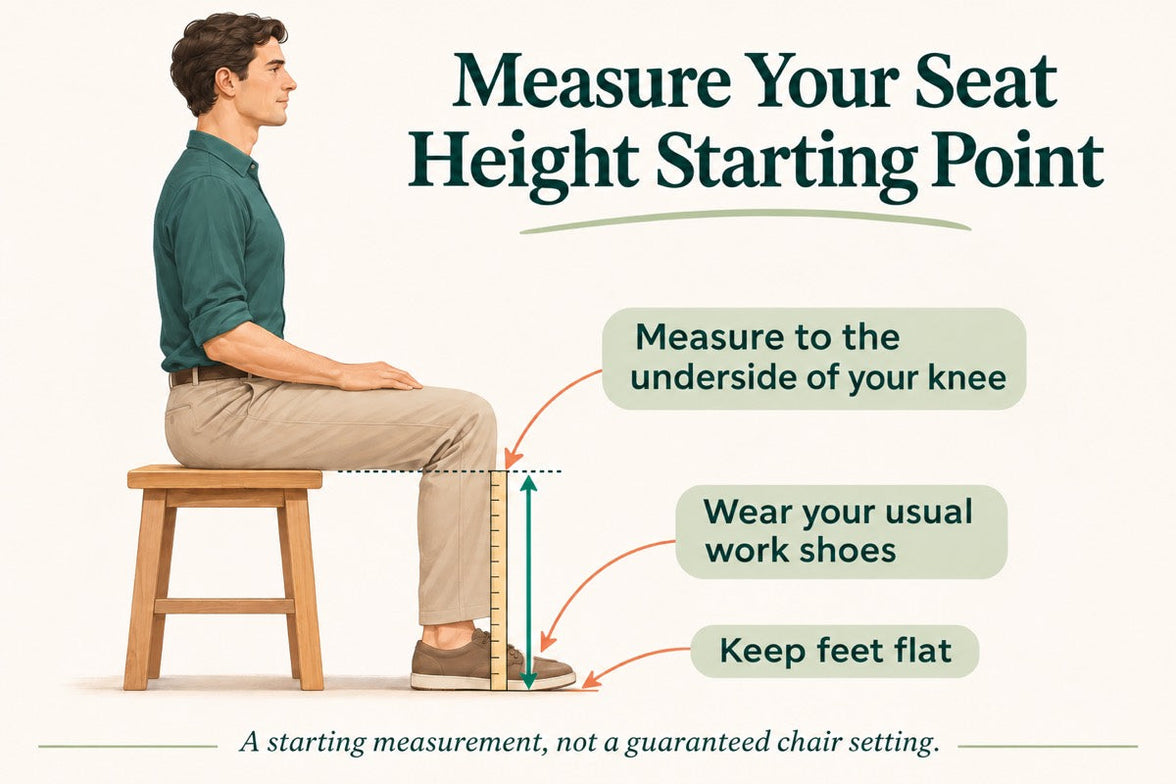
Quick answer: Sit on a firm, stable surface with your usual work shoes on and your feet flat. Measure vertically from the floor to the underside of your thigh at the crease behind your knee. Use this as a starting reference when comparing chair seat heights, then check the fit while seated. It is not an exact setting that every chair must match.
How to measure Check the chair Match your desk Common questions
Seat height is not the same as overall chair height.
In a product specification, seat height describes the distance from the floor to the seating surface. Overall chair height includes the backrest or headrest and does not tell you whether your feet will reach the floor.
Your body measurement is different again: it measures your lower-leg clearance while seated. It helps narrow your options, but the final fit also depends on the seat shape, how the material settles under your weight and your desk setup.
If you are checking more than height, start with our guide to office chair height, depth, width and lumbar fit . A chair can be the right height and still have a seat that is too deep for you.
How to measure your seat-height starting point
You will need a tape measure or ruler, a firm and stable seating surface, and the shoes you normally wear at your desk. Having someone help makes it easier to keep the measurement vertical.
Measure from the floor to the underside of the knee crease, not to the top of the kneecap. Illustration is schematic, not a scale drawing.
01
Keep your footwear consistent
Measure in the shoes you usually wear while working. If you work barefoot or in slippers, use that setup instead. A measurement taken in thick-soled trainers may not reflect your everyday home-office position.
02
Sit with both feet supported
Use a stable surface that lets your feet rest flat and your lower legs sit approximately upright. Keep your knees bent around a right angle without forcing the position. Avoid a deep sofa or a surface that leaves your feet dangling.
03
Measure to the crease behind your knee
Place the ruler beside your lower leg and measure straight up from the floor to the underside of your thigh where it meets the back of your knee. Do not follow the angle of your shin or measure to the top of your knee.
04
Record the result in centimetres
Repeat the measurement to check it. Note your footwear alongside the number, then compare it with the seat-height adjustment range of the chair you are considering.
Do not subtract a fixed amount automatically. This measurement is a reference, not a universal formula. Seat materials and measurement methods vary, so the adjustment range and your seated fit matter more than a perfect match on paper.
Turn the measurement into a real chair fit
Before buying, look for a chair whose published seat-height range covers your likely starting position, ideally with room to adjust either way. Check whether the measurements describe an occupied or unoccupied seat. If the method is unclear, ask before treating two specifications as directly comparable.
Once you have the chair, sit back and adjust it in small steps. The goal is comfortable support, not making your body hold a precise diagram.
Your seated fit checklist
Your feet rest securely on the floor or a suitable footrest.
The seat supports your thighs without digging into their underside.
There is clearance between the seat edge and the backs of your knees.
You can use the backrest without sliding forward to reach the floor.
You can change position without feeling trapped by the desk or armrests.
If the seat edge presses behind your knees even after changing the height, investigate seat depth as well. Lowering the chair cannot always compensate for a seat that is too long.
For model-specific controls, use our HBADA user manuals and assembly guides .
What if the right seat height does not match your desk?
A comfortable leg position is only part of the setup. Your keyboard should also be within easy reach, with your shoulders relaxed rather than lifted towards your ears.
If you have a height-adjustable desk
Start with a comfortable seated position, then adjust the desk so the keyboard sits around or slightly below elbow level. Recheck your screen position after changing the desk height.
If your fixed desk is too high
Raising the chair may improve your arm position but leave your feet unsupported. A stable under-desk footrest can bridge that gap. Check that there is still enough space for your thighs beneath the desktop.
If your fixed desk is too low
Avoid lowering the chair so far that your legs become cramped simply to fit underneath. The desk itself may need changing. Raising armrests will not create missing legroom.
A reclining leg rest has a different job. A chair’s pull-out footrest is intended for reclined breaks. It is not automatically a replacement for stable foot support during upright keyboard work.
Use fit to narrow your HBADA shortlist
Compare the current dimensions on each product page before choosing features. A massage function, headrest or advanced armrest system cannot make up for a seat-height range that does not suit your setup.
HBADA E3 Air : check its seat dimensions and adjustment range against your measurements.
HBADA E3 Pro : compare the seating dimensions and available adjustments with your desk setup.
HBADA E3 Ultra : confirm the fit first if you also want built-in massage and heating for seated breaks.
Before ordering, review our current return policy and the delivery information for your country. Keep your measurements handy if you need help checking a particular model.
Office chair seat height: common questions
Can I choose seat height from my standing height?
Standing height is a rough screening tool, not a precise fit measurement. People of the same height can have different leg proportions. Measure your seated lower-leg height and check the chair at your desk.
Should my knees stay at exactly 90 degrees?
No. A right angle is a useful starting reference for measuring, not a position you need to hold all day. Look for supported feet, comfortable thigh contact and room to move.
What if the chair is still too high at its lowest setting?
Check whether a suitable footrest works with your desk height and available legroom. If the overall setup still feels wrong, a chair with a lower seat-height range may be a better fit. Avoid modifying the chair with unapproved components.
Why does the seat feel lower when I sit down?
Cushioning can compress and mesh can flex under load. That is why an unoccupied measurement may differ from your seated experience. Check how the manufacturer measures seat height and make the final adjustment while seated.
Should I adjust the chair again when I change shoes?
Recheck the fit if the sole height changes noticeably. You may only need a small adjustment, but your feet should remain supported without creating uncomfortable pressure beneath your thighs.
Measure first. Compare second.
Start with one useful measurement, then check the rest of your fit: seat depth, usable width, back support and desk height. The right setup works as a whole.
Explore the complete chair-fit guide →
More practical guides for your workspace.
Choose HBADA as a preferred source on Google to stay connected with our chair guides and workspace advice.
Add HBADA to your preferred sources ↗
Opens Google in a new tab. Confirm your selection there if HBADA is available.
Nov 03, 2026
Office Chair Seat Height: How to Measure Your Best Fit
A better chair fit starts at floor level.
Your feet, your legs and your desk all influence the right office chair seat height. A tape measure gives you a useful starting point. Sitting at your actual workspace helps you finish the adjustment.
Quick answer: Sit on a firm, stable surface with your usual work shoes on and your feet flat. Measure vertically from the floor to the underside of your thigh at the crease behind your knee. Use this as a starting reference when comparing chair seat heights, then check the fit while seated. It is not an exact setting that every chair must match.
How to measure Check the chair Match your desk Common questions
Seat height is not the same as overall chair height.
In a product specification, seat height describes the distance from the floor to the seating surface. Overall chair height includes the backrest or headrest and does not tell you whether your feet will reach the floor.
Your body measurement is different again: it measures your lower-leg clearance while seated. It helps narrow your options, but the final fit also depends on the seat shape, how the material settles under your weight and your desk setup.
If you are checking more than height, start with our guide to office chair height, depth, width and lumbar fit . A chair can be the right height and still have a seat that is too deep for you.
How to measure your seat-height starting point
You will need a tape measure or ruler, a firm and stable seating surface, and the shoes you normally wear at your desk. Having someone help makes it easier to keep the measurement vertical.
Measure from the floor to the underside of the knee crease, not to the top of the kneecap. Illustration is schematic, not a scale drawing.
01
Keep your footwear consistent
Measure in the shoes you usually wear while working. If you work barefoot or in slippers, use that setup instead. A measurement taken in thick-soled trainers may not reflect your everyday home-office position.
02
Sit with both feet supported
Use a stable surface that lets your feet rest flat and your lower legs sit approximately upright. Keep your knees bent around a right angle without forcing the position. Avoid a deep sofa or a surface that leaves your feet dangling.
03
Measure to the crease behind your knee
Place the ruler beside your lower leg and measure straight up from the floor to the underside of your thigh where it meets the back of your knee. Do not follow the angle of your shin or measure to the top of your knee.
04
Record the result in centimetres
Repeat the measurement to check it. Note your footwear alongside the number, then compare it with the seat-height adjustment range of the chair you are considering.
Do not subtract a fixed amount automatically. This measurement is a reference, not a universal formula. Seat materials and measurement methods vary, so the adjustment range and your seated fit matter more than a perfect match on paper.
Turn the measurement into a real chair fit
Before buying, look for a chair whose published seat-height range covers your likely starting position, ideally with room to adjust either way. Check whether the measurements describe an occupied or unoccupied seat. If the method is unclear, ask before treating two specifications as directly comparable.
Once you have the chair, sit back and adjust it in small steps. The goal is comfortable support, not making your body hold a precise diagram.
Your seated fit checklist
Your feet rest securely on the floor or a suitable footrest.
The seat supports your thighs without digging into their underside.
There is clearance between the seat edge and the backs of your knees.
You can use the backrest without sliding forward to reach the floor.
You can change position without feeling trapped by the desk or armrests.
If the seat edge presses behind your knees even after changing the height, investigate seat depth as well. Lowering the chair cannot always compensate for a seat that is too long.
For model-specific controls, use our HBADA user manuals and assembly guides .
What if the right seat height does not match your desk?
A comfortable leg position is only part of the setup. Your keyboard should also be within easy reach, with your shoulders relaxed rather than lifted towards your ears.
If you have a height-adjustable desk
Start with a comfortable seated position, then adjust the desk so the keyboard sits around or slightly below elbow level. Recheck your screen position after changing the desk height.
If your fixed desk is too high
Raising the chair may improve your arm position but leave your feet unsupported. A stable under-desk footrest can bridge that gap. Check that there is still enough space for your thighs beneath the desktop.
If your fixed desk is too low
Avoid lowering the chair so far that your legs become cramped simply to fit underneath. The desk itself may need changing. Raising armrests will not create missing legroom.
A reclining leg rest has a different job. A chair’s pull-out footrest is intended for reclined breaks. It is not automatically a replacement for stable foot support during upright keyboard work.
Use fit to narrow your HBADA shortlist
Compare the current dimensions on each product page before choosing features. A massage function, headrest or advanced armrest system cannot make up for a seat-height range that does not suit your setup.
HBADA E3 Air : check its seat dimensions and adjustment range against your measurements.
HBADA E3 Pro : compare the seating dimensions and available adjustments with your desk setup.
HBADA E3 Ultra : confirm the fit first if you also want built-in massage and heating for seated breaks.
Before ordering, review our current return policy and the delivery information for your country. Keep your measurements handy if you need help checking a particular model.
Office chair seat height: common questions
Can I choose seat height from my standing height?
Standing height is a rough screening tool, not a precise fit measurement. People of the same height can have different leg proportions. Measure your seated lower-leg height and check the chair at your desk.
Should my knees stay at exactly 90 degrees?
No. A right angle is a useful starting reference for measuring, not a position you need to hold all day. Look for supported feet, comfortable thigh contact and room to move.
What if the chair is still too high at its lowest setting?
Check whether a suitable footrest works with your desk height and available legroom. If the overall setup still feels wrong, a chair with a lower seat-height range may be a better fit. Avoid modifying the chair with unapproved components.
Why does the seat feel lower when I sit down?
Cushioning can compress and mesh can flex under load. That is why an unoccupied measurement may differ from your seated experience. Check how the manufacturer measures seat height and make the final adjustment while seated.
Should I adjust the chair again when I change shoes?
Recheck the fit if the sole height changes noticeably. You may only need a small adjustment, but your feet should remain supported without creating uncomfortable pressure beneath your thighs.
Measure first. Compare second.
Start with one useful measurement, then check the rest of your fit: seat depth, usable width, back support and desk height. The right setup works as a whole.
Explore the complete chair-fit guide →
More practical guides for your workspace.
Choose HBADA as a preferred source on Google to stay connected with our chair guides and workspace advice.
Add HBADA to your preferred sources ↗
Opens Google in a new tab. Confirm your selection there if HBADA is available.
Nov 03, 2026
 Which Office Chair Is Right for You? A 12-Question Buying Guide
HBADA / THE WORKSPACE JOURNAL THE CHAIR FIT SERIES
A more personal way to choose
Find your priorities.Then find your chair.
Your height is only the beginning. Work through 12 questions about body fit, support, your desk and your budget to build a more useful office chair shortlist.
Body fit Comfort Workspace Purchase planning Compare models
Quick answer: Start with suitable seat dimensions and weight capacity. Then compare lumbar support, armrest movement, materials and optional features. The right office chair should fit your body and work with your desk—not simply have the longest feature list.
Choose an option in each dropdown, then read the guidance beside or below it. Use centimetres for dimensions and kilograms for weight when comparing specifications.
A self-guided worksheet, not an automatic matcher. Your selections do not change the advice or calculate a recommendation. This worksheet does not submit or save answers. Keep your own notes if you want to retain your checklist.
01 / Body fit
Start with what needs to fit.
Check dimensions before adding features to your wishlist.
QUESTION 01
What is your height?
Choose your height range
Under 160 cm
160 cm to under 170 cm
170 cm to under 180 cm
180 cm to under 190 cm
190 cm or taller
I need to measure first
Height helps you start a comparison, but people of the same height can have different leg lengths and torso proportions.
Shorter users should check minimum seat height and depth. Taller users should also check thigh support, backrest positioning and headrest reach.
Check next: Compare actual adjustment ranges. These height bands are not model suitability guarantees.
QUESTION 02
Which weight range applies to you?
Choose a weight range
Under 60 kg
60 kg to under 80 kg
80 kg to under 100 kg
100 kg to under 120 kg
120 kg or more
I prefer to check the capacity privately
Check your exact weight against the published capacity of the model and configuration you are considering. Selecting a broad range here does not confirm compatibility.
Capacity and seat size are different. A chair may support your weight but still have unsuitable dimensions.
Check next: Verify weight capacity, usable seat width and armrest spacing separately.
QUESTION 03
What would you change about your current seat?
Choose your main fit concern
The seat feels too deep
The seat feels too short
The seat or armrests feel too narrow
The armrests feel too far apart
The size works well
I am not sure
Sit against the backrest. Check whether the seat presses behind your knees and whether your hips have comfortable room. Your forearms should reach the armrests without stretching outwards.
If the current size works, record those dimensions rather than assuming a bigger chair will be better.
Check next: Follow our chair-fit measurement guide to measure usable height, depth and width.
02 / Comfort preferences
Choose the feel you enjoy.
Think about how you want the chair to support your day.
QUESTION 04
What seat material or feel do you prefer?
Choose your preference
Breathable mesh
A padded seat is essential
A softer feel matters most
A firmer feel matters most
I am open to different materials
Mesh allows airflow; padding offers cushioning with a different feel. Comfort also depends on seat shape, construction and personal preference.
If cushioning is essential, keep it on your must-have list. Adding a cushion later can change seated height and contact with the backrest.
Check next: Confirm the actual seat construction. Mesh provides ventilation, not active cooling.
QUESTION 05
How do you prefer your lower back to be supported?
Choose your support preference
Gentle contact without strong pressure
Noticeable support that I can adjust
Support that responds as I move
My current support feels too strong
I am not sure yet
Look for comfortable contact, not maximum pressure. Lumbar support should not force you towards the front of the seat.
If support feels badly positioned, check seat depth and backrest settings. Both affect where the lumbar section meets your body.
Check next: Compare positioning and adjustment range. A feature name cannot predict your preferred firmness.
QUESTION 06
Which features would you use during breaks?
Choose your main preference
A headrest and reclining backrest
A pull-out footrest
Massage and warmth
A combination of these features
None of these is essential
Check headrest positioning and the room needed to recline. A headrest should not push your head forwards during regular desk work.
A pull-out footrest supports reclined breaks. A separate under-desk footrest serves a different purpose: supporting your feet during upright work.
Check next: Confirm the selected version includes your preferred features. Massage and warmth do not replace a good fit.
Choose the features that serve your workday, not simply the longest feature list.
03 / Your workspace
Make the desk part of the decision.
The chair and the space around it need to work together.
QUESTION 07
How do you usually sit during your main tasks?
Choose your usual pattern
Mostly upright for keyboard and mouse work
I often lean forwards
I recline for reading or calls
I switch between positions and devices
For keyboard work, prioritise comfortable access without reaching or raising your shoulders. If you lean forwards, check screen visibility and keyboard distance too.
If you switch between devices, compare useful armrest movements rather than simply counting adjustment directions.
Check next: Identify your two main tasks. Allow for movement and breaks instead of holding one rigid position all day.
QUESTION 08
What kind of desk do you use?
Choose your desk type
A fixed-height office desk
A height-adjustable desk
A dining table or shared table
I switch between desks
I have not chosen my desk yet
Measure desktop height and usable space underneath. Drawers, thick edges and support bars may reduce room for your legs and armrests.
If raising the chair helps you reach the desk but leaves your feet unsupported, consider a separate footrest or a suitable change to the work surface.
Check next: Record underside clearance separately from desktop height. Adjustable desks also have range limits.
QUESTION 09
Where are your keyboard and mouse?
Choose your setup
On the desktop, close to me
On a separate keyboard tray
I use a laptop’s built-in keyboard
Farther away, so I reach forwards
My setup changes during the day
Armrests should not stop you from moving close enough to your input devices. Check their height and spacing against the desktop or keyboard tray.
A laptop links screen position with keyboard position. For longer desk sessions, an external keyboard and mouse may make the setup easier to arrange.
Check next: Decide whether the chair, the input devices, or both need repositioning.
04 / Purchase planning
Turn preferences into priorities.
Keep the practical details in view before ordering.
QUESTION 10
What is the main improvement you want?
Choose your top priority
A better size and fit
More comfortable lower-back contact
Better arm support
A more breathable seat
More comfortable reclined breaks
Massage and warmth
Name the improvement that would make the biggest difference. Then separate must-have requirements from optional extras.
Keep suitable dimensions as a requirement even when another feature is the main attraction.
Check next: Write down one main priority and two secondary preferences. Persistent discomfort deserves professional advice, not just a different chair.
QUESTION 11
What is your chair budget?
Choose a product budget in EUR
Under €300
€300 to under €500
€500 to under €800
€800 or more
Flexible for the right fit and features
Prioritise suitable dimensions, capacity and useful adjustments. Then decide which extras are worth paying for.
Check the final total for your destination, including the displayed tax treatment and any delivery charges. These budget bands are not current product prices.
Check next: Keep a preferred product budget and a maximum total purchase budget.
QUESTION 12
Which delivery situation applies to you?
Choose your delivery situation
A home address in an EU country
A business address in an EU country
A European address outside the EU
An island or remote-area address
I need to confirm my destination
Confirm availability for your exact country and postcode. Selecting a region here does not confirm that it is served.
Review stock or preorder status and the current delivery and return conditions. Do not assume that one country’s shipping arrangements apply across Europe.
Check next: Confirm destination eligibility, assembly needs and any applicable return costs before ordering.
Your answers, organised.
There is no submission step. Review your selections and turn them into three short lists:
Must fit: seat height, usable depth, width, capacity and desk clearance.
Should suit you: lumbar feel, armrest movement, material and working positions.
Nice to have: additional break-time features and styling preferences.
Compare HBADA options below →
Use your priorities to compare
Where should you start with HBADA?
These are model comparison starting points, not calculated results from your selections. Check the exact specifications, configuration and current price before choosing.
Everyday desk features
HBADA E3 Air 2026
Start by comparing its mesh seating, three-zone lumbar support and adjustable armrests with the features you need for regular desk tasks. Check usable dimensions and adjustment ranges against your measurements.
Explore E3 Air specifications →
Arm-position flexibility
HBADA E3 Pro 2026
Look at its 720° OmniMechanical armrests if flexible positioning matters when switching between tasks and devices. Compare the movements you need and your desk clearance rather than treating more adjustment as automatically better.
Explore E3 Pro adjustments →
Massage and warmth
HBADA E3 Ultra Gen 5
Explore E3 Ultra if built-in lower-back massage and graphene heating are features you would use during seated breaks. Keep everyday fit first: additional comfort features do not compensate for unsuitable seat dimensions.
Explore E3 Ultra →
Do not force a match. If a padded seat or a different dimension range is essential, these three mesh-seat models may not meet your requirements. Ask our team rather than overlooking a must-have.
Before you place an order.
Confirm usable seat dimensions and the exact model’s weight capacity.
Check armrest clearance, base footprint and space to recline.
Verify the generation and configuration include the features you expect.
Review the current price, delivery availability and return conditions.
Our user manuals and assembly guides help explain model-specific controls. For measurement methods, return to our office chair fit guide .
Questions about this guide.
Will my answers automatically recommend a model?
No. The dropdowns help organise your preferences. Use the model descriptions to compare those preferences, then verify specifications before purchasing.
Can I choose a chair from my height alone?
No. Leg length, torso proportions, desk height and personal preferences also matter. Check usable dimensions and adjustment ranges.
Will these answers be sent to HBADA?
This worksheet does not submit answers or create an enquiry. If you contact our team, you decide what information to share.
A clearer checklist.A more considered choice.
Keep the requirements that matter to you. Confirm the measurements. Choose features that serve your working day. If a specification is unclear, ask us before ordering.
Ask HBADA about chair fit →
Opens your email app. Worksheet answers are not included automatically. Regular movement and breaks remain important; persistent pain should be discussed with a qualified healthcare professional.
More useful advice for your everyday workspace.
Choose HBADA as a preferred source on Google, where available, to stay connected with our chair guides and workspace advice.
Choose HBADA on Google ↗
Confirm your selection on Google if HBADA is available.
Nov 03, 2026
Which Office Chair Is Right for You? A 12-Question Buying Guide
HBADA / THE WORKSPACE JOURNAL THE CHAIR FIT SERIES
A more personal way to choose
Find your priorities.Then find your chair.
Your height is only the beginning. Work through 12 questions about body fit, support, your desk and your budget to build a more useful office chair shortlist.
Body fit Comfort Workspace Purchase planning Compare models
Quick answer: Start with suitable seat dimensions and weight capacity. Then compare lumbar support, armrest movement, materials and optional features. The right office chair should fit your body and work with your desk—not simply have the longest feature list.
Choose an option in each dropdown, then read the guidance beside or below it. Use centimetres for dimensions and kilograms for weight when comparing specifications.
A self-guided worksheet, not an automatic matcher. Your selections do not change the advice or calculate a recommendation. This worksheet does not submit or save answers. Keep your own notes if you want to retain your checklist.
01 / Body fit
Start with what needs to fit.
Check dimensions before adding features to your wishlist.
QUESTION 01
What is your height?
Choose your height range
Under 160 cm
160 cm to under 170 cm
170 cm to under 180 cm
180 cm to under 190 cm
190 cm or taller
I need to measure first
Height helps you start a comparison, but people of the same height can have different leg lengths and torso proportions.
Shorter users should check minimum seat height and depth. Taller users should also check thigh support, backrest positioning and headrest reach.
Check next: Compare actual adjustment ranges. These height bands are not model suitability guarantees.
QUESTION 02
Which weight range applies to you?
Choose a weight range
Under 60 kg
60 kg to under 80 kg
80 kg to under 100 kg
100 kg to under 120 kg
120 kg or more
I prefer to check the capacity privately
Check your exact weight against the published capacity of the model and configuration you are considering. Selecting a broad range here does not confirm compatibility.
Capacity and seat size are different. A chair may support your weight but still have unsuitable dimensions.
Check next: Verify weight capacity, usable seat width and armrest spacing separately.
QUESTION 03
What would you change about your current seat?
Choose your main fit concern
The seat feels too deep
The seat feels too short
The seat or armrests feel too narrow
The armrests feel too far apart
The size works well
I am not sure
Sit against the backrest. Check whether the seat presses behind your knees and whether your hips have comfortable room. Your forearms should reach the armrests without stretching outwards.
If the current size works, record those dimensions rather than assuming a bigger chair will be better.
Check next: Follow our chair-fit measurement guide to measure usable height, depth and width.
02 / Comfort preferences
Choose the feel you enjoy.
Think about how you want the chair to support your day.
QUESTION 04
What seat material or feel do you prefer?
Choose your preference
Breathable mesh
A padded seat is essential
A softer feel matters most
A firmer feel matters most
I am open to different materials
Mesh allows airflow; padding offers cushioning with a different feel. Comfort also depends on seat shape, construction and personal preference.
If cushioning is essential, keep it on your must-have list. Adding a cushion later can change seated height and contact with the backrest.
Check next: Confirm the actual seat construction. Mesh provides ventilation, not active cooling.
QUESTION 05
How do you prefer your lower back to be supported?
Choose your support preference
Gentle contact without strong pressure
Noticeable support that I can adjust
Support that responds as I move
My current support feels too strong
I am not sure yet
Look for comfortable contact, not maximum pressure. Lumbar support should not force you towards the front of the seat.
If support feels badly positioned, check seat depth and backrest settings. Both affect where the lumbar section meets your body.
Check next: Compare positioning and adjustment range. A feature name cannot predict your preferred firmness.
QUESTION 06
Which features would you use during breaks?
Choose your main preference
A headrest and reclining backrest
A pull-out footrest
Massage and warmth
A combination of these features
None of these is essential
Check headrest positioning and the room needed to recline. A headrest should not push your head forwards during regular desk work.
A pull-out footrest supports reclined breaks. A separate under-desk footrest serves a different purpose: supporting your feet during upright work.
Check next: Confirm the selected version includes your preferred features. Massage and warmth do not replace a good fit.
Choose the features that serve your workday, not simply the longest feature list.
03 / Your workspace
Make the desk part of the decision.
The chair and the space around it need to work together.
QUESTION 07
How do you usually sit during your main tasks?
Choose your usual pattern
Mostly upright for keyboard and mouse work
I often lean forwards
I recline for reading or calls
I switch between positions and devices
For keyboard work, prioritise comfortable access without reaching or raising your shoulders. If you lean forwards, check screen visibility and keyboard distance too.
If you switch between devices, compare useful armrest movements rather than simply counting adjustment directions.
Check next: Identify your two main tasks. Allow for movement and breaks instead of holding one rigid position all day.
QUESTION 08
What kind of desk do you use?
Choose your desk type
A fixed-height office desk
A height-adjustable desk
A dining table or shared table
I switch between desks
I have not chosen my desk yet
Measure desktop height and usable space underneath. Drawers, thick edges and support bars may reduce room for your legs and armrests.
If raising the chair helps you reach the desk but leaves your feet unsupported, consider a separate footrest or a suitable change to the work surface.
Check next: Record underside clearance separately from desktop height. Adjustable desks also have range limits.
QUESTION 09
Where are your keyboard and mouse?
Choose your setup
On the desktop, close to me
On a separate keyboard tray
I use a laptop’s built-in keyboard
Farther away, so I reach forwards
My setup changes during the day
Armrests should not stop you from moving close enough to your input devices. Check their height and spacing against the desktop or keyboard tray.
A laptop links screen position with keyboard position. For longer desk sessions, an external keyboard and mouse may make the setup easier to arrange.
Check next: Decide whether the chair, the input devices, or both need repositioning.
04 / Purchase planning
Turn preferences into priorities.
Keep the practical details in view before ordering.
QUESTION 10
What is the main improvement you want?
Choose your top priority
A better size and fit
More comfortable lower-back contact
Better arm support
A more breathable seat
More comfortable reclined breaks
Massage and warmth
Name the improvement that would make the biggest difference. Then separate must-have requirements from optional extras.
Keep suitable dimensions as a requirement even when another feature is the main attraction.
Check next: Write down one main priority and two secondary preferences. Persistent discomfort deserves professional advice, not just a different chair.
QUESTION 11
What is your chair budget?
Choose a product budget in EUR
Under €300
€300 to under €500
€500 to under €800
€800 or more
Flexible for the right fit and features
Prioritise suitable dimensions, capacity and useful adjustments. Then decide which extras are worth paying for.
Check the final total for your destination, including the displayed tax treatment and any delivery charges. These budget bands are not current product prices.
Check next: Keep a preferred product budget and a maximum total purchase budget.
QUESTION 12
Which delivery situation applies to you?
Choose your delivery situation
A home address in an EU country
A business address in an EU country
A European address outside the EU
An island or remote-area address
I need to confirm my destination
Confirm availability for your exact country and postcode. Selecting a region here does not confirm that it is served.
Review stock or preorder status and the current delivery and return conditions. Do not assume that one country’s shipping arrangements apply across Europe.
Check next: Confirm destination eligibility, assembly needs and any applicable return costs before ordering.
Your answers, organised.
There is no submission step. Review your selections and turn them into three short lists:
Must fit: seat height, usable depth, width, capacity and desk clearance.
Should suit you: lumbar feel, armrest movement, material and working positions.
Nice to have: additional break-time features and styling preferences.
Compare HBADA options below →
Use your priorities to compare
Where should you start with HBADA?
These are model comparison starting points, not calculated results from your selections. Check the exact specifications, configuration and current price before choosing.
Everyday desk features
HBADA E3 Air 2026
Start by comparing its mesh seating, three-zone lumbar support and adjustable armrests with the features you need for regular desk tasks. Check usable dimensions and adjustment ranges against your measurements.
Explore E3 Air specifications →
Arm-position flexibility
HBADA E3 Pro 2026
Look at its 720° OmniMechanical armrests if flexible positioning matters when switching between tasks and devices. Compare the movements you need and your desk clearance rather than treating more adjustment as automatically better.
Explore E3 Pro adjustments →
Massage and warmth
HBADA E3 Ultra Gen 5
Explore E3 Ultra if built-in lower-back massage and graphene heating are features you would use during seated breaks. Keep everyday fit first: additional comfort features do not compensate for unsuitable seat dimensions.
Explore E3 Ultra →
Do not force a match. If a padded seat or a different dimension range is essential, these three mesh-seat models may not meet your requirements. Ask our team rather than overlooking a must-have.
Before you place an order.
Confirm usable seat dimensions and the exact model’s weight capacity.
Check armrest clearance, base footprint and space to recline.
Verify the generation and configuration include the features you expect.
Review the current price, delivery availability and return conditions.
Our user manuals and assembly guides help explain model-specific controls. For measurement methods, return to our office chair fit guide .
Questions about this guide.
Will my answers automatically recommend a model?
No. The dropdowns help organise your preferences. Use the model descriptions to compare those preferences, then verify specifications before purchasing.
Can I choose a chair from my height alone?
No. Leg length, torso proportions, desk height and personal preferences also matter. Check usable dimensions and adjustment ranges.
Will these answers be sent to HBADA?
This worksheet does not submit answers or create an enquiry. If you contact our team, you decide what information to share.
A clearer checklist.A more considered choice.
Keep the requirements that matter to you. Confirm the measurements. Choose features that serve your working day. If a specification is unclear, ask us before ordering.
Ask HBADA about chair fit →
Opens your email app. Worksheet answers are not included automatically. Regular movement and breaks remain important; persistent pain should be discussed with a qualified healthcare professional.
More useful advice for your everyday workspace.
Choose HBADA as a preferred source on Google, where available, to stay connected with our chair guides and workspace advice.
Choose HBADA on Google ↗
Confirm your selection on Google if HBADA is available.
Nov 03, 2026
 Office Chair Size Guide: Find the Right Fit for Your Body
HBADA / THE WORKSPACE JOURNAL THE CHAIR FIT SERIES
Measure first. Choose with confidence.
A better chair starts with a better fit.
Before comparing features, check the dimensions that decide how a chair feels at your desk. This guide helps you turn those measurements into a practical shortlist.
HeightFeet supported
DepthRoom behind the knees
WidthSpace without overreaching
Desk fitRelaxed arms and shoulders
Quick answer: The right office chair size lets you sit against the backrest with your feet supported, clearance behind your knees and your arms comfortably positioned for work. Compare seat height, usable seat depth, seat width and armrest clearance with your own measurements. Your standing height alone cannot confirm a good fit.
Take the fit check Compare dimensions Check your desk Build your shortlist FAQs
Start with your current chair
What needs to fit better?
Sit in your usual working position and answer these three questions. Use the guidance to identify what to check on your next chair.
This self-check does not submit or save your answers. It provides general fit guidance, not a medical assessment or a personalised product recommendation.
1. Are your feet supported when your arms reach the desk comfortably? Yes — on the floor or a separate footrest. No — my feet hang or I perch on the front of the seat.
If your feet are supported: record your current seat height as a comparison point. Next, check seat depth and whether your lower back stays supported.
If your feet are not supported: compare the chair’s minimum seat height and your desk height. A lower seat may help, but a fixed high desk may also require a separate footrest or a change to the work surface.
2. Can you use the backrest without the seat pressing behind your knees? Yes — I can sit back with comfortable clearance. No — I slide forward to avoid pressure.
If the depth feels comfortable: measure the usable seat depth of your current chair. Use it as a starting point, rather than assuming that a deeper seat would be better.
If you slide forward: try a shorter seat-depth setting if your chair provides one. When shopping, check the minimum usable depth and the shape of the seat’s front edge.
3. Can you reach your keyboard with relaxed shoulders and room for your legs? Yes — the chair and armrests fit my desk. No — I shrug, reach forward or hit the desk with the armrests.
If your desk fit works: note the armrest height and width that suit you. Check that your next chair can reproduce those positions.
If the desk gets in the way: check underside clearance, armrest height and keyboard distance. More chair adjustments will not automatically compensate for an unsuitable desk layout.
Keep reading for the measurement checklist and explanations behind these suggestions.
01
The dimensions that matter
Read the fit, not just the footprint.
A chair’s overall dimensions tell you how much space it occupies. They do not tell you how much usable seating space you have. A wide base, for example, does not necessarily mean a wide seat.
Start with a tape measure and a chair you already know. Record what feels comfortable and what does not. For the measurement methods, use our guide to measuring office chair height, depth, width and lumbar fit .
Use centimetres consistently when comparing specifications.
Measurement
What to compare
A useful fit check
Seat height
Minimum and maximum floor-to-seat height.
Your feet are supported at a height that also works with your desk.
Usable seat depth
Space from the back support to the front edge, including adjustment range.
You can sit back without pressure behind your knees.
Seat width
Usable seating surface, not the width of the base.
Your hips have comfortable space without contact with hard side structures.
Armrest spacing and height
Space between the armrests and their usable height range.
Your forearms can rest without lifting your shoulders or reaching outwards.
Backrest and headrest
Position and adjustment range relative to the seat.
Support meets your body without forcing your head or torso forwards.
Weight capacity
The stated limit for the exact model and configuration.
Your weight is within the manufacturer’s limit; dimensions still need checking.
02
Start from the floor
Seat height and depth work together.
Seat height: support your feet without losing desk access
A seat that is too high can leave your feet unsupported. A seat that is too low may leave your knees crowded or make the desk feel too high. Check the chair in your usual footwear and working position, not just while standing beside it.
When comparing specifications, remember that foam and mesh may compress differently under load. Treat a published dimension as a comparison point, then assess the actual seated fit.
Seat depth: keep the backrest within reach
Sit back comfortably. The front edge should stop short of the backs of your knees while the seat supports your thighs. If the seat feels too deep, sliding forwards may remove the pressure but also move you away from the backrest.
Conversely, a very short seat may leave you wanting more thigh support. Look at the complete depth-adjustment range rather than choosing the deepest seat available.
Two people of the same height can need different settings. Leg length, torso proportions, footwear and desk setup all affect chair fit. A recommended user-height range is a starting point, not a substitute for checking dimensions.
The best-fitting chair is not necessarily the biggest. It is the one whose useful adjustments meet your body.
03
Leave room without losing support
Check seat width and armrests separately.
You need enough usable seat width to sit comfortably without hard edges pressing against your hips. But extra width can become unhelpful if it places the armrests too far away.
Look for armrest positions that let your upper arms stay close to your body and your shoulders remain relaxed. When checking armrest height, confirm whether the specification is measured from the seat or from the floor.
For a smaller frame, minimum seat depth and armrest spacing may be just as important as minimum seat height. For a taller frame, check thigh support and backrest positioning as well as maximum seat height.
04
Your chair is part of a workspace
Make sure the desk fits the decision.
Measure both the desktop height and the usable space underneath. Drawers, crossbars and thick desk edges can reduce clearance even when the overall desk height looks suitable.
If the armrests hit the desk: check whether they can lower or reposition without removing the support you need.
If you raise the chair and your feet lose support: consider a separate footrest or a suitable adjustment to your work surface.
If you lean forwards to type: check keyboard and mouse distance before assuming that you need a different chair.
If you want to recline: check the space behind the chair and in front of any extended footrest.
An integrated pull-out footrest is intended for supported reclined breaks. It does not replace a separate under-desk footrest for upright work when your feet cannot reach the floor.
From measurements to models
Build your HBADA shortlist.
First remove models whose dimensions or weight limits do not meet your requirements. Then compare the adjustments, materials and additional features you will actually use.
These product pages are starting points for comparison, not personalised results from the self-check above.
HBADA E3 Air
Check the current model’s seat dimensions and adjustment range against your fit checklist.
View E3 Air specifications
HBADA E3 Pro
Compare its adjustment options with the positions you need for your body and desk.
Explore E3 Pro adjustments
HBADA E3 Ultra
Explore this option if massage is on your wishlist, while keeping dimensions and everyday fit at the top of your checklist.
Explore E3 Ultra
Check the exact generation and configuration. Similar product names do not always mean identical dimensions. Use the specifications and adjustment instructions for your model rather than measurements from a different version.
Before you order
Your five-point fit checklist.
Record your starting measurements. Note your current seat height, usable depth, width and desk clearance.
Write down what needs to change. For example: a shorter seat, lower armrests or more room beneath the desk.
Compare adjustment ranges, not feature counts. Confirm that the chair can reach the positions you need.
Check the full workspace footprint. Include the base, recline space and any extended footrest.
Review the practical details. Confirm delivery availability and the current return conditions for your country before purchasing.
Your questions, answered
Office chair size FAQs.
Can I choose an office chair using only my height?
Height helps narrow the options, but it does not describe your leg length, torso proportions or desk setup. Check usable seat depth, seat height, armrest positions and backrest fit before choosing.
Is a larger office chair always more comfortable?
No. A seat can be too deep to let you use the backrest comfortably, while widely spaced armrests can leave your arms unsupported. Choose dimensions that suit your body rather than the largest available model.
Does a higher weight capacity mean a better fit?
No. Weight capacity describes a load limit, not seat size or comfort. A chair must meet your weight requirements, but its dimensions and adjustment ranges still need to suit you.
Can an adjustable chair still be the wrong size?
Yes. An adjustment only helps if its range reaches the position you need. A sliding seat may still be too deep at its shortest setting, or a height-adjustable chair may not lower enough for you.
What if I am unsure between two HBADA chairs?
Compare the exact models using the checklist above. If a specification is unclear, contact our team with the model names, your measurements and what you want to improve. Avoid choosing solely by appearance or the number of advertised adjustments.
Measure once. Compare with purpose.
A useful shortlist starts with knowing what fits. Keep your measurements nearby, check the current specifications and choose adjustments that work with your everyday setup.
Open our chair measurement guide →
Good fit supports comfortable sitting, but no chair replaces regular movement and breaks. Persistent discomfort should be discussed with a qualified healthcare professional.
Make room for more useful workspace advice.
Choose HBADA as a preferred source on Google, where available, to stay connected with our chair guides and workspace advice.
Choose HBADA on Google ↗
Opens Google in a new tab. Confirm your selection there if HBADA is available.
Nov 03, 2026
Office Chair Size Guide: Find the Right Fit for Your Body
HBADA / THE WORKSPACE JOURNAL THE CHAIR FIT SERIES
Measure first. Choose with confidence.
A better chair starts with a better fit.
Before comparing features, check the dimensions that decide how a chair feels at your desk. This guide helps you turn those measurements into a practical shortlist.
HeightFeet supported
DepthRoom behind the knees
WidthSpace without overreaching
Desk fitRelaxed arms and shoulders
Quick answer: The right office chair size lets you sit against the backrest with your feet supported, clearance behind your knees and your arms comfortably positioned for work. Compare seat height, usable seat depth, seat width and armrest clearance with your own measurements. Your standing height alone cannot confirm a good fit.
Take the fit check Compare dimensions Check your desk Build your shortlist FAQs
Start with your current chair
What needs to fit better?
Sit in your usual working position and answer these three questions. Use the guidance to identify what to check on your next chair.
This self-check does not submit or save your answers. It provides general fit guidance, not a medical assessment or a personalised product recommendation.
1. Are your feet supported when your arms reach the desk comfortably? Yes — on the floor or a separate footrest. No — my feet hang or I perch on the front of the seat.
If your feet are supported: record your current seat height as a comparison point. Next, check seat depth and whether your lower back stays supported.
If your feet are not supported: compare the chair’s minimum seat height and your desk height. A lower seat may help, but a fixed high desk may also require a separate footrest or a change to the work surface.
2. Can you use the backrest without the seat pressing behind your knees? Yes — I can sit back with comfortable clearance. No — I slide forward to avoid pressure.
If the depth feels comfortable: measure the usable seat depth of your current chair. Use it as a starting point, rather than assuming that a deeper seat would be better.
If you slide forward: try a shorter seat-depth setting if your chair provides one. When shopping, check the minimum usable depth and the shape of the seat’s front edge.
3. Can you reach your keyboard with relaxed shoulders and room for your legs? Yes — the chair and armrests fit my desk. No — I shrug, reach forward or hit the desk with the armrests.
If your desk fit works: note the armrest height and width that suit you. Check that your next chair can reproduce those positions.
If the desk gets in the way: check underside clearance, armrest height and keyboard distance. More chair adjustments will not automatically compensate for an unsuitable desk layout.
Keep reading for the measurement checklist and explanations behind these suggestions.
01
The dimensions that matter
Read the fit, not just the footprint.
A chair’s overall dimensions tell you how much space it occupies. They do not tell you how much usable seating space you have. A wide base, for example, does not necessarily mean a wide seat.
Start with a tape measure and a chair you already know. Record what feels comfortable and what does not. For the measurement methods, use our guide to measuring office chair height, depth, width and lumbar fit .
Use centimetres consistently when comparing specifications.
Measurement
What to compare
A useful fit check
Seat height
Minimum and maximum floor-to-seat height.
Your feet are supported at a height that also works with your desk.
Usable seat depth
Space from the back support to the front edge, including adjustment range.
You can sit back without pressure behind your knees.
Seat width
Usable seating surface, not the width of the base.
Your hips have comfortable space without contact with hard side structures.
Armrest spacing and height
Space between the armrests and their usable height range.
Your forearms can rest without lifting your shoulders or reaching outwards.
Backrest and headrest
Position and adjustment range relative to the seat.
Support meets your body without forcing your head or torso forwards.
Weight capacity
The stated limit for the exact model and configuration.
Your weight is within the manufacturer’s limit; dimensions still need checking.
02
Start from the floor
Seat height and depth work together.
Seat height: support your feet without losing desk access
A seat that is too high can leave your feet unsupported. A seat that is too low may leave your knees crowded or make the desk feel too high. Check the chair in your usual footwear and working position, not just while standing beside it.
When comparing specifications, remember that foam and mesh may compress differently under load. Treat a published dimension as a comparison point, then assess the actual seated fit.
Seat depth: keep the backrest within reach
Sit back comfortably. The front edge should stop short of the backs of your knees while the seat supports your thighs. If the seat feels too deep, sliding forwards may remove the pressure but also move you away from the backrest.
Conversely, a very short seat may leave you wanting more thigh support. Look at the complete depth-adjustment range rather than choosing the deepest seat available.
Two people of the same height can need different settings. Leg length, torso proportions, footwear and desk setup all affect chair fit. A recommended user-height range is a starting point, not a substitute for checking dimensions.
The best-fitting chair is not necessarily the biggest. It is the one whose useful adjustments meet your body.
03
Leave room without losing support
Check seat width and armrests separately.
You need enough usable seat width to sit comfortably without hard edges pressing against your hips. But extra width can become unhelpful if it places the armrests too far away.
Look for armrest positions that let your upper arms stay close to your body and your shoulders remain relaxed. When checking armrest height, confirm whether the specification is measured from the seat or from the floor.
For a smaller frame, minimum seat depth and armrest spacing may be just as important as minimum seat height. For a taller frame, check thigh support and backrest positioning as well as maximum seat height.
04
Your chair is part of a workspace
Make sure the desk fits the decision.
Measure both the desktop height and the usable space underneath. Drawers, crossbars and thick desk edges can reduce clearance even when the overall desk height looks suitable.
If the armrests hit the desk: check whether they can lower or reposition without removing the support you need.
If you raise the chair and your feet lose support: consider a separate footrest or a suitable adjustment to your work surface.
If you lean forwards to type: check keyboard and mouse distance before assuming that you need a different chair.
If you want to recline: check the space behind the chair and in front of any extended footrest.
An integrated pull-out footrest is intended for supported reclined breaks. It does not replace a separate under-desk footrest for upright work when your feet cannot reach the floor.
From measurements to models
Build your HBADA shortlist.
First remove models whose dimensions or weight limits do not meet your requirements. Then compare the adjustments, materials and additional features you will actually use.
These product pages are starting points for comparison, not personalised results from the self-check above.
HBADA E3 Air
Check the current model’s seat dimensions and adjustment range against your fit checklist.
View E3 Air specifications
HBADA E3 Pro
Compare its adjustment options with the positions you need for your body and desk.
Explore E3 Pro adjustments
HBADA E3 Ultra
Explore this option if massage is on your wishlist, while keeping dimensions and everyday fit at the top of your checklist.
Explore E3 Ultra
Check the exact generation and configuration. Similar product names do not always mean identical dimensions. Use the specifications and adjustment instructions for your model rather than measurements from a different version.
Before you order
Your five-point fit checklist.
Record your starting measurements. Note your current seat height, usable depth, width and desk clearance.
Write down what needs to change. For example: a shorter seat, lower armrests or more room beneath the desk.
Compare adjustment ranges, not feature counts. Confirm that the chair can reach the positions you need.
Check the full workspace footprint. Include the base, recline space and any extended footrest.
Review the practical details. Confirm delivery availability and the current return conditions for your country before purchasing.
Your questions, answered
Office chair size FAQs.
Can I choose an office chair using only my height?
Height helps narrow the options, but it does not describe your leg length, torso proportions or desk setup. Check usable seat depth, seat height, armrest positions and backrest fit before choosing.
Is a larger office chair always more comfortable?
No. A seat can be too deep to let you use the backrest comfortably, while widely spaced armrests can leave your arms unsupported. Choose dimensions that suit your body rather than the largest available model.
Does a higher weight capacity mean a better fit?
No. Weight capacity describes a load limit, not seat size or comfort. A chair must meet your weight requirements, but its dimensions and adjustment ranges still need to suit you.
Can an adjustable chair still be the wrong size?
Yes. An adjustment only helps if its range reaches the position you need. A sliding seat may still be too deep at its shortest setting, or a height-adjustable chair may not lower enough for you.
What if I am unsure between two HBADA chairs?
Compare the exact models using the checklist above. If a specification is unclear, contact our team with the model names, your measurements and what you want to improve. Avoid choosing solely by appearance or the number of advertised adjustments.
Measure once. Compare with purpose.
A useful shortlist starts with knowing what fits. Keep your measurements nearby, check the current specifications and choose adjustments that work with your everyday setup.
Open our chair measurement guide →
Good fit supports comfortable sitting, but no chair replaces regular movement and breaks. Persistent discomfort should be discussed with a qualified healthcare professional.
Make room for more useful workspace advice.
Choose HBADA as a preferred source on Google, where available, to stay connected with our chair guides and workspace advice.
Choose HBADA on Google ↗
Opens Google in a new tab. Confirm your selection there if HBADA is available.
Nov 03, 2026
 HBADA E3 Air vs E3 Pro 2026: Which Chair Fits Your Workday?
HBADA / The Workspace Journal E3 Series · 2026 Edition
Air or Pro?Choose for your everyday.
Two ergonomic mesh chairs. Different adjustment options. Here is how to compare the E3 Air and E3 Pro—and what to check as you settle into your first 90 days of ownership.
Fit first. Useful adjustments second. The model name comes after.
The quick answer
Start with the E3 Air for a value-focused shortlist. Consider the E3 Pro if its additional lumbar and armrest adjustments address something you actually need.
Both 2026 models offer three-zone lumbar support, adjustable head support and mesh seating. The useful comparison is how their controls and support mechanisms work for your body and desk—not whether one has support and the other does not.
A higher price does not establish a better fit. Compare your measurements with the exact configuration before choosing either chair.
Inside this comparison 01 / The meaningful differences 02 / Week one: setup and fit 03 / Weeks two to four: daily use 04 / Months two and three: care 05 / Which model should you choose? 06 / Common questions
01 / Compare what changes your experience
Shared foundations. Different ways to fine-tune.
Choosing between chairs from the same family can be surprisingly difficult. Similar styling makes it easy to overlook the controls you will use every day.
Begin with the E3 Air 2026 and E3 Pro 2026 as separate configurations. Then ask whether the differences solve a real issue in your current setup.
Selected design differences—not a comfort ranking
What to compare
E3 Air 2026
E3 Pro 2026
Lumbar support
Three-zone support with adjustable positioning.
Three-zone adaptive support with a gliding lumbar mechanism.
Armrests
4D mechanical armrest system.
720° dual-axis armrest system.
Head support
4D dual-axis headrest.
4D dual-axis headrest.
Seating surface
Breathable mesh.
Breathable mesh.
Buying question
Do these adjustments give me the positions I need?
Will I use the different lumbar and armrest controls?
Check the current listing for your selected edition and configuration. Movement labels such as 4D and 720° do not measure personal comfort. Swipe horizontally to view the table on smaller screens.
About the 90-day structure
The timeline below is an ownership checklist, not a first-hand 90-day test or a prediction of when a chair will wear. It also does not extend the applicable return period. Check your purchase terms early.
01
Week one
Get the setup right before judging the chair.
The first few days are about learning the controls and checking the fit at your own desk. Follow the instructions for the exact model you purchased; an older installation video may show different parts. Keep our assembly and user manuals nearby.
Start with seat height. Check that your feet are supported and that you can reach the keyboard without lifting your shoulders.
Check usable seat depth. Sit against the backrest and leave comfortable clearance behind your knees. Adjustment travel alone does not tell you how deep the usable seat is.
Position the lumbar support. Look for comfortable contact rather than the strongest possible pressure. Change one setting at a time.
Measure desk clearance. Drawers, support rails and keyboard trays can stop the armrests from moving under the desk even when the desktop itself seems high enough.
Do not assume a chair will fit because your height falls inside a broad suggested range. Two people of the same height can have different leg and torso proportions. Our office chair fit guide explains the measurements to compare. Keep your notes in centimetres or millimetres so the values are easy to check against the selected product.
02
Weeks two to four
Notice what happens during ordinary work.
A short recline tells you less than a normal sequence of typing, reading and calls. Notice whether you can change tasks without repeatedly correcting your position.
With the E3 Air, check whether its available armrest positions and lumbar settings cover your usual routine. With the E3 Pro, assess whether the gliding lumbar design and different armrest movements offer a useful benefit for the way you sit.
An extra adjustment earns its place when you use it—not simply when it appears on the specification sheet.
Can you sit back comfortably while using the keyboard?
Do the armrests support your arms without raising your shoulders?
Does lumbar contact remain comfortable as you change position?
Can you reach and operate the controls without difficulty?
Does the seat feel comfortable during your normal tasks?
Keep a short note of the task, setting and issue if something feels wrong. That is more useful for adjustment or support than a general “not comfortable” verdict. Do not continue sitting through pain to complete a comparison period.
Check return deadlines before this stage.
This guide covers ownership over time, not a 90-day trial entitlement. Review the return and refund conditions that apply to your order as soon as it arrives.
03
Months two and three
Check condition—not an imagined expiry date.
Use this stage to inspect the chair and establish a care routine. It is not a point at which squeaks, sagging or loose parts should be considered inevitable.
Inspect the seating surface. Look for damage or an unexpected change in support. Follow the care instructions instead of experimenting with strong cleaning products.
Check movement and stability. Notice changes in the castors, armrests or recline mechanism. Stop using the chair if a structural part appears damaged or the chair feels unstable.
Review the hardware as directed. Follow the manual for inspection and tightening. Do not overtighten fasteners or disassemble the gas cylinder.
Document an issue before contacting support. Keep your order details, model identification and clear photos or a short video ready.
Laboratory cycle counts cannot be converted directly into a guaranteed number of years in your home. Likewise, a three-month check cannot establish lifetime durability. Test conditions, everyday use, care and warranty coverage answer different questions.
For maintenance instructions, return to the manual for your exact HBADA model . If a change affects stability or safe operation, contact support rather than continuing to use the chair.
04 / Make the decision personal
Which chair deserves a place at your desk?
Consider the Air
When the essentials fit your routine.
Start with the E3 Air if you want adjustable mesh seating and its controls cover the positions you use. Compare the final price of your chosen configuration rather than paying for features you do not expect to use.
Explore E3 Air →
Consider the Pro
When its extra controls solve a real need.
Shortlist the E3 Pro if its lumbar mechanism and armrest movement better match your preferred positions. Check fit first; “Pro” does not automatically mean a better choice for every taller or heavier person.
Explore E3 Pro →
Compare the same edition and equivalent options, including colour and footrest configuration. For European orders, check availability, the selected delivery country and the final checkout total on the European store rather than using a price from another region.
If you are unsure which measurements matter most, use our chair fit guide before deciding which adjustment features are worth the extra spend for you.
05 / Before you choose
E3 Air vs E3 Pro: common questions.
What is the main difference between E3 Air and E3 Pro 2026?
Both offer three-zone lumbar support and mesh seating. The Pro has a different lumbar mechanism and armrest system. Compare how those adjustments work with your desk and preferred positions.
Is the E3 Pro automatically better for tall users?
No. Check the selected model’s usable seat depth, seat-height range, backrest fit and weight limit. Height alone is not enough to determine a match, and a model name does not establish extra capacity.
Does this article report a real 90-day test?
No. It provides a comparison and ownership checklist. It does not present measured long-term results, a first-hand tester diary or a 90-day return offer.
Which chair is better for an eight-hour working day?
Neither can guarantee comfort for a fixed number of hours. Choose around fit, useful adjustments and your tasks, and make regular movement part of your day.
Will the mesh stay exactly the same over time?
No seating material should be treated as immune to wear. Follow the care instructions, inspect changes and contact support if you notice damage or an unexpected loss of support.
What should I do if the chair does not feel right?
Recheck the seat, lumbar and armrest settings one at a time using the manual. If the problem continues, contact service@hbada.eu and review your applicable return deadline promptly.
The takeaway
Choose the adjustment you need.Not the longest feature list.
The E3 Air and E3 Pro belong on the same shortlist, but your body, desk and daily routine decide which belongs in your workspace. Compare the exact models, check the fit and give setup the attention it deserves.
Take a closer look at E3 Pro →
Keep your workspace reading list close.
Add HBADA Europe as a preferred source on Google for more chair comparisons, setup guides and workspace ideas.
Add HBADA Europe on Google ↗
Opens Google in a new tab. Confirm your selection there if HBADA Europe is available.
Nov 02, 2026
HBADA E3 Air vs E3 Pro 2026: Which Chair Fits Your Workday?
HBADA / The Workspace Journal E3 Series · 2026 Edition
Air or Pro?Choose for your everyday.
Two ergonomic mesh chairs. Different adjustment options. Here is how to compare the E3 Air and E3 Pro—and what to check as you settle into your first 90 days of ownership.
Fit first. Useful adjustments second. The model name comes after.
The quick answer
Start with the E3 Air for a value-focused shortlist. Consider the E3 Pro if its additional lumbar and armrest adjustments address something you actually need.
Both 2026 models offer three-zone lumbar support, adjustable head support and mesh seating. The useful comparison is how their controls and support mechanisms work for your body and desk—not whether one has support and the other does not.
A higher price does not establish a better fit. Compare your measurements with the exact configuration before choosing either chair.
Inside this comparison 01 / The meaningful differences 02 / Week one: setup and fit 03 / Weeks two to four: daily use 04 / Months two and three: care 05 / Which model should you choose? 06 / Common questions
01 / Compare what changes your experience
Shared foundations. Different ways to fine-tune.
Choosing between chairs from the same family can be surprisingly difficult. Similar styling makes it easy to overlook the controls you will use every day.
Begin with the E3 Air 2026 and E3 Pro 2026 as separate configurations. Then ask whether the differences solve a real issue in your current setup.
Selected design differences—not a comfort ranking
What to compare
E3 Air 2026
E3 Pro 2026
Lumbar support
Three-zone support with adjustable positioning.
Three-zone adaptive support with a gliding lumbar mechanism.
Armrests
4D mechanical armrest system.
720° dual-axis armrest system.
Head support
4D dual-axis headrest.
4D dual-axis headrest.
Seating surface
Breathable mesh.
Breathable mesh.
Buying question
Do these adjustments give me the positions I need?
Will I use the different lumbar and armrest controls?
Check the current listing for your selected edition and configuration. Movement labels such as 4D and 720° do not measure personal comfort. Swipe horizontally to view the table on smaller screens.
About the 90-day structure
The timeline below is an ownership checklist, not a first-hand 90-day test or a prediction of when a chair will wear. It also does not extend the applicable return period. Check your purchase terms early.
01
Week one
Get the setup right before judging the chair.
The first few days are about learning the controls and checking the fit at your own desk. Follow the instructions for the exact model you purchased; an older installation video may show different parts. Keep our assembly and user manuals nearby.
Start with seat height. Check that your feet are supported and that you can reach the keyboard without lifting your shoulders.
Check usable seat depth. Sit against the backrest and leave comfortable clearance behind your knees. Adjustment travel alone does not tell you how deep the usable seat is.
Position the lumbar support. Look for comfortable contact rather than the strongest possible pressure. Change one setting at a time.
Measure desk clearance. Drawers, support rails and keyboard trays can stop the armrests from moving under the desk even when the desktop itself seems high enough.
Do not assume a chair will fit because your height falls inside a broad suggested range. Two people of the same height can have different leg and torso proportions. Our office chair fit guide explains the measurements to compare. Keep your notes in centimetres or millimetres so the values are easy to check against the selected product.
02
Weeks two to four
Notice what happens during ordinary work.
A short recline tells you less than a normal sequence of typing, reading and calls. Notice whether you can change tasks without repeatedly correcting your position.
With the E3 Air, check whether its available armrest positions and lumbar settings cover your usual routine. With the E3 Pro, assess whether the gliding lumbar design and different armrest movements offer a useful benefit for the way you sit.
An extra adjustment earns its place when you use it—not simply when it appears on the specification sheet.
Can you sit back comfortably while using the keyboard?
Do the armrests support your arms without raising your shoulders?
Does lumbar contact remain comfortable as you change position?
Can you reach and operate the controls without difficulty?
Does the seat feel comfortable during your normal tasks?
Keep a short note of the task, setting and issue if something feels wrong. That is more useful for adjustment or support than a general “not comfortable” verdict. Do not continue sitting through pain to complete a comparison period.
Check return deadlines before this stage.
This guide covers ownership over time, not a 90-day trial entitlement. Review the return and refund conditions that apply to your order as soon as it arrives.
03
Months two and three
Check condition—not an imagined expiry date.
Use this stage to inspect the chair and establish a care routine. It is not a point at which squeaks, sagging or loose parts should be considered inevitable.
Inspect the seating surface. Look for damage or an unexpected change in support. Follow the care instructions instead of experimenting with strong cleaning products.
Check movement and stability. Notice changes in the castors, armrests or recline mechanism. Stop using the chair if a structural part appears damaged or the chair feels unstable.
Review the hardware as directed. Follow the manual for inspection and tightening. Do not overtighten fasteners or disassemble the gas cylinder.
Document an issue before contacting support. Keep your order details, model identification and clear photos or a short video ready.
Laboratory cycle counts cannot be converted directly into a guaranteed number of years in your home. Likewise, a three-month check cannot establish lifetime durability. Test conditions, everyday use, care and warranty coverage answer different questions.
For maintenance instructions, return to the manual for your exact HBADA model . If a change affects stability or safe operation, contact support rather than continuing to use the chair.
04 / Make the decision personal
Which chair deserves a place at your desk?
Consider the Air
When the essentials fit your routine.
Start with the E3 Air if you want adjustable mesh seating and its controls cover the positions you use. Compare the final price of your chosen configuration rather than paying for features you do not expect to use.
Explore E3 Air →
Consider the Pro
When its extra controls solve a real need.
Shortlist the E3 Pro if its lumbar mechanism and armrest movement better match your preferred positions. Check fit first; “Pro” does not automatically mean a better choice for every taller or heavier person.
Explore E3 Pro →
Compare the same edition and equivalent options, including colour and footrest configuration. For European orders, check availability, the selected delivery country and the final checkout total on the European store rather than using a price from another region.
If you are unsure which measurements matter most, use our chair fit guide before deciding which adjustment features are worth the extra spend for you.
05 / Before you choose
E3 Air vs E3 Pro: common questions.
What is the main difference between E3 Air and E3 Pro 2026?
Both offer three-zone lumbar support and mesh seating. The Pro has a different lumbar mechanism and armrest system. Compare how those adjustments work with your desk and preferred positions.
Is the E3 Pro automatically better for tall users?
No. Check the selected model’s usable seat depth, seat-height range, backrest fit and weight limit. Height alone is not enough to determine a match, and a model name does not establish extra capacity.
Does this article report a real 90-day test?
No. It provides a comparison and ownership checklist. It does not present measured long-term results, a first-hand tester diary or a 90-day return offer.
Which chair is better for an eight-hour working day?
Neither can guarantee comfort for a fixed number of hours. Choose around fit, useful adjustments and your tasks, and make regular movement part of your day.
Will the mesh stay exactly the same over time?
No seating material should be treated as immune to wear. Follow the care instructions, inspect changes and contact support if you notice damage or an unexpected loss of support.
What should I do if the chair does not feel right?
Recheck the seat, lumbar and armrest settings one at a time using the manual. If the problem continues, contact service@hbada.eu and review your applicable return deadline promptly.
The takeaway
Choose the adjustment you need.Not the longest feature list.
The E3 Air and E3 Pro belong on the same shortlist, but your body, desk and daily routine decide which belongs in your workspace. Compare the exact models, check the fit and give setup the attention it deserves.
Take a closer look at E3 Pro →
Keep your workspace reading list close.
Add HBADA Europe as a preferred source on Google for more chair comparisons, setup guides and workspace ideas.
Add HBADA Europe on Google ↗
Opens Google in a new tab. Confirm your selection there if HBADA Europe is available.
Nov 02, 2026
 How Long Does Office Chair Assembly Take? A Guide to Three HBADA Models
HBADA / The Workspace Journal Assembly & Setup
From the boxto your better workspace.
Your first experience with a new office chair starts before you sit down. Here is how to plan the build, avoid unnecessary delays and get your HBADA chair ready for everyday use.
Three models. One useful principle: follow the right guide, not the clock.
The quick answer
Office chair assembly time depends on the model, the parts already assembled and how comfortable you are handling the build.
For a first-time setup, reserve an uninterrupted hour for unpacking, assembly, checks and adjustments. That is a practical scheduling suggestion—not a measured installation time or a promise that every chair takes an hour.
Use the instructions supplied with your exact chair. Product generations and configurations can have different parts, connections and assembly sequences.
Inside this guide 01 / What changes assembly time 02 / E3 Pro, X7 and E3 Air 03 / A smoother setup 04 / Mistakes to avoid 05 / Assembly questions
01 / Set realistic expectations
Assembly time is more than tightening bolts.
Two people can assemble the same chair and record different times without either doing anything wrong. One may start the clock after unpacking; another may include sorting hardware, watching the instructions and adjusting the finished chair.
Give yourself time to identify the parts and understand the sequence before you begin. Optional accessories, electrical connections and the need to support a large component can all change the pace.
A note on timing
This is a preparation guide, not a timed comparison test. We do not assign a stopwatch result to the E3 Pro, X7 or E3 Air here, or apply an older model’s reported time to a newer version.
Before opening the hardware pack, find the model identification on your packaging and match it to the supplied manual. If you need a replacement guide, use the support options on our European website .
02 / The model-by-model edit
What to check before building your chair.
01 Check the edition
HBADA E3 Pro
Match your instructions to the chair in the box.
Start by checking the model identification on your packaging and manual. When browsing the HBADA E3 Pro , remember that a different generation shown in a review or installation video may not have the same assembly steps.
Confirm whether your configuration includes a footrest and identify the instructions for any included accessories. Check the hardware labels before fitting components; similar-looking bolts may serve different purposes.
If a component is awkward to hold in alignment, ask another person to support it rather than balancing it while trying to tighten a fastener.
02 Allow room for the details
HBADA X7
Take a deliberate approach to handling and connections.
With the HBADA X7 smart ergonomic chair , review the instructions for any electrical connections before joining the relevant components.
Follow the specified cable route and connector orientation. Do not pull components together by their cables, trap wiring between parts or force a connector that does not align. Follow the manual’s instructions on when to connect power.
Arrange help if you cannot comfortably lift or stabilise a component. A second pair of hands is more useful than trying to finish quickly.
The best shortcut is knowing the next step before you lift the next part.
03 Start with your configuration
HBADA E3 Air
Do not borrow an installation time from another model.
For the HBADA E3 Air , check the exact edition and accessory configuration before selecting an assembly video.
A similar appearance does not establish an identical assembly sequence. Nor does a simpler feature list prove that one chair will take less time to build.
Lay out the components, match them to the parts list and work through the supplied guide in order. Treat fit adjustments as a separate step after assembly.
Assembly preparation at a glance
Model
First check
Where to allow extra attention
E3 Pro
Edition and accessory configuration
Hardware identification and component alignment
X7
Model-specific connection instructions
Safe handling, cable routing and connectors
E3 Air
Exact model and included parts
Following its own guide rather than another model’s
On smaller screens, swipe the comparison horizontally. This table compares preparation needs, not measured build times.
03 / A smoother setup
Prepare once. Build without the backtracking.
These habits help organise your assembly session. They do not replace the model-specific sequence, tightening instructions or safety guidance included with your chair.
Choose a clear, protected work area. Leave enough space to lay out the parts and move around them. Use a clean protective surface where the instructions call for placing components down. Keep children and pets away from loose hardware and the build area.
Check every part before starting. Match the components, fasteners and tools to the parts list. Keep different hardware types separated. If something is missing or damaged, contact support before improvising a replacement.
Read the complete sequence once. Identify the steps where a part needs support, an accessory is fitted or a cable must be routed. Watch the matching installation video if one is provided.
Align components before applying force. Use the specified fastener in the correct location. Where instructed, start bolts loosely to establish alignment before tightening. Follow each step’s tightening direction; do not leave every connection loose until the end.
Check connections and clearances. On models with electrical components, follow the manual’s connection instructions. Keep cables clear of pinch points and moving parts. Stop if a connector appears damaged or does not fit as shown.
Complete the final inspection. Confirm that components and fasteners are secured as instructed before use. Do not bounce on the seat to force a joint into position. If the chair feels unstable, stop and check the guide or contact support.
Adjust the chair to your workspace. Once assembly checks are complete, set the seat height, seat depth where adjustable, back support and armrests. Keep the manual and tools together for future reference.
Built does not mean fully adjusted.
Leave a few minutes after assembly to set the chair up at your actual desk. Check that your feet are supported, your shoulders feel relaxed and the armrests do not prevent you from reaching your keyboard comfortably.
04 / Avoid the unnecessary delays
Small mistakes that create extra work.
Using a video for a different generation
Check the model name and edition before following the steps. Similar product names do not guarantee matching hardware or connection points.
Tightening before the parts are aligned
If a hole does not line up, check orientation and the previous step. Do not use extra force to make an incorrect fit work. Follow the manual’s specified tightening sequence.
Forcing a connector or substituting a bolt
A part that looks almost right may still be the wrong one. Stop and verify the label, orientation and instructions. Contact us if the supplied parts do not match the guide.
Handling an awkward component alone
Ask for help when lifting or holding a part securely is difficult. Do not use the headrest, armrests or cables as improvised lifting handles.
Throwing away the packaging and tools too soon
Keep the tools, instructions and packaging while you complete the setup and check that everything is present and functioning. Review the applicable return instructions before discarding packaging.
05 / Questions before your first sit
Office chair assembly, explained.
How much time should I set aside?
Reserve an uninterrupted hour as a scheduling buffer for unpacking, assembly, inspection and initial adjustments. It is not a tested build time. You may finish sooner, or need more time if you are unfamiliar with the process or need assistance.
Can I assemble an office chair by myself?
Follow the handling guidance for your model. If you cannot comfortably lift or stabilise a component, get help. Being able to tighten the bolts alone does not mean every lifting step is suitable for one person.
What tools do I need?
Check your model’s parts and tool list before starting. Use the specified tools and fasteners. Avoid power tools unless the instructions expressly permit them.
Should I follow the same steps for every HBADA chair?
No. Use the guide for your exact model, generation and configuration. If you cannot identify the right guide, contact our support team through the HBADA European website before continuing.
What if the chair squeaks or feels unstable after assembly?
Stop using it if it feels unstable. Review the assembly checks in your manual and look for incorrectly fitted components or unsecured fasteners. Do not assume every noise comes from the same cause, or disassemble the gas cylinder. Contact our support team if the issue continues.
What information should I provide if a part is missing?
Have your order number, model identification and clear photos ready when contacting support. Include the part label from your manual where possible. This makes it easier to identify the correct component.
Ready for the first working day
A good build starts before the first bolt.
Clear the space, identify your model and read the sequence. Give yourself room to work carefully, then spend a few minutes adjusting the finished chair to your desk. Assembly is the beginning—not a race to the seat.
Explore HBADA Europe →
Make your next workspace decision easier.
Add HBADA Europe as a preferred source on Google for more of our ergonomic chair guides, setup advice and workspace ideas.
Add HBADA Europe on Google ↗
Opens Google in a new tab. Confirm your selection there if HBADA Europe is available.
Oct 30, 2026
How Long Does Office Chair Assembly Take? A Guide to Three HBADA Models
HBADA / The Workspace Journal Assembly & Setup
From the boxto your better workspace.
Your first experience with a new office chair starts before you sit down. Here is how to plan the build, avoid unnecessary delays and get your HBADA chair ready for everyday use.
Three models. One useful principle: follow the right guide, not the clock.
The quick answer
Office chair assembly time depends on the model, the parts already assembled and how comfortable you are handling the build.
For a first-time setup, reserve an uninterrupted hour for unpacking, assembly, checks and adjustments. That is a practical scheduling suggestion—not a measured installation time or a promise that every chair takes an hour.
Use the instructions supplied with your exact chair. Product generations and configurations can have different parts, connections and assembly sequences.
Inside this guide 01 / What changes assembly time 02 / E3 Pro, X7 and E3 Air 03 / A smoother setup 04 / Mistakes to avoid 05 / Assembly questions
01 / Set realistic expectations
Assembly time is more than tightening bolts.
Two people can assemble the same chair and record different times without either doing anything wrong. One may start the clock after unpacking; another may include sorting hardware, watching the instructions and adjusting the finished chair.
Give yourself time to identify the parts and understand the sequence before you begin. Optional accessories, electrical connections and the need to support a large component can all change the pace.
A note on timing
This is a preparation guide, not a timed comparison test. We do not assign a stopwatch result to the E3 Pro, X7 or E3 Air here, or apply an older model’s reported time to a newer version.
Before opening the hardware pack, find the model identification on your packaging and match it to the supplied manual. If you need a replacement guide, use the support options on our European website .
02 / The model-by-model edit
What to check before building your chair.
01 Check the edition
HBADA E3 Pro
Match your instructions to the chair in the box.
Start by checking the model identification on your packaging and manual. When browsing the HBADA E3 Pro , remember that a different generation shown in a review or installation video may not have the same assembly steps.
Confirm whether your configuration includes a footrest and identify the instructions for any included accessories. Check the hardware labels before fitting components; similar-looking bolts may serve different purposes.
If a component is awkward to hold in alignment, ask another person to support it rather than balancing it while trying to tighten a fastener.
02 Allow room for the details
HBADA X7
Take a deliberate approach to handling and connections.
With the HBADA X7 smart ergonomic chair , review the instructions for any electrical connections before joining the relevant components.
Follow the specified cable route and connector orientation. Do not pull components together by their cables, trap wiring between parts or force a connector that does not align. Follow the manual’s instructions on when to connect power.
Arrange help if you cannot comfortably lift or stabilise a component. A second pair of hands is more useful than trying to finish quickly.
The best shortcut is knowing the next step before you lift the next part.
03 Start with your configuration
HBADA E3 Air
Do not borrow an installation time from another model.
For the HBADA E3 Air , check the exact edition and accessory configuration before selecting an assembly video.
A similar appearance does not establish an identical assembly sequence. Nor does a simpler feature list prove that one chair will take less time to build.
Lay out the components, match them to the parts list and work through the supplied guide in order. Treat fit adjustments as a separate step after assembly.
Assembly preparation at a glance
Model
First check
Where to allow extra attention
E3 Pro
Edition and accessory configuration
Hardware identification and component alignment
X7
Model-specific connection instructions
Safe handling, cable routing and connectors
E3 Air
Exact model and included parts
Following its own guide rather than another model’s
On smaller screens, swipe the comparison horizontally. This table compares preparation needs, not measured build times.
03 / A smoother setup
Prepare once. Build without the backtracking.
These habits help organise your assembly session. They do not replace the model-specific sequence, tightening instructions or safety guidance included with your chair.
Choose a clear, protected work area. Leave enough space to lay out the parts and move around them. Use a clean protective surface where the instructions call for placing components down. Keep children and pets away from loose hardware and the build area.
Check every part before starting. Match the components, fasteners and tools to the parts list. Keep different hardware types separated. If something is missing or damaged, contact support before improvising a replacement.
Read the complete sequence once. Identify the steps where a part needs support, an accessory is fitted or a cable must be routed. Watch the matching installation video if one is provided.
Align components before applying force. Use the specified fastener in the correct location. Where instructed, start bolts loosely to establish alignment before tightening. Follow each step’s tightening direction; do not leave every connection loose until the end.
Check connections and clearances. On models with electrical components, follow the manual’s connection instructions. Keep cables clear of pinch points and moving parts. Stop if a connector appears damaged or does not fit as shown.
Complete the final inspection. Confirm that components and fasteners are secured as instructed before use. Do not bounce on the seat to force a joint into position. If the chair feels unstable, stop and check the guide or contact support.
Adjust the chair to your workspace. Once assembly checks are complete, set the seat height, seat depth where adjustable, back support and armrests. Keep the manual and tools together for future reference.
Built does not mean fully adjusted.
Leave a few minutes after assembly to set the chair up at your actual desk. Check that your feet are supported, your shoulders feel relaxed and the armrests do not prevent you from reaching your keyboard comfortably.
04 / Avoid the unnecessary delays
Small mistakes that create extra work.
Using a video for a different generation
Check the model name and edition before following the steps. Similar product names do not guarantee matching hardware or connection points.
Tightening before the parts are aligned
If a hole does not line up, check orientation and the previous step. Do not use extra force to make an incorrect fit work. Follow the manual’s specified tightening sequence.
Forcing a connector or substituting a bolt
A part that looks almost right may still be the wrong one. Stop and verify the label, orientation and instructions. Contact us if the supplied parts do not match the guide.
Handling an awkward component alone
Ask for help when lifting or holding a part securely is difficult. Do not use the headrest, armrests or cables as improvised lifting handles.
Throwing away the packaging and tools too soon
Keep the tools, instructions and packaging while you complete the setup and check that everything is present and functioning. Review the applicable return instructions before discarding packaging.
05 / Questions before your first sit
Office chair assembly, explained.
How much time should I set aside?
Reserve an uninterrupted hour as a scheduling buffer for unpacking, assembly, inspection and initial adjustments. It is not a tested build time. You may finish sooner, or need more time if you are unfamiliar with the process or need assistance.
Can I assemble an office chair by myself?
Follow the handling guidance for your model. If you cannot comfortably lift or stabilise a component, get help. Being able to tighten the bolts alone does not mean every lifting step is suitable for one person.
What tools do I need?
Check your model’s parts and tool list before starting. Use the specified tools and fasteners. Avoid power tools unless the instructions expressly permit them.
Should I follow the same steps for every HBADA chair?
No. Use the guide for your exact model, generation and configuration. If you cannot identify the right guide, contact our support team through the HBADA European website before continuing.
What if the chair squeaks or feels unstable after assembly?
Stop using it if it feels unstable. Review the assembly checks in your manual and look for incorrectly fitted components or unsecured fasteners. Do not assume every noise comes from the same cause, or disassemble the gas cylinder. Contact our support team if the issue continues.
What information should I provide if a part is missing?
Have your order number, model identification and clear photos ready when contacting support. Include the part label from your manual where possible. This makes it easier to identify the correct component.
Ready for the first working day
A good build starts before the first bolt.
Clear the space, identify your model and read the sequence. Give yourself room to work carefully, then spend a few minutes adjusting the finished chair to your desk. Assembly is the beginning—not a race to the seat.
Explore HBADA Europe →
Make your next workspace decision easier.
Add HBADA Europe as a preferred source on Google for more of our ergonomic chair guides, setup advice and workspace ideas.
Add HBADA Europe on Google ↗
Opens Google in a new tab. Confirm your selection there if HBADA Europe is available.
Oct 30, 2026


