





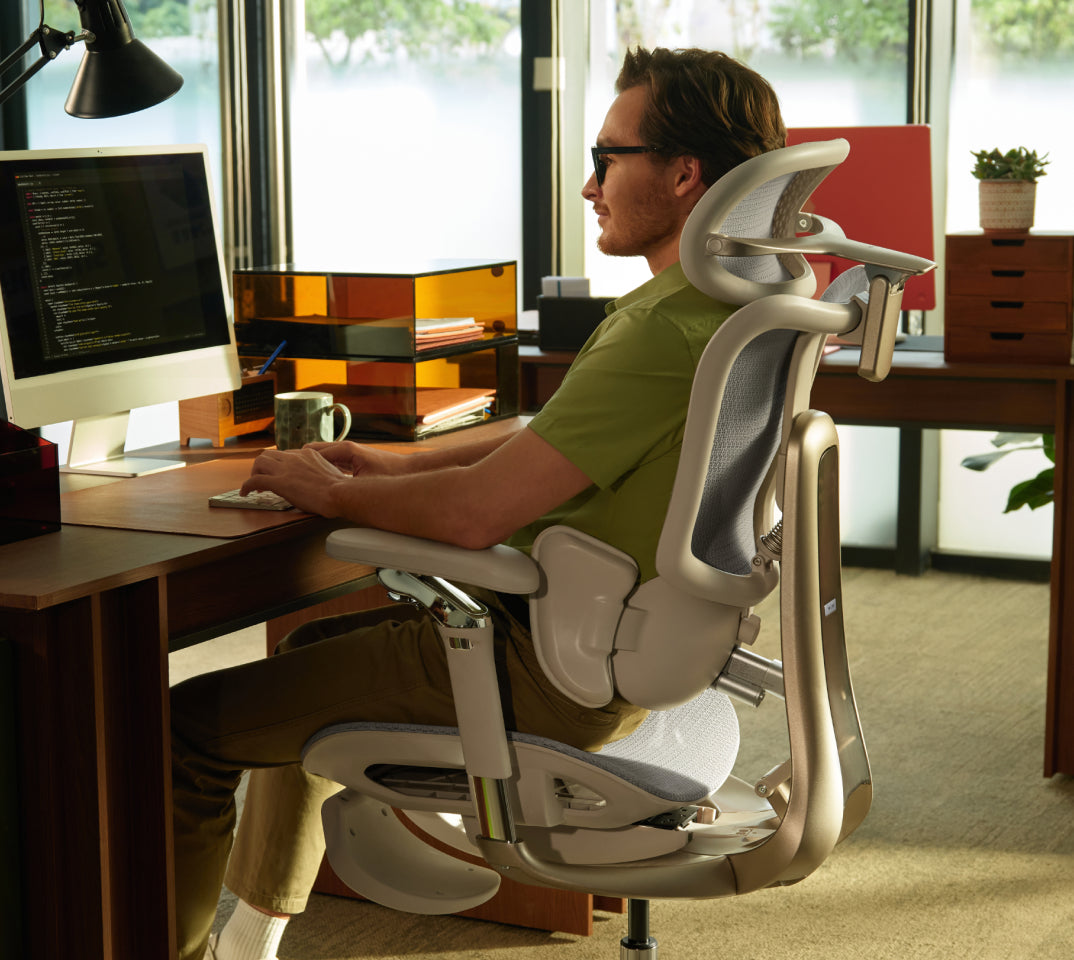
Your everyday workspace, thoughtfully adjusted
Seven small adjustments.
A better place to work.
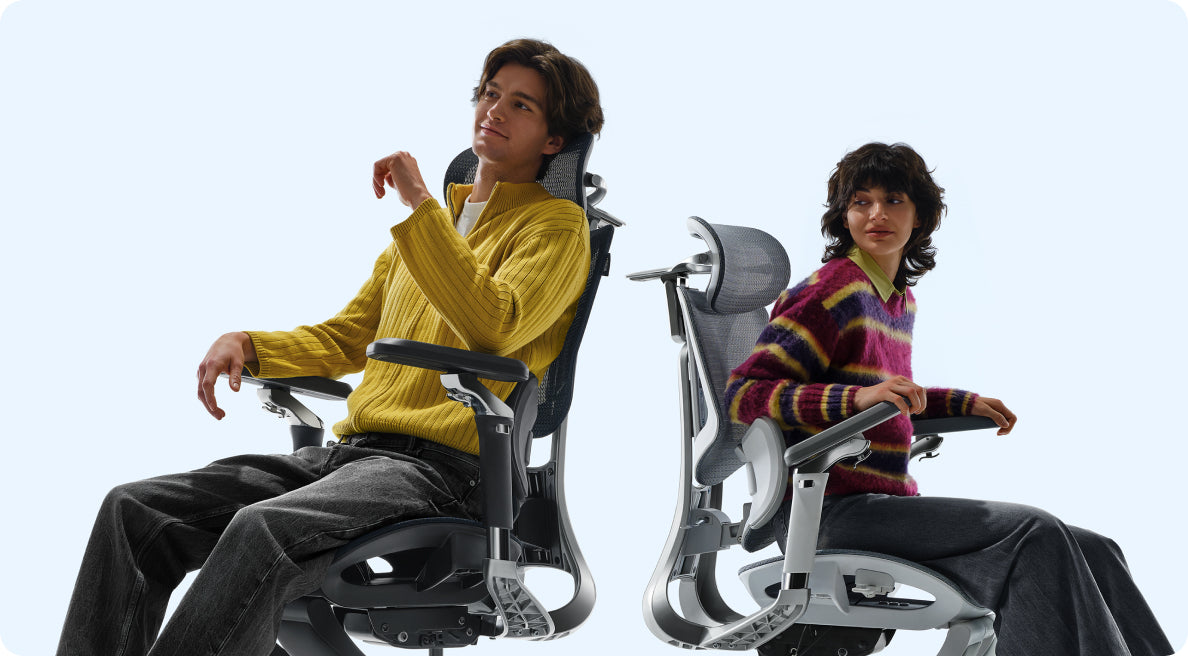
A comfortable desk setup rarely comes from one dramatic fix. It comes from the small details working together: where your feet land, how your back is supported, and how easily you can reach the things you use.
Work through this desk posture checklist from the seat up. Then put your findings to work when choosing your next HBADA chair.
Quick answer: What should you adjust first?
A practical desk posture checklist covers seven adjustments: seat height, seat depth, lumbar support, backrest recline, armrest position, monitor height, and keyboard and mouse placement. Start with your chair, then arrange the screen and input devices around your seated position.
Why a Checklist Beats Guesswork
Proper desk posture rarely comes from one dramatic fix. Seat height, monitor position and armrest placement all affect how you settle into your workspace. Change one, and you may need to revisit another.
That is why a structured ergonomic workstation checklist is useful. Working through each item in order gives you a complete picture instead of adjusting one part of the setup and overlooking the rest.
Fit the workspace around you—not the other way around.
Seat Height
Start here. Your feet should rest securely on the floor or a stable footrest. If you are reaching for the floor with your toes or feeling cramped under the desk, revisit the seat height before moving on.
Check the fit while wearing the shoes you normally use at your desk. Once the seat feels right, make sure you can still reach your keyboard without lifting your shoulders.
Seat Depth
Sit fully back against the backrest, then check the space between the front of the seat and the backs of your knees. A small gap—around two to three finger-widths—is a useful starting point rather than a rigid measurement.
If the seat is too deep, its front edge may press behind your knees or encourage you to slide forwards. If it is too shallow, it may leave more of your thighs unsupported than feels comfortable.
Lumbar Support
Position the lumbar support around the natural curve of your lower back. Aim for comfortable contact rather than a strong push that moves you away from the backrest.
Make small changes, sit normally and check the result. If the support feels too high, too low or too prominent, use the available adjustments rather than forcing yourself into one position.
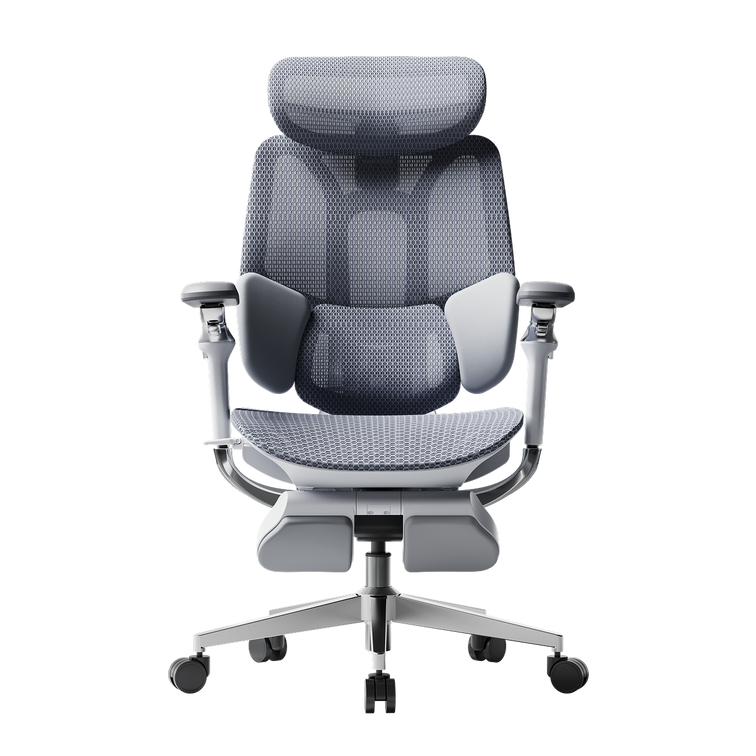
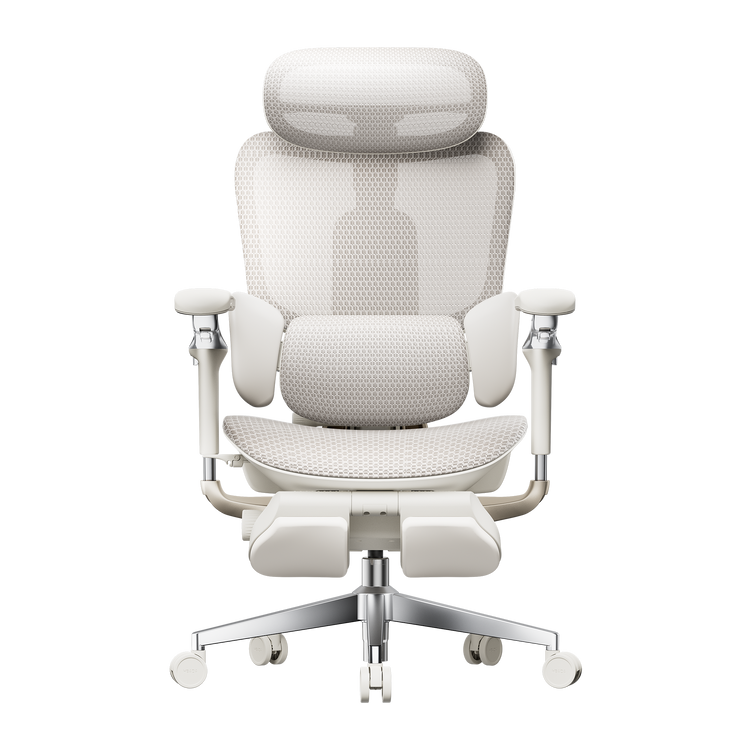
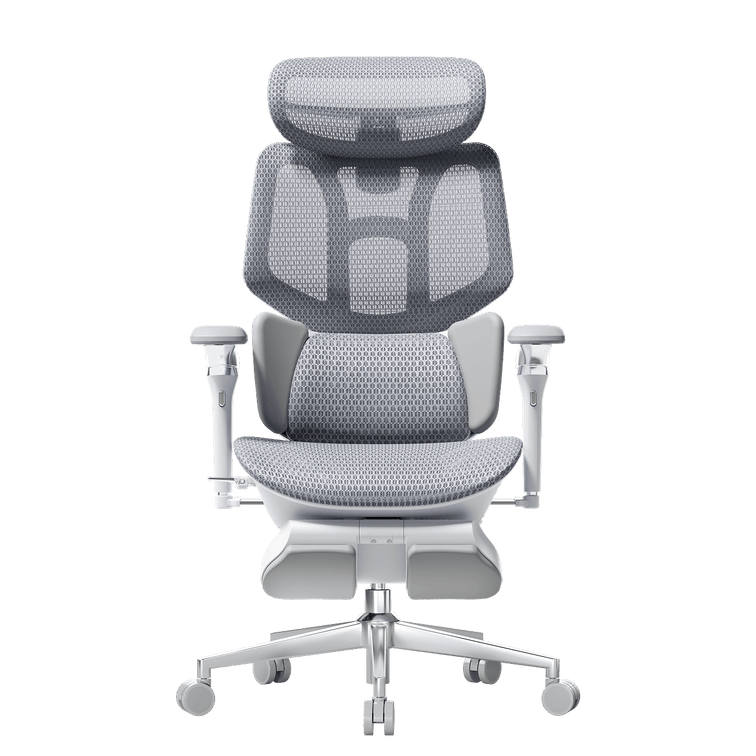
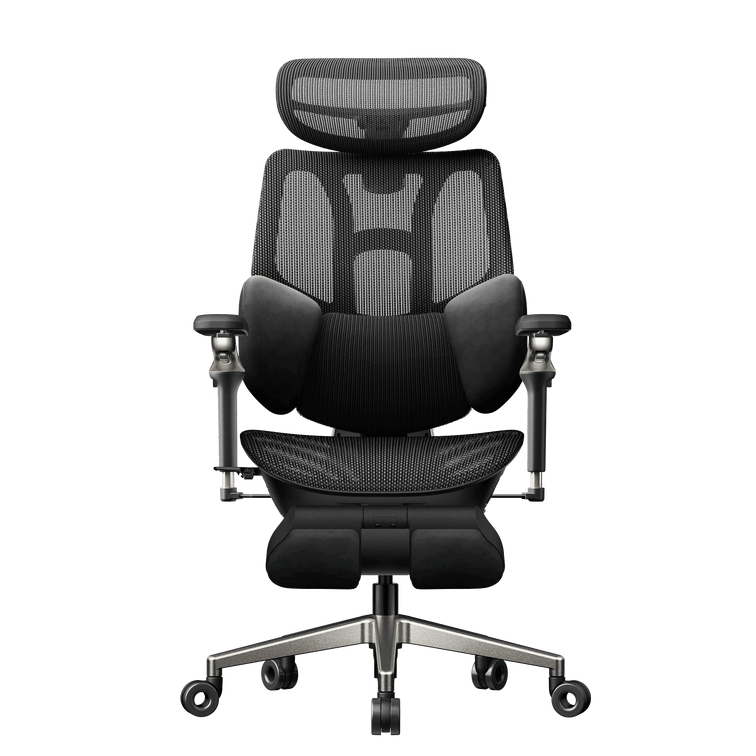
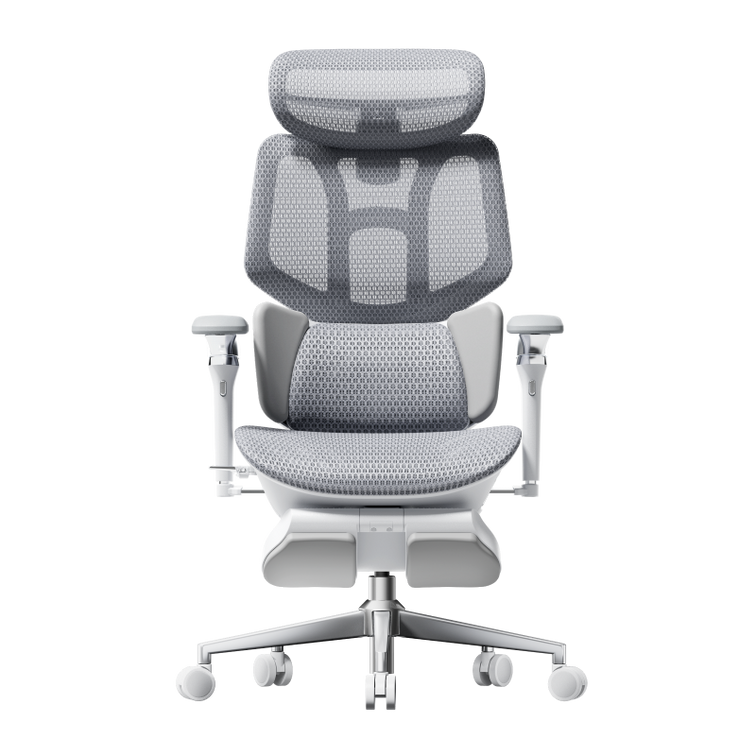
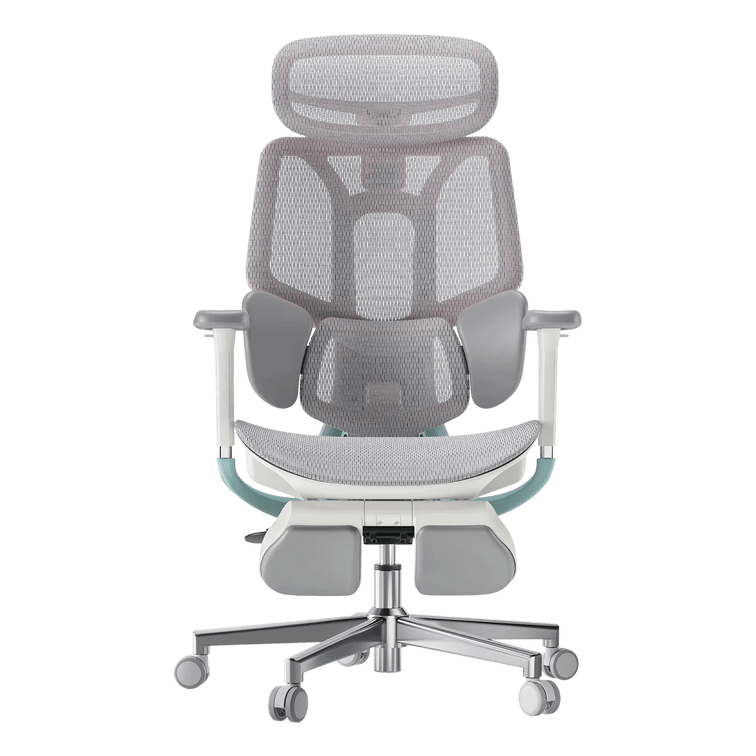
When choosing your next chair, take a closer look at the HBADA E3 Pro and compare its support and adjustment options with your needs.
Backrest Recline
You do not need to hold one perfectly upright position throughout the day. Try a gentle supported recline, then check that your screen and keyboard remain easy to use.
Adjust the tilt tension or lock setting according to your chair’s instructions. For focused typing, avoid leaning so far back that you have to reach forwards again. Change the setup when you switch from desk work to a seated break.
Armrest Position
Set your armrests so your shoulders can relax and your elbows stay near your body. If the pads rotate or move sideways, position them around the way you actually use your keyboard and mouse.
Armrests should not stop you from moving close enough to the desk. Recheck their height and position if they collide with the desktop or push your elbows outwards.
Monitor Height and Distance
Place your main monitor directly in front of you, with the top of the screen at or slightly below eye level. Around an arm’s length away is a practical starting point; adjust the distance and text size so you can read without leaning forwards.
If you wear bifocals or progressive lenses, you may prefer a lower screen position to avoid tilting your head back. Recheck the screen whenever you change your seat height.
Keyboard and Mouse Placement
Keep your keyboard close enough that you do not have to reach, with your wrists in a comfortable, fairly straight position. Start with the keyboard flat and adjust its angle only if that improves your wrist position.
Place the mouse at the same level and within easy reach. Check the position during real work—not just while sitting still—because a comfortable setup needs to work while you type, click and switch tasks.
Quick Reference: Desk Posture Checklist
Tick each item as you check your setup. These boxes are for your own review; your selections are not submitted and may reset when you leave or reload the page.
If your current chair cannot accommodate several of these checks together, use the list as your buying checklist. Our office chair fit and measurement guide can help you compare seat height, depth, width and lumbar fit.
Your checklist. Our Black Friday savings.
Found the limits of your current chair? Turn your checklist into a workspace upgrade with our European Black Friday offers.
More ways to make your budget go further
- Subscriber coupon pack: €20 off €300+, €50 off €550+, or €60 off €1,000+. The €130 total is three separate coupons, not one discount. Valid November 6–30, 2026; excludes the new E3 Ultra. Each coupon is usable once per customer and cannot combine with other discount codes.
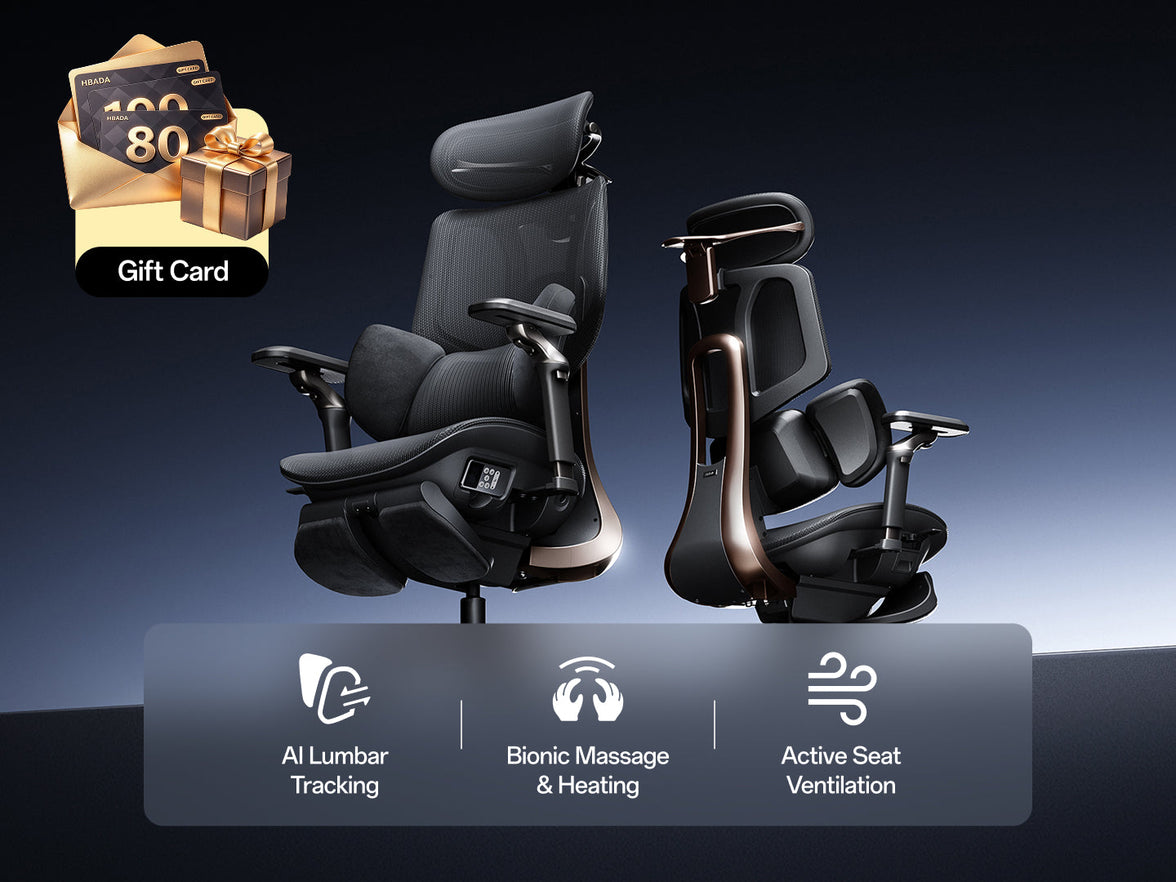
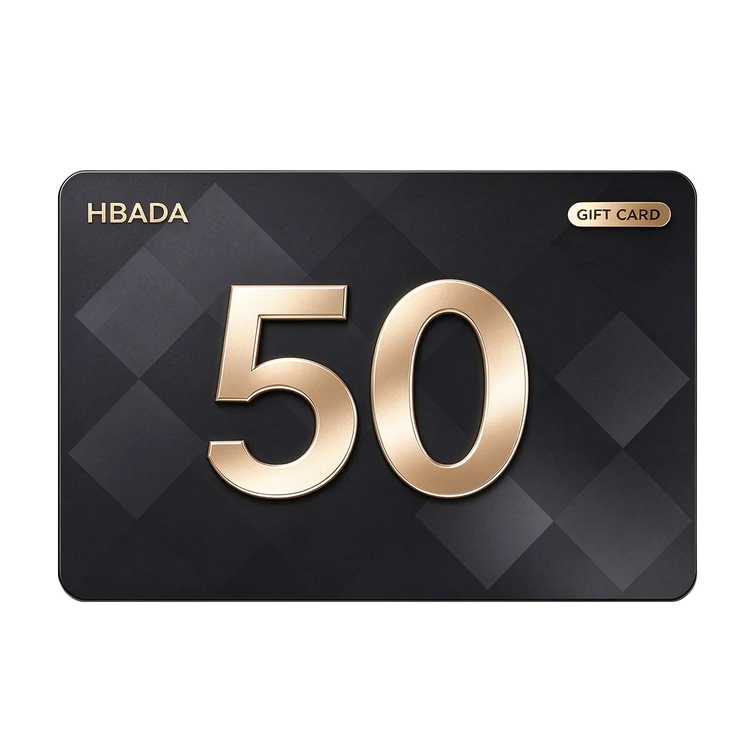
- Gift card bonus: Eligible X7 purchases receive an €80 gift card; eligible E3 purchases receive €30. Ends November 15. Cards are valid for 90 days on future purchases.
- Double points: Sign in before checkout to earn 2X points during November 6–30.
Selected configurations only; promotional stock and activity terms apply. Check current prices and eligibility on the event page before ordering.
Signs Your Setup Needs a Recheck
Even a familiar desk setup benefits from another look. Watch for these signs that your settings or working habits may need attention:
- You repeatedly lean towards the screen to read.
- Your shoulders rise while you type or use the mouse.
- You slide forwards rather than using the backrest.
- Your wrists feel uncomfortable during desk work.
- You notice new neck, shoulder or lower-back discomfort.
Start again with seat height and work through the list. Also make room for regular movement and breaks away from the desk. Persistent or worsening pain deserves individual advice from a healthcare professional.
Frequently Asked Questions
What should be on a basic desk posture checklist?
Include seat height, seat depth, lumbar support, backrest recline, armrest position, monitor height, and keyboard and mouse placement. Review them together rather than treating each adjustment as a separate task.
What is proper desk posture, in simple terms?
Think of a supported, comfortable position that lets you work without unnecessary reaching or leaning. It is not a single pose to hold all day; change position and take movement breaks.
How often should I recheck my workstation?
Recheck when you change equipment, share a desk, move your chair settings or notice new discomfort. A brief review after setting up for the day can also catch simple issues such as a mouse left too far away.
Does posture matter more than the chair itself?
They work together. A chair that fits gives you useful options for support, while the arrangement of your screen, desk and input devices helps you use those options comfortably.
Why should I check seat depth as well as seat height?
Height alone does not tell you whether you can sit back comfortably. Seat depth affects the clearance behind your knees and how easily you can make use of the backrest.
Can monitor position affect the way I sit?
Yes. If text is difficult to read or the screen is awkwardly placed, you may lean or tilt your head. Review screen position and text size together.
Seven Small Fixes, One Better Workday
None of these adjustments has to be complicated. Work through them together, keep what feels supportive and revisit the setup as your tasks change.
Ready for a chair that gives you more options? Bring your checklist to our Black Friday sale and choose your next HBADA upgrade. Make the most of the offers while they are available—and give your everyday workspace the attention it deserves.
Find my Black Friday chair deal →