
Blogue

Office Chair Safety Checklist: Gas Lift, Base, Casters, and Fasteners

Office Chair Safety Checklist: Gas Lift, Base, Casters, and Fasteners
European Quarterly Chair Care Guide

A practical inspection routine for identifying loose, worn or damaged office-chair components before they affect everyday stability.

✓ Quick Answer

Inspect your office chair every three months and whenever you notice a wobble, sinking seat, unusual noise or damaged part. Check that the gas lift holds its height, the five-star base has no cracks, the casters roll securely and all accessible fasteners remain tight. Never puncture, heat or disassemble a pressurised gas lift.

Why Check Your Office Chair Every Quarter?

An ergonomic office chair contains moving and load-bearing components that experience normal wear. Bolts can loosen, caster stems can collect debris and a gas lift can eventually lose its ability to hold the selected seat height.

A short inspection every three months helps identify these warning signs before they affect the chair’s stability or operation.

European Agency for Safety and Health at Work guidance identifies the work chair as part of the complete display-screen workstation. Council Directive 90/270/EEC establishes minimum safety and health requirements for work with display-screen equipment and requires employers to assess workstations and address identified risks.

Quarterly is a practical inspection schedule for normal home-office use. A chair used intensively across multiple shifts may require more frequent checks. Inspect the chair immediately after moving or reassembling it, or whenever you notice a new lean, wobble, noise or change in seat height.

How to Inspect an Office Chair Gas Lift

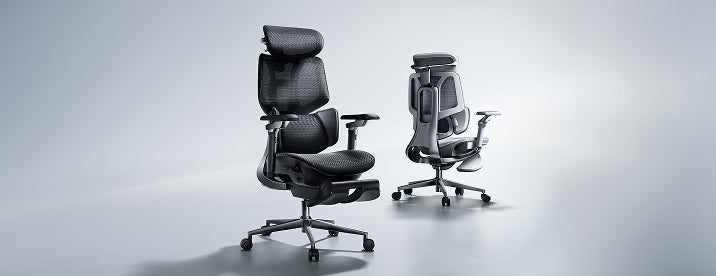
HBADA office chair gas lift safety and certification information

The gas lift is the pressurised cylinder that controls seat height. A basic inspection does not require removing or opening it.

1

Test the Seat Height

Set the chair to a comfortable height and remain seated for several minutes. Check whether the seat stays in position.

2

Test the Adjustment

Use the height lever normally. The seat should raise and lower without repeated sticking, sudden movement or unusual resistance.

3

Look for Visible Damage

Check the exposed cylinder area for bending, corrosion, oil residue or other obvious signs of damage.

4

Act on Repeated Sinking

If the seat continues to sink after checking the lever for obstruction, contact HBADA EU for the correct replacement process.

Important gas-lift safety warning

Never puncture, cut, heat, clamp or disassemble a gas lift cylinder. It is a pressurised component. Follow the maintenance and replacement instructions for your exact chair model.

What Does “Class 4 Gas Lift” Mean?

Class 4 is a gas-lift specification used by many office-chair manufacturers. Construction, testing documentation and certification claims can differ between suppliers and markets. A Class 4 label alone should not be treated as proof that every cylinder has identical materials or certifications.

The current HBADA E3 Pro 2026 Edition product page specifies an SGS-certified Class 4 gas lift. If that component requires service, use a replacement approved for the exact model instead of selecting a cylinder based only on its class label.

How to Check the Five-Star Base and Casters

The base and casters support the chair during movement, reclining and everyday position changes. Perform the first part of the inspection with the chair unloaded and placed on a clear, level floor.

Inspect the Five-Star Base

  • Look for cracks, splits, bends or deformation.
  • Pay particular attention to the points where each leg joins the centre hub.
  • Confirm that all five points sit evenly on the floor.
  • Check for side-to-side rocking that is not caused by an uneven surface.
  • Stop using the chair if the base is visibly cracked or structurally damaged.

Inspect Each Caster

  • Roll the chair slowly and listen for scraping, sticking or clicking.
  • Remove accessible hair, thread, dust and grit from around each wheel.
  • Check that every caster remains seated firmly in its socket.
  • Look for cracked wheels, excessive wobble or damaged caster stems.
  • Use model-compatible replacement casters when a wheel is damaged.

How to Check Fasteners and Moving Mechanisms

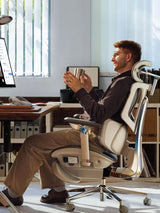
HBADA office chair headrest and adjustment mechanisms

Loose fasteners are a common source of chair wobble, movement and squeaking. Use the tool and tightening sequence supplied with the chair manual. Tighten fasteners until secure, but do not force or over-tighten them.

  • Check accessible bolts and screws around the seat, backrest, armrests, mechanism and base connection.
  • Confirm that the armrests move and lock as intended.
  • Test the recline and tilt-lock functions without forcing the mechanism.
  • Investigate a new squeak or clicking sound instead of waiting for it to worsen.
  • Stop if an adjustment mechanism is jammed, bent or unusually difficult to operate.

Current HBADA EU maintenance guidance recommends checking and tightening bolts and screws every one to three months, depending on how intensively the chair is used. If hardware is missing, stripped or damaged, request the correct replacement rather than installing an unverified fastener.

The Complete Quarterly Office Chair Safety Checklist

Use this table during each inspection. If a load-bearing component is cracked, bent or unstable, stop using the chair until the correct repair or replacement has been arranged.

Chair part What to inspect Action if the check fails
Gas lift Holds the selected height, adjusts normally and has no visible damage or leakage Check the lever for obstruction and contact HBADA EU if the chair continues to sink
Five-star base No cracks, bends, deformation or uneven contact with the floor Stop using the chair if the base is cracked or unstable
Casters Roll freely, remain firmly seated and are clear of debris Clean the wheel or install a model-compatible replacement
Seat and base fasteners Secure, correctly seated and free from stripped threads Tighten according to the manual or request replacement hardware
Backrest and armrests Connections remain stable and adjustments move and lock normally Stop using the affected adjustment and arrange service if it remains loose
Recline and tilt lock Engages, releases and holds without sticking or unexpected movement Check for an obstruction and contact support if the mechanism does not operate correctly

What Should You Never Do With an Office Chair?

Never puncture, heat, modify or disassemble the gas cylinder.

Never continue using a chair with a cracked or unstable base.

Never stand on the chair or use it as a step stool or ladder.

Never sit on the armrests or allow more than one person to use the chair.

Never force a jammed recline, height, headrest or armrest mechanism.

Never exceed the load limit stated for the exact chair model.

Stop using the chair if you find a cracked base, severely loose component, caster that will not remain seated, visibly damaged cylinder or recline mechanism that cannot hold securely.

HBADA EU Chair Components and Warranty Information

When comparing ergonomic office chairs, look beyond comfort features. Review the stated maximum load, gas-lift specification, base material, caster design, warranty terms and availability of model-specific support.

Model Current EU specifications Current EU warranty coverage
HBADA E3 Pro 2026 Edition SGS-certified Class 4 gas lift, steel five-star base, PA+PU casters and maximum load listed as 150 kg Five-year extended warranty for eligible core load-bearing components, including the base, gas lift and casters; three-year warranty for eligible other components
HBADA X7 Smart Stainless-steel five-star base, maximum load listed as 150 kg and BIFMA certification stated on the EU product information Five-year extended warranty for eligible core load-bearing components, including the base, gas lift and casters; three-year warranty for eligible other components

Specifications and warranty terms can vary by model, version and sales region. Check the current EU product page, warranty policy and documentation supplied with your chair before relying on a specification.

When Should You Contact HBADA EU Support?

Contact support when a gas lift repeatedly sinks, a structural part appears damaged, a mechanism cannot lock or the required replacement part is unclear. For a chair under warranty, contact HBADA EU before attempting to replace a safety-related component.

For model-specific setup, maintenance and troubleshooting instructions, visit the HBADA EU Assembly, Maintenance & Troubleshooting Guide .

Email: service@hbada.eu

Office Chair Safety: Frequently Asked Questions

How often should I inspect my office chair?

For a chair used every day, perform a basic inspection about every three months. Check it sooner if you notice a new wobble, squeak, sinking seat, loose part or change in how an adjustment works. Chairs used intensively may require monthly fastener checks.

Why does my office chair keep sinking?

A chair that gradually lowers may have a worn or faulty gas lift. First check that the height lever is fully released and that nothing is obstructing the mechanism. If the seat continues to sink, contact HBADA EU rather than opening the pressurised cylinder.

Are office chair gas lifts dangerous?

Gas lifts are designed for normal chair operation, but they are pressurised components. Do not puncture, disassemble, modify or expose one to heat. A visibly damaged or failing gas lift should be handled through the manufacturer’s recommended service process.

How do I know if an office chair base is unsafe?

A visible crack, bend, uneven stance, persistent wobble or damaged caster socket is a reason to stop using the chair. Inspect the points where each base leg meets the centre hub, as these areas carry significant load.

Can I replace office chair parts myself?

Follow the manual and warranty terms for your exact model. Casters and some fasteners may be user-serviceable, but replacement parts must be compatible with the chair. Contact support before replacing a gas lift, base or other safety-related component.

Does an ergonomic chair prevent back pain?

An adjustable chair can support a better workstation setup, but it is not a medical treatment and cannot guarantee pain prevention. Adjust the complete workstation to your needs, change position regularly and seek qualified advice for persistent pain or injury.

Does EU law require quarterly chair inspections?

This article uses quarterly inspection as a practical maintenance schedule, not as a statement that every EU workplace is legally required to inspect every chair at three-month intervals. Employers should follow applicable national requirements, workplace risk assessments, equipment instructions and internal safety procedures.

Make Chair Inspection Part of Your Routine

Set a quarterly reminder, act promptly on damage or instability and use the correct support process for replacement parts. A few minutes of routine inspection can help keep your chair operating as intended.

Explore Ergonomic Office Chairs
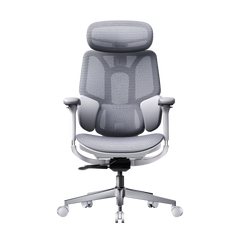
Produto Relevante

Também pode gostar

How to Set Up an Ergonomic Office Chair for Better Spinal Support How to Set Up an Ergonomic Office Chair for Better Spinal Support Your chair. Your fit. Better support starts with the setup. A well-designed chair is only part of the picture. The way you adjust it determines how comfortably you can reach your desk, use the backrest and change position throughout the day. Quick answer: A practical starting sequence is seat height, seat depth, lumbar support, backrest recline and finally armrests. Then recheck the complete setup at your desk. These adjustments work together, so treat the sequence as a useful guide rather than a rigid rule. 01Seat height 02Seat depth 03Lumbar support 04Backrest recline 05Armrests Buying an adjustable chair does not finish the job. Without a comfortable starting position, you may still find yourself perching forwards, reaching for the keyboard or sitting away from the backrest by mid-afternoon. This guide walks through the adjustments in a practical order so you can make better use of your chair's support. Before starting, identify the controls on your exact model and follow the instructions supplied with it. Available adjustments differ by model and generation. In this guide Why the adjustment order matters Step 1: Seat height Step 2: Seat depth Step 3: Lumbar support Step 4: Backrest recline Step 5: Armrests Quick adjustment checklist Common setup mistakes When to recheck your setup Frequently asked questions Put your setup into practice Why the Order of Adjustment Actually Matters It is easy to adjust a chair piecemeal: raising the seat here, nudging the lumbar support there, without checking how one change affects the next. Seat height changes your relationship to the floor and desk. Seat depth influences whether you can sit back comfortably. Both affect where your lower back meets the lumbar support. Setting the seat first gives you a more consistent starting point for the rest of your ergonomic office chair setup. Once the other adjustments are in place, return to the seat and check the overall fit again. Think beyond the chair: Desk height, keyboard position, screen placement and footwear also affect your setup. If one adjustment solves a problem but creates another, review the whole workstation. Step 1: Seat Height Start with your feet supported on the floor and your thighs resting comfortably on the seat. Your knees should be bent comfortably, around a right angle as a starting point, without pressure from the front edge of the seat. If your feet dangle, the seat may be too high for unsupported sitting. If your knees are pushed noticeably upwards and your hips feel cramped, the seat may be too low. Adjust gradually rather than chasing an exact angle. Next, check your desk. If lowering the seat makes the keyboard too high, you may need to adjust the desk or use a stable desk footrest while keeping the seat at a workable height. A reclining chair's built-in leg rest is not the same as a footrest used to support your feet during upright desk work. Quick check: Feet supported, no pressure behind the knees, and no need to lift your shoulders to reach the keyboard. Step 2: Seat Depth Once the height is comfortable, sit back against the backrest. Check the space between the front edge of the seat and the back of your knees. Roughly two to three finger-widths is a useful starting check, not a universal measurement. If the seat is too deep, its front edge may press behind your knees and encourage you to slide forwards, away from the backrest. If it is too shallow, it may provide less thigh support than you need. If your chair has a sliding seat, adjust it until you can use the backrest comfortably while leaving clearance behind your knees. Follow the model's instructions for operating and securing the seat-depth mechanism. Quick check: You can sit back without the seat edge pressing into your knees or needing to perch on the front of the chair. Step 3: Lumbar Support Setup With seat height and depth established, position the lumbar support around the natural inward curve of your lower back. Use the feel of the support rather than your belt line alone to find a comfortable position. If your chair allows it, adjust lumbar height first, then depth or tension. Aim for gentle contact rather than a hard push that forces you into an exaggerated arch. More pressure is not automatically more support. If the chair has adaptive lumbar support, check how it feels when you shift or lean back, not only while sitting still. An adaptive mechanism still needs an appropriate initial fit. For a closer look at how support features work together, explore our E3 Ultra feature overview . Use the controls and instructions for your exact chair rather than assuming every lumbar system adjusts in the same way. Quick check: The support meets your lower back comfortably, without making you slide forwards to escape the pressure. Step 4: Backrest Recline With lumbar support in place, explore a comfortable backrest position. A modest recline can be useful, but there is no single angle that suits every person, chair and task. For keyboard work, choose a supported position that lets you reach the desk without stretching your arms or leaning your head forwards. A deeper recline may suit a seated break better than typing at a fixed desk. If your chair has adjustable tilt tension, set it so you can lean back and return smoothly without feeling that the backrest is fighting you or dropping away unexpectedly. Use the chair's locking controls as instructed. For example, our E3 Ultra Gen 5 offers several recline positions. The maximum recline is an available feature, not a target posture for desk work. Quick check: Your back remains supported and your keyboard stays within easy reach. Change position during the day rather than holding one angle for hours. Step 5: Armrests Set the armrests after checking your seat and desk position. They should support your forearms lightly without pushing your shoulders upwards or forcing your elbows away from your body. If the pads slide or rotate, position them to match your working posture. There is no need to turn them inwards if that makes your forearms or wrists uncomfortable. Check that the armrests do not stop the chair from moving close enough to the desk. If they collide with the desk, adjust them within the model's permitted range and recheck your reach to the keyboard and mouse. Quick check: Shoulders relaxed, elbows comfortably close to your sides, and no need to reach forwards around the armrests. Quick Reference: Office Chair Adjustments Checklist Use this checklist after the first setup and whenever your desk, footwear or main task changes. Adjustment Starting point What to check Seat height Feet supported; legs comfortably positioned. No dangling feet or pressure behind the knees. Seat depth A small gap behind the knees. You can sit back while your thighs remain supported. Lumbar support Gentle contact with the lower-back curve. No forced arch or need to move away from the support. Backrest recline A supported angle suited to your task. You can reach the desk without leaning forwards. Armrests Light forearm support with relaxed shoulders. The pads do not spread your elbows or block desk access. Common Mistakes That Undermine Spinal Support Adjusting lumbar support without rechecking the seat. Changes to seat height and depth can alter how your back meets the support. Setting maximum lumbar tension. Aim for comfortable contact, not the strongest pressure the chair can produce. Treating one upright position as mandatory. A useful setup allows supported changes in posture. Ignoring seat depth. A backrest cannot do much for you if you are sitting too far forwards to use it. Adjusting the chair but ignoring the desk. Keyboard reach and desk clearance can undo an otherwise comfortable seating position. Setting everything once and never rechecking. A different task or pair of shoes may call for a small adjustment. Signs Your Setup Needs Rechecking Even a comfortable setup benefits from an occasional review. Look for these practical signs: You repeatedly slide towards the front of the seat. Your feet lose support when you move into a working position. Your shoulders rise when you use the keyboard or armrests. The lumbar support feels too high, too low or too firm. You lean forwards to reach the screen, keyboard or mouse. Recheck the five steps, then test the chair during your usual task. Change one setting at a time so you can tell what actually improves the fit. Comfort is not a diagnosis. New or persistent pain should not automatically be blamed on chair settings. Seek professional advice for ongoing symptoms. Chair adjustment does not replace movement breaks or medical care. Frequently Asked Questions What's the correct order for an ergonomic office chair setup? A practical sequence is seat height, seat depth, lumbar support, backrest recline and armrests. Then recheck the complete setup at your desk. You may need to revisit earlier settings as the overall fit improves. How do I know if my lumbar support setup is correct? It should make comfortable contact with the curve of your lower back without forcing an exaggerated arch. If you slide forwards to avoid the pressure, reduce the pressure or adjust its position. What backrest angle is best for spinal support? There is no universal best angle. Choose a supported position that suits your task and lets you reach your desk comfortably. Use the recline settings available on your chair and vary your position during the day. Do office chair adjustments need to be redone regularly? Recheck them when your task, desk arrangement, footwear or comfort changes, and whenever someone else has used the chair. You do not need a complete reset every day if the setup remains comfortable. Can armrests really affect spinal support? They can affect your overall working posture. Armrests that are too high may lift your shoulders, while pads that block the desk may make you reach forwards. Set them for relaxed shoulders and easy desk access. What's a common mistake when setting up a spinal support chair? Focusing on lumbar pressure while overlooking seat fit. Check that your feet are supported and that you can sit back comfortably before fine-tuning the lumbar support. A Chair That Works With Your Spine, Not Against It A useful ergonomic office chair setup is not about choosing the maximum setting on every control. It is about finding a comfortable relationship between the seat, your lower back, the armrests and your workspace. Start with the five-step sequence, check the result during real desk work and make small changes when needed. At HBADA, we encourage you to use the adjustments your model provides rather than assume that an adjustable chair arrives already fitted to you. Explore the support system See how the E3 Ultra brings together dynamic support, adjustable seating and relaxation features. Explore E3 Ultra features → Check the details before choosing Review the E3 Ultra's product information alongside your workspace and fit requirements. Check the applicable delivery and return terms for your country. View E3 Ultra product details → Further reading: For general chair-adjustment principles, see OSHA's workstation chair guidance . This US resource is included for general ergonomic information, not as a statement of European requirements or an endorsement of any particular chair. Keep practical workspace advice close. Want to see more from HBADA Europe? Open Google's preferred sources settings and look for our site. Choose HBADA Europe on Google ↗ Opens Google in a new tab. If HBADA Europe is available, confirm your selection there. HBADA vs Steelcase: Which Fits the Way You Sit? HBADA vs Steelcase: Which Fits the Way You Sit? Compare the chair.Think about the workday. Typing, leaning back and switching tasks ask different things of a chair. This HBADA vs Steelcase guide looks at the E3 Pro 2026, Leap and Gesture through those everyday moments. Quick answer Our E3 Pro 2026 combines three-zone adaptive lumbar support, a 4D dual-axis headrest, 720° omni-mechanical armrests and a four-position recline up to 140°. Steelcase Leap uses LiveBack technology, while Gesture uses 3D LiveBack and a different arm mechanism. These are design differences, not proof that one chair will feel better for every person. Start with fit, then consider how you work and change position. In this comparison 01 · How we compared 02 · Typing 03 · Leaning back 04 · Side by side 05 · Your fit check 06 · FAQs 07 · The takeaway 01 / THE COMPARISON How We Compared: Design Facts vs. Personal Comfort This is an HBADA-authored comparison of our E3 Pro 2026 with Steelcase Leap and Gesture. It draws on published product information, not an independent, hands-on head-to-head test. We focus on the named models rather than making claims about either brand’s entire range. Options, specifications and service terms can vary by configuration and country. For a European purchase, compare the offer available in your destination market. What specifications can tell you The type of back support, available controls, adjustment directions and whether a particular feature is included. What you need to feel yourself Pressure against your back, seat firmness, arm-pad comfort and how naturally the chair fits your desk routine. Use the European E3 Pro 2026 specifications to check our current configuration. A longer feature list is useful only when those features help the chair fit you. 02 / FOCUSED WORK Typing: Back Support and Arm Position When comparing ergonomic office chairs for keyboard work, look at the relationship between your back, seat, armrests and desk. A comfortable reclined position does not automatically translate into a good typing setup. Different approaches to back support Our E3 Pro 2026 uses a central lumbar section with two side wings. The design provides contact across the centre and sides of the lower back, with adjustment and adaptive movement. Leap uses a flexible LiveBack backrest; Gesture uses 3D LiveBack. Both take a different structural approach from the E3 Pro’s distinct three-zone lumbar assembly. This comparison does not treat those mechanisms as identical. For any design, the practical check is where the support meets your back when the seat is correctly adjusted. Our guide to choosing lumbar support for your body type explains why fit and placement matter alongside the mechanism. Armrests for keyboard work The E3 Pro’s armrest system combines pad rotation and arm-body rotation with other position adjustments. Leap offers height, width, depth and pivot adjustment with its fully adjustable arm configuration. Gesture uses articulated arms designed for a range of positions. Compare movement, not just labels. “4D,” “360” and “720°” are not interchangeable scores. Check what moves, where the pads can be positioned and whether the arms clear your desk. Your keyboard and desk position matter too. Use our ergonomic chair adjustment guide to assess the chair as part of the whole workspace. 03 / TIME TO LEAN BACK Leaning Back: Recline Mechanisms and Head Support Reading, thinking and taking a call can involve different backrest positions from keyboard work. Recline controls should be considered alongside seat movement, available space and your preferred head position. HBADA E3 Pro 2026 Four recline positions, with a maximum stated angle of 140°. An auto-balance mechanism for reclining. An included 4D dual-axis headrest. Armrests that move with the recline. Steelcase Leap and Gesture Leap combines backrest recline with a moving seat and adjustable recline controls. Gesture also provides recline tension and back-stop adjustment. The controls and movement are not the same as the E3 Pro’s mechanism. We do not assign a maximum recline angle to either competitor here or claim that the E3 Pro reclines further. A reliable angle comparison would require equivalent measurements for the exact configurations. A headrest is a fit question. Check its position while sitting and reclining. It should not push your head forwards into an unwanted position. Availability on other models depends on the configuration selected. To understand our controls before choosing a setup, visit the HBADA user manual and assembly guide hub . Select the E3 Pro 2026 instructions rather than those for an earlier edition. 04 / AT A GLANCE HBADA E3 Pro vs. Steelcase Leap vs. Gesture The table below compares design approaches rather than awarding a comfort score. It leaves out mixed-market dimensions, temporary prices and unsupported performance rankings. Published design features, not a hands-on ranking Feature HBADA E3 Pro 2026 Steelcase Leap Steelcase Gesture Back-support approach Three-zone adaptive lumbar assembly. LiveBack flexible backrest. 3D LiveBack backrest. Armrest approach 720° omni-mechanical system. Height, width, depth and pivot with fully adjustable arms. Articulated 360 arms. Recline Four positions, up to 140°. Recline controls with seat movement. Recline tension and back-stop controls. Head support Included 4D dual-axis headrest. Confirm availability in the selected configuration. Headrest options depend on configuration and market. What to check personally Lumbar contact, mesh feel and control positions. Backrest contact, seat feel and arm positioning. Backrest contact, arm movement and control access. Before comparing dimensions, distinguish a total dimension from an adjustment range. Seat depth, overall chair depth and seat-depth travel are different measurements. Use the same units throughout your comparison. Our guide to measuring office chair fit explains how to assess height, depth, width and lumbar position. 05 / THE PERSONAL CHECK What Only a Hands-On Fit Check Can Tell You Specifications describe a chair’s available movement. They cannot establish how that movement will feel for you. When assessing a chair, use your normal tasks rather than judging it only from a brief recline. Type at your desk Check whether the chair gets close enough to the desk and whether your arms can rest without lifting your shoulders. Lean back to read Notice the recline resistance, where your back makes contact and whether the headrest position suits you. Switch tasks Move between keyboard work, a call and reading. Check whether the controls are easy to reach and use. Check the seat Assess the available depth and width, foot support and contact near the back of your knees. Change one setting at a time. Do not keep using an uncomfortable setting simply to complete a test session. If you are evaluating a purchase during a return period, check the deadline and conditions early. Our chair owner’s hub provides additional setup guidance. For practical questions about installation or unexpected movement, visit our assembly and maintenance FAQ . 06 / COMMON QUESTIONS HBADA vs. Steelcase: Frequently Asked Questions Which has better lumbar support: HBADA or Steelcase? This comparison does not establish a universal winner. Our E3 Pro 2026 uses a three-zone lumbar assembly; Leap and Gesture use different LiveBack designs. The relevant question is how the selected chair fits your lower back once the seat is adjusted. Does the E3 Pro recline further than Leap or Gesture? The E3 Pro 2026 has a stated maximum recline of 140°. We have not established equivalent maximum-angle measurements for the competitor configurations in this comparison, so we do not claim a wider range. Are 720° armrests automatically better than 4D arms? No. These labels describe different aspects of movement. Compare the actual directions, usable positions and relationship to your desk rather than ranking the labels. Does the HBADA E3 Pro 2026 include a headrest? Yes. Our current E3 Pro 2026 includes a 4D dual-axis headrest. Review the European product specifications and check how its adjustment range fits your needs. Is this an independent comparison test? No. This is an HBADA-authored guide based on published product information. It does not report an independent head-to-head comfort, durability or medical test. What should I compare besides the adjustment features? Check dimensions, weight capacity, configuration, final purchase price, delivery arrangements and the applicable warranty and return conditions. Compare like-for-like offers for the same destination country. Can I use US prices or warranty details for a European purchase? Use the regional offer that applies to your order. Currency conversion alone does not account for different configurations, taxes, delivery charges or service terms. For our products, consult the European listing and HBADA EU warranty and customer service information . 07 / THE TAKEAWAY Choose Around Your Workday, Not Just the Specification Sheet The HBADA vs Steelcase question becomes more useful when you break it down into the way you sit: typing at your desk, leaning back and moving between tasks. Our E3 Pro 2026 brings together adaptive lumbar support, a headrest, adjustable arms and recline in a mesh-chair design. If those are the features you are looking for, the next step is to compare its dimensions with your own workspace and preferred setup. Take a closer look at your next setup. Explore the E3 Pro 2026’s European specifications, configuration options and adjustment guides. Explore the HBADA E3 Pro 2026 → Product names and trademarks belong to their respective owners. Their use identifies the products discussed and does not imply affiliation or endorsement. More guidance for a better-informed chair choice. Choose HBADA Europe as a preferred source on Google to stay connected with our chair comparisons, setup guides and workspace ideas. Add HBADA Europe as a preferred source ↗ Opens Google in a new tab. Confirm your selection there if HBADA is available for your account and region. HBADA E3 Pro Review: Unboxing, Assembly & 90-Day Check-In Guide HBADA E3 Pro Review: Unboxing, Assembly & 90-Day Check-In Guide From the first unboxing to your everyday setup. A chair becomes part of your workday one adjustment at a time. Here is how to approach the E3 Pro’s assembly, explore its support and keep track of what works for you over the first 90 days. Quick answer Start by identifying your E3 Pro edition and using its matching assembly guide. Once assembled, focus on seat fit, lumbar contact, armrest position and recline before judging everyday comfort. This guide combines published assembly experiences with our practical setup advice. The 90-day section is an owner check-in plan, not a completed test or a promise of a 90-day return window. In this guide 01 · Unboxing 02 · Assembly 03 · Setup instructions 04 · Everyday comfort 05 · 90-day check-ins 06 · Value & fit 07 · FAQs 08 · Final checklist 01 / THE FIRST LOOK HBADA E3 Pro Unboxing: Start with Your Edition Before opening the packaging, check the model details on your order and carton. The E3 Pro name spans different editions, so an older review or assembly video may not describe the exact chair you have purchased. If you are researching the current model, begin with the E3 Pro 2026 specifications and European configuration options . Match the selected configuration to your order rather than assuming every version includes the same accessories. Check before building Lay out the components on a protected surface. Match them to the parts list and inspect the frame, mesh and fittings before starting assembly. Keep the essentials Keep your order details, manual and supplied tools together. Retain the packaging while you check the delivery and review the applicable return instructions. Find the correct instructions in our user manual and assembly guide hub . Choose the entry matching the edition on your order. 02 / PUTTING IT TOGETHER HBADA E3 Pro Assembly: What Published Reviews Report Assembly experiences provide useful context, but they are not a guaranteed completion time. The edition, your experience and the space available all affect the process. Two published experiences, with model context Source Observation How to use it The Gadgeteer Reported approximately 25–30 minutes for a one-person E3 Pro 2026 assembly. Treat this as one reviewer’s experience, not a time limit. TechRadar Described clear instructions and manageable solo assembly for the E3 Pro unit reviewed. This earlier review should not be treated as a test of the current 2026 edition. These reviews describe the units supplied to their authors. Check our European product listing and your order for the configuration available to you. Allow enough time to check your work and ask for help with any component that feels awkward or heavy. Our assembly and troubleshooting guide covers common installation questions. 03 / A SMOOTHER START HBADA E3 Pro Instructions: Build Carefully, Then Adjust Follow the manual supplied for your exact model. These general checks support that process; they do not replace its assembly sequence. Match the edition. Open the corresponding manual and video before beginning. Check orientation. Compare components with the diagrams before joining them. Align the fasteners. Start related screws by hand before tightening as instructed. Do not force a screw that does not turn correctly. Check the completed chair. Confirm that the base, castors and attached components are secure before use. Optional footrest: Follow the instructions for your selected configuration. Do not use a pull-out footrest as a step or seat. If a component is missing, damaged or does not fit, contact our support team before continuing. Keep our European warranty and customer service information handy if you need help after delivery. Use the terms applying to your order rather than service details quoted in an overseas review. 04 / MAKE IT YOURS Comfort and Adjustability in Daily Use Our E3 Pro 2026 combines three-zone adaptive lumbar support, a 4D dual-axis headrest, 720° omni-mechanical armrests and breathable mesh. The useful question is how those features fit your body and your desk—not simply how many adjustments the chair offers. Start with seat fit Check height and depth before fine-tuning the backrest. Our guide to measuring office chair fit explains how seat dimensions and body proportions work together. Find the lumbar contact Explore the controls gradually rather than assuming maximum pressure is the best setting. Read our guide to choosing lumbar support for your body type for a closer look at fit and placement. Bring the desk into the picture Armrest position matters alongside keyboard and desk placement. Follow our ergonomic chair adjustment guide to review the setup as a whole. Learn the controls Change one setting at a time so you can notice the difference. Our chair owner’s hub brings together setup resources and adjustment guidance. Breathable mesh allows airflow; it is not active cooling. Comfort also changes with room temperature, clothing, task and time spent in one position. Leave room in your routine for movement instead of relying on one fixed setup all day. 05 / BEYOND FIRST IMPRESSIONS A 90-Day Check-In Plan for Your E3 Pro First impressions and long-term ownership answer different questions. Use these check-ins to record your own experience, rather than treating a short review as proof of durability. Day 1 Record the baseline Note the edition and configuration, check assembly and take a photo of your starting setup. Week 1 Refine your everyday settings Try the chair during your usual tasks. Note which adjustments help and which contact points need attention. Day 30 Review fit and function Check whether controls remain easy to use and whether your preferred setup still works with your desk. Do not wait for this milestone if there is a problem. Day 90 Compare with your baseline Inspect the mesh and accessible fittings, note any unexpected movement or noise and follow the maintenance guidance for your model. Check your return deadline separately. This 90-day plan does not extend any trial or return period. Review the terms that apply to your order early, and contact us promptly if something is not right. Mesh colour and visibility of underlying components are appearance considerations, not evidence that one colourway is more durable than another. Assess function and condition separately from visual preference. 06 / THE BUYING DECISION Is the HBADA E3 Pro Worth It for Your Setup? The E3 Pro is worth considering if you want an adjustable mesh chair and prefer to set your own support and seating position. Its value depends on whether the dimensions and controls work for you—not on a feature count alone. Check fit: compare the seat dimensions and adjustment ranges with your workspace and proportions. Use the same measurement units when comparing figures. Check configuration: confirm the edition, colour and footrest selection. Check the complete purchase: review the current price, delivery information and service terms for your destination. Use the current European E3 Pro 2026 listing for purchase details rather than converting an older review’s US sale price into euros. 07 / USEFUL ANSWERS Frequently Asked Questions How long does HBADA E3 Pro assembly take? The Gadgeteer reported approximately 25–30 minutes for its E3 Pro 2026 assembly. Your time may differ with the model, experience and available help. Follow the manual rather than rushing to match a reviewer’s time. Where can I find HBADA E3 Pro instructions? Visit our user manual and assembly guide hub . Select the instructions matching the edition on your order and check the corresponding assembly video. Does every E3 Pro include a footrest? Check the configuration selected on your order. Do not assume an accessory shown in a review is included with every edition or option. Is this a completed 90-day durability test? No. The 90-day section is a suggested owner check-in plan. It does not represent a controlled test, a lifespan guarantee or an extension of the return period. What should I do if my chair starts squeaking? Follow our maintenance and troubleshooting guidance . A noise alone does not identify the cause. If the chair feels unstable or a structural part is damaged, stop using it and contact support. Never open or modify the gas lift. How should I judge comfort after assembly? Start with a careful fit check and adjust one setting at a time during your usual tasks. Do not force yourself to tolerate sharp or worsening discomfort. Review your purchase terms while deciding whether the chair fits your needs. Do overseas reviews describe the same European offer? Not necessarily. A review may cover another edition, configuration or regional offer. Check our European product page for your chosen configuration and our EU warranty and service information for the relevant support details. 08 / BRING IT TOGETHER The Final Check: Fit Before Feature Count A useful E3 Pro review should help you make a better decision: choose the correct edition, understand assembly, explore the adjustments and evaluate your own day-to-day experience. Start with the right documentation, give each adjustment a purpose and keep track of how your setup works over time. That is more useful than assuming any chair will feel the same for every person. Build a setup that works for you. Explore the E3 Pro 2026’s European specifications and configurations, then use our setup resources to get started. Explore the HBADA E3 Pro 2026 → More practical guidance for your everyday workspace. Choose HBADA Europe as a preferred source on Google to stay connected with our chair guides, setup advice and workspace ideas. Add HBADA Europe as a preferred source ↗ Opens Google in a new tab. Confirm your selection there if HBADA is available for your account and region.