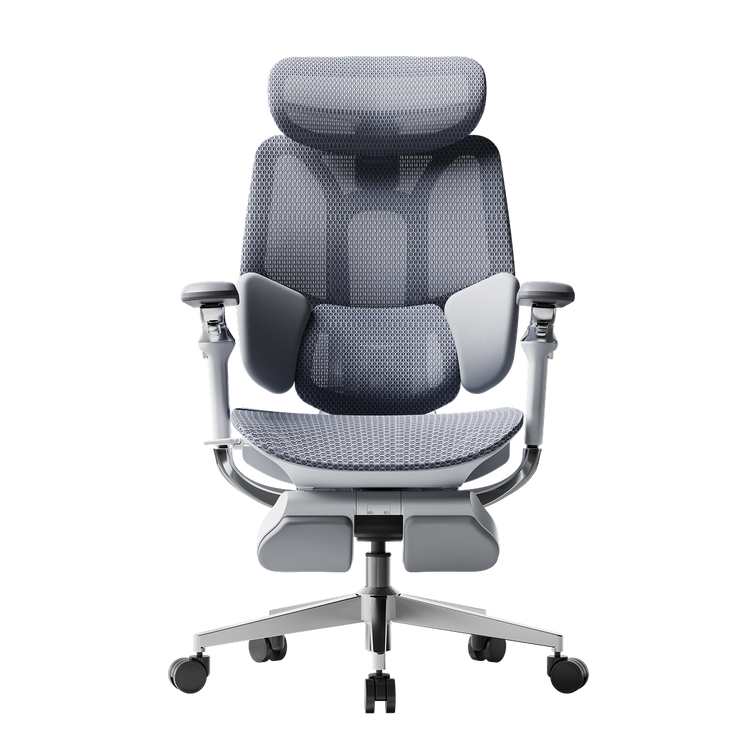
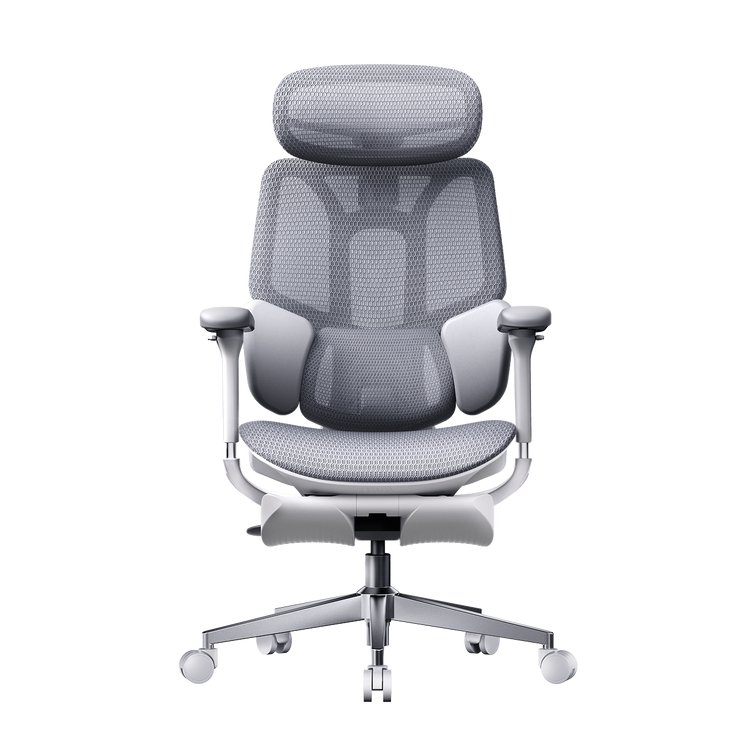
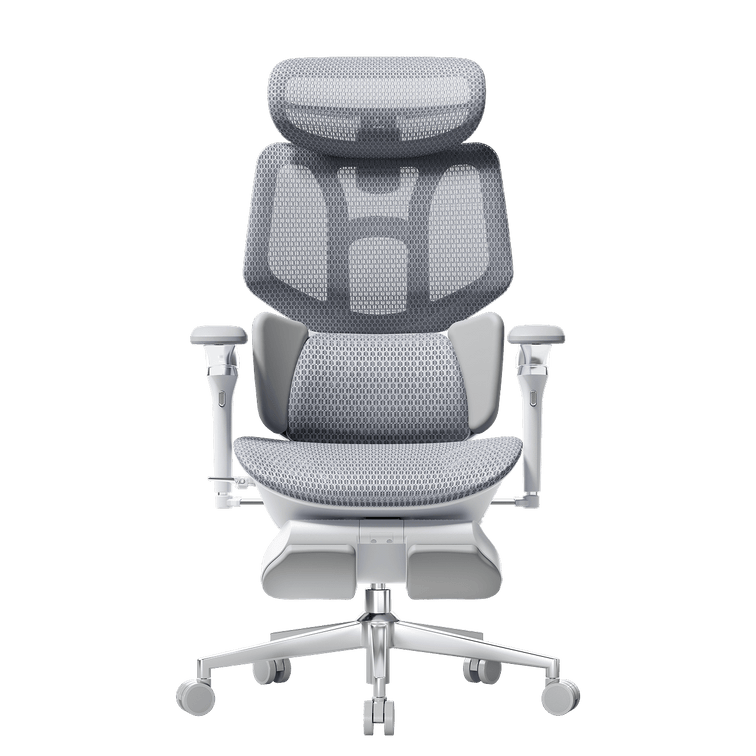
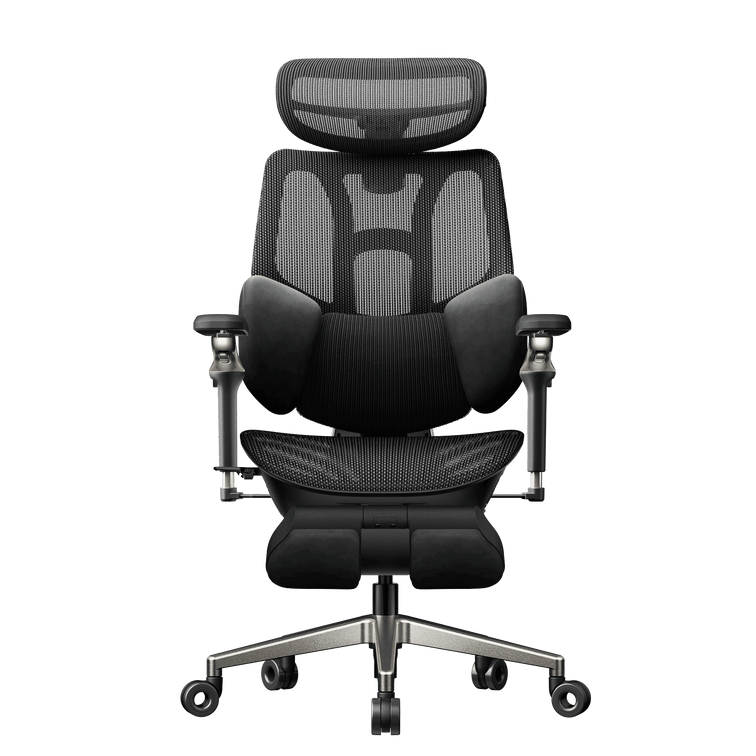
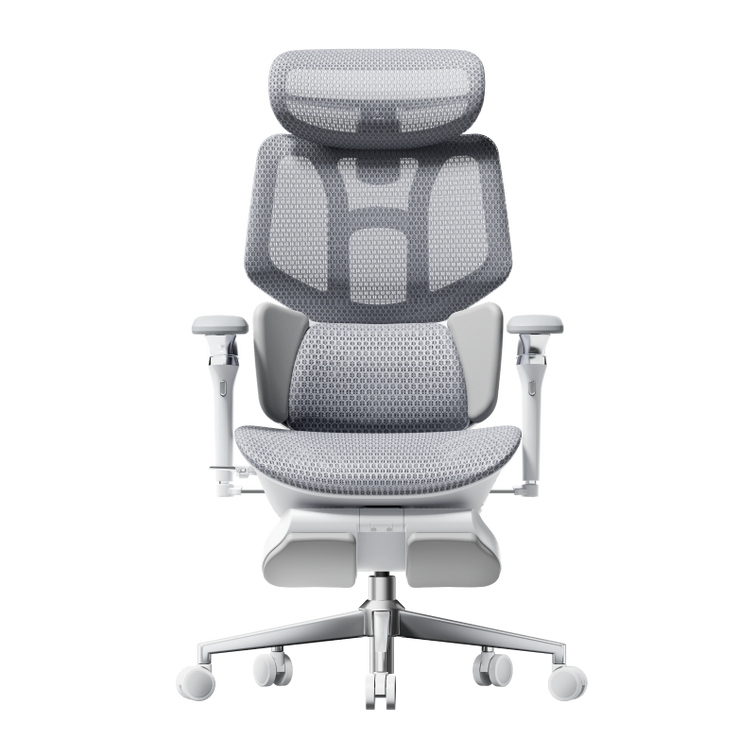
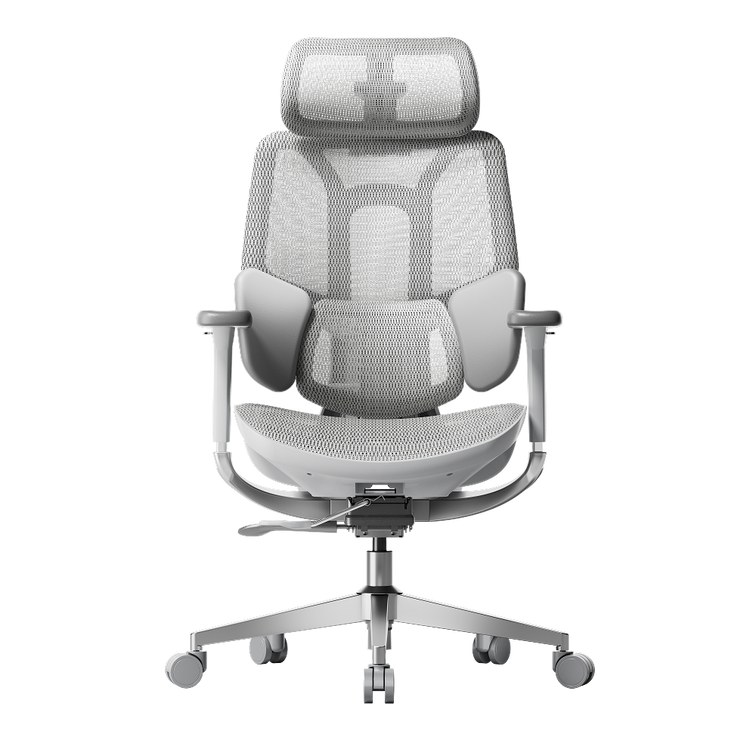
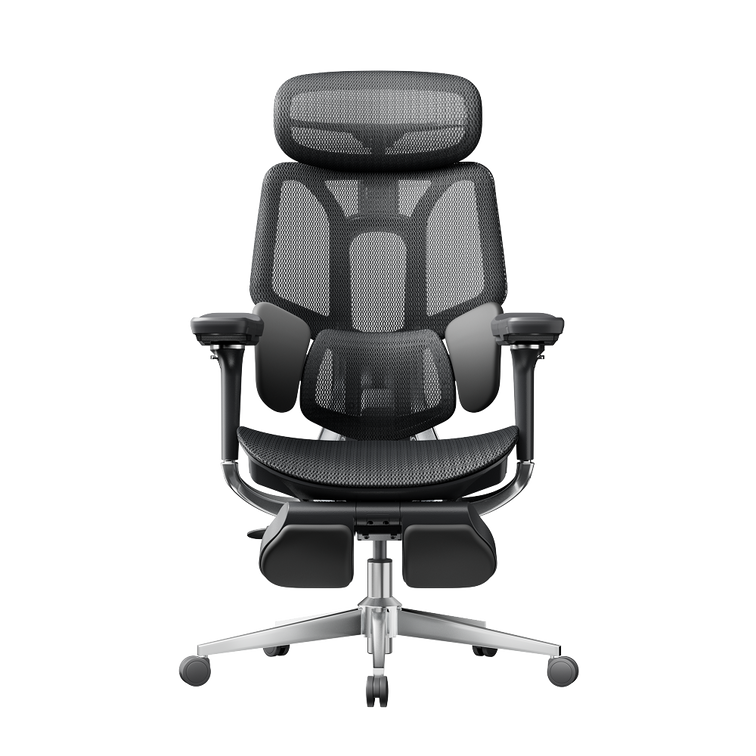
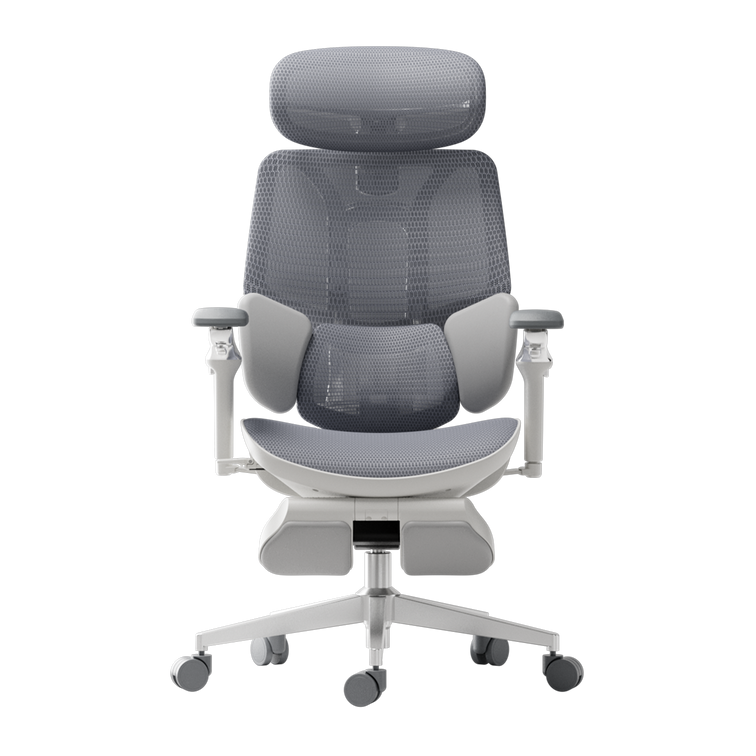
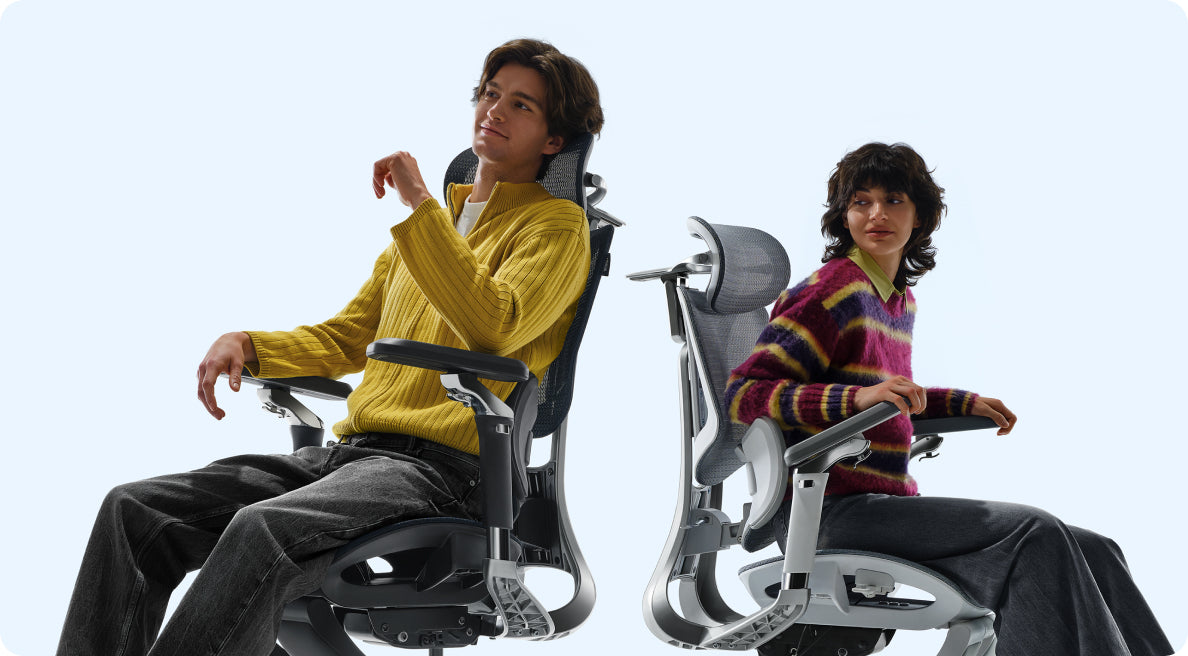
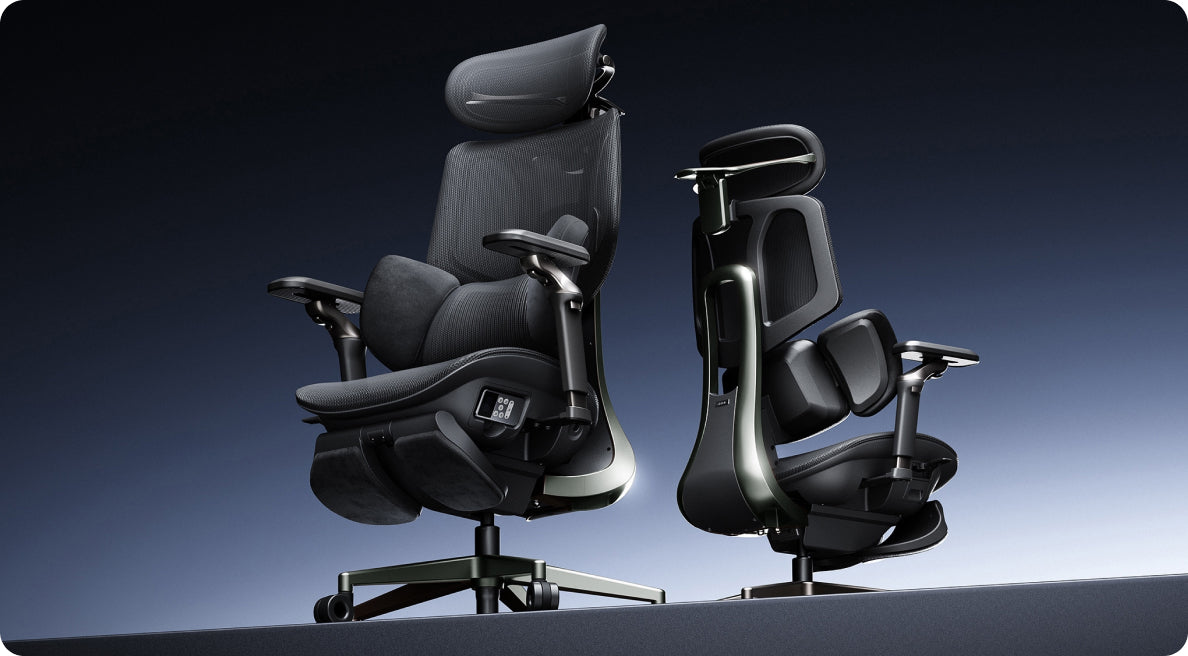

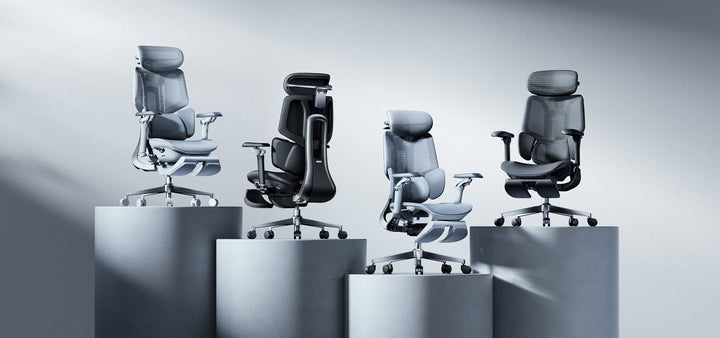
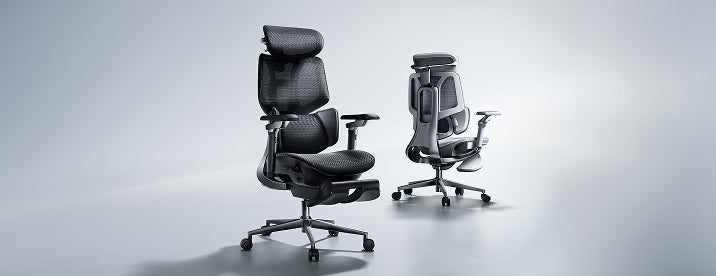


Start with the chair, then separate screen height from typing height. Adjust your seat to the desk, support your feet and lower back, and keep your shoulders relaxed. For longer laptop sessions, use a stand with a separate keyboard and mouse so you can position the screen without lifting your arms to type.
Why Can Laptop Work Feel Uncomfortable?
A laptop is easy to move between rooms, but its screen and keyboard remain joined together. A comfortable keyboard position can leave the screen too low. Raising the laptop may improve the view while making the keys harder to reach.
An ergonomic office chair helps you build a supported sitting position. It does not solve this screen-and-keyboard trade-off on its own. For regular work at one desk, a separate keyboard and mouse allow more flexibility.
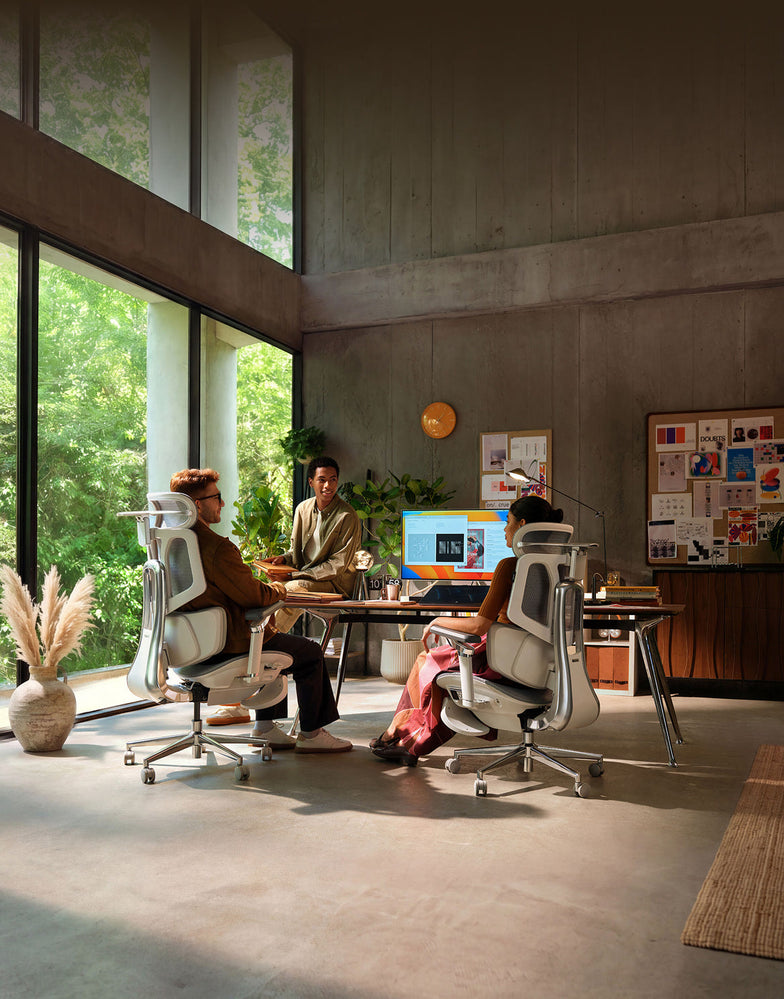
Whether your workspace is a dedicated home office or a shared desk, check how the chair, work surface and laptop fit together. Comfortable working also depends on changing position, not holding one posture all day.
How Should You Set Up the Chair First?
Use the keyboard position and desk height as your starting points. Then adjust the chair to support you without making you reach or raise your shoulders.
Match the seat height to the work surface
Adjust the seat until you can type with your shoulders relaxed, elbows close to your body and wrists roughly straight. If the desk height is adjustable, use both adjustments to find a comfortable position.
Support your feet
Your feet should rest securely on the floor or a suitable footrest. If a fixed desk requires a higher seat position, a footrest can bridge the gap without forcing you to lower the chair below a comfortable typing height.
Check the seat depth
Sit against the backrest and check the space behind your knees. Around two to three fingers is a useful starting point. If the model allows seat-depth adjustment, use it to avoid pressure from the front edge.
Align the lumbar support
Position the support against your lower-back curve. It should not feel as though it is pushing you away from the backrest. Adjust the available settings gradually and recheck them during normal work.
Keep the armrests clear of the desk
Set the armrests for light support with relaxed shoulders. Make sure they do not stop you moving close enough to the keyboard. Lower or reposition them if they catch on the desk edge.
How Should You Position the Laptop Screen and Keyboard?
With the chair adjusted, place the laptop on a stable stand and connect a separate keyboard and mouse. Start with the top of the screen at or just below eye level, roughly an arm's length away.
Adjust text size and screen distance until you can read without moving your head forwards. Place the mouse beside the keyboard, rather than far to one side, and keep enough desk space for comfortable use.
Working without extra equipment? Avoid raising the built-in keyboard to a height that makes you lift your shoulders. Keep the laptop in a manageable typing position and change tasks or take breaks regularly. A stand and separate input devices are worth considering when the same space becomes your everyday workstation.
Common Laptop Setup Problems and Their Fixes

Use these checks to review your workspace. They do not identify the medical cause of pain or discomfort.
| What you notice | What to check | Adjustment to try |
|---|---|---|
| You look down for long periods | Screen height and readability | Use a stand with an external keyboard, and adjust text size. |
| You lift your shoulders to type | Keyboard and seat height | Rebalance the chair and desk heights while keeping your feet supported. |
| Your feet do not reach the floor | Desk height and foot support | Add a stable under-desk footrest if the working height requires it. |
| You sit on the front edge of the seat | Equipment reach and seat depth | Move the keyboard closer and check whether you can use the backrest. |
| Your armrests hit the desk | Armrest height and width | Lower or reposition them to allow closer access. |
| You feel stiff after a long session | Time spent sitting still | Change position and include short walking or standing breaks. |
Your Laptop Workstation Checklist
- Adjust the seat for comfortable access to the keyboard.
- Keep both feet securely supported.
- Leave room behind your knees.
- Set the lumbar support against your lower back.
- Check that the armrests do not prevent desk access.
- Use a separate keyboard and mouse when raising the laptop.
- Adjust screen distance and text size for easy reading.
- Make time for movement and changes of task.
Which HBADA Chair Suits Laptop Work?

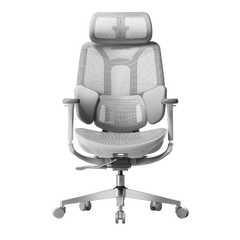
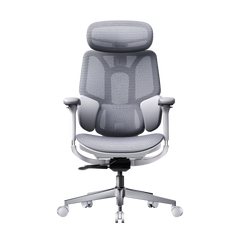
The right model is the one that fits both you and your desk. Before choosing from the HBADA EU office chair range, compare the adjustments available on the exact product and configuration.
If you are considering an E3 or X7 model, check its regional product information rather than relying on specifications from another market. Seat dimensions, adjustment options and footrest availability should be confirmed for the version you intend to order.
| What to compare | What to look for |
|---|---|
| Seat-height range | A suitable working height for your desk with stable support for your feet. |
| Seat dimensions | Enough room to sit comfortably while reaching the backrest. |
| Lumbar support | A support position and adjustment range that suit your lower back. |
| Armrest adjustments | Comfortable forearm support without blocking access to the work surface. |
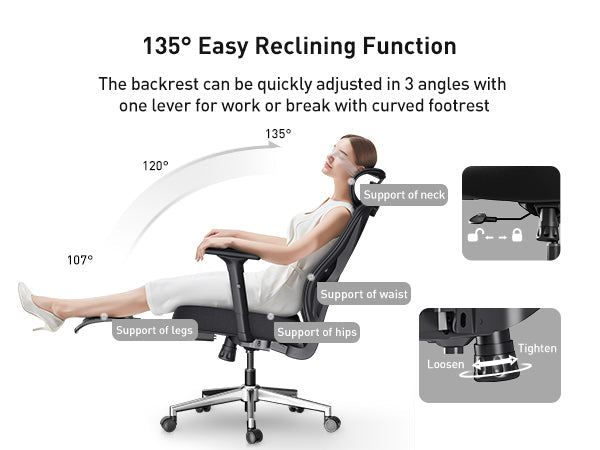
| Footrest type | Distinguish a reclining leg rest from a footrest used during upright typing. |
| Regional configuration | Confirm the selected model, dimensions, capacity and availability on HBADA EU. |
No chair feature removes the need to position the laptop correctly. Reserve space in your setup for a stable stand, keyboard and mouse as well as the chair.
Limitations and When to Get Help
- Chair adjustments support your working position; they do not treat medical conditions.
- Screen placement and equipment reach still need separate attention.
- A reclining position is not automatically suitable for keyboard work at a fixed desk.
- Speak to a qualified healthcare professional if discomfort persists or becomes severe.
- For an employer-provided workstation, ask about the assessment and guidance applicable in your country.
Final Thoughts
A practical laptop workstation starts with a chair that fits the desk and supports your feet and back. Keep the keyboard close, position the screen independently where possible, and check that your armrests do not get in the way. Small adjustments are useful, but regular movement remains part of the setup.
Frequently Asked Questions
How should you sit when working on a laptop?
Sit back with your lower back supported and your feet stable. Keep your shoulders relaxed and the keyboard close enough to reach without leaning forwards. A separate keyboard and mouse allow you to raise the screen while keeping a comfortable typing height.
Do you need a footrest for laptop work?
Only if your feet lack stable support at the seat height needed for your desk. Check the chair and desk adjustments first. If the desk is fixed and your feet still dangle, an under-desk footrest can help support them.
Is an ergonomic chair enough for working on a laptop all day?
No. The chair supports your sitting position, but screen height, keyboard reach and movement breaks also matter. For regular desk work, consider a laptop stand with a separate keyboard and mouse.
Can you use the same setup at a dining table?
Check the table height, legroom and how close the chair can move to the edge. If the surface is too high, raising the chair may require a footrest. A table that prevents comfortable keyboard access may not suit extended work, even with an adjustable chair.
How often should you move during laptop work?
Include short, regular opportunities to move rather than staying in one position until you feel uncomfortable. Stand, walk or switch tasks when practical. Follow any workstation guidance provided by your employer and applicable in your country.
Sources and Product Information
- HSE: Working with display screen equipment — a UK practical reference, not a statement of legal requirements across the EU.
- HBADA EU: Current office chair range and product information
Availability and specifications vary by model and configuration. Use the relevant HBADA EU product page to check the version available for your delivery location.