
Blog

Silla de oficina de malla vs espuma: ¿Cuál es mejor para largas horas?

Silla de oficina de malla vs espuma: ¿Cuál es mejor para largas horas?

Elegir entre sillas de oficina de malla y espuma para uso prolongado es una consideración central en la ergonomía de oficina. Cada material ofrece ventajas distintas, y la selección óptima debe tener en cuenta factores como la regulación de la temperatura corporal, los patrones individuales de sentado y los requisitos específicos de salud espinal. Para quienes son susceptibles al sobrecalentamiento o al dolor crónico de espalda, el material del asiento juega un papel fundamental en influir en los resultados. El siguiente análisis aplica principios científicos a ambos materiales, equipando a los profesionales para tomar decisiones informadas que prioricen la salud y la productividad.


Transpirabilidad y confort térmico

La principal diferencia entre las sillas ergonómicas de malla y las sillas de oficina acolchadas es su enfoque en la regulación de la temperatura. Para profesionales que trabajan en climas variados, la acumulación excesiva de calor puede disminuir notablemente la concentración y el confort.

La ventaja del flujo de aire

Una silla de oficina de malla está diseñada específicamente para maximizar el flujo de aire alrededor del usuario. En contraste, la espuma tradicional actúa como aislante, reteniendo el calor corporal y a menudo causando sudoración excesiva e incomodidad. Los diseños de malla de alta tensión facilitan la disipación eficiente del calor, asegurando comodidad constante y concentración sostenida durante largos períodos de trabajo.

Cuando la espuma no es suficiente

Aunque las sillas de oficina de espuma de alta densidad inicialmente ofrecen una sensación acolchada, la espuma inherentemente aísla, lo que resulta en retención de calor durante un uso prolongado. Este proceso puede eventualmente comprometer la integridad estructural del material. Para personas propensas a sobrecalentarse, una silla ergonómica de malla con mayor transpirabilidad es la opción superior para un confort duradero.


Soporte, distribución de presión y salud espinal

Al discutir si una silla de malla es mejor que una de espuma para el dolor de espalda, debemos considerar cómo cada material distribuye tu peso.

Malla y alineación espinal

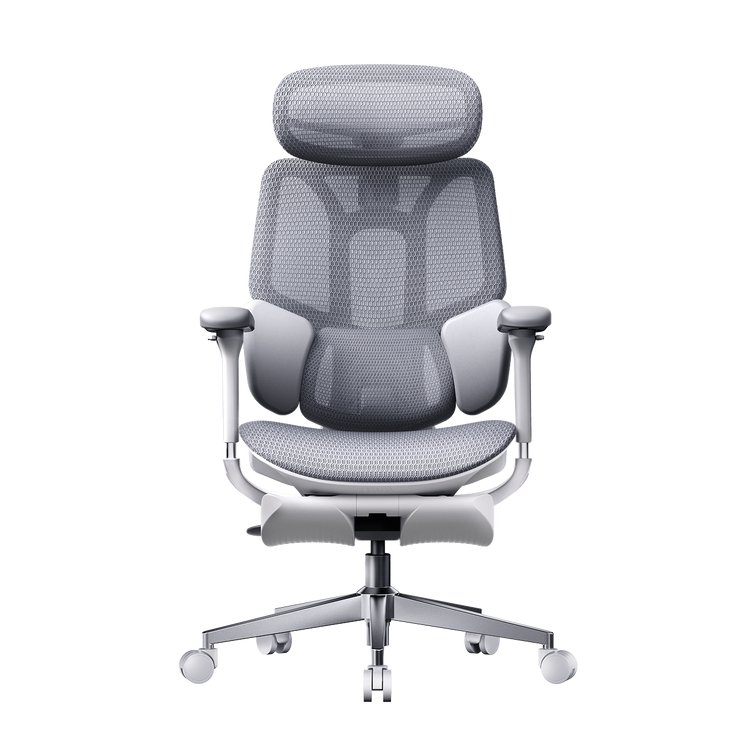
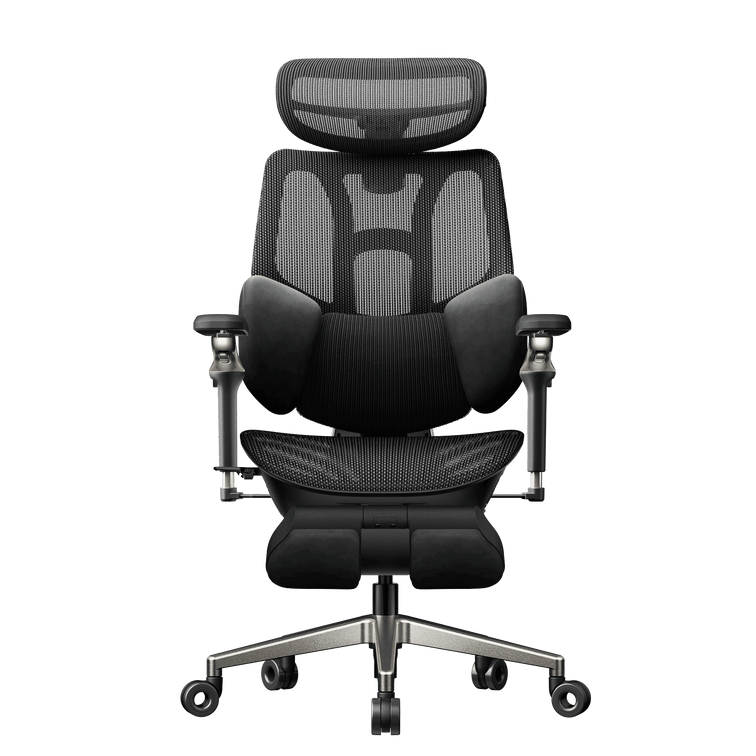
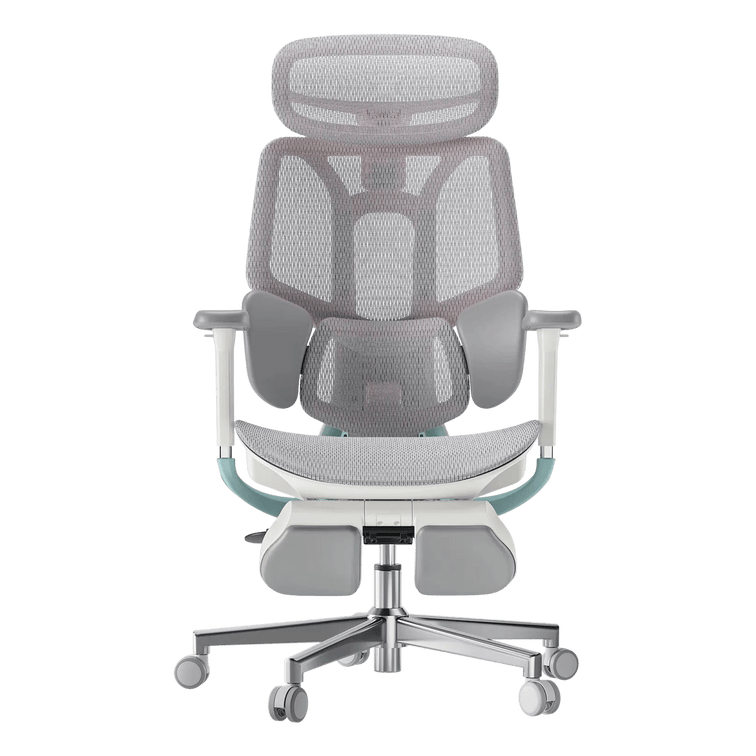
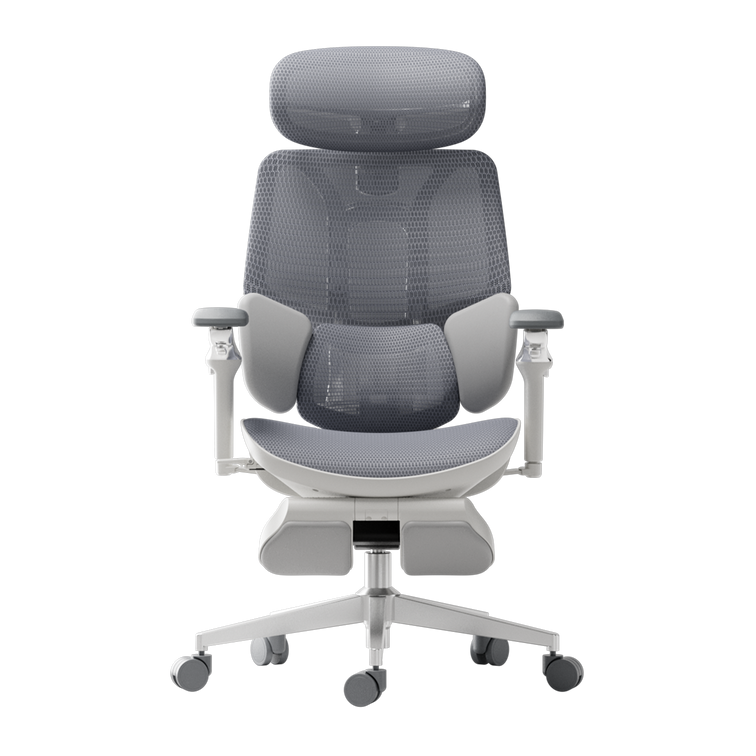
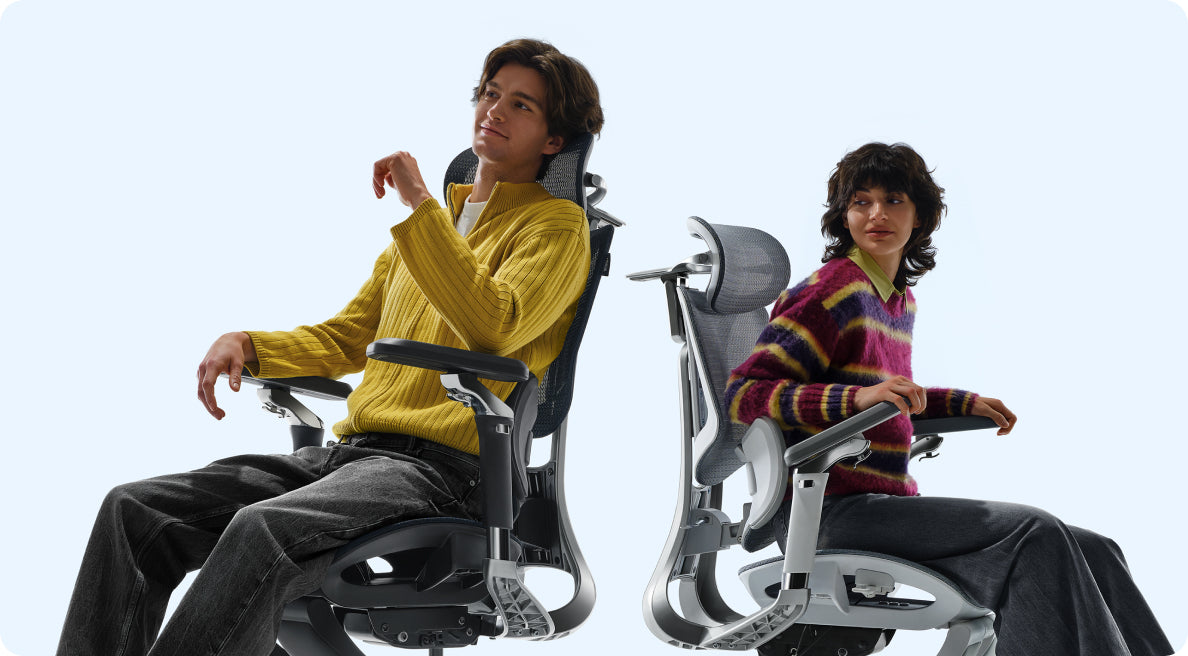
Una silla de malla para corrección postural que te sostiene sin dejar que te hundas. La malla se adapta a tu cuerpo pero se mantiene firme para ayudar a prevenir la postura encorvada. Modelos premium, como el Hbada AI-Powered x7, añade soportes mecánicos para mantener tu columna en una curva neutral en "S".

Espuma y puntos de presión

Una silla de oficina con espuma viscoelástica para trabajo en escritorio es reconocida por su sensación de "acunar" y su capacidad para distribuir la presión en los huesos de la pelvis, beneficiosa para usuarios muy delgados. Sin embargo, durante períodos prolongados de sentado, la espuma puede comprimirse completamente, resultando en contacto directo con la base plástica. Por lo tanto, una silla acolchonada es adecuada para períodos cortos, pero a menudo no ofrece el soporte necesario durante toda la jornada laboral.


Durabilidad y rendimiento a largo plazo

El mejor material para sillas de oficina de uso prolongado debe conservar su forma.

· Durabilidad de la malla: La malla de alta calidad está diseñada con precisión para una elasticidad superior, asegurando que recupere su forma original inmediatamente después de usarse. Las sillas ergonómicas premium de malla con soporte lumbar adaptable están diseñadas para mantener la integridad estructural y resistir deformaciones con el tiempo.

· Durabilidad de la espuma: La espuma puede hundirse o perder forma con el tiempo. Cuando esto sucede, el soporte de la silla disminuye. Elige sillas de oficina con espuma curada en frío o de alta densidad para una comodidad duradera.

 mejor silla para oficina en casa para dolor de espalda preventa

Por qué el enfoque híbrido suele ganar

Para 2026, ya no será necesario elegir exclusivamente entre malla y espuma. Los profesionales líderes optan por sillas ergonómicas de oficina que combinan respaldos y asientos de malla para asegurar un enfriamiento óptimo. Los modelos híbridos, que combinan respaldos de malla para transpirabilidad con asientos de espuma de alta densidad para mayor comodidad, ofrecen claras ventajas para quienes buscan tanto frescura como soporte acolchonado, proporcionando un equilibrio ideal entre flujo de aire y suavidad.

La solución Hbada

Para quienes buscan la mejor silla ergonómica para largas horas, nuestra línea se enfoca en la sinergia entre materiales y mecánica, con un diseño transpirable.

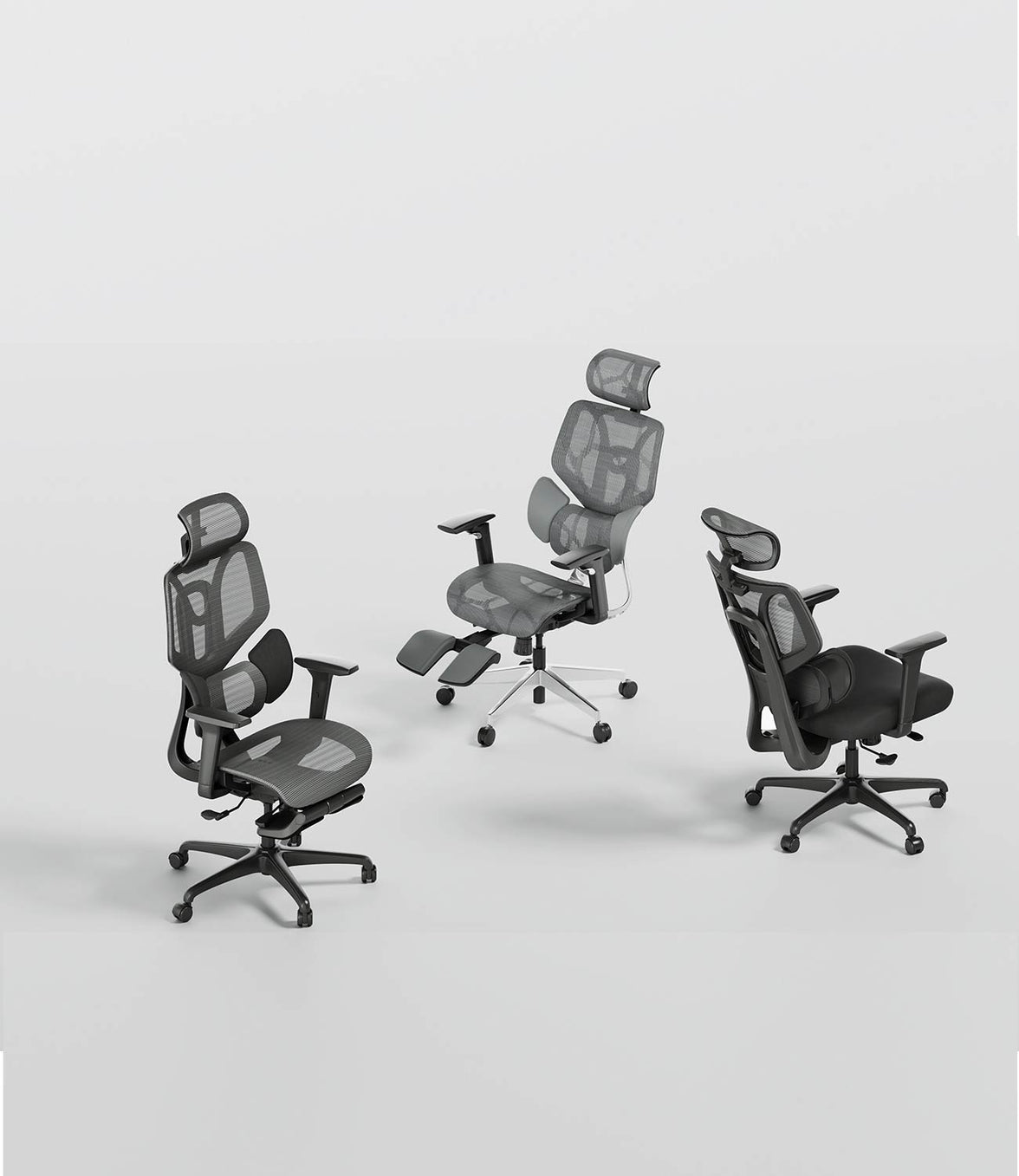
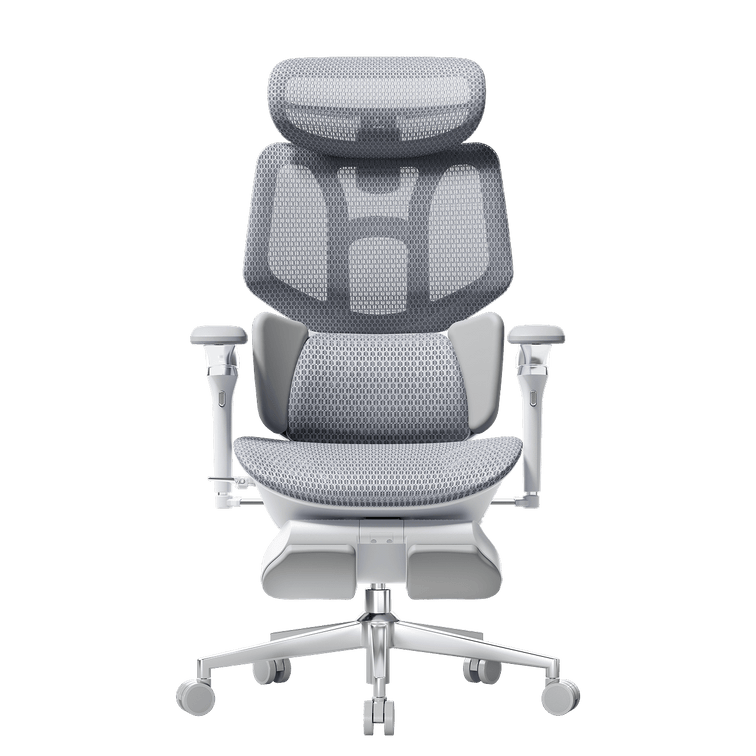
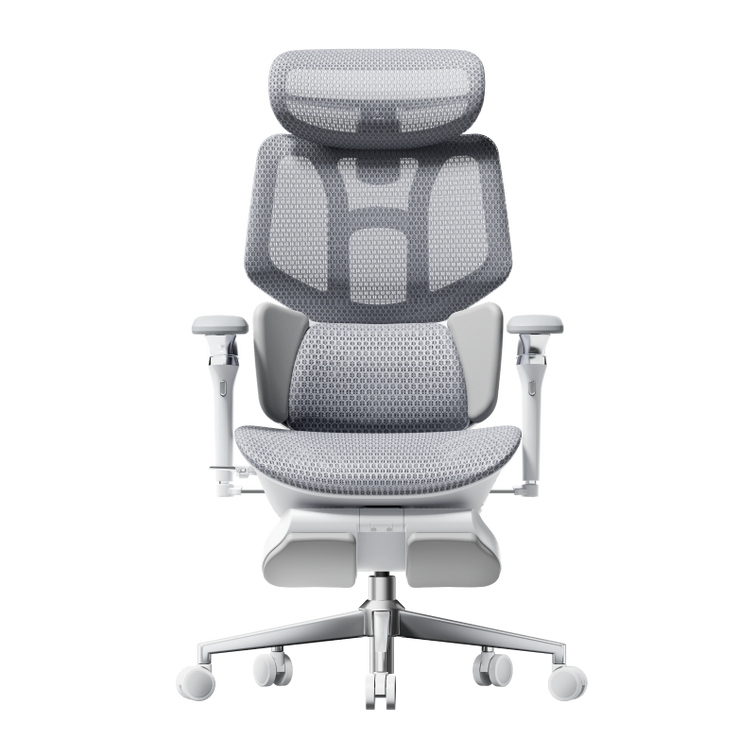
· Serie Hbada E3: Cuenta con una silla ergonómica de malla transpirable para largas horas con un sistema lumbar de 3 zonas.

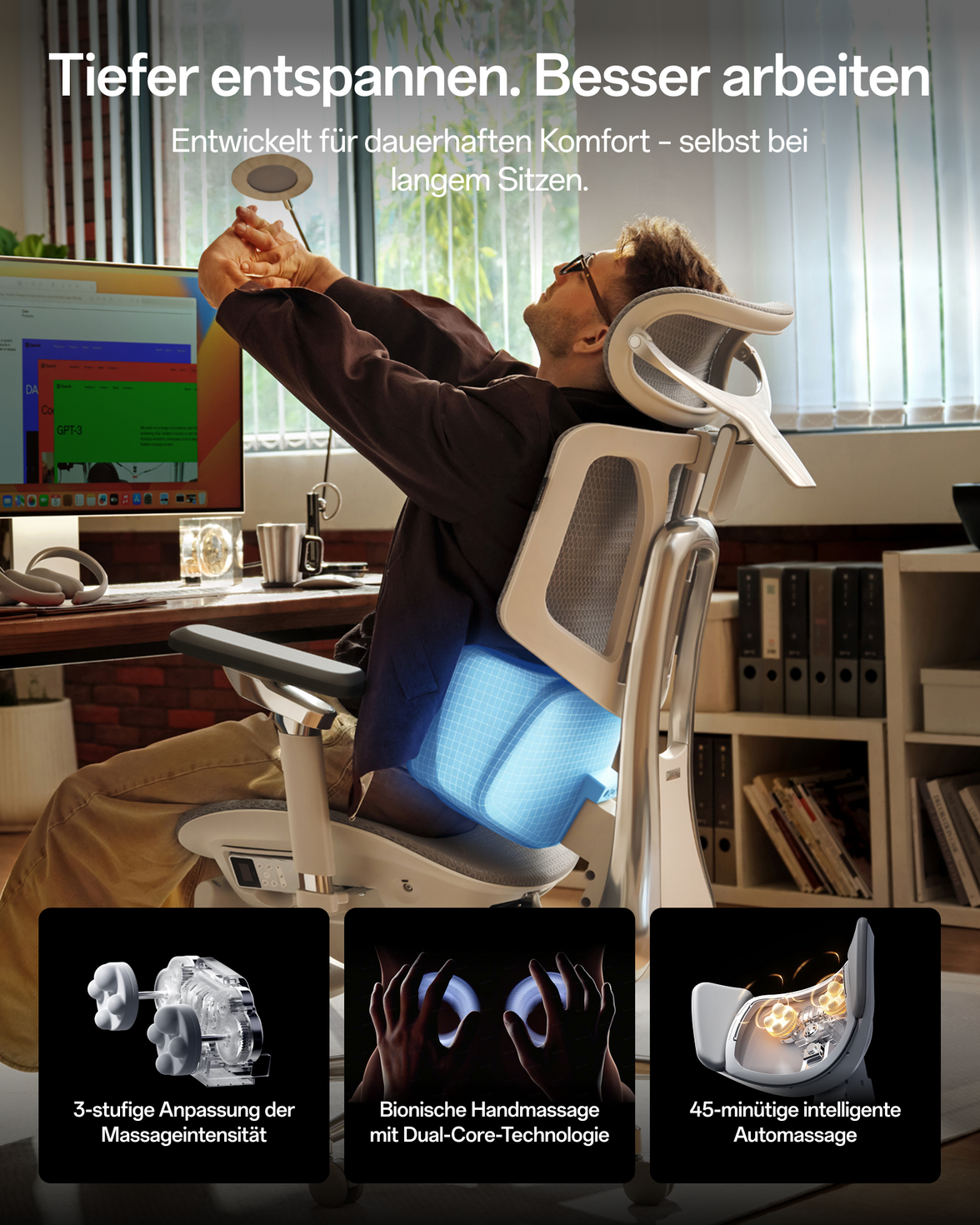
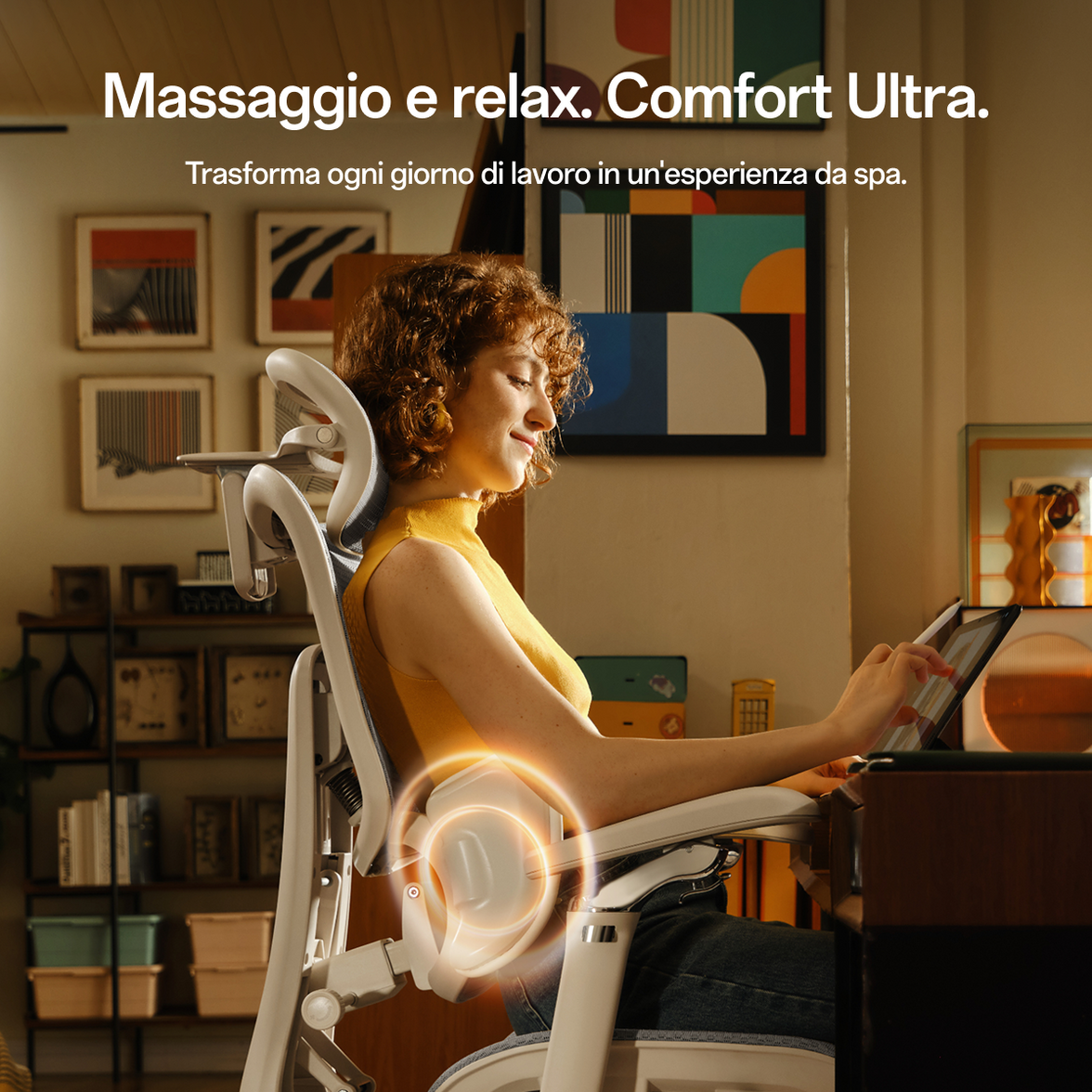
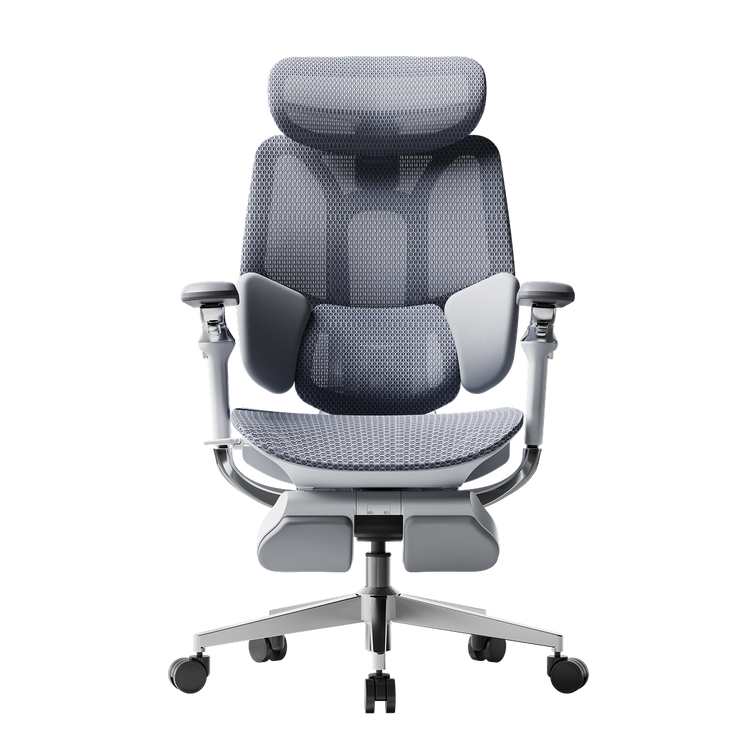
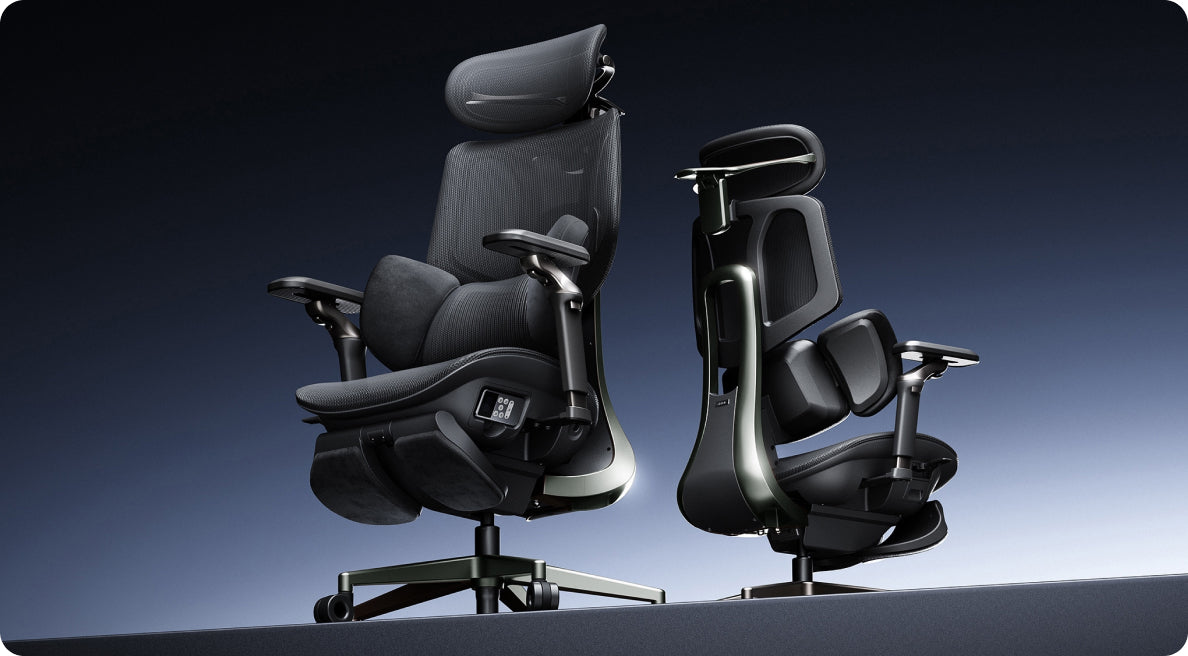
· Hbada AI-Powered x7: Nuestro modelo insignia que utiliza una silla ergonómica de malla premium con un sistema de soporte lumbar adaptable. La Hbada AI-Powered x7 usa tecnología biosincronizada para ajustar automáticamente la tensión de la malla y la posición lumbar en respuesta a tus movimientos.


Tabla resumen: Comparación entre malla y espuma

Enfriamiento

Excelente (Flujo de aire activo)

Pobre (Retención de calor)

Sensación de soporte

Firme / Suspendido

Suave / Acunado

Postura

Corrección alta

Corrección baja

Mantenimiento

Fácil de limpiar

Atrapa polvo/olores

Ideal para

Largas horas y comodidad

Duración corta de sentado


Preguntas Frecuentes (FAQ)

P: ¿Es mejor la malla o la espuma para el dolor lumbar? 

R: Generalmente, una silla de malla para corrección postural y salud de la columna es mejor. La malla proporciona una contrapresión firme y constante que soporta la curva lumbar. La espuma a menudo puede ser demasiado blanda, permitiendo que la pelvis se incline hacia atrás, lo que aumenta la presión en los discos espinales.

P: ¿Se desgasta la malla más rápido que la espuma? 

R: No, siempre que sea la mejor silla ergonómica con sistema de soporte de malla. La malla elastomérica de alta calidad está diseñada para durar más de una década sin hundirse. En contraste, la espuma de baja calidad puede perder su "resorte" en 12 a 24 meses de uso intensivo.

P: ¿Es incómodo un asiento de malla para personas delgadas? 

R: Algunos usuarios delgados encuentran que los asientos de malla se sienten "firmes". Si tienes muy poca amortiguación natural, busca una silla ergonómica de oficina con soporte lumbar y flujo de aire en malla, que tenga un borde de asiento tipo cascada. Esto reduce la presión en la parte posterior de las piernas. Alternativamente, la Hbada AI-Powered x7 utiliza un tejido especializado que ofrece más "flexibilidad" en el centro para mayor comodidad.

P: ¿Puedo limpiar fácilmente una silla de malla? 

R: ¡Sí! Esta es una gran ventaja de la silla ergonómica transpirable de malla para uso a largo plazo. A diferencia de la espuma, que absorbe derrames y olores, la malla se puede limpiar con un paño húmedo o aspirar fácilmente, lo que la hace más higiénica para uso prolongado.

 silla ergonómica de escritorio con ruedas

Conclusión

La comparación entre sillas de espuma y malla para la corrección postural depende en última instancia de las prioridades ambientales y de salud. Para mantener la frescura, apoyar la alineación natural de la columna y asegurar durabilidad sin hundimientos, la malla surge como la solución definitiva. Elegir una silla como la HBADA AI-Powered x7 representa una inversión en soporte ergonómico avanzado y alineación lumbar adaptativa, ofreciendo mejoras medibles en comodidad y productividad. Actualice con confianza a un diseño transpirable y experimente las ventajas profesionales de la tecnología ergonómica contemporánea ergonómica.
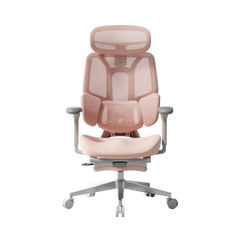
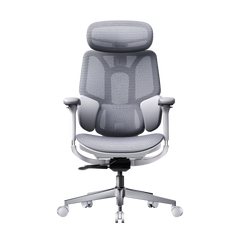
Producto relevante

También te puede gustar

HBADA E3 Pro Review: Unboxing, Assembly & 90-Day Check-In Guide HBADA E3 Pro Review: Unboxing, Assembly & 90-Day Check-In Guide From the first unboxing to your everyday setup. A chair becomes part of your workday one adjustment at a time. Here is how to approach the E3 Pro’s assembly, explore its support and keep track of what works for you over the first 90 days. Quick answer Start by identifying your E3 Pro edition and using its matching assembly guide. Once assembled, focus on seat fit, lumbar contact, armrest position and recline before judging everyday comfort. This guide combines published assembly experiences with our practical setup advice. The 90-day section is an owner check-in plan, not a completed test or a promise of a 90-day return window. In this guide 01 · Unboxing 02 · Assembly 03 · Setup instructions 04 · Everyday comfort 05 · 90-day check-ins 06 · Value & fit 07 · FAQs 08 · Final checklist 01 / THE FIRST LOOK HBADA E3 Pro Unboxing: Start with Your Edition Before opening the packaging, check the model details on your order and carton. The E3 Pro name spans different editions, so an older review or assembly video may not describe the exact chair you have purchased. If you are researching the current model, begin with the E3 Pro 2026 specifications and European configuration options . Match the selected configuration to your order rather than assuming every version includes the same accessories. Check before building Lay out the components on a protected surface. Match them to the parts list and inspect the frame, mesh and fittings before starting assembly. Keep the essentials Keep your order details, manual and supplied tools together. Retain the packaging while you check the delivery and review the applicable return instructions. Find the correct instructions in our user manual and assembly guide hub . Choose the entry matching the edition on your order. 02 / PUTTING IT TOGETHER HBADA E3 Pro Assembly: What Published Reviews Report Assembly experiences provide useful context, but they are not a guaranteed completion time. The edition, your experience and the space available all affect the process. Two published experiences, with model context Source Observation How to use it The Gadgeteer Reported approximately 25–30 minutes for a one-person E3 Pro 2026 assembly. Treat this as one reviewer’s experience, not a time limit. TechRadar Described clear instructions and manageable solo assembly for the E3 Pro unit reviewed. This earlier review should not be treated as a test of the current 2026 edition. These reviews describe the units supplied to their authors. Check our European product listing and your order for the configuration available to you. Allow enough time to check your work and ask for help with any component that feels awkward or heavy. Our assembly and troubleshooting guide covers common installation questions. 03 / A SMOOTHER START HBADA E3 Pro Instructions: Build Carefully, Then Adjust Follow the manual supplied for your exact model. These general checks support that process; they do not replace its assembly sequence. Match the edition. Open the corresponding manual and video before beginning. Check orientation. Compare components with the diagrams before joining them. Align the fasteners. Start related screws by hand before tightening as instructed. Do not force a screw that does not turn correctly. Check the completed chair. Confirm that the base, castors and attached components are secure before use. Optional footrest: Follow the instructions for your selected configuration. Do not use a pull-out footrest as a step or seat. If a component is missing, damaged or does not fit, contact our support team before continuing. Keep our European warranty and customer service information handy if you need help after delivery. Use the terms applying to your order rather than service details quoted in an overseas review. 04 / MAKE IT YOURS Comfort and Adjustability in Daily Use Our E3 Pro 2026 combines three-zone adaptive lumbar support, a 4D dual-axis headrest, 720° omni-mechanical armrests and breathable mesh. The useful question is how those features fit your body and your desk—not simply how many adjustments the chair offers. Start with seat fit Check height and depth before fine-tuning the backrest. Our guide to measuring office chair fit explains how seat dimensions and body proportions work together. Find the lumbar contact Explore the controls gradually rather than assuming maximum pressure is the best setting. Read our guide to choosing lumbar support for your body type for a closer look at fit and placement. Bring the desk into the picture Armrest position matters alongside keyboard and desk placement. Follow our ergonomic chair adjustment guide to review the setup as a whole. Learn the controls Change one setting at a time so you can notice the difference. Our chair owner’s hub brings together setup resources and adjustment guidance. Breathable mesh allows airflow; it is not active cooling. Comfort also changes with room temperature, clothing, task and time spent in one position. Leave room in your routine for movement instead of relying on one fixed setup all day. 05 / BEYOND FIRST IMPRESSIONS A 90-Day Check-In Plan for Your E3 Pro First impressions and long-term ownership answer different questions. Use these check-ins to record your own experience, rather than treating a short review as proof of durability. Day 1 Record the baseline Note the edition and configuration, check assembly and take a photo of your starting setup. Week 1 Refine your everyday settings Try the chair during your usual tasks. Note which adjustments help and which contact points need attention. Day 30 Review fit and function Check whether controls remain easy to use and whether your preferred setup still works with your desk. Do not wait for this milestone if there is a problem. Day 90 Compare with your baseline Inspect the mesh and accessible fittings, note any unexpected movement or noise and follow the maintenance guidance for your model. Check your return deadline separately. This 90-day plan does not extend any trial or return period. Review the terms that apply to your order early, and contact us promptly if something is not right. Mesh colour and visibility of underlying components are appearance considerations, not evidence that one colourway is more durable than another. Assess function and condition separately from visual preference. 06 / THE BUYING DECISION Is the HBADA E3 Pro Worth It for Your Setup? The E3 Pro is worth considering if you want an adjustable mesh chair and prefer to set your own support and seating position. Its value depends on whether the dimensions and controls work for you—not on a feature count alone. Check fit: compare the seat dimensions and adjustment ranges with your workspace and proportions. Use the same measurement units when comparing figures. Check configuration: confirm the edition, colour and footrest selection. Check the complete purchase: review the current price, delivery information and service terms for your destination. Use the current European E3 Pro 2026 listing for purchase details rather than converting an older review’s US sale price into euros. 07 / USEFUL ANSWERS Frequently Asked Questions How long does HBADA E3 Pro assembly take? The Gadgeteer reported approximately 25–30 minutes for its E3 Pro 2026 assembly. Your time may differ with the model, experience and available help. Follow the manual rather than rushing to match a reviewer’s time. Where can I find HBADA E3 Pro instructions? Visit our user manual and assembly guide hub . Select the instructions matching the edition on your order and check the corresponding assembly video. Does every E3 Pro include a footrest? Check the configuration selected on your order. Do not assume an accessory shown in a review is included with every edition or option. Is this a completed 90-day durability test? No. The 90-day section is a suggested owner check-in plan. It does not represent a controlled test, a lifespan guarantee or an extension of the return period. What should I do if my chair starts squeaking? Follow our maintenance and troubleshooting guidance . A noise alone does not identify the cause. If the chair feels unstable or a structural part is damaged, stop using it and contact support. Never open or modify the gas lift. How should I judge comfort after assembly? Start with a careful fit check and adjust one setting at a time during your usual tasks. Do not force yourself to tolerate sharp or worsening discomfort. Review your purchase terms while deciding whether the chair fits your needs. Do overseas reviews describe the same European offer? Not necessarily. A review may cover another edition, configuration or regional offer. Check our European product page for your chosen configuration and our EU warranty and service information for the relevant support details. 08 / BRING IT TOGETHER The Final Check: Fit Before Feature Count A useful E3 Pro review should help you make a better decision: choose the correct edition, understand assembly, explore the adjustments and evaluate your own day-to-day experience. Start with the right documentation, give each adjustment a purpose and keep track of how your setup works over time. That is more useful than assuming any chair will feel the same for every person. Build a setup that works for you. Explore the E3 Pro 2026’s European specifications and configurations, then use our setup resources to get started. Explore the HBADA E3 Pro 2026 → More practical guidance for your everyday workspace. Choose HBADA Europe as a preferred source on Google to stay connected with our chair guides, setup advice and workspace ideas. Add HBADA Europe as a preferred source ↗ Opens Google in a new tab. Confirm your selection there if HBADA is available for your account and region. World Spine Day 2026: How to Build a More Spine-Friendly Home Office World Spine Day 2026: How to Build a More Spine-Friendly Home Office World Spine Day 2026 · EU Home Office Guide Your chair supports your spine.But only if the whole setup does. October 16 is World Spine Day. The 2026 theme, “Spine Health for Life,” is a reminder that spinal health is built through daily habits, not fixed after pain appears. For desk workers across Europe, that starts with a home office where the chair, desk, monitor, and movement patterns work as one system. Quick answer A spine-friendly home office is not a single purchase. It is a sequence: set the chair to your body first, build the desk and screen around that fit, and break up sitting with regular movement. World Spine Day 2026 is observed on October 16 under the theme “Spine Health for Life,” emphasizing prevention across every stage of life. Use the steps below to check your setup against that standard instead of assuming it is already fine. Transparency: This guide is published by HBADA and features HBADA products alongside general ergonomic guidance. It is not an independent clinical review and does not replace an individual assessment by a health professional. Product links lead to HBADA’s Europe store. Availability and pricing can vary by delivery country within Europe. In this guide What World Spine Day 2026 is about What “spine-friendly” actually means Start with the chair Build the desk around the chair Quick reference checklist Posture mistakes that undo good gear Movement matters as much as the chair HBADA models for European workdays Frequently asked questions A spine you won’t think about tomorrow 01 / THE OBSERVANCE What World Spine Day 2026 is about World Spine Day is the largest public health event dedicated to spinal health, coordinated by the World Federation of Chiropractic and observed every October 16. An estimated one billion people worldwide experience spinal pain, and it remains a leading cause of disability across all ages.[reference:0] The 2026 theme, “Spine Health for Life,” shifts the focus from reacting to pain toward protecting the spine proactively across the whole life course.[reference:1] For remote and hybrid workers across Europe, that message lands in a specific place: the home office, where many people spend their longest uninterrupted block of seated hours each day, often without the ergonomic oversight a traditional office might provide. This guide treats World Spine Day as a practical checkpoint. It walks through the setup sequence in the order that matters, from the chair outward, and includes a movement layer that no piece of furniture can replace. 02 / THE PRINCIPLE What “spine-friendly” actually means in practice The lower back has a natural inward curve. A spine-friendly setup supports that curve consistently instead of letting it flatten during hours of sitting. Flattening increases load on the spinal discs, which over time contributes to the stiffness and discomfort many desk workers accept as normal. A spine-friendly home office is therefore not the most expensive chair available. It is a workspace where the chair, desk, and screen stop working against each other. If you are unsure whether your current chair is still doing its part, browsing the full HBADA Europe chair collection is a reasonable starting point for comparison. 03 / STEP ONE Start with the chair, not the accessories Everything else in the workspace is built around the chair. Get this part right first, then adjust the desk and screen to match. Seat height Set the seat so your feet rest flat on the floor and your knees sit near a 90-degree angle. Your thighs should be roughly parallel to the ground, not sloping upward or pressed down. If your feet dangle, the seat is too high; if your knees rise above your hips, it is too low. Seat depth Sit all the way back in the chair, then adjust the seat depth so there is a small gap—about two to three fingers wide—between the edge of the seat and the backs of your knees. A seat that is too deep forces you to perch forward, away from the lumbar support. A seat that is too shallow leaves your thighs unsupported. Lumbar support The lumbar support should sit in the natural curve of your lower back, roughly just above the belt line. It should feel supportive, not aggressive. When positioned correctly, it reduces the urge to slouch and helps maintain a more natural spinal shape. HBADA Europe’s guide on ergonomic setup and chair adjustment walks through the full sequence. Armrests Your elbows should rest at roughly 90 degrees, with your shoulders relaxed rather than raised toward your ears. If the armrests are too high, your shoulders creep up; if they are too low, your arms hang and your neck and upper back take the load. Recline A slight recline, generally between 95 and 110 degrees, eases pressure on the spinal discs compared with sitting bolt upright for hours. Adjust the resistance so the backrest moves smoothly but still feels controlled. Do not skip the order. Seat height first, then seat depth, then lumbar support, then armrests, then recline. Changing the sequence usually means redoing earlier adjustments. HBADA Europe’s laptop-workstation setup guide follows this same logic. 04 / STEP TWO Build the desk and screen around the chair Once the chair fits your body, the rest of the workspace should meet you where you are, not the other way around. Keyboard and mouse Keep the keyboard flat or tilted slightly away from you so your wrists stay straight rather than bending upward. Place the mouse next to the keyboard at the same height, and move it with your whole arm rather than just your wrist. If the desk is too high, raise the chair and use a stable footrest instead of lifting your shoulders to reach. Monitor height and distance Position your eyes about 2 to 3 inches below the top edge of the screen, and keep the monitor roughly an arm’s length away. If you work on a laptop, a stand paired with an external keyboard and mouse is usually the difference between a neutral neck and a continuously downward-tilted one. The desk as part of the system A well-adjusted chair can still leave you straining if the monitor or keyboard sits in the wrong place. Sit down, relax your shoulders, and check whether your eyes, wrists, and hips all land in a neutral position without reaching or twisting. HBADA Europe’s ergonomic guides cover desk–chair clearance and common setup problems if the workspace itself needs to change. 05 / AT A GLANCE Quick reference checklist Target positions for a spine-friendly desk setup Element Spine-friendly target Seat height Feet flat, knees near 90° Seat depth 2–3 finger gap behind the knees Lumbar support Fills the lower-back curve, just above the belt line Armrests Elbows near 90°, shoulders relaxed Backrest recline 95°–110° for focused desk work Monitor Eyes 2–3 inches below screen top; about an arm’s length away Keyboard and mouse Wrists straight; mouse beside keyboard at the same height Movement Stand or stretch every 30–60 minutes 06 / WHAT UNDOES GOOD GEAR Posture mistakes that undo good equipment Even a genuinely supportive chair cannot fully compensate for a few common home-office habits. Working from the couch or bed. Soft, unsupportive surfaces let the spine round forward for hours. Using a laptop flat on the desk. This forces the neck into continuous downward tilt, loading the cervical spine. Sitting in one fixed position all day, even a good one. Static posture limits circulation and increases fatigue regardless of chair quality. Ignoring seat depth. Perching forward because the seat is too deep keeps your back away from the lumbar support. Keeping a worn-out chair. If the seat has flattened or the adjustments no longer hold, replacement may be more effective than adjusting around the problem. 07 / THE LAYER FURNITURE CANNOT REPLACE Movement matters as much as your chair World Spine Day’s own guidance is clear: no single habit, including sitting in a well-adjusted chair, prevents every spinal problem on its own. Regular movement is an equally important layer.[reference:2] For a home office, that can be as simple as standing up every 30 to 60 minutes, taking short walks between calls, or doing a few minutes of stretching during natural breaks. General health guidance recommends at least 150 minutes of moderate-intensity activity per week, plus muscle-strengthening activity on two or more days, to support the muscles and bones around the spine. HBADA’s guidance for new chair owners frames movement the same way: even the best chair benefits from standing up for a couple of minutes every hour to stimulate blood flow. A spine-friendly setup is the chair and the habit of leaving it regularly. If you use a sit-stand desk: the goal is variation, not standing all day. Many clinicians suggest a mix rather than a permanent switch, and standing for long static periods brings its own load. Change position every 30–60 minutes in either mode. 08 / MATCHING THE CHAIR TO THE WORKDAY HBADA models for different kinds of European workdays If HBADA is on your shortlist for a European delivery address, start by matching the chair’s adjustment style to how you actually work, not by choosing the highest feature count. The current Europe range includes three distinct approaches. HBADA X7 Smart Built for long, intensive desk days. AI lumbar tracking adjusts the support as your posture shifts, so the lower back stays supported without manual readjustment. Also includes active features such as ventilation and 8D massage. View the X7 Smart → HBADA E3 Pro 2026 A mechanical-first choice with 3-zone elastic lumbar support, 720° armrests, and up to 140° recline. Suited to users who want extensive manual adjustment and regular reclining breaks without electronic controls. View the E3 Pro 2026 → HBADA E3 Air 2026 A lighter everyday home-office chair with 3-zone adaptive lumbar support, 4D armrests, and breathable CloudMesh. A more accessible entry point into the E3 adjustment system. View the E3 Air 2026 → Whichever model you consider, the setup sequence stays the same: adjust the chair to your body first, then bring the desk and monitor into line. For a side-by-side comparison of the current European range, see HBADA Europe’s 2026 EU chair comparison . Availability and pricing can vary by European delivery country. Check the current product page for your region before ordering, and confirm which configuration is included in the version you select. 09 / COMMON QUESTIONS Frequently asked questions What is World Spine Day 2026, and when is it observed? World Spine Day 2026 is observed on October 16. The official theme is “Spine Health for Life,” focusing on protecting spinal health proactively across every stage of life rather than waiting for pain to appear.[reference:3] What does a spine-friendly home office actually require? At minimum: a chair with adjustable lumbar support and seat depth, a monitor positioned so your eyes land 2–3 inches below the top edge, a keyboard and mouse at a height that keeps your wrists straight, and a habit of standing or moving every 30–60 minutes. Can a good chair alone fix poor home office posture? Not entirely. A supportive chair is foundational, but working from a couch, leaving a laptop flat on the desk, or staying in one fixed position all day can undermine even a well-designed chair. The chair and the workspace have to align as a system. How often should I move during the workday for spine health? General guidance suggests standing, stretching, or walking every 30 to 60 minutes, alongside a broader weekly target of at least 150 minutes of moderate activity. The key is interrupting prolonged static posture, not replacing sitting with standing for the entire day. What is the most overlooked part of an ergonomic workspace? Seat depth and monitor height are commonly overlooked compared with seat height and lumbar support. Seat depth determines whether you can actually use the backrest; monitor height determines whether your neck stays neutral over hours of screen work. Is World Spine Day only relevant to people with existing back pain? No. The 2026 theme explicitly emphasizes prevention across all life stages, which makes it just as relevant to people without current pain who want to reduce the likelihood of developing it.[reference:4] 10 / THE TAKEAWAY A spine you won’t think about tomorrow The goal of a spine-friendly home office is not a perfect one-time setup. It is a reliable sequence—chair first, desk and screen second, movement throughout the day—that quietly protects your spine long after World Spine Day itself has passed. If your current chair is no longer giving your lower back the support or adjustment range it needs, the HBADA Europe chair collection is the place to compare models against the checklist above. Start with the fit, verify the adjustments, and build the rest of the workspace around a chair that meets your body where it is. Scope: This article is a purchasing and setup guide, not a clinical assessment. It does not diagnose or treat spinal conditions and does not replace advice from a qualified health professional. Product names and links belong to HBADA. Availability and pricing are subject to the delivery country within Europe. Was this guide useful? Keep HBADA in your feed. Choose HBADA as a preferred source on Google for more practical guides on ergonomic chairs, workstation setup, and the daily habits that support a healthier desk workday. Choose HBADA as a preferred source ↗ Google opens in a new tab. Confirm your selection there if the feature and HBADA are available in your region. Back to top ↑ Why Does Your Lower Back Feel Tired After Sitting? Posture, Muscle Fatigue, and Lumbar Support Explained Why Does Your Lower Back Feel Tired After Sitting? Posture, Muscle Fatigue, and Lumbar Support Explained Everyday comfort · Chair setup · Movement Your back may need a change.Not a “perfect” posture. It is 3 p.m. You have not done anything strenuous, yet your lower back feels tired. You sit taller, shift to one side, then stand for a moment. Let’s walk through the settings and everyday habits worth checking. Quick answer Long periods in one position and a chair setup that does not suit you can contribute to discomfort. Start with comfortable lower-back support, suitable seat height and depth, and room to change position. In this guide, we’ll help you check each element and build more movement into your workday. This article provides general workstation information, not a diagnosis or medical treatment. Fatigue and pain can have several causes. Seek professional advice for persistent, worsening, or concerning symptoms. Inside this guide The familiar tired feeling Prolonged sitting and fatigue Check your chair setup Lumbar support height Seat depth Recline and reach Movement breaks Our three-zone lumbar design Quick reference table Frequently asked questions Comfort is a fit 01 / NOTICE THE PATTERN The familiar tired feeling You may notice stiffness after a meeting or find yourself shifting more often towards the end of the day. Sometimes standing or walking feels more comfortable. Notice when it happens, how long you have been seated, and whether a different position helps. These observations can help you decide which parts of your workstation to check first. If you are unsure where to start, our guide to choosing lumbar support for your body type explains the fit considerations to check before changing several settings at once. 02 / LOOK BEYOND ONE POSTURE Why prolonged sitting can feel tiring Sitting is not completely passive: the effort involved changes with your task, position, and the support available. Remaining in one position for a long time may become uncomfortable, even if that position felt fine at first. There is no single posture that everyone needs to hold throughout the day. Workstation guidance from the US Occupational Safety and Health Administration, OSHA, includes changing position and making small adjustments, rather than remaining still. A useful starting point: aim for a setup that supports you and permits comfortable changes—not one that forces you to hold yourself rigidly upright. 03 / CHECK THE WHOLE SETUP How chair setup can add to discomfort Your lumbar support works as part of a larger setup. Check your chair and desk together, starting with these four common fit issues. Support in the wrong place The lumbar pad may feel too high, too low, or too prominent for your body. A seat that feels too deep You may slide forwards to avoid pressure behind the knees and stop using the backrest. Feet without support Check whether seat height and desk height work together without leaving your feet dangling. A desk that makes you reach Keyboard, mouse, and screen placement may pull you away from an otherwise comfortable position. For model-specific controls and instructions, visit our user manual and assembly guide hub. Select your exact model and edition before adjusting an unfamiliar mechanism. 04 / FIND COMFORTABLE CONTACT Where should lumbar support sit? Sit back comfortably and locate the inward curve of your lower back. Use that area as a starting point for the support position, rather than relying on the same numbered setting as someone else. Where your model allows it, make small changes to height or depth. The support should not force you forwards or create a sharp pressure point. Reduce or reposition it if it feels intrusive. Our guide to adjusting an ergonomic chair for better comfort brings the main settings together. Use it alongside the instructions for your specific chair. 05 / GIVE YOUR BACK ROOM TO REACH Seat depth: support without pressure behind the knees Check whether you can sit against the backrest while leaving a comfortable gap behind your knees. A small finger-width gap can be a practical starting check, not an exact measurement everyone must match. If the front edge presses into your legs, check whether the seat can move backwards. If the seat feels too short, check its adjustment range without losing backrest contact. Our office chair fit guide walks through height, depth, width, and lumbar position. Compare your measurements with the specifications for the configuration you are considering. Check back support, clearance behind the knees, and foot support together. 06 / SUPPORT WITHOUT OVERREACHING Reclining: find a position that suits the task You do not need to hold an exact 90-degree position throughout the workday. Try a supported position that lets you use your keyboard and see the screen without reaching forwards. A modest recline may feel comfortable, but no single angle is right for every person or task. If reclining makes you stretch your arms or crane your neck, reconsider the setting and desk arrangement. Adjust tilt tension and locking controls only as described in your manual. Use deeper recline settings for suitable break activities rather than trying to type from a position that requires overreaching. 07 / MAKE ROOM FOR MOVEMENT Movement breaks belong in the setup Pair your chair adjustments with small opportunities to move: stand for part of a call, walk to refill water, or switch briefly to a different task. A reminder can help you notice uninterrupted sitting, but it is not a reason to wait if you already feel uncomfortable. Choose movements that are comfortable and appropriate for your health and mobility. OSHA’s workstation evaluation checklist includes opportunities for changes in posture and short recovery pauses during computer work. Small changes can be built into ordinary work tasks. Adapt activities to your own comfort and mobility. 08 / SUPPORT THAT FITS YOUR DAY Get to know our three-zone lumbar design Our E3 Pro 2026 features a three-zone lumbar support system with a central support section and two side wings. Together, these elements provide contact across the centre and sides of your lower back, with adaptive movement as you change position. To find a comfortable fit, start with your seat height and depth, then adjust the lumbar support using your model’s controls. Aim for gentle, comfortable contact rather than strong pressure against your back. Explore the available configurations on our E3 Pro 2026 product page. You can also review the E3 Air specifications to compare the adjustment options that matter most for your workspace. Interested in powered lumbar support? Explore our HBADA X7 and its adjustment features. Start with a comfortable fit, get familiar with the controls, and keep regular movement part of your routine. 09 / YOUR QUICK CHECK Chair setup reference table Starting points to adjust—not rigid targets Setting What to check Reconsider it if… Lumbar position Comfortable contact around the lower-back curve. The support feels intrusive or pushes you forwards. Seat depth Backrest contact with comfortable clearance behind the knees. You slide forwards to avoid the seat edge. Recline A supported position compatible with your task. You must reach forwards to type or view the screen. Seat height Supported feet and comfortable access to the desk. Your feet dangle or the desk forces your shoulders upwards. Movement Regular chances to change position or tasks. You remain still for long periods despite discomfort. Change one setting at a time so you can tell what feels different. Stop any adjustment or activity that makes symptoms worse. 10 / COMMON QUESTIONS Lower-back fatigue from sitting: FAQs Why does my lower back feel tired after sitting? Prolonged time in one position, a setup that does not fit you, and other factors can contribute. The feeling alone cannot confirm a cause. Review your setup and seek advice if symptoms persist or worsen. Should I ignore it if standing makes it feel better? No. Relief with a change of position is useful information, but it is not a diagnosis. Pay attention to symptoms that recur, interfere with daily activities, or become more severe. Where should lumbar support sit? Start around the inward curve of your lower back. Adjust within your model’s range until contact feels comfortable rather than forceful. Individual proportions affect the right position. Do I need to sit completely upright? You do not need to maintain one rigid posture. Choose supported positions that suit your task and allow comfortable changes without overreaching. Will a new chair fix my back fatigue? A chair that fits you can make it easier to find a supported working position, but no chair can guarantee symptom relief. Setup, movement, individual circumstances, and any underlying health issue also matter. When should I get medical advice? Seek advice for persistent or worsening symptoms, pain that limits daily activities, or symptoms spreading into a leg. New weakness or numbness needs prompt assessment. Back pain with new bladder or bowel changes, numbness around the groin or anus, or symptoms in both legs requires emergency medical attention. For further information on symptoms that need medical attention, see the NHS back pain guidance. Use the appropriate medical or emergency service in your country. 11 / THE TAKEAWAY Comfort is a fit, not a feature Start with a few practical checks: comfortable lower-back contact, usable seat depth, supported feet, and a desk arrangement that does not make you reach. Then make room for movement throughout the day. At HBADA, we want to help you get more from the adjustments available on your chair. Take the time to find your settings, revisit them when your tasks change, and pay attention to what feels comfortable for you. For more practical setup advice, explore our ergonomic chair guides. Enjoyed this guide? Stay connected with HBADA. Make HBADA Europe one of your preferred sources on Google for more of our ergonomic chair guides, workspace tips, and practical advice. Add HBADA Europe as a preferred source on Google ↗ Opens Google in a new tab. Confirm your selection there if HBADA Europe is available. Back to top ↑