




Blog

HBADA Ergonomics Guide: How to Prevent Musculoskeletal Disorders at Work

HBADA Ergonomics Guide: How to Prevent Musculoskeletal Disorders at Work

Neck discomfort by mid-afternoon, lower-back stiffness when standing up, and tired wrists after a long day at a computer can all indicate that a workstation needs attention. These symptoms do not automatically mean that someone has a musculoskeletal disorder, but they should not be ignored.

This guide explains how office ergonomics, workstation adjustment and regular movement may help reduce common risk factors associated with work-related musculoskeletal disorders. It also explains the role an ergonomic office chair can play as part of a properly adjusted workstation.

Quick answer: How can office workers reduce MSD risk?

Adjust the chair so the feet and lower back are supported, position the monitor at a comfortable viewing height, keep the keyboard and mouse close enough to maintain neutral wrists, and interrupt prolonged sitting with regular posture changes or short movement breaks. No chair can guarantee the prevention of a musculoskeletal disorder, but a properly fitted workstation can help reduce avoidable ergonomic risk factors.

What Is a Musculoskeletal Disorder?

Office worker using a dual-monitor workstation

Musculoskeletal disorders, commonly called MSDs, affect structures such as muscles, nerves, tendons, ligaments, joints and other supporting tissues. Work-related musculoskeletal disorders are conditions that may be caused or aggravated by workplace activities and working conditions.

In an office environment, possible symptoms may include back discomfort, neck stiffness, shoulder tension, wrist strain, tingling or repetitive-strain symptoms. However, these symptoms can have different causes and should not be self-diagnosed as an MSD.

Unlike an obvious accident, some work-related symptoms can develop gradually. Repeated movements, awkward positions and long periods spent in one posture may expose the body to small but recurring stresses.

The European Agency for Safety and Health at Work, commonly known as EU-OSHA, identifies repetitive movements, awkward or static postures, prolonged sitting and organisational or psychosocial factors among the possible risk factors associated with work-related MSDs.

How Common Are MSD Symptoms Among Office Workers?

A 2025 cross-sectional study published in Scientific Reports examined musculoskeletal symptoms and ergonomic risk factors among a specific group of office workers. The researchers reported work-related musculoskeletal symptoms in 80.81% of the study cohort.

The most frequently reported areas in that study were the neck at 58.6%, the lower back at 52.5%, and the shoulders at 37.4%. The study also identified relationships between workstation conditions, including chair-height scores, and symptoms in several body regions.

Important context: These percentages describe the participants in one study. They should not be interpreted as the universal prevalence of musculoskeletal disorders among all office workers. The research was observational and shows associations rather than proving that a particular chair setting directly caused or prevented pain.

EU-OSHA’s 2024 European Survey of Enterprises on New and Emerging Risks also identified prolonged sitting and repetitive hand or arm movements as two of the most frequently reported workplace risk factors across Europe.

What Causes MSD Risk in Desk-Based Work?

Office work does not usually involve the same physical demands as lifting or industrial work. However, desk-based work can still include several ergonomic risk factors.

Prolonged static posture

Remaining in the same seated position for an extended period can keep the same muscles and joints under continuous low-level demand. Even a comfortable posture should be changed periodically.

Repetitive movements

Repeated typing, clicking and scrolling may contribute to hand, wrist or forearm discomfort, particularly when the workstation requires awkward wrist angles or unnecessary reaching.

Poorly adjusted furniture

If the seat is too high, the feet may not be adequately supported. If it is too low, the knees and hips may be placed in an uncomfortable position. Armrests that are too high may raise the shoulders, while armrests that are too low may provide little useful support.

Incorrect monitor position

A screen that is too high, too low or positioned to one side may encourage prolonged neck bending or twisting. Laptop-only setups can make this especially difficult because the keyboard and screen cannot be positioned independently.

Psychosocial and organisational factors

EU-OSHA notes that high work demands, limited autonomy, insufficient opportunities to change posture, long working hours and low job satisfaction may also contribute to MSD risk. Effective prevention therefore involves more than buying equipment. It may also require action from managers, employers and workers.

How to Reduce Musculoskeletal Risk at Work

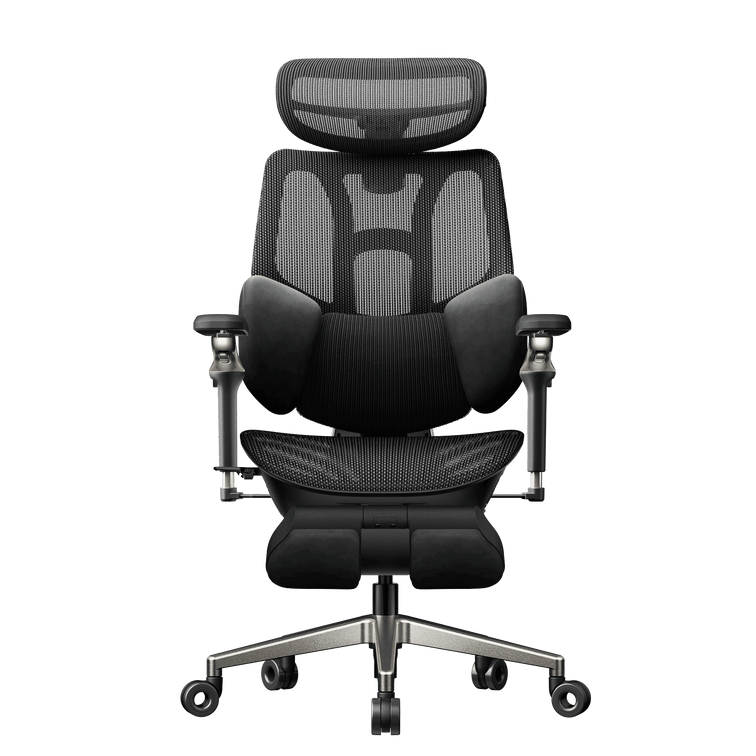
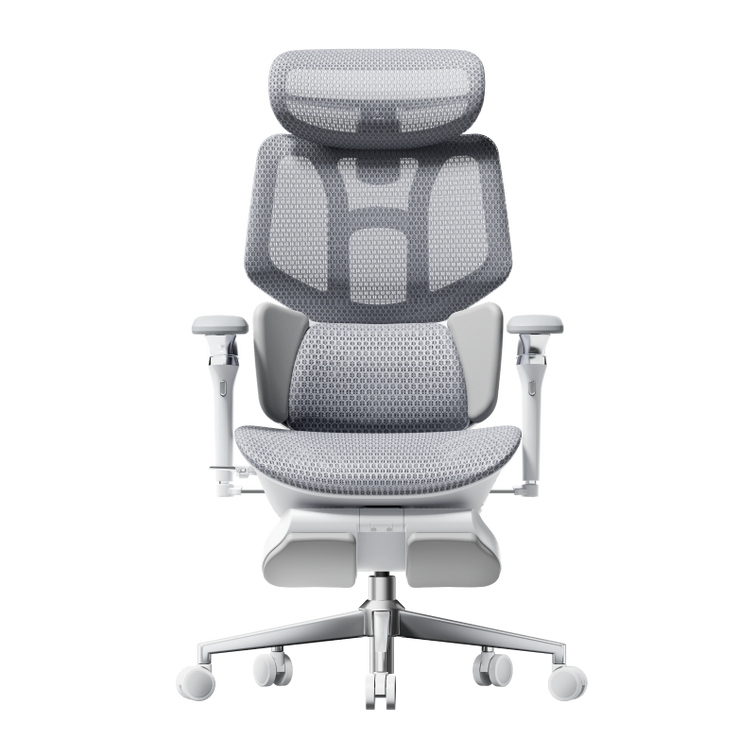
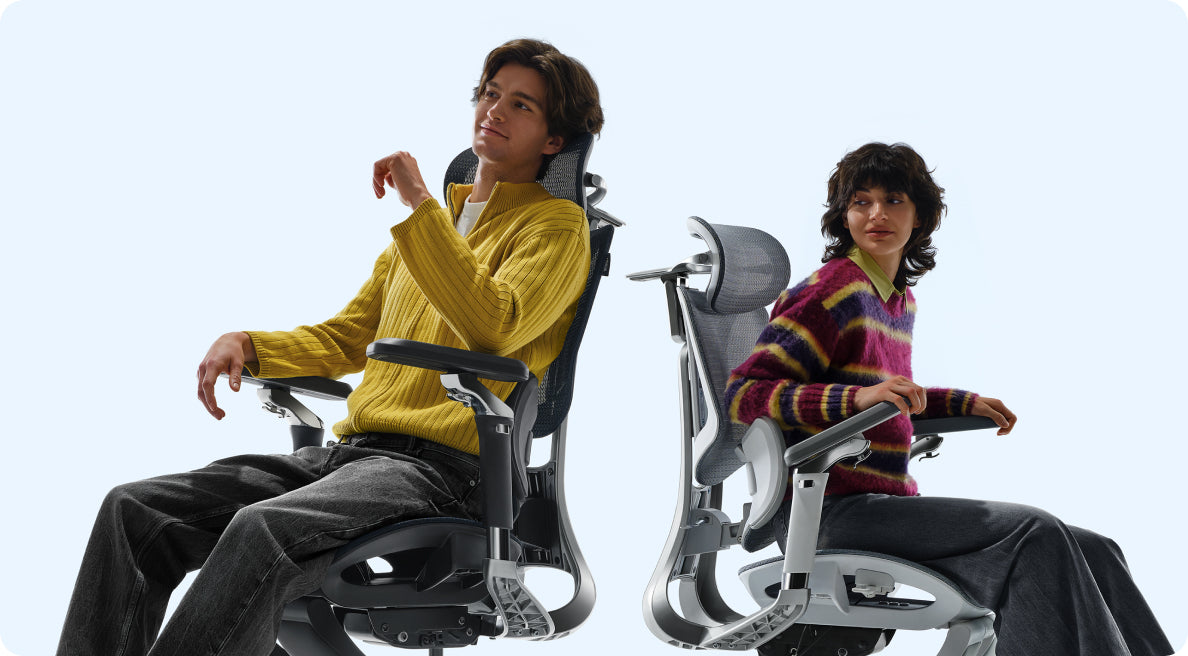
Ergonomic office chair supporting a comfortable workstation posture

There is no single workstation position that is ideal for every person. The goal is to create an adjustable setup that supports comfortable positions, fits the user and makes regular posture changes possible.

1. Adjust Your Chair

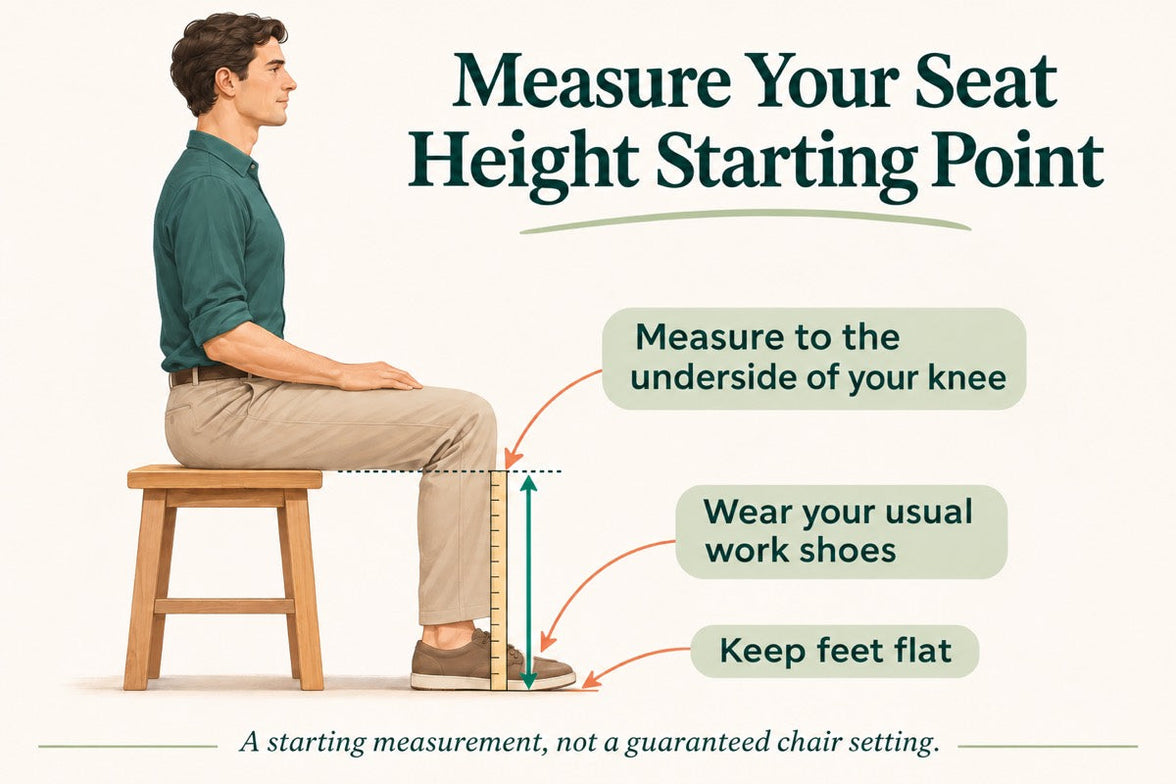
Start by adjusting the seat height so the feet are fully supported by the floor. If the desk requires a higher seat position, use a stable footrest rather than leaving the feet unsupported.

The thighs should be supported without excessive pressure behind the knees. Leave a small amount of space between the front edge of the seat and the backs of the knees. Adjust the lumbar support so it contacts the lower-back area comfortably without forcing an exaggerated curve.

Armrests should allow the shoulders to remain relaxed. They should not push the shoulders upwards or prevent the chair from moving close enough to the desk.

For a more detailed walkthrough, see our guide explaining how to adjust an ergonomic chair for better comfort.

2. Position the Monitor Correctly

Place the monitor directly in front of the user at a comfortable viewing height. The screen should be far enough away to read comfortably without leaning forwards or repeatedly bending the neck.

People who wear bifocals or use unusually large screens may need a different monitor height to maintain a comfortable head and neck position.

For regular laptop use, consider a laptop stand or external monitor combined with an external keyboard and mouse. This allows the screen and input devices to be positioned separately.

3. Change Posture and Take Movement Breaks

An adjustable chair cannot replace movement. Change posture regularly and avoid remaining completely still for several hours. Short movement breaks, standing tasks or brief walks can interrupt prolonged static sitting.

EU-OSHA recommends reducing uninterrupted sitting through posture changes, movement opportunities, microbreaks and, where appropriate, workstations that allow users to alternate between sitting and standing.

Employers should also consider task rotation, workload design and reasonable opportunities for breaks rather than placing the entire responsibility on the worker.

4. Adjust the Keyboard and Mouse

Keep the keyboard and mouse close enough that the elbows can stay near the body. The hands, wrists and forearms should remain approximately aligned rather than bending sharply upwards, downwards or sideways.

Avoid placing the mouse far to one side. Reaching repeatedly for a distant mouse can increase shoulder and arm movement. Adjust pointer sensitivity if the mouse requires unnecessary gripping or effort to control.

5. Respond to Early Symptoms

Occasional stiffness can be a prompt to review chair adjustment, screen position, working habits and break frequency. Do not assume that every symptom is caused by posture or office furniture.

Persistent pain, worsening symptoms, numbness, tingling, weakness or loss of function should be discussed with a qualified healthcare professional. Workstation changes are not a substitute for diagnosis or treatment.

MSD Risk Factors and Practical Adjustments

Risk factor Possible sign Practical adjustment
Poor seat-height or lumbar adjustment Lower-back, leg or shoulder discomfort Adjust the seat height, support the feet and position the lumbar support comfortably.
Monitor positioned too high or too low Neck fatigue or repeated head tilting Place the monitor directly in front of the user at a comfortable viewing height.
Prolonged sitting without posture changes General stiffness or fatigue Change position regularly and take short movement breaks when the work allows.
Awkward keyboard or mouse position Wrist, forearm or shoulder discomfort Keep the input devices close and maintain a neutral wrist position.
Unsupported feet Pressure behind the thighs or unstable sitting Lower the chair when possible or use a stable, correctly positioned footrest.
High workload or insufficient recovery time Muscle tension and persistent discomfort Review workload, break opportunities and organisational support with the employer.

How an Ergonomic Office Chair Can Help

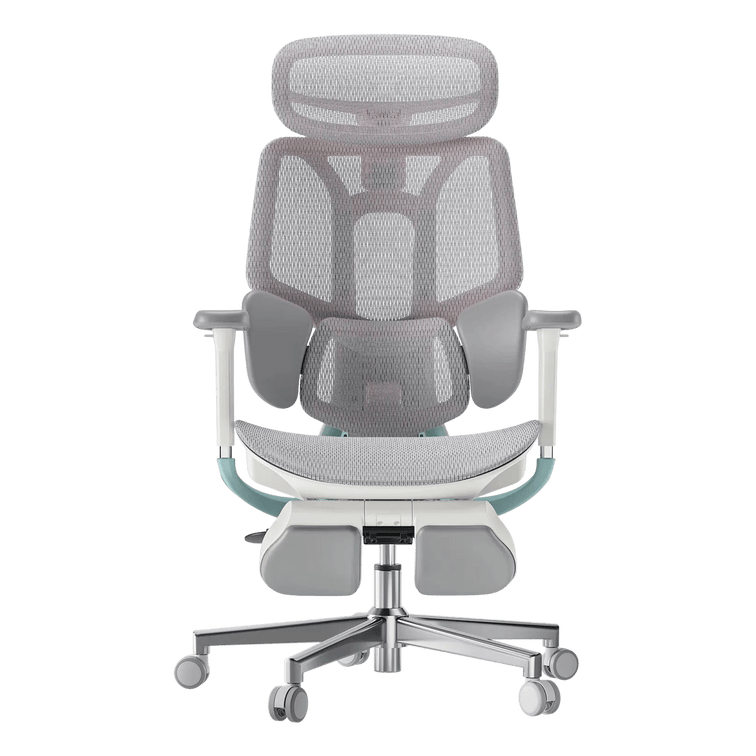
Adjustable ergonomic office chair for long working hours

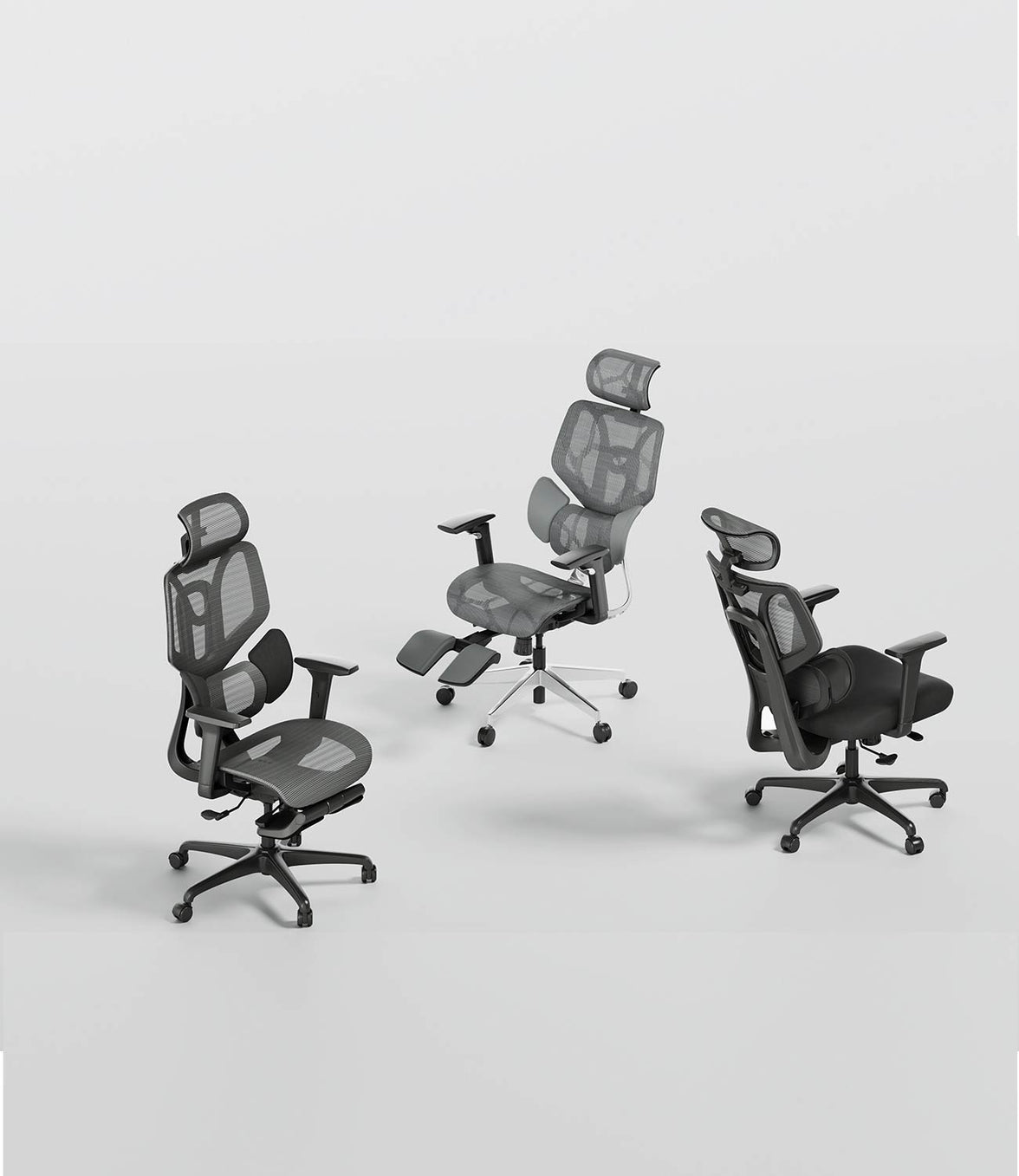
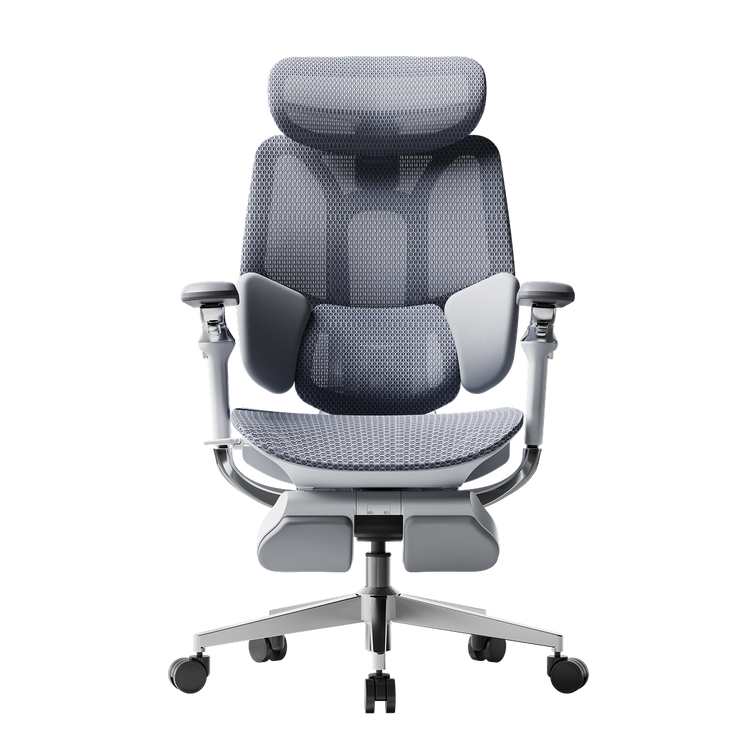
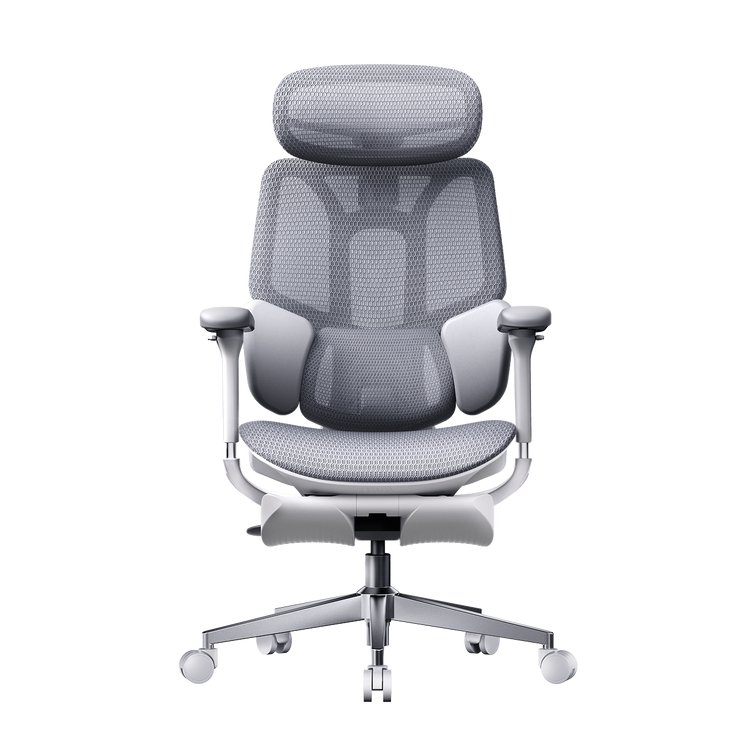
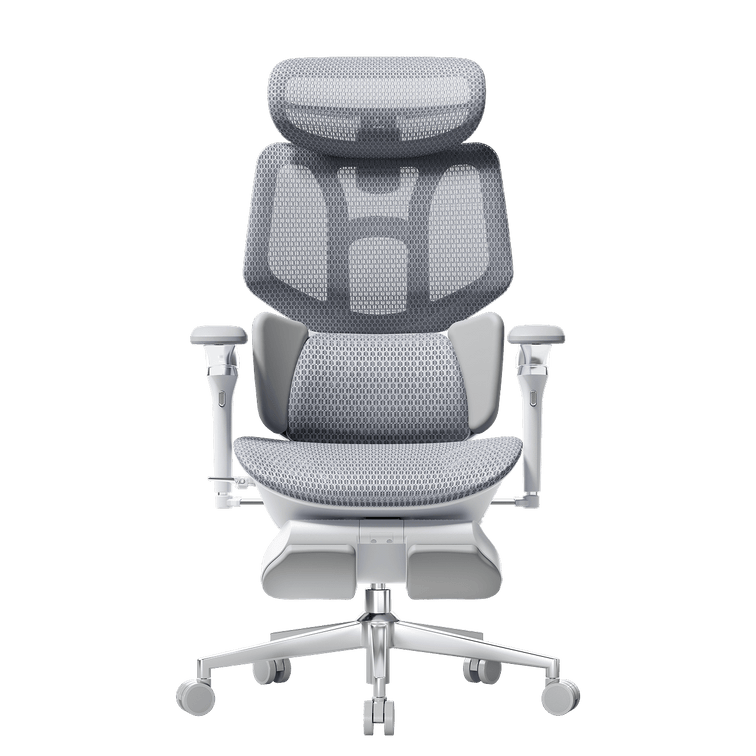
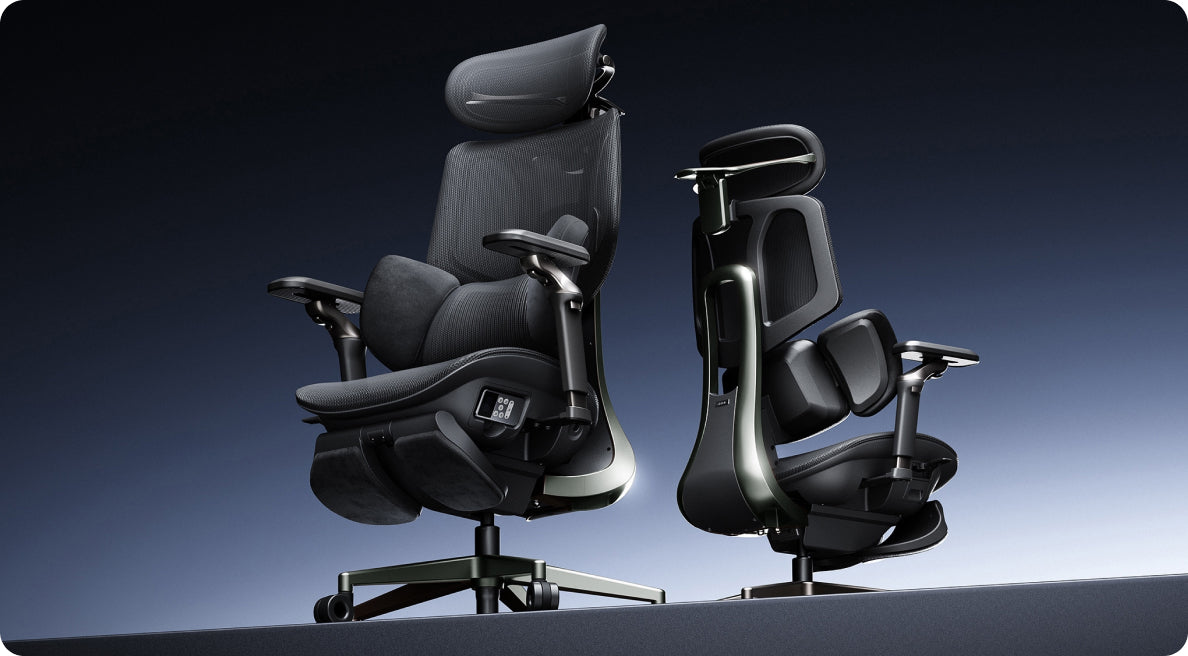
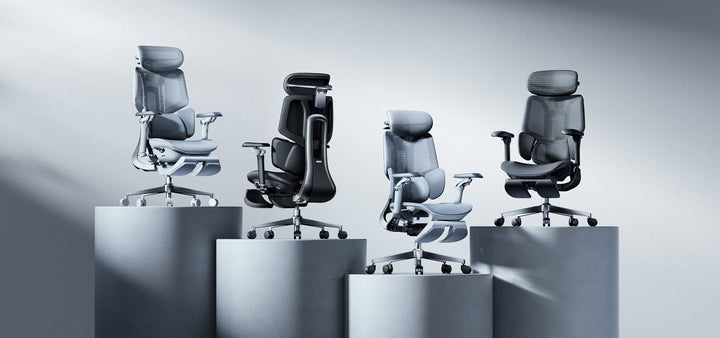
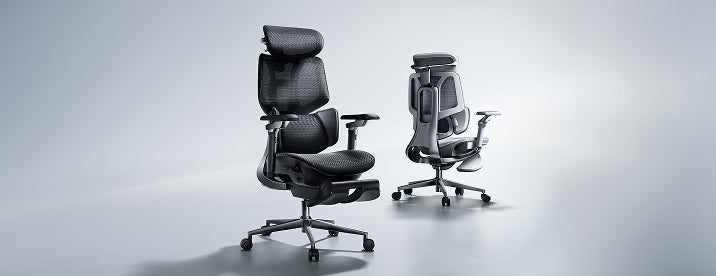
An ergonomic office chair is most useful when its adjustments allow the seat to fit the person and the desk. Important features may include adjustable seat height, lumbar support, seat depth, armrest position and recline resistance.

These features do not automatically make a chair suitable for everyone. Seat dimensions, adjustment ranges and the user’s height, weight and preferred working posture should all be considered.

A chair also needs to work with the rest of the workstation. For example, raising a chair to match a high desk may require a footrest. Deep armrests may prevent the user from moving close enough to the keyboard. A headrest may be useful during reclined sitting but is not necessarily required for every user.

Our adjustable ergonomic chair buying guide explains how to compare chair dimensions and adjustment features according to body size and working style.

If an existing chair feels uncomfortable, review its adjustments before replacing it. Our office chair adjustment and troubleshooting guide covers several practical checks.

Office Workstation Checklist

  • Are both feet supported by the floor or a stable footrest?
  • Is the lower back comfortably supported?
  • Is there space between the seat edge and the backs of the knees?
  • Can the shoulders remain relaxed while using the armrests?
  • Is the monitor positioned directly in front of the user?
  • Is the monitor at a comfortable viewing height?
  • Are the keyboard and mouse close enough to avoid reaching?
  • Can the wrists stay aligned with the forearms?
  • Can the user change posture during the working day?
  • Are short movement breaks possible?

A “no” answer does not establish that the workstation caused an injury, but it can identify an area worth reviewing.

When to Seek Professional Advice

Ergonomic adjustments may help address avoidable workstation problems, but they cannot diagnose or treat a medical condition.

Consider seeking advice from a qualified doctor, physiotherapist, occupational health professional or ergonomics specialist when:

  • Pain persists or continues to worsen.
  • Symptoms interfere with sleep or normal daily activities.
  • Numbness, tingling or weakness develops.
  • There is a noticeable loss of movement or function.
  • Symptoms followed an accident or sudden injury.
  • Workstation adjustments do not improve the situation.

Workers should also report work-related symptoms according to their employer’s occupational health and safety procedures and the applicable requirements in their country.

Key Takeaways

  • Work-related musculoskeletal disorders can involve muscles, tendons, nerves, joints and other supporting tissues.
  • Office risk factors may include static posture, repetitive movement, awkward workstation positions and psychosocial stress.
  • Adjust the chair, monitor, keyboard and mouse as one connected workstation.
  • Maintain comfortable positions, but do not remain in one posture all day.
  • An adjustable ergonomic office chair may help reduce workstation-related risk factors when correctly fitted.
  • No chair can guarantee the prevention or treatment of a musculoskeletal disorder.
  • Persistent, worsening or neurological symptoms require professional assessment.

Frequently Asked Questions

What is the best way to reduce musculoskeletal disorder risk at a desk job?

Begin by adjusting the entire workstation. Support the feet and lower back, position the monitor at a comfortable height, keep the keyboard and mouse close, and change posture regularly. There is no single chair adjustment or posture that guarantees MSD prevention.

How common are MSD symptoms among office workers?

A 2025 study reported work-related musculoskeletal symptoms in 80.81% of its surveyed office-worker cohort. The neck, lower back and shoulders were the most frequently reported areas. This percentage relates to that specific study population and should not be treated as a universal rate.

Can an ergonomic office chair prevent musculoskeletal disorders?

An ergonomic office chair cannot guarantee prevention. A properly fitted, adjustable chair may help reduce risk factors such as unsupported sitting, unsuitable seat height and awkward arm positioning. Movement, workstation design and work organisation are also important.

How should an office chair be adjusted?

Adjust the chair so the feet are supported, the thighs are comfortable, the lumbar support contacts the lower back and the shoulders remain relaxed. The exact settings depend on the user’s body dimensions and desk height.

How often should office workers take movement breaks?

Short breaks or posture changes should be taken regularly rather than waiting until discomfort becomes severe. EU-OSHA recommends avoiding prolonged uninterrupted sitting and introducing opportunities for movement during the working day. Individual needs and workplace conditions may differ.

Are MSDs only associated with heavy physical work?

No. Repetitive movements, sustained positions, awkward posture and psychosocial factors can also be relevant in desk-based work. However, the level and type of risk differ between occupations.

When should someone see a doctor about office-related pain?

Seek qualified medical advice if pain persists, worsens, interferes with daily activity or is accompanied by numbness, tingling, weakness or loss of function. Do not rely only on buying a new chair or changing posture.

References

  1. European Agency for Safety and Health at Work: Musculoskeletal Disorders
  2. EU-OSHA: European Survey of Enterprises on New and Emerging Risks
  3. EU-OSHA: Office Ergonomics
  4. EU-OSHA: Preventing Musculoskeletal Disorders When Teleworking
  5. Scientific Reports: Musculoskeletal Disorders Among Office Workers: Prevalence, Ergonomic Risk Factors and Their Interrelationships
Medical disclaimer: This article provides general ergonomic information and is not medical advice. An ergonomic chair or workstation adjustment cannot diagnose, treat or guarantee the prevention of a musculoskeletal disorder. Consult a qualified healthcare professional if symptoms persist, worsen or include numbness, weakness or loss of function. Workplace health and safety responsibilities may differ between European countries.

Relevant Product

You May Also Like

How HBADA Measures Office Chair Fit: Height, Depth, Width and Lumbar How HBADA Measures Office Chair Fit: Height, Depth, Width and Lumbar HBADA A better fit starts with you. Dark mode Don't fit the chair.Find the chair that fits. How to measure office chair fit: height, depth, width and lumbar support. Two people of the same height can need very different chairs. Start with four measurements to check whether your feet, thighs, hips and lower back will get the support they need. 4 Measurements. One personal fit. Match seat height, seat depth, seat width and lumbar adjustment to your body. A recommended height range is a starting point, not a comfort guarantee. Start measuring ↗ 01 / HEIGHT Seat height Keep your feet supported. 02 / DEPTH Seat depth Leave room behind your knees. 03 / WIDTH Seat width Give your hips enough space. 04 / LUMBAR Lumbar range Position your lower-back support. Fit basics Compare models Measure yourself Choose your chair Limitations Final checklist FAQs Sources Which measurements decide office chair fit? Fit is not one number. People of the same height can have different lower-leg lengths, thigh lengths and torso proportions. The chair's adjustment ranges need to work with those differences. Seat height affects how your feet meet the floor. Seat depth determines how much of your thighs the seat supports. Seat width provides space for your hips. Lumbar range helps position support against the inward curve of your lower back. These measurements narrow your options. Armrest spacing, desk height and how the seat feels under your weight also matter. An ergonomic chair can support a more comfortable working position, but it is not a medical treatment. 01 Seat height: start from the floor. Seat height is the distance from the floor to the top of the seat. The height you experience while sitting may differ slightly from an unloaded measurement because the surface can compress or flex. Start with your feet supported and your thighs approximately level. Check that you can reach your keyboard with relaxed shoulders rather than raising them to meet the desk. The HBADA X7 lists a seat-height range of 44.5–53 cm. The E3 Pro 2026 lists 46–54.5 cm. Both provide 8.5 cm of travel, but their minimum heights are different. Feet not reaching the floor? A stable under-desk footrest can help when you need to raise the chair to suit your desk. It is different from an extendable chair footrest used while reclining. HSE workstation guidance recommends providing a footrest where needed. 02 Seat depth: support without pressure. Seat depth describes the front-to-back seating space. Manufacturers may use different reference points, so look at the dimension diagram rather than the chair's overall depth. Sit fully back against the backrest. About two to three finger widths between the front edge and the backs of your knees is a useful starting check, not a precise measurement rule. Too deep, and you may slide forward to avoid pressure behind your knees, losing back support. Too shallow, and you may feel that too little of your thighs is supported. X7 lists a depth range of 40.5–45.5 cm, while E3 Pro 2026 lists 45–50 cm. Both have 5 cm of adjustment travel, but they do not offer the same minimum seating depth. 03 Seat width: room to sit naturally. Seat width is the usable space across the seat, not the overall chair width. Your hips need room without pressure from the seat frame or armrests. X7 lists a seat width of 52 cm; E3 Pro 2026 lists 51.5 cm. When comparing either chair with your body measurements, check the clearance between the armrests as well. A wider seat is not automatically a better fit. If the armrests are too far apart, you may have to move your elbows outward to reach them. Width and weight capacity answer different questions. A chair can support your weight while still being too narrow, too deep or too tall for you. 04 Lumbar range: height is only half the story. Vertical adjustment changes where support sits. Front-to-back movement changes how it meets your back. Start with the support at the small of your back. It should feel supportive, not push you forward or press into one uncomfortable point. X7: powered tracking, manual height X7 lists 45 mm of manual lumbar-height adjustment and 50 mm of powered front-to-back movement. Automatic tracking does not replace the manual height setting. E3 Pro 2026: mechanical adaptability E3 Pro 2026 lists 60 mm of independent lumbar-height adjustment and 80 mm of backrest-height adjustment. Its mechanical lumbar system also offers adaptive movement; it is not simply a fixed pad. HBADA fit measurements, side by side. The important distinction is between adjustment travel and the actual size range. Two chairs can offer the same amount of movement while starting at different heights or depths. Swipe sideways to see the full comparison. HBADA X7 and E3 Pro 2026: EU fit reference Measurement HBADA X7 HBADA E3 Pro 2026 Seat height 44.5–53 cm 46–54.5 cm Seat-height travel 8.5 cm 8.5 cm Seat depth 40.5–45.5 cm 45–50 cm Seat-depth travel 5 cm 5 cm Seat width 52 cm 51.5 cm Lumbar-height adjustment 45 mm, manually adjusted 60 mm independent adjustment Lumbar movement 50 mm powered front-to-back movement Mechanical adaptive support Recommended user height 150–195 cm 155–195 cm Maximum load 150 kg 150 kg Figures refer to the linked HBADA EU product specifications. Specifications and configurations may change. Confirm the exact edition before ordering; recommended height is a screening guide, not a guarantee of comfort. One tape measure. Six simple checks. Use a firm seat and the footwear you normally wear at your desk. Having someone help can make the measurements easier. Record your measurements in centimetres so they are easy to compare with the product specifications. Measure lower-leg height → seat height With your feet supported, measure from the floor to the crease behind your knee. Use this as a starting reference, then check your actual seated position. Measure thigh length → seat depth Measure horizontally from the back of your buttocks to the crease behind your knee. Allow knee clearance rather than choosing a seat that fills the entire distance. Measure seated hip width → seat width Measure the widest part of your hips while seated. Allow some room on both sides and check armrest clearance too. Find your lower-back contact point → lumbar height Sit back and position the support against the inward curve of your lower back. Contact and comfort matter more than a universal height setting. Relax your shoulders → armrests and desk Keep the keyboard close enough that you do not have to reach forward. Adjust the armrests so they support your arms without lifting your shoulders. Try everyday tasks → fine-tune the setup Type, use the mouse and lean back. A position that feels fine for a minute may need small changes during normal work. Change position and take breaks throughout the day. Which HBADA chair fits you best? Start with dimensions, then compare how the adjustments work. Neither automatic support nor a longer feature list can compensate for a seat that does not fit your body. Prefer powered lumbar tracking? Consider X7 if you prefer powered front-to-back lumbar tracking. Check the seat fit first, then set the manual lumbar height to suit your lower back. Explore HBADA X7 → Prefer mechanical adjustability? E3 Pro 2026 combines a sliding seat with separate backrest and lumbar-height adjustments. Compare its 45–50 cm seat-depth range with your thigh measurement before choosing a configuration. Explore E3 Pro 2026 → Still comparing options? Browse the HBADA EU office chair collection. Compare each model individually instead of applying one model's measurements to the whole range. What measurements cannot tell you. Dimensions do not guarantee comfort. Check the applicable return conditions before ordering and test normal work tasks after assembly. A footrest has a specific role. It can support your feet when the chair is raised for desk access, but it does not fix an excessively deep or narrow seat. Desk height matters. A height-adjustable desk may let you bring the work surface closer to your preferred seated position. Configurations can differ. Confirm the model year, seat dimensions, armrest clearance and selected footrest option on the EU product page. Do not push through pain as a fit test. Seek qualified healthcare advice for severe, persistent or radiating pain. A chair is not a medical treatment. Measure first. Choose second. Before buying, check that your feet can be supported, there is clearance behind your knees, your hips have enough room and the lumbar support can meet your lower back. Then consider the desk, armrests and adjustment method. X7 offers powered lumbar tracking; E3 Pro 2026 offers mechanical adaptive support and separate height adjustments. Choose the model that matches your body and working setup, rather than relying on height recommendations alone. Frequently asked questions What is the correct seat height for an office chair? There is no single correct height for everyone. Start with your feet supported, thighs approximately level and shoulders relaxed while reaching the desk. Your lower-leg measurement is a starting point; check the position while actually sitting. How do I know if my seat depth is right? Sit fully back. The seat should support your thighs without pressing behind your knees. About two to three finger widths is a practical starting clearance, not an exact rule for every body. Does seat width matter? Yes. Your hips need room without pressure from the frame, and the armrests should be reachable without spreading your elbows uncomfortably. Check usable seat width and armrest clearance, not just overall chair width. Does automatic lumbar tracking still need manual adjustment? Different directions of adjustment serve different purposes. On X7, powered front-to-back tracking does not replace the manual lumbar-height setting. Set the height to match your lower back first. Can one office chair fit different body sizes at home? Often, provided each person fits within the usable dimensions and adjustment ranges. Each user should reset the seat, lumbar support and armrests. Check the shortest and tallest users separately before buying a shared chair. Does the same adjustment travel mean two chairs fit the same? No. Adjustment travel describes how far a component moves, not where the range begins. For example, a chair with a lower minimum seat height may suit a different leg length even when both chairs offer the same vertical travel. Sources Health and Safety Executive: Working with Display Screen Equipment — general workstation and footrest guidance from the UK regulator, referenced here for practical setup advice, not as a statement of EU legal requirements. HBADA EU: X7 product specifications — model dimensions and adjustment details. HBADA EU: E3 Pro 2026 product specifications — model-specific dimensions, adjustments and recommended user range. This article provides general product-selection guidance. Refer to the current EU product information and assembly instructions for your exact chair. How to Test an Ergonomic Office Chair During a 30-Day Home Trial How to Test an Ergonomic Office Chair During a 30-Day Home Trial The quick answer To test an ergonomic office chair during a 30-day home trial, use it for your real work each day and check fit, lumbar support, breathability, recline, armrests and noise. Keep the packaging, avoid damage, and decide before the window closes. If the chair does not suit you, contact support early enough to complete the required return steps within the applicable deadline. Table of Contents Jump to the part of the trial you need. 01. What is a 30-day home trial? 02. How should you set up the chair? 03. What should you test in week one? 04. What should you test in weeks two to four? 05. How do you protect return eligibility? 06. What are your EU return rights? 07. Which HBADA chairs can you test? 08. Your 30-day test plan 09. Limitations and when to get help 10. Conclusion 11. Frequently asked questions 12. Sources and useful links What Is a 30-Day Home Trial and How Does It Work? A home trial is a return window that lets you assess the chair in your real setup. HBADA EU’s current return and refund policy provides a 30-day satisfaction guarantee from receipt, subject to its terms. This commercial offer does not limit your statutory consumer rights. This gives you time to judge an adjustable ergonomic chair at your own desk, not in a showroom. Testing may help you find a more comfortable sitting position, but it is not a medical treatment. How Should You Set Up the Chair for Testing? Start well, because a fair test needs a proper setup. Assemble the chair using the HBADA user manual and assembly guide, and keep every part of the packaging, including the box, foam and spare hardware. Then set it to your body before you judge it. Set the seat height so your feet rest flat on the floor or a suitable footrest. Set the seat depth so two to three fingers fit behind your knees. Set the lumbar support to meet your lower back. Set the armrests so your forearms are supported and your shoulders stay relaxed. Check that you can reach your keyboard and mouse comfortably. Only after this setup should you decide how the chair feels. What Should You Test in the First Week? Your first week is about first impressions and daily fit. Fit: Check you can reach a feet-flat, back-supported position within the chair’s adjustment ranges. Lumbar support: Notice whether the support meets your lower back through your normal workday. Breathability: Watch for heat build-up and check whether the mesh and seat feel comfortable in your room. Noise and castors: Roll across your floor and listen for creaks or scuffs. Check that the castors are suitable for the surface. What Should You Test in Weeks Two to Four? Later weeks reveal how the chair holds up over real work. Now test the chair as an office chair for long hours. Work a normal week, keeping your usual movement breaks, and notice whether early comfort lasts into the afternoon. Move through the available recline positions and check that the locks hold. Use the armrests while you type, write and relax. Give yourself time to learn the controls and fine-tune the settings, but do not treat pain as a required adjustment phase. If discomfort eases after a setting change, note what helped. If it persists after reasonable adjustments, the chair may not fit you. A Quick Test-and-Decide Table Use this table to turn each check into a clear next step. What to test How to test it Keep or return signal Fit Set seat height, depth and lumbar support to your body, then sit back fully. Consider a return if you cannot achieve supported feet and back within the adjustment ranges. Lumbar support Use it during a normal working day and note lower-back comfort. Consider a return if the support cannot meet your lower back comfortably after adjustment. Breathability Check for heat build-up during ordinary work sessions. Consider another material or model if the seat consistently feels too warm for you. Recline and lock Try the recline settings according to the manual. Stop using the chair and contact support if the recline is unstable or a lock fails. Armrests Type, write and relax while checking forearm support. Consider a return if the armrests prevent a relaxed working position or access to your desk. Noise and castors Roll gently across a suitable floor surface and listen for persistent noise. Contact support about recurring creaks or floor marking before continuing use. Long-session comfort Work a normal week in the chair, with movement breaks. Reassess the fit if discomfort persists after you fine-tune the settings. How Do You Protect Your Return Eligibility? Test thoroughly, but handle the chair carefully while you decide. Keep the original box, foam and hardware for the whole trial. Keep the chair clean and unmarked, and use a suitable floor mat if needed. Note your delivery date and the relevant return deadlines. Contact support early if you are unsure, rather than on the final day. For its commercial guarantee, HBADA EU recommends retaining the original packaging and specifies condition requirements. Missing or inadequate packaging may lead to fees under that policy, subject to mandatory consumer law. These commercial terms do not override statutory withdrawal rights. What Are Your Rights If You Want to Return It? The 30-day commercial offer and your statutory right of withdrawal are separate. For most online purchases from a trader in the EU, you normally have 14 days from delivery to notify the seller that you wish to withdraw, followed by another 14 days to send the goods back. Exceptions apply. The statutory withdrawal period allows inspection of the product. Handling beyond what is necessary to establish its nature, characteristics and functioning may result in a deduction for diminished value. Keeping the original packaging is practical, but losing it does not automatically remove your statutory right. A commercial trial does not turn the statutory 14-day notification period into 30 days. If you want to use your statutory right, notify the seller within the applicable legal deadline. See the EU guidance on returns and withdrawal for details. Warranty coverage is also separate from a change-of-mind return. Refer to HBADA EU warranty and service information for product support after purchase. Which HBADA Chairs Can You Test at Home? If you are considering the HBADA X7 or E3 Pro 2026, check the current EU product page and the return terms for your order before purchasing. Use the same testing checklist for either chair, but pay attention to the features that make each model different. What to compare HBADA X7 HBADA E3 Pro 2026 Lumbar support Test how the AI lumbar-tracking system responds when you change position. Test how the three-zone adaptive lumbar support fits your lower back. Seat fit Check the selected model’s seat dimensions and adjustment range against your body and desk. Check the selected model’s seat dimensions and adjustment range against your body and desk. Recline and armrests Check support and control access while typing, leaning back and relaxing. Check the headrest, armrest and recline adjustments during your usual tasks. Additional features Try the comfort functions included with your selected version, following its manual. Focus on mechanical adjustments, mesh comfort and any optional footrest. Before ordering Confirm the exact configuration, delivery availability, return conditions and warranty. Confirm the exact configuration, delivery availability, return conditions and warranty. If you want automatic lumbar tracking, explore the HBADA X7 smart ergonomic chair and check the comfort features included with your selected version. If you want a mechanically adjustable chair to test for long workdays, compare the HBADA E3 Pro 2026. You can also browse the HBADA ergonomic office chair collection before your trial begins. Your 30-Day Test Plan Follow this simple plan so nothing is missed before the commercial trial ends. Keep the separate statutory withdrawal deadline in mind if you intend to use that right. Day 1 Assemble and Adjust Assemble by the manual, keep all packaging, and set the chair to your body. Days 2–7 Check Daily Fit Test daily fit, lumbar support, breathability, noise and castors. Days 8–21 Test Your Normal Work Routine Work your usual schedule and test recline, armrests and long-session comfort. Keep taking movement breaks. If you wish to exercise the statutory withdrawal right, do not wait beyond its notification deadline. Days 22–27 Fine-Tune and Decide Fine-tune settings and review your notes. If you are continuing under the commercial trial and the chair is not right, contact support now to confirm the return steps and deadline. Days 28–30 Complete Your Decision Keep the chair if it fits your needs, or complete the steps required under the commercial return policy within the applicable deadline. Do not assume contacting support on day 30 automatically extends the window. Limitations and When to Get Help A trial answers many questions, but not every one. A trial checks comfort and fit for you; it cannot promise a health outcome. Thirty days cannot establish the chair’s lifespan or long-term durability. Keep the chair and packaging in good condition while deciding. Commercial return terms and warranty coverage may vary by market and order. Mandatory consumer rights remain unaffected. If you have severe, persistent or radiating pain, consult a qualified healthcare professional. A chair is not a medical treatment. Conclusion The best way to judge an ergonomic office chair is to test it where you actually work. Assemble it, set it to your body, use it for real tasks, and keep the packaging until you are sure. Compare the X7 if you want automatic lumbar tracking, or the E3 Pro if you prefer mechanical adjustments. Make your decision before the relevant deadline, and keep the chair that fits you. Frequently Asked Questions How long is the HBADA EU home trial? HBADA EU currently offers a 30-day satisfaction guarantee from receipt. Check the applicable policy for the return procedure. It is separate from your statutory withdrawal right. Can you return an office chair after using it? Check whether you are returning under the commercial trial or exercising a statutory right. The conditions differ. Keep the chair clean, avoid damage and retain its packaging while deciding. How long does it take to get used to a new ergonomic chair? There is no fixed adjustment period for everyone. You may need several sessions to learn the controls and fine-tune the seat height, depth, lumbar support and armrests. Change one setting at a time. Do not keep sitting through pain in the hope that you will eventually adapt. Who pays for return shipping? Under HBADA EU’s commercial policy, change-of-mind returns involve a customer contribution to shipping, while damaged, defective or incorrect items are handled at HBADA’s shipping expense. Confirm the process before booking a courier; statutory rights remain unaffected. What should you check before the trial ends? Confirm the essentials: fit, long-session comfort, lumbar support, breathability, recline, armrests and noise. Also check that the chair suits your desk height and floor. Decide early enough to meet the deadline for the return route you are using. Sources and Useful Links HBADA EU Return and Refund Policy HBADA EU Warranty and Service HBADA User Manuals and Assembly Guides HBADA X7 Product Details HBADA E3 Pro 2026 Product Details Your Europe: Returns and the Right of Withdrawal How to Clean a Mesh Ergonomic Office Chair Without Damaging the Material How to Clean a Mesh Ergonomic Office Chair Without Damaging the Material Safe, simple care for mesh, spills, stains, casters and smart-chair components. Quick answer: Remove dust with a soft dry cloth or a vacuum on a low setting. Blot spills with a well-wrung cloth and mild soapy water, then let the mesh air-dry naturally. Avoid bleach, hot water, solvents and abrasive cleaners. Contents What can damage mesh? How to remove everyday dust How to clean spills and stains Frame, armrests and casters Cleaning methods at a glance How to clean a smart chair Safe deep-clean routine HBADA chair care FAQs What Can Damage a Mesh Chair? Mesh is designed to breathe and flex, but it can be damaged by unsuitable cleaning methods. Bleach, strong chemicals, solvents, hot water and abrasive cleaners can weaken or discolour the fibres. Stiff brushes and hard scrubbing can also snag or stretch the weave. Keep the chair out of prolonged direct sunlight, do not soak the mesh, and avoid spraying liquid directly onto it. Regular light cleaning is safer than occasional heavy cleaning. How Do You Clean Everyday Dust? Use a soft dry cloth Wipe the mesh with a dry microfiber cloth to remove surface dust, lint and light debris. Vacuum on a low setting If dust is caught in the weave, use gentle suction and move across the surface without pressing into it. A short weekly clean helps prevent dust and skin oils from building up, particularly when the chair is used every day. How Do You Clean Spills and Stains? For a fresh spill, dampen a soft cloth with mild soapy water and wring it out well. Blot the area from the outside of the mark toward the centre so it does not spread. Do not soak the mesh or scrub hard. For a stubborn mark, test an alcohol wipe on a hidden area first, then dab gently. Let the chair air-dry completely in a ventilated room before use. How Do You Care for the Frame, Armrests and Casters? Use a separate soft, damp cloth for the frame, armrests and base. Keep water away from the gas lift, recline mechanism and other moving parts. Never attempt to open the gas cylinder. Casters can collect hair and dust over time. Remove anything wrapped around the wheels, then wipe them clean so the chair can move smoothly. Cleaning Methods at a Glance What to Clean Safe Method What to Avoid Everyday dust Soft dry cloth or low-suction vacuum Hard brushing or scratching the mesh Fresh spills Blot with mild soapy water Soaking or rubbing the mesh Stubborn marks Spot-test, then dab gently Bleach, hot water or solvents Frame and armrests Soft damp cloth Abrasive or harsh cleaners Casters Remove hair and debris, then wipe Forcing debris deeper into the wheel How Do You Clean a Smart Chair With Electronics? Important: Switch the chair off and follow its supplied care instructions before cleaning around powered components. Use a dry cloth around controls, sensors, fans, batteries and powered adjustment areas. Never spray liquid directly onto the chair. Clean the mesh and non-electronic surfaces gently, then allow the chair to dry completely before use. Step by Step: A Safe Deep Clean Switch off a smart or powered chair before cleaning. Vacuum or dry-dust the mesh to remove loose debris. Mix a small amount of mild soap with lukewarm water. Dampen and thoroughly wring out a soft cloth. Blot the mesh without soaking it. Spot-test before treating stubborn marks. Wipe the frame, armrests and base separately. Remove hair and dust from the casters. Let the chair air-dry away from direct sunlight. Which HBADA Chairs Does This Apply To? This guide is suitable for HBADA mesh office chairs sold through HBADA EU, including the E3 Pro and X7 Prestige. For an E3 Pro, regular care means keeping the mesh clean and keeping moisture away from the gas lift and mechanism. For a smart or powered model, follow the model-specific guidance before cleaning around controls or powered areas. Frequently Asked Questions Can you wash a mesh office chair? You can clean it, but you should not soak it. Vacuum or dry-dust the mesh first, blot it with mild soapy water, and let it air-dry completely. What should you not use to clean a mesh chair? Avoid bleach, hot water, solvents, abrasive cleaners, stiff brushes and hard scrubbing. These can weaken, discolour or snag the mesh. How do you remove a stain from mesh? Blot the stain with a well-wrung cloth and mild soapy water. For a stubborn mark, spot-test an alcohol wipe first, then dab gently rather than scrub. How often should you clean a mesh office chair? Dust or vacuum the mesh once a week, deal with spills promptly, and carry out a deeper clean whenever needed. Does cleaning damage mesh over time? Not when it is done gently. Mesh damage usually comes from harsh chemicals, excess water, heat or heavy scrubbing. Sources HBADA EU E3 Pro Ergonomic Office Chair HBADA EU X7 Prestige Smart Ergonomic Chair HBADA EU FAQs ```