
Blog

Comment réparer une chaise de bureau qui s'enfonce : Un guide de réparation hydraulique étape par étape

Comment réparer une chaise de bureau qui s'enfonce : Un guide de réparation hydraulique étape par étape

Votre fauteuil s'enfonce lorsque vous vous asseyez. Vous le réglez chaque matin. L'après-midi, vous êtes à nouveau trop bas. Un fauteuil de bureau qui s'enfonce est l'équivalent au bureau d'une fuite lente, agaçante, qui s'aggrave avec le temps, et qui finit par forcer une décision : le réparer, remplacer le vérin, ou le remplacer par un nouveau fauteuil. Ce guide vous accompagne à travers chaque option avec les coûts exacts, le calendrier et le ROI afin que vous puissiez choisir la bonne solution pour votre situation.

Pourquoi les fauteuils de bureau s'enfoncent-ils ?

Votre fauteuil s'enfonce pour l'une des trois raisons suivantes. Comprendre laquelle détermine votre solution.

Raison 1 : Défaillance du joint du vérin hydraulique à gaz

Votre fauteuil de bureau utilise un vérin à gaz pneumatique (un tube métallique scellé) rempli d'azote à 50-60 PSI. Un piston à l'intérieur du vérin monte et descend pour soulever et abaisser votre siège. Lorsque le joint qui maintient la pression du gaz se brise, le gaz s'échappe lentement. Résultat : le vérin ne peut plus maintenir sa hauteur sous charge. Une fuite lente prend 4 à 12 semaines pour se manifester par un affaissement perceptible. C'est la cause la plus fréquente (70 % des fauteuils qui s'enfoncent).

Raison 2 : Dysfonctionnement de la valve (fuite lente)

La valve de décharge vous permet d'abaisser votre siège en tirant sur le levier. Si le joint de la valve s'use, le gaz s'échappe continuellement. Votre fauteuil maintient initialement sa hauteur mais s'enfonce sous la pression. Cela se développe généralement chez les fauteuils de 2 à 3 ans et représente 20 % des cas.

Raison 3 : Dommage structurel à la base ou à la tige du piston

Si la base du fauteuil est fissurée ou si la tige du piston à l'intérieur du vérin est tordue, une perte de hauteur peut se produire même avec une pression de gaz normale. C'est rare (10 % des cas) mais cela nécessite un remplacement complet du fauteuil, et non un simple échange de vérin.

Solution 1 : Solutions rapides (0–30 $, 15 minutes) — Solutions temporaires

Celles-ci ne résoudront pas le problème, mais elles vous feront gagner 1 à 4 semaines pendant que vous décidez d'une solution permanente.

Serrer la vis de réglage du levier

La plupart des fauteuils ont une vis de réglage qui contrôle la facilité d'engagement du levier. Si cette vis se desserre, le levier ne créera pas une pression suffisante pour bloquer le vérin en place. Essayez de la serrer avec une clé Allen (généralement 3 mm ou 4 mm). Coût : 0 $. Efficacité : 20 à 40 % (ne corrige que les mécanismes desserrés, pas la défaillance du joint).

Utiliser une cale en caoutchouc ou une cale en bois sous le siège• Utilisez un fauteuil dans sa capacité de poids. Une personne de 113 kg sur un fauteuil de 90 kg sollicite le vérin plus rapidement.

• Ajustez votre levier en douceur. Un tirage brutal use le mécanisme de la valve.

• Nettoyez le levier et l'ensemble de la valve tous les 6 mois avec de l'air comprimé.

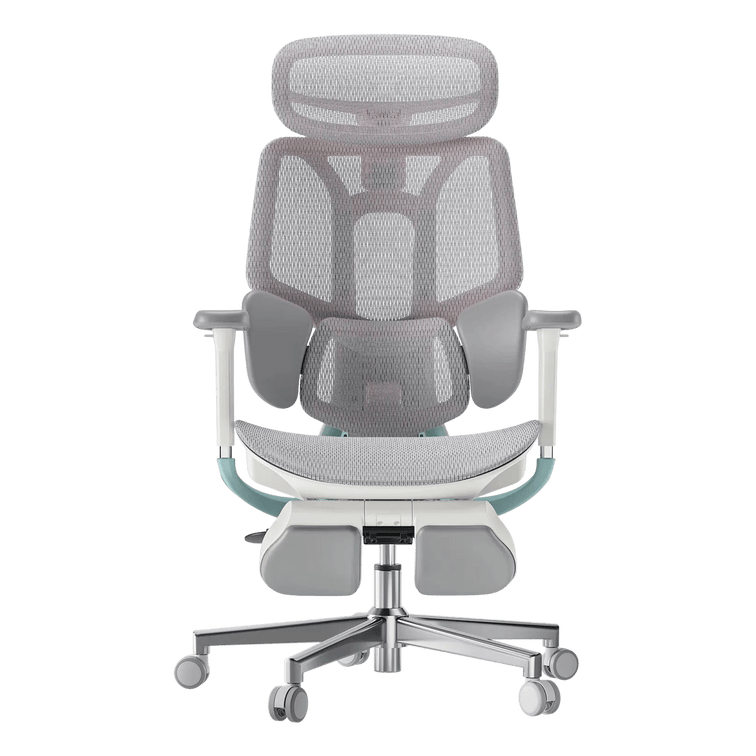
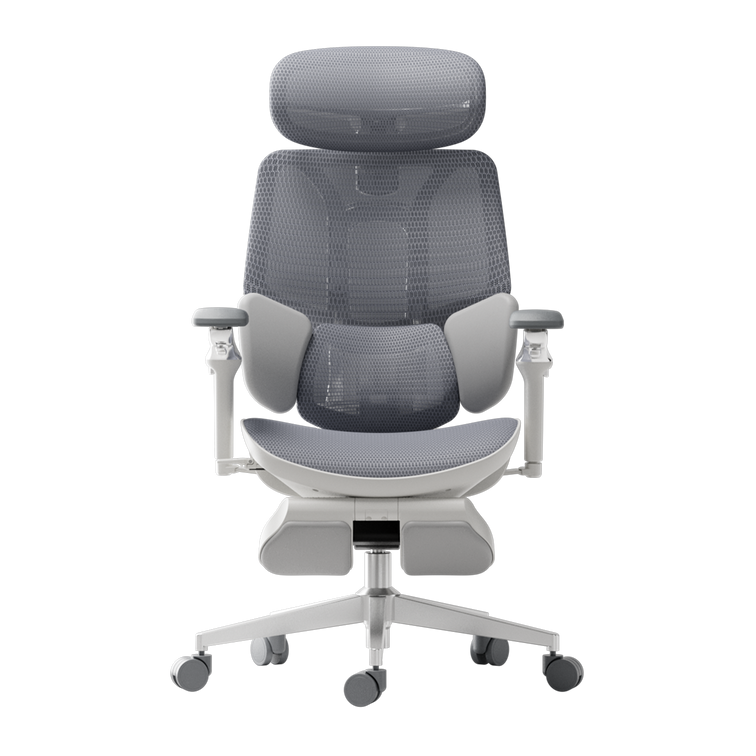
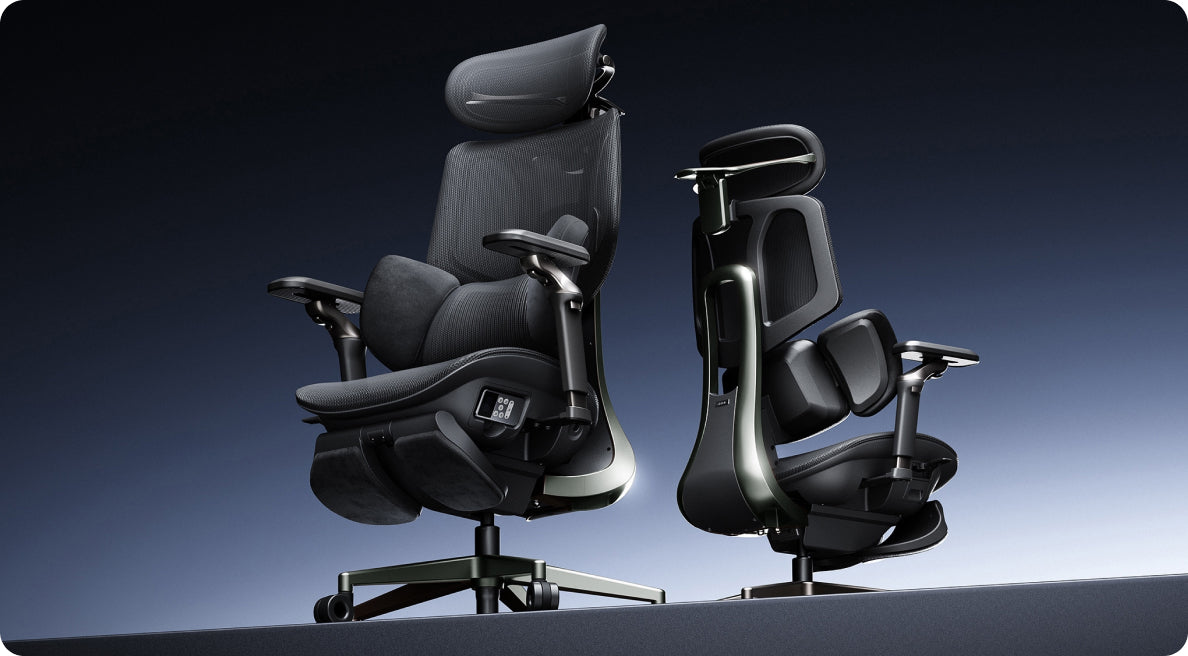
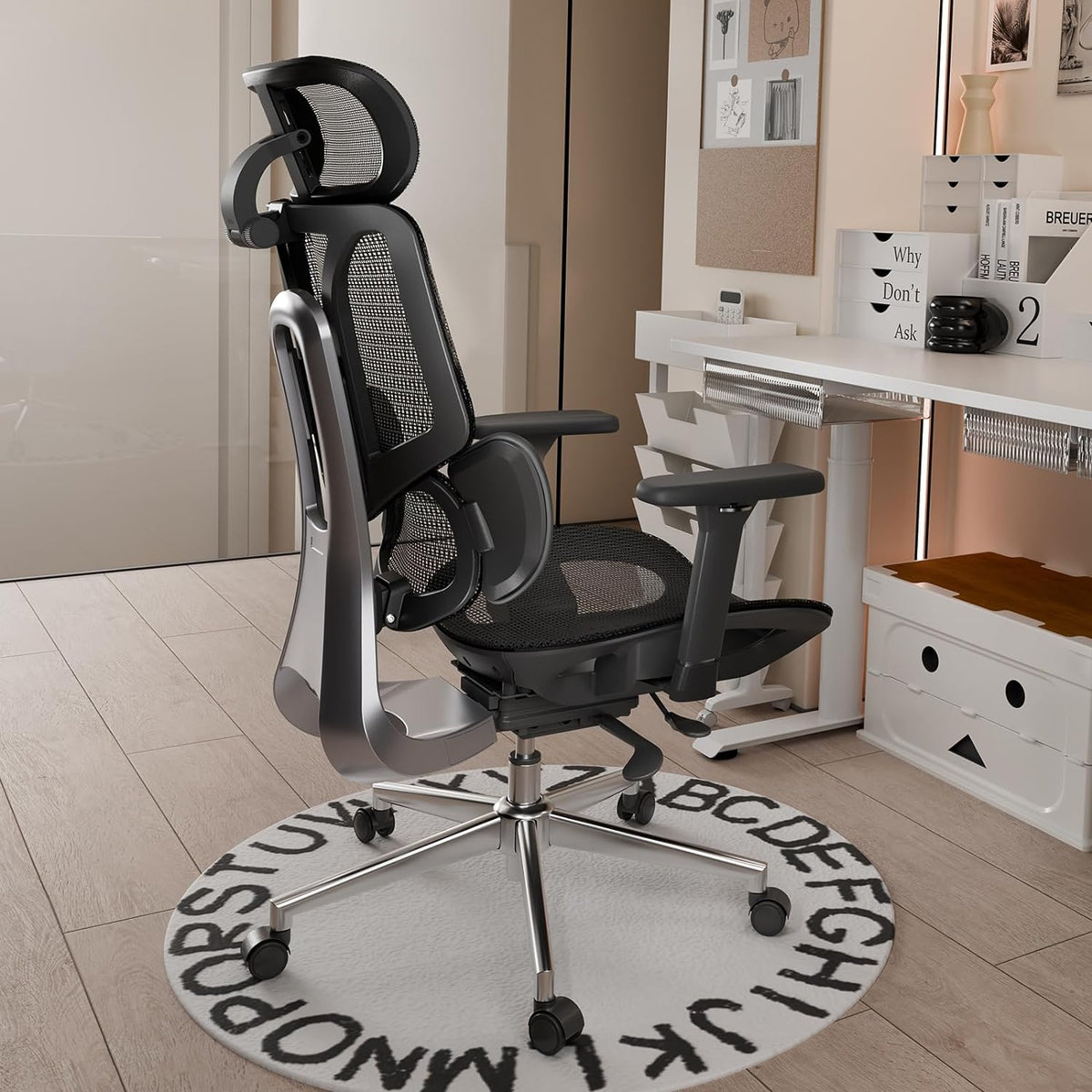
• Passez à un fauteuil certifié Classe 4 avec une ingénierie anti-affaissement (comme la série HBADA E3) si vous achetez un nouveau fauteuil.

Quel fauteuil choisir ?

• Solution rapide économique : Votre fauteuil actuel + remplacement du vérin à 45 $.

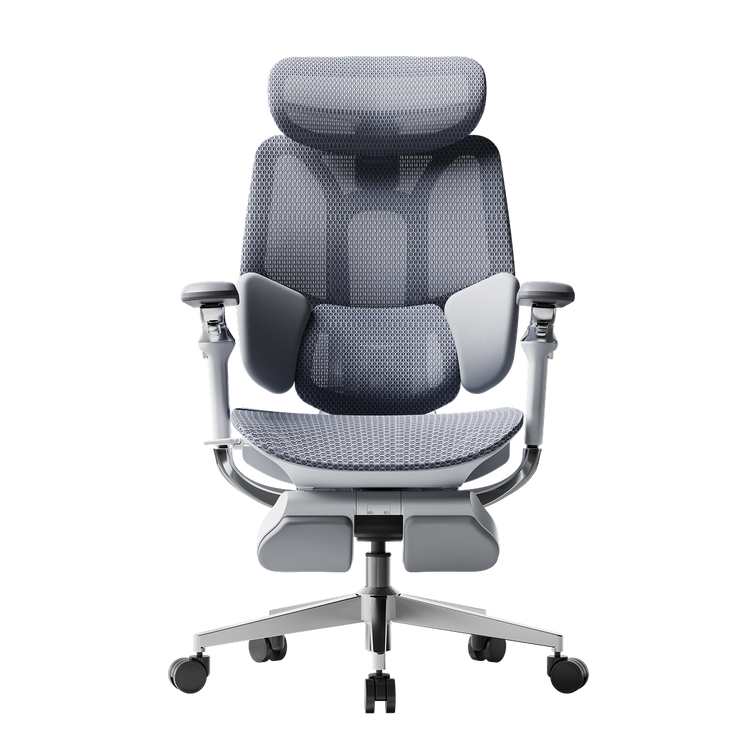
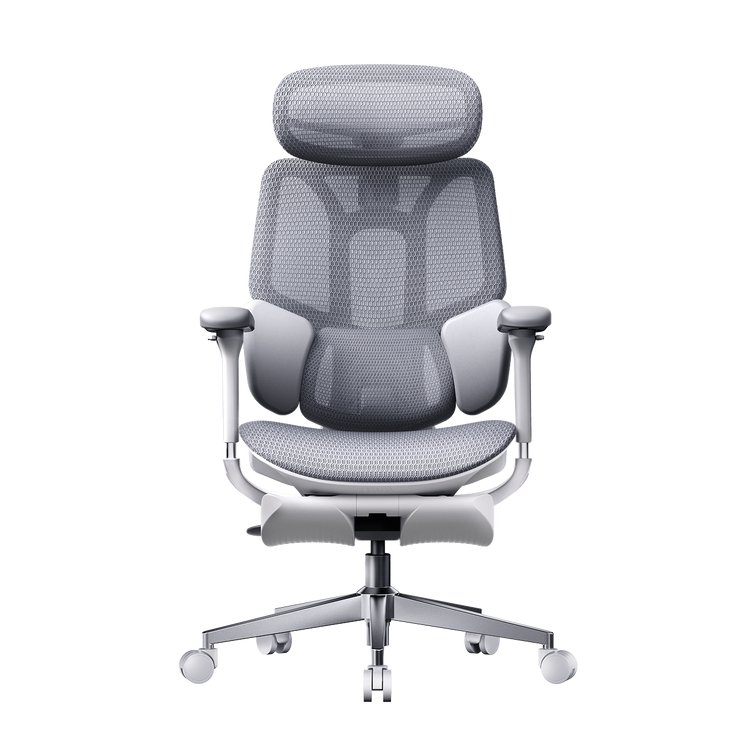
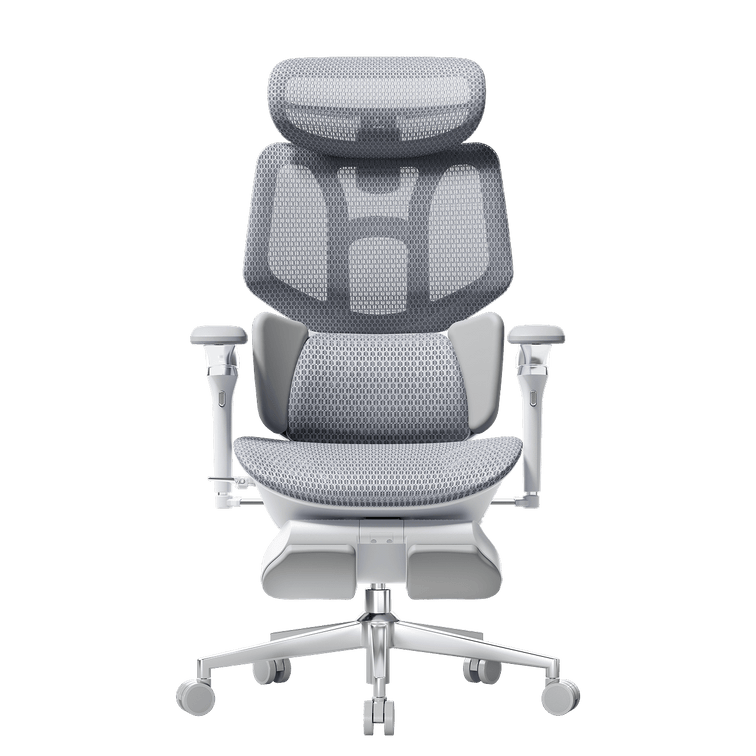
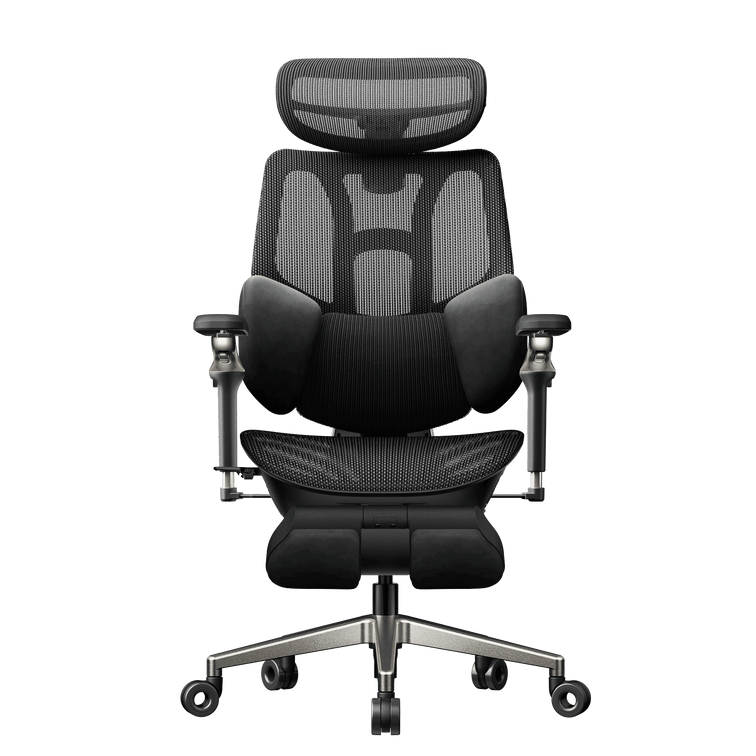
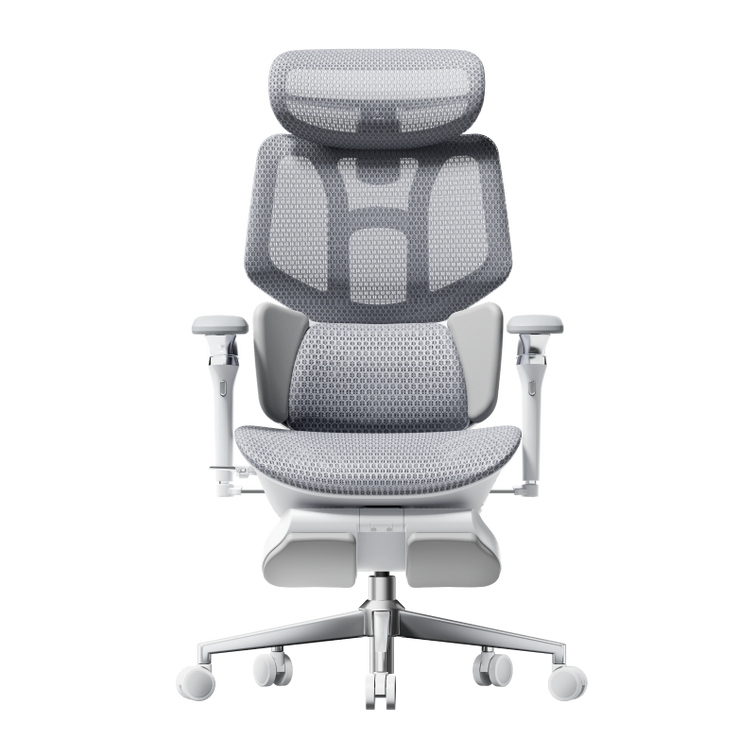
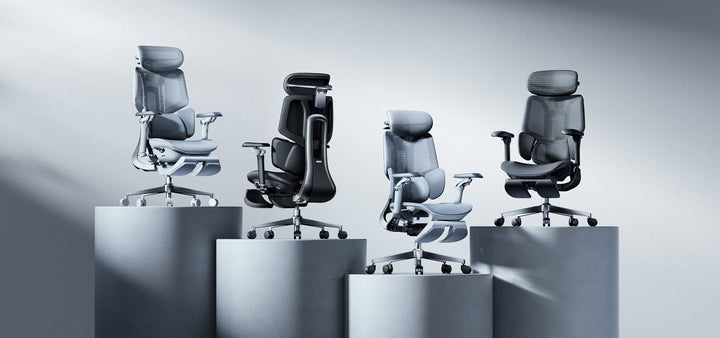
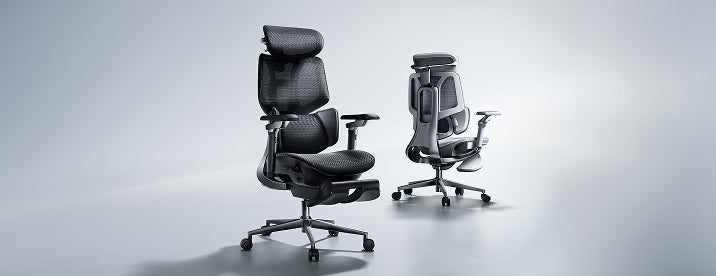
• Protection moyenne gamme : HBADA E3 Air Édition 2026 (300 à 400 $, vérin à gaz de Classe 4, utilisation quotidienne de 4 à 8 heures).

• Protection premium : HBADA E3 Pro Édition 2026 (400 à 550 $, vérin à gaz de Classe 4, utilisation intensive de 6 à 10 heures, capacité de 150 kg).

FAQ

Comment savoir si mon fauteuil de bureau peut être réparé ?

Vérifiez l'âge du fauteuil et l'état de son cadre. Si votre fauteuil de bureau a moins de 5 ans et que la base ne présente pas de fissures ou de dommages, il est réparable. S'il a plus de 5 ans, qu'il a subi plusieurs réparations, ou que le cadre est visiblement endommagé, le remplacement est plus rentable. Un fauteuil de bureau qui s'affaisse avec un cadre sain = réparable. Un fauteuil qui s'affaisse avec une base fissurée ou tordue = irréparable.

Combien coûte un vérin à gaz de remplacement ?

Les vérins pneumatiques de qualité coûtent entre 30 et 80 $ selon le diamètre, la pression nominale et les certifications. Un vérin de Classe 3 coûte entre 30 et 50 $ ; un vérin de Classe 4 (certifié pour un usage intensif) coûte entre 50 et 80 $. Évitez les vérins "bon marché" à 10-15 $ ; ils sont remplis d'air comprimé et tombent en panne en quelques semaines.

Puis-je utiliser un fauteuil qui s'affaisse en attendant les pièces ?

Oui, temporairement. Utilisez une cale en caoutchouc ou un morceau de bois sous le siège pour le bloquer à une hauteur fixe. Cela réduit la possibilité de réglage mais vous empêche de vous asseoir trop bas. C'est une solution temporaire seulement — ne prévoyez pas de l'utiliser plus d'une ou deux semaines.

Le remplacement du vérin est-il couvert par la garantie ?

La plupart des fauteuils sont assortis de garanties de 1 à 2 ans qui couvrent les défauts du vérin à gaz. Si votre fauteuil est toujours sous garantie, contactez le fabricant ; il pourrait le remplacer gratuitement. Si la garantie est expirée, vous paierez le remplacement vous-même (40 à 80 $ si vous le faites vous-même, ou 100 à 150 $ si vous engagez un technicien).

La mise à niveau vers un nouveau fauteuil empêchera-t-elle vraiment l'affaissement ?

Un fauteuil certifié Classe 4 avec une ingénierie appropriée peut prévenir l'affaissement pendant plus de 7 à 10 ans. La série HBADA E3 utilise des vérins à gaz de Classe 4 certifiés SGS qui ont été testés pour plus de 120 000 cycles de compression, ce qui équivaut à 7 à 10 ans d'utilisation intensive. Ce n'est pas une garantie, mais l'ingénierie est manifestement supérieure aux fauteuils économiques qui tombent en panne tous les 2 à 3 ans.
Relevant Product

You May Also Like

HBADA vs Steelcase: Which Fits the Way You Sit? HBADA vs Steelcase: Which Fits the Way You Sit? Compare the chair.Think about the workday. Typing, leaning back and switching tasks ask different things of a chair. This HBADA vs Steelcase guide looks at the E3 Pro 2026, Leap and Gesture through those everyday moments. Quick answer Our E3 Pro 2026 combines three-zone adaptive lumbar support, a 4D dual-axis headrest, 720° omni-mechanical armrests and a four-position recline up to 140°. Steelcase Leap uses LiveBack technology, while Gesture uses 3D LiveBack and a different arm mechanism. These are design differences, not proof that one chair will feel better for every person. Start with fit, then consider how you work and change position. In this comparison 01 · How we compared 02 · Typing 03 · Leaning back 04 · Side by side 05 · Your fit check 06 · FAQs 07 · The takeaway 01 / THE COMPARISON How We Compared: Design Facts vs. Personal Comfort This is an HBADA-authored comparison of our E3 Pro 2026 with Steelcase Leap and Gesture. It draws on published product information, not an independent, hands-on head-to-head test. We focus on the named models rather than making claims about either brand’s entire range. Options, specifications and service terms can vary by configuration and country. For a European purchase, compare the offer available in your destination market. What specifications can tell you The type of back support, available controls, adjustment directions and whether a particular feature is included. What you need to feel yourself Pressure against your back, seat firmness, arm-pad comfort and how naturally the chair fits your desk routine. Use the European E3 Pro 2026 specifications to check our current configuration. A longer feature list is useful only when those features help the chair fit you. 02 / FOCUSED WORK Typing: Back Support and Arm Position When comparing ergonomic office chairs for keyboard work, look at the relationship between your back, seat, armrests and desk. A comfortable reclined position does not automatically translate into a good typing setup. Different approaches to back support Our E3 Pro 2026 uses a central lumbar section with two side wings. The design provides contact across the centre and sides of the lower back, with adjustment and adaptive movement. Leap uses a flexible LiveBack backrest; Gesture uses 3D LiveBack. Both take a different structural approach from the E3 Pro’s distinct three-zone lumbar assembly. This comparison does not treat those mechanisms as identical. For any design, the practical check is where the support meets your back when the seat is correctly adjusted. Our guide to choosing lumbar support for your body type explains why fit and placement matter alongside the mechanism. Armrests for keyboard work The E3 Pro’s armrest system combines pad rotation and arm-body rotation with other position adjustments. Leap offers height, width, depth and pivot adjustment with its fully adjustable arm configuration. Gesture uses articulated arms designed for a range of positions. Compare movement, not just labels. “4D,” “360” and “720°” are not interchangeable scores. Check what moves, where the pads can be positioned and whether the arms clear your desk. Your keyboard and desk position matter too. Use our ergonomic chair adjustment guide to assess the chair as part of the whole workspace. 03 / TIME TO LEAN BACK Leaning Back: Recline Mechanisms and Head Support Reading, thinking and taking a call can involve different backrest positions from keyboard work. Recline controls should be considered alongside seat movement, available space and your preferred head position. HBADA E3 Pro 2026 Four recline positions, with a maximum stated angle of 140°. An auto-balance mechanism for reclining. An included 4D dual-axis headrest. Armrests that move with the recline. Steelcase Leap and Gesture Leap combines backrest recline with a moving seat and adjustable recline controls. Gesture also provides recline tension and back-stop adjustment. The controls and movement are not the same as the E3 Pro’s mechanism. We do not assign a maximum recline angle to either competitor here or claim that the E3 Pro reclines further. A reliable angle comparison would require equivalent measurements for the exact configurations. A headrest is a fit question. Check its position while sitting and reclining. It should not push your head forwards into an unwanted position. Availability on other models depends on the configuration selected. To understand our controls before choosing a setup, visit the HBADA user manual and assembly guide hub . Select the E3 Pro 2026 instructions rather than those for an earlier edition. 04 / AT A GLANCE HBADA E3 Pro vs. Steelcase Leap vs. Gesture The table below compares design approaches rather than awarding a comfort score. It leaves out mixed-market dimensions, temporary prices and unsupported performance rankings. Published design features, not a hands-on ranking Feature HBADA E3 Pro 2026 Steelcase Leap Steelcase Gesture Back-support approach Three-zone adaptive lumbar assembly. LiveBack flexible backrest. 3D LiveBack backrest. Armrest approach 720° omni-mechanical system. Height, width, depth and pivot with fully adjustable arms. Articulated 360 arms. Recline Four positions, up to 140°. Recline controls with seat movement. Recline tension and back-stop controls. Head support Included 4D dual-axis headrest. Confirm availability in the selected configuration. Headrest options depend on configuration and market. What to check personally Lumbar contact, mesh feel and control positions. Backrest contact, seat feel and arm positioning. Backrest contact, arm movement and control access. Before comparing dimensions, distinguish a total dimension from an adjustment range. Seat depth, overall chair depth and seat-depth travel are different measurements. Use the same units throughout your comparison. Our guide to measuring office chair fit explains how to assess height, depth, width and lumbar position. 05 / THE PERSONAL CHECK What Only a Hands-On Fit Check Can Tell You Specifications describe a chair’s available movement. They cannot establish how that movement will feel for you. When assessing a chair, use your normal tasks rather than judging it only from a brief recline. Type at your desk Check whether the chair gets close enough to the desk and whether your arms can rest without lifting your shoulders. Lean back to read Notice the recline resistance, where your back makes contact and whether the headrest position suits you. Switch tasks Move between keyboard work, a call and reading. Check whether the controls are easy to reach and use. Check the seat Assess the available depth and width, foot support and contact near the back of your knees. Change one setting at a time. Do not keep using an uncomfortable setting simply to complete a test session. If you are evaluating a purchase during a return period, check the deadline and conditions early. Our chair owner’s hub provides additional setup guidance. For practical questions about installation or unexpected movement, visit our assembly and maintenance FAQ . 06 / COMMON QUESTIONS HBADA vs. Steelcase: Frequently Asked Questions Which has better lumbar support: HBADA or Steelcase? This comparison does not establish a universal winner. Our E3 Pro 2026 uses a three-zone lumbar assembly; Leap and Gesture use different LiveBack designs. The relevant question is how the selected chair fits your lower back once the seat is adjusted. Does the E3 Pro recline further than Leap or Gesture? The E3 Pro 2026 has a stated maximum recline of 140°. We have not established equivalent maximum-angle measurements for the competitor configurations in this comparison, so we do not claim a wider range. Are 720° armrests automatically better than 4D arms? No. These labels describe different aspects of movement. Compare the actual directions, usable positions and relationship to your desk rather than ranking the labels. Does the HBADA E3 Pro 2026 include a headrest? Yes. Our current E3 Pro 2026 includes a 4D dual-axis headrest. Review the European product specifications and check how its adjustment range fits your needs. Is this an independent comparison test? No. This is an HBADA-authored guide based on published product information. It does not report an independent head-to-head comfort, durability or medical test. What should I compare besides the adjustment features? Check dimensions, weight capacity, configuration, final purchase price, delivery arrangements and the applicable warranty and return conditions. Compare like-for-like offers for the same destination country. Can I use US prices or warranty details for a European purchase? Use the regional offer that applies to your order. Currency conversion alone does not account for different configurations, taxes, delivery charges or service terms. For our products, consult the European listing and HBADA EU warranty and customer service information . 07 / THE TAKEAWAY Choose Around Your Workday, Not Just the Specification Sheet The HBADA vs Steelcase question becomes more useful when you break it down into the way you sit: typing at your desk, leaning back and moving between tasks. Our E3 Pro 2026 brings together adaptive lumbar support, a headrest, adjustable arms and recline in a mesh-chair design. If those are the features you are looking for, the next step is to compare its dimensions with your own workspace and preferred setup. Take a closer look at your next setup. Explore the E3 Pro 2026’s European specifications, configuration options and adjustment guides. Explore the HBADA E3 Pro 2026 → Product names and trademarks belong to their respective owners. Their use identifies the products discussed and does not imply affiliation or endorsement. More guidance for a better-informed chair choice. Choose HBADA Europe as a preferred source on Google to stay connected with our chair comparisons, setup guides and workspace ideas. Add HBADA Europe as a preferred source ↗ Opens Google in a new tab. Confirm your selection there if HBADA is available for your account and region. HBADA E3 Pro Review: Unboxing, Assembly & 90-Day Check-In Guide HBADA E3 Pro Review: Unboxing, Assembly & 90-Day Check-In Guide From the first unboxing to your everyday setup. A chair becomes part of your workday one adjustment at a time. Here is how to approach the E3 Pro’s assembly, explore its support and keep track of what works for you over the first 90 days. Quick answer Start by identifying your E3 Pro edition and using its matching assembly guide. Once assembled, focus on seat fit, lumbar contact, armrest position and recline before judging everyday comfort. This guide combines published assembly experiences with our practical setup advice. The 90-day section is an owner check-in plan, not a completed test or a promise of a 90-day return window. In this guide 01 · Unboxing 02 · Assembly 03 · Setup instructions 04 · Everyday comfort 05 · 90-day check-ins 06 · Value & fit 07 · FAQs 08 · Final checklist 01 / THE FIRST LOOK HBADA E3 Pro Unboxing: Start with Your Edition Before opening the packaging, check the model details on your order and carton. The E3 Pro name spans different editions, so an older review or assembly video may not describe the exact chair you have purchased. If you are researching the current model, begin with the E3 Pro 2026 specifications and European configuration options . Match the selected configuration to your order rather than assuming every version includes the same accessories. Check before building Lay out the components on a protected surface. Match them to the parts list and inspect the frame, mesh and fittings before starting assembly. Keep the essentials Keep your order details, manual and supplied tools together. Retain the packaging while you check the delivery and review the applicable return instructions. Find the correct instructions in our user manual and assembly guide hub . Choose the entry matching the edition on your order. 02 / PUTTING IT TOGETHER HBADA E3 Pro Assembly: What Published Reviews Report Assembly experiences provide useful context, but they are not a guaranteed completion time. The edition, your experience and the space available all affect the process. Two published experiences, with model context Source Observation How to use it The Gadgeteer Reported approximately 25–30 minutes for a one-person E3 Pro 2026 assembly. Treat this as one reviewer’s experience, not a time limit. TechRadar Described clear instructions and manageable solo assembly for the E3 Pro unit reviewed. This earlier review should not be treated as a test of the current 2026 edition. These reviews describe the units supplied to their authors. Check our European product listing and your order for the configuration available to you. Allow enough time to check your work and ask for help with any component that feels awkward or heavy. Our assembly and troubleshooting guide covers common installation questions. 03 / A SMOOTHER START HBADA E3 Pro Instructions: Build Carefully, Then Adjust Follow the manual supplied for your exact model. These general checks support that process; they do not replace its assembly sequence. Match the edition. Open the corresponding manual and video before beginning. Check orientation. Compare components with the diagrams before joining them. Align the fasteners. Start related screws by hand before tightening as instructed. Do not force a screw that does not turn correctly. Check the completed chair. Confirm that the base, castors and attached components are secure before use. Optional footrest: Follow the instructions for your selected configuration. Do not use a pull-out footrest as a step or seat. If a component is missing, damaged or does not fit, contact our support team before continuing. Keep our European warranty and customer service information handy if you need help after delivery. Use the terms applying to your order rather than service details quoted in an overseas review. 04 / MAKE IT YOURS Comfort and Adjustability in Daily Use Our E3 Pro 2026 combines three-zone adaptive lumbar support, a 4D dual-axis headrest, 720° omni-mechanical armrests and breathable mesh. The useful question is how those features fit your body and your desk—not simply how many adjustments the chair offers. Start with seat fit Check height and depth before fine-tuning the backrest. Our guide to measuring office chair fit explains how seat dimensions and body proportions work together. Find the lumbar contact Explore the controls gradually rather than assuming maximum pressure is the best setting. Read our guide to choosing lumbar support for your body type for a closer look at fit and placement. Bring the desk into the picture Armrest position matters alongside keyboard and desk placement. Follow our ergonomic chair adjustment guide to review the setup as a whole. Learn the controls Change one setting at a time so you can notice the difference. Our chair owner’s hub brings together setup resources and adjustment guidance. Breathable mesh allows airflow; it is not active cooling. Comfort also changes with room temperature, clothing, task and time spent in one position. Leave room in your routine for movement instead of relying on one fixed setup all day. 05 / BEYOND FIRST IMPRESSIONS A 90-Day Check-In Plan for Your E3 Pro First impressions and long-term ownership answer different questions. Use these check-ins to record your own experience, rather than treating a short review as proof of durability. Day 1 Record the baseline Note the edition and configuration, check assembly and take a photo of your starting setup. Week 1 Refine your everyday settings Try the chair during your usual tasks. Note which adjustments help and which contact points need attention. Day 30 Review fit and function Check whether controls remain easy to use and whether your preferred setup still works with your desk. Do not wait for this milestone if there is a problem. Day 90 Compare with your baseline Inspect the mesh and accessible fittings, note any unexpected movement or noise and follow the maintenance guidance for your model. Check your return deadline separately. This 90-day plan does not extend any trial or return period. Review the terms that apply to your order early, and contact us promptly if something is not right. Mesh colour and visibility of underlying components are appearance considerations, not evidence that one colourway is more durable than another. Assess function and condition separately from visual preference. 06 / THE BUYING DECISION Is the HBADA E3 Pro Worth It for Your Setup? The E3 Pro is worth considering if you want an adjustable mesh chair and prefer to set your own support and seating position. Its value depends on whether the dimensions and controls work for you—not on a feature count alone. Check fit: compare the seat dimensions and adjustment ranges with your workspace and proportions. Use the same measurement units when comparing figures. Check configuration: confirm the edition, colour and footrest selection. Check the complete purchase: review the current price, delivery information and service terms for your destination. Use the current European E3 Pro 2026 listing for purchase details rather than converting an older review’s US sale price into euros. 07 / USEFUL ANSWERS Frequently Asked Questions How long does HBADA E3 Pro assembly take? The Gadgeteer reported approximately 25–30 minutes for its E3 Pro 2026 assembly. Your time may differ with the model, experience and available help. Follow the manual rather than rushing to match a reviewer’s time. Where can I find HBADA E3 Pro instructions? Visit our user manual and assembly guide hub . Select the instructions matching the edition on your order and check the corresponding assembly video. Does every E3 Pro include a footrest? Check the configuration selected on your order. Do not assume an accessory shown in a review is included with every edition or option. Is this a completed 90-day durability test? No. The 90-day section is a suggested owner check-in plan. It does not represent a controlled test, a lifespan guarantee or an extension of the return period. What should I do if my chair starts squeaking? Follow our maintenance and troubleshooting guidance . A noise alone does not identify the cause. If the chair feels unstable or a structural part is damaged, stop using it and contact support. Never open or modify the gas lift. How should I judge comfort after assembly? Start with a careful fit check and adjust one setting at a time during your usual tasks. Do not force yourself to tolerate sharp or worsening discomfort. Review your purchase terms while deciding whether the chair fits your needs. Do overseas reviews describe the same European offer? Not necessarily. A review may cover another edition, configuration or regional offer. Check our European product page for your chosen configuration and our EU warranty and service information for the relevant support details. 08 / BRING IT TOGETHER The Final Check: Fit Before Feature Count A useful E3 Pro review should help you make a better decision: choose the correct edition, understand assembly, explore the adjustments and evaluate your own day-to-day experience. Start with the right documentation, give each adjustment a purpose and keep track of how your setup works over time. That is more useful than assuming any chair will feel the same for every person. Build a setup that works for you. Explore the E3 Pro 2026’s European specifications and configurations, then use our setup resources to get started. Explore the HBADA E3 Pro 2026 → More practical guidance for your everyday workspace. Choose HBADA Europe as a preferred source on Google to stay connected with our chair guides, setup advice and workspace ideas. Add HBADA Europe as a preferred source ↗ Opens Google in a new tab. Confirm your selection there if HBADA is available for your account and region. World Spine Day 2026: How to Build a More Spine-Friendly Home Office World Spine Day 2026: How to Build a More Spine-Friendly Home Office World Spine Day 2026 · EU Home Office Guide Your chair supports your spine.But only if the whole setup does. October 16 is World Spine Day. The 2026 theme, “Spine Health for Life,” is a reminder that spinal health is built through daily habits, not fixed after pain appears. For desk workers across Europe, that starts with a home office where the chair, desk, monitor, and movement patterns work as one system. Quick answer A spine-friendly home office is not a single purchase. It is a sequence: set the chair to your body first, build the desk and screen around that fit, and break up sitting with regular movement. World Spine Day 2026 is observed on October 16 under the theme “Spine Health for Life,” emphasizing prevention across every stage of life. Use the steps below to check your setup against that standard instead of assuming it is already fine. Transparency: This guide is published by HBADA and features HBADA products alongside general ergonomic guidance. It is not an independent clinical review and does not replace an individual assessment by a health professional. Product links lead to HBADA’s Europe store. Availability and pricing can vary by delivery country within Europe. In this guide What World Spine Day 2026 is about What “spine-friendly” actually means Start with the chair Build the desk around the chair Quick reference checklist Posture mistakes that undo good gear Movement matters as much as the chair HBADA models for European workdays Frequently asked questions A spine you won’t think about tomorrow 01 / THE OBSERVANCE What World Spine Day 2026 is about World Spine Day is the largest public health event dedicated to spinal health, coordinated by the World Federation of Chiropractic and observed every October 16. An estimated one billion people worldwide experience spinal pain, and it remains a leading cause of disability across all ages.[reference:0] The 2026 theme, “Spine Health for Life,” shifts the focus from reacting to pain toward protecting the spine proactively across the whole life course.[reference:1] For remote and hybrid workers across Europe, that message lands in a specific place: the home office, where many people spend their longest uninterrupted block of seated hours each day, often without the ergonomic oversight a traditional office might provide. This guide treats World Spine Day as a practical checkpoint. It walks through the setup sequence in the order that matters, from the chair outward, and includes a movement layer that no piece of furniture can replace. 02 / THE PRINCIPLE What “spine-friendly” actually means in practice The lower back has a natural inward curve. A spine-friendly setup supports that curve consistently instead of letting it flatten during hours of sitting. Flattening increases load on the spinal discs, which over time contributes to the stiffness and discomfort many desk workers accept as normal. A spine-friendly home office is therefore not the most expensive chair available. It is a workspace where the chair, desk, and screen stop working against each other. If you are unsure whether your current chair is still doing its part, browsing the full HBADA Europe chair collection is a reasonable starting point for comparison. 03 / STEP ONE Start with the chair, not the accessories Everything else in the workspace is built around the chair. Get this part right first, then adjust the desk and screen to match. Seat height Set the seat so your feet rest flat on the floor and your knees sit near a 90-degree angle. Your thighs should be roughly parallel to the ground, not sloping upward or pressed down. If your feet dangle, the seat is too high; if your knees rise above your hips, it is too low. Seat depth Sit all the way back in the chair, then adjust the seat depth so there is a small gap—about two to three fingers wide—between the edge of the seat and the backs of your knees. A seat that is too deep forces you to perch forward, away from the lumbar support. A seat that is too shallow leaves your thighs unsupported. Lumbar support The lumbar support should sit in the natural curve of your lower back, roughly just above the belt line. It should feel supportive, not aggressive. When positioned correctly, it reduces the urge to slouch and helps maintain a more natural spinal shape. HBADA Europe’s guide on ergonomic setup and chair adjustment walks through the full sequence. Armrests Your elbows should rest at roughly 90 degrees, with your shoulders relaxed rather than raised toward your ears. If the armrests are too high, your shoulders creep up; if they are too low, your arms hang and your neck and upper back take the load. Recline A slight recline, generally between 95 and 110 degrees, eases pressure on the spinal discs compared with sitting bolt upright for hours. Adjust the resistance so the backrest moves smoothly but still feels controlled. Do not skip the order. Seat height first, then seat depth, then lumbar support, then armrests, then recline. Changing the sequence usually means redoing earlier adjustments. HBADA Europe’s laptop-workstation setup guide follows this same logic. 04 / STEP TWO Build the desk and screen around the chair Once the chair fits your body, the rest of the workspace should meet you where you are, not the other way around. Keyboard and mouse Keep the keyboard flat or tilted slightly away from you so your wrists stay straight rather than bending upward. Place the mouse next to the keyboard at the same height, and move it with your whole arm rather than just your wrist. If the desk is too high, raise the chair and use a stable footrest instead of lifting your shoulders to reach. Monitor height and distance Position your eyes about 2 to 3 inches below the top edge of the screen, and keep the monitor roughly an arm’s length away. If you work on a laptop, a stand paired with an external keyboard and mouse is usually the difference between a neutral neck and a continuously downward-tilted one. The desk as part of the system A well-adjusted chair can still leave you straining if the monitor or keyboard sits in the wrong place. Sit down, relax your shoulders, and check whether your eyes, wrists, and hips all land in a neutral position without reaching or twisting. HBADA Europe’s ergonomic guides cover desk–chair clearance and common setup problems if the workspace itself needs to change. 05 / AT A GLANCE Quick reference checklist Target positions for a spine-friendly desk setup Element Spine-friendly target Seat height Feet flat, knees near 90° Seat depth 2–3 finger gap behind the knees Lumbar support Fills the lower-back curve, just above the belt line Armrests Elbows near 90°, shoulders relaxed Backrest recline 95°–110° for focused desk work Monitor Eyes 2–3 inches below screen top; about an arm’s length away Keyboard and mouse Wrists straight; mouse beside keyboard at the same height Movement Stand or stretch every 30–60 minutes 06 / WHAT UNDOES GOOD GEAR Posture mistakes that undo good equipment Even a genuinely supportive chair cannot fully compensate for a few common home-office habits. Working from the couch or bed. Soft, unsupportive surfaces let the spine round forward for hours. Using a laptop flat on the desk. This forces the neck into continuous downward tilt, loading the cervical spine. Sitting in one fixed position all day, even a good one. Static posture limits circulation and increases fatigue regardless of chair quality. Ignoring seat depth. Perching forward because the seat is too deep keeps your back away from the lumbar support. Keeping a worn-out chair. If the seat has flattened or the adjustments no longer hold, replacement may be more effective than adjusting around the problem. 07 / THE LAYER FURNITURE CANNOT REPLACE Movement matters as much as your chair World Spine Day’s own guidance is clear: no single habit, including sitting in a well-adjusted chair, prevents every spinal problem on its own. Regular movement is an equally important layer.[reference:2] For a home office, that can be as simple as standing up every 30 to 60 minutes, taking short walks between calls, or doing a few minutes of stretching during natural breaks. General health guidance recommends at least 150 minutes of moderate-intensity activity per week, plus muscle-strengthening activity on two or more days, to support the muscles and bones around the spine. HBADA’s guidance for new chair owners frames movement the same way: even the best chair benefits from standing up for a couple of minutes every hour to stimulate blood flow. A spine-friendly setup is the chair and the habit of leaving it regularly. If you use a sit-stand desk: the goal is variation, not standing all day. Many clinicians suggest a mix rather than a permanent switch, and standing for long static periods brings its own load. Change position every 30–60 minutes in either mode. 08 / MATCHING THE CHAIR TO THE WORKDAY HBADA models for different kinds of European workdays If HBADA is on your shortlist for a European delivery address, start by matching the chair’s adjustment style to how you actually work, not by choosing the highest feature count. The current Europe range includes three distinct approaches. HBADA X7 Smart Built for long, intensive desk days. AI lumbar tracking adjusts the support as your posture shifts, so the lower back stays supported without manual readjustment. Also includes active features such as ventilation and 8D massage. View the X7 Smart → HBADA E3 Pro 2026 A mechanical-first choice with 3-zone elastic lumbar support, 720° armrests, and up to 140° recline. Suited to users who want extensive manual adjustment and regular reclining breaks without electronic controls. View the E3 Pro 2026 → HBADA E3 Air 2026 A lighter everyday home-office chair with 3-zone adaptive lumbar support, 4D armrests, and breathable CloudMesh. A more accessible entry point into the E3 adjustment system. View the E3 Air 2026 → Whichever model you consider, the setup sequence stays the same: adjust the chair to your body first, then bring the desk and monitor into line. For a side-by-side comparison of the current European range, see HBADA Europe’s 2026 EU chair comparison . Availability and pricing can vary by European delivery country. Check the current product page for your region before ordering, and confirm which configuration is included in the version you select. 09 / COMMON QUESTIONS Frequently asked questions What is World Spine Day 2026, and when is it observed? World Spine Day 2026 is observed on October 16. The official theme is “Spine Health for Life,” focusing on protecting spinal health proactively across every stage of life rather than waiting for pain to appear.[reference:3] What does a spine-friendly home office actually require? At minimum: a chair with adjustable lumbar support and seat depth, a monitor positioned so your eyes land 2–3 inches below the top edge, a keyboard and mouse at a height that keeps your wrists straight, and a habit of standing or moving every 30–60 minutes. Can a good chair alone fix poor home office posture? Not entirely. A supportive chair is foundational, but working from a couch, leaving a laptop flat on the desk, or staying in one fixed position all day can undermine even a well-designed chair. The chair and the workspace have to align as a system. How often should I move during the workday for spine health? General guidance suggests standing, stretching, or walking every 30 to 60 minutes, alongside a broader weekly target of at least 150 minutes of moderate activity. The key is interrupting prolonged static posture, not replacing sitting with standing for the entire day. What is the most overlooked part of an ergonomic workspace? Seat depth and monitor height are commonly overlooked compared with seat height and lumbar support. Seat depth determines whether you can actually use the backrest; monitor height determines whether your neck stays neutral over hours of screen work. Is World Spine Day only relevant to people with existing back pain? No. The 2026 theme explicitly emphasizes prevention across all life stages, which makes it just as relevant to people without current pain who want to reduce the likelihood of developing it.[reference:4] 10 / THE TAKEAWAY A spine you won’t think about tomorrow The goal of a spine-friendly home office is not a perfect one-time setup. It is a reliable sequence—chair first, desk and screen second, movement throughout the day—that quietly protects your spine long after World Spine Day itself has passed. If your current chair is no longer giving your lower back the support or adjustment range it needs, the HBADA Europe chair collection is the place to compare models against the checklist above. Start with the fit, verify the adjustments, and build the rest of the workspace around a chair that meets your body where it is. Scope: This article is a purchasing and setup guide, not a clinical assessment. It does not diagnose or treat spinal conditions and does not replace advice from a qualified health professional. Product names and links belong to HBADA. Availability and pricing are subject to the delivery country within Europe. Was this guide useful? Keep HBADA in your feed. Choose HBADA as a preferred source on Google for more practical guides on ergonomic chairs, workstation setup, and the daily habits that support a healthier desk workday. Choose HBADA as a preferred source ↗ Google opens in a new tab. Confirm your selection there if the feature and HBADA are available in your region. Back to top ↑