
Blogue

How to Test an Ergonomic Office Chair During a 30-Day Home Trial

How to Test an Ergonomic Office Chair During a 30-Day Home Trial
The quick answer

To test an ergonomic office chair during a 30-day home trial, use it for your real work each day and check fit, lumbar support, breathability, recline, armrests and noise. Keep the packaging, avoid damage, and decide before the window closes. If the chair does not suit you, contact support early enough to complete the required return steps within the applicable deadline.

What Is a 30-Day Home Trial and How Does It Work?

A home trial is a return window that lets you assess the chair in your real setup. HBADA EU’s current return and refund policy provides a 30-day satisfaction guarantee from receipt, subject to its terms. This commercial offer does not limit your statutory consumer rights.

This gives you time to judge an adjustable ergonomic chair at your own desk, not in a showroom. Testing may help you find a more comfortable sitting position, but it is not a medical treatment.

How Should You Set Up the Chair for Testing?

Start well, because a fair test needs a proper setup. Assemble the chair using the HBADA user manual and assembly guide, and keep every part of the packaging, including the box, foam and spare hardware. Then set it to your body before you judge it.

  • Set the seat height so your feet rest flat on the floor or a suitable footrest.
  • Set the seat depth so two to three fingers fit behind your knees.
  • Set the lumbar support to meet your lower back.
  • Set the armrests so your forearms are supported and your shoulders stay relaxed.
  • Check that you can reach your keyboard and mouse comfortably.

Only after this setup should you decide how the chair feels.

What Should You Test in the First Week?

Your first week is about first impressions and daily fit.

  • Fit: Check you can reach a feet-flat, back-supported position within the chair’s adjustment ranges.
  • Lumbar support: Notice whether the support meets your lower back through your normal workday.
  • Breathability: Watch for heat build-up and check whether the mesh and seat feel comfortable in your room.
  • Noise and castors: Roll across your floor and listen for creaks or scuffs. Check that the castors are suitable for the surface.

What Should You Test in Weeks Two to Four?

Later weeks reveal how the chair holds up over real work.

Now test the chair as an office chair for long hours. Work a normal week, keeping your usual movement breaks, and notice whether early comfort lasts into the afternoon. Move through the available recline positions and check that the locks hold. Use the armrests while you type, write and relax.

Give yourself time to learn the controls and fine-tune the settings, but do not treat pain as a required adjustment phase. If discomfort eases after a setting change, note what helped. If it persists after reasonable adjustments, the chair may not fit you.

A Quick Test-and-Decide Table

Use this table to turn each check into a clear next step.

What to test How to test it Keep or return signal
Fit Set seat height, depth and lumbar support to your body, then sit back fully. Consider a return if you cannot achieve supported feet and back within the adjustment ranges.
Lumbar support Use it during a normal working day and note lower-back comfort. Consider a return if the support cannot meet your lower back comfortably after adjustment.
Breathability Check for heat build-up during ordinary work sessions. Consider another material or model if the seat consistently feels too warm for you.
Recline and lock Try the recline settings according to the manual. Stop using the chair and contact support if the recline is unstable or a lock fails.
Armrests Type, write and relax while checking forearm support. Consider a return if the armrests prevent a relaxed working position or access to your desk.
Noise and castors Roll gently across a suitable floor surface and listen for persistent noise. Contact support about recurring creaks or floor marking before continuing use.
Long-session comfort Work a normal week in the chair, with movement breaks. Reassess the fit if discomfort persists after you fine-tune the settings.

How Do You Protect Your Return Eligibility?

Test thoroughly, but handle the chair carefully while you decide.

  • Keep the original box, foam and hardware for the whole trial.
  • Keep the chair clean and unmarked, and use a suitable floor mat if needed.
  • Note your delivery date and the relevant return deadlines.
  • Contact support early if you are unsure, rather than on the final day.

For its commercial guarantee, HBADA EU recommends retaining the original packaging and specifies condition requirements. Missing or inadequate packaging may lead to fees under that policy, subject to mandatory consumer law. These commercial terms do not override statutory withdrawal rights.

What Are Your Rights If You Want to Return It?

The 30-day commercial offer and your statutory right of withdrawal are separate. For most online purchases from a trader in the EU, you normally have 14 days from delivery to notify the seller that you wish to withdraw, followed by another 14 days to send the goods back. Exceptions apply.

The statutory withdrawal period allows inspection of the product. Handling beyond what is necessary to establish its nature, characteristics and functioning may result in a deduction for diminished value. Keeping the original packaging is practical, but losing it does not automatically remove your statutory right.

A commercial trial does not turn the statutory 14-day notification period into 30 days. If you want to use your statutory right, notify the seller within the applicable legal deadline. See the EU guidance on returns and withdrawal for details.

Warranty coverage is also separate from a change-of-mind return. Refer to HBADA EU warranty and service information for product support after purchase.

Which HBADA Chairs Can You Test at Home?

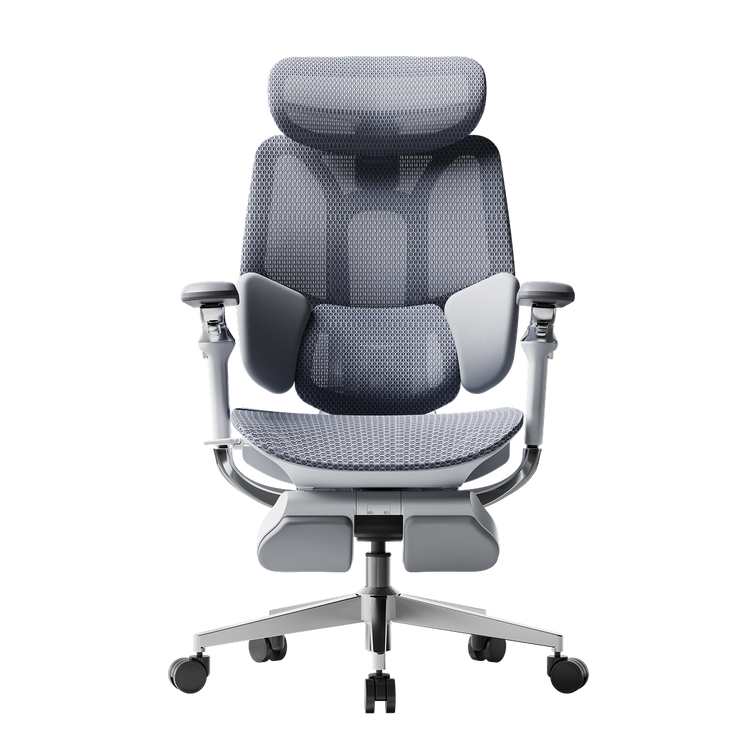
If you are considering the HBADA X7 or E3 Pro 2026, check the current EU product page and the return terms for your order before purchasing.

Use the same testing checklist for either chair, but pay attention to the features that make each model different.

What to compare HBADA X7 HBADA E3 Pro 2026
Lumbar support Test how the AI lumbar-tracking system responds when you change position. Test how the three-zone adaptive lumbar support fits your lower back.
Seat fit Check the selected model’s seat dimensions and adjustment range against your body and desk. Check the selected model’s seat dimensions and adjustment range against your body and desk.
Recline and armrests Check support and control access while typing, leaning back and relaxing. Check the headrest, armrest and recline adjustments during your usual tasks.
Additional features Try the comfort functions included with your selected version, following its manual. Focus on mechanical adjustments, mesh comfort and any optional footrest.
Before ordering Confirm the exact configuration, delivery availability, return conditions and warranty. Confirm the exact configuration, delivery availability, return conditions and warranty.

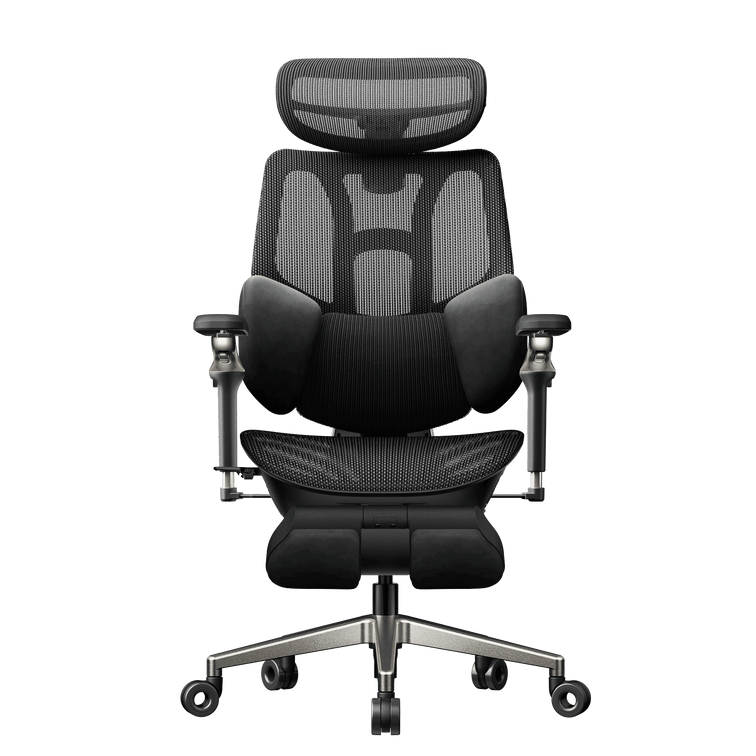
If you want automatic lumbar tracking, explore the HBADA X7 smart ergonomic chair and check the comfort features included with your selected version.

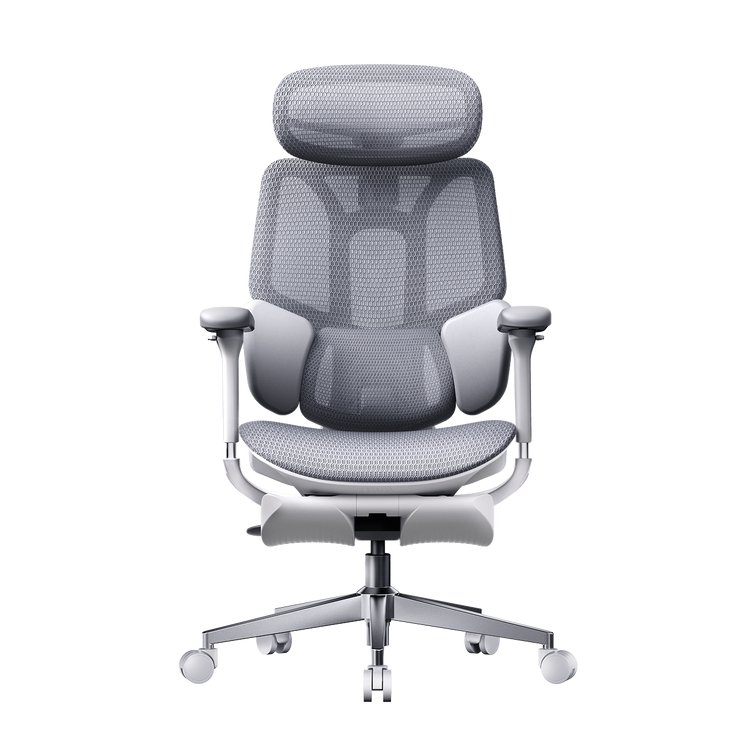
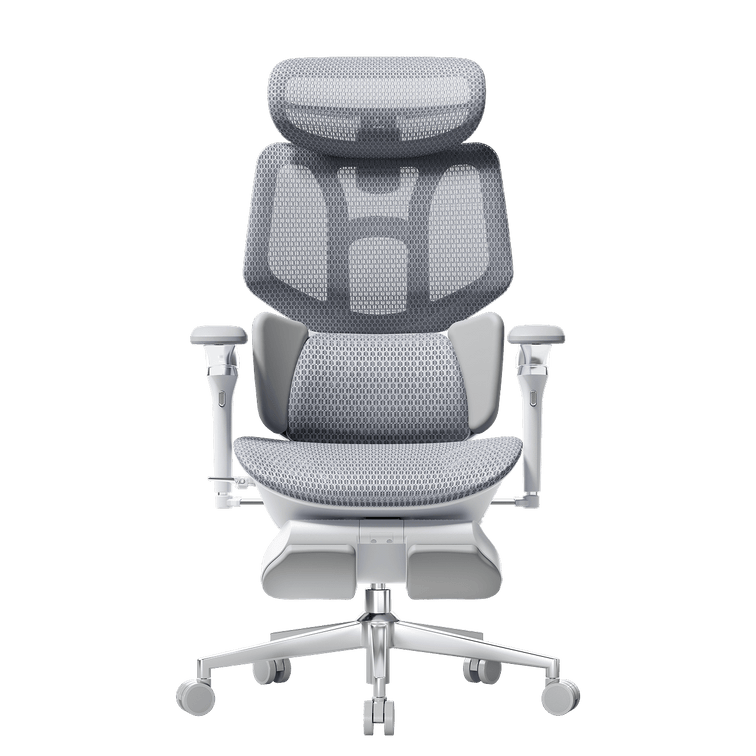
If you want a mechanically adjustable chair to test for long workdays, compare the HBADA E3 Pro 2026. You can also browse the HBADA ergonomic office chair collection before your trial begins.

Your 30-Day Test Plan

Follow this simple plan so nothing is missed before the commercial trial ends. Keep the separate statutory withdrawal deadline in mind if you intend to use that right.

Day 1

Assemble and Adjust

Assemble by the manual, keep all packaging, and set the chair to your body.

Days 2–7

Check Daily Fit

Test daily fit, lumbar support, breathability, noise and castors.

Days 8–21

Test Your Normal Work Routine

Work your usual schedule and test recline, armrests and long-session comfort. Keep taking movement breaks. If you wish to exercise the statutory withdrawal right, do not wait beyond its notification deadline.

Days 22–27

Fine-Tune and Decide

Fine-tune settings and review your notes. If you are continuing under the commercial trial and the chair is not right, contact support now to confirm the return steps and deadline.

Days 28–30

Complete Your Decision

Keep the chair if it fits your needs, or complete the steps required under the commercial return policy within the applicable deadline. Do not assume contacting support on day 30 automatically extends the window.

Limitations and When to Get Help

A trial answers many questions, but not every one.

  • A trial checks comfort and fit for you; it cannot promise a health outcome.
  • Thirty days cannot establish the chair’s lifespan or long-term durability.
  • Keep the chair and packaging in good condition while deciding.
  • Commercial return terms and warranty coverage may vary by market and order. Mandatory consumer rights remain unaffected.

If you have severe, persistent or radiating pain, consult a qualified healthcare professional. A chair is not a medical treatment.

Conclusion

The best way to judge an ergonomic office chair is to test it where you actually work. Assemble it, set it to your body, use it for real tasks, and keep the packaging until you are sure. Compare the X7 if you want automatic lumbar tracking, or the E3 Pro if you prefer mechanical adjustments. Make your decision before the relevant deadline, and keep the chair that fits you.

Frequently Asked Questions

How long is the HBADA EU home trial?

HBADA EU currently offers a 30-day satisfaction guarantee from receipt. Check the applicable policy for the return procedure. It is separate from your statutory withdrawal right.

Can you return an office chair after using it?

Check whether you are returning under the commercial trial or exercising a statutory right. The conditions differ. Keep the chair clean, avoid damage and retain its packaging while deciding.

How long does it take to get used to a new ergonomic chair?

There is no fixed adjustment period for everyone. You may need several sessions to learn the controls and fine-tune the seat height, depth, lumbar support and armrests. Change one setting at a time. Do not keep sitting through pain in the hope that you will eventually adapt.

Who pays for return shipping?

Under HBADA EU’s commercial policy, change-of-mind returns involve a customer contribution to shipping, while damaged, defective or incorrect items are handled at HBADA’s shipping expense. Confirm the process before booking a courier; statutory rights remain unaffected.

What should you check before the trial ends?

Confirm the essentials: fit, long-session comfort, lumbar support, breathability, recline, armrests and noise. Also check that the chair suits your desk height and floor. Decide early enough to meet the deadline for the return route you are using.

Sources and Useful Links

Produto Relevante

Também pode gostar

How to Clean a Mesh Ergonomic Office Chair Without Damaging the Material How to Clean a Mesh Ergonomic Office Chair Without Damaging the Material Safe, simple care for mesh, spills, stains, casters and smart-chair components. Quick answer: Remove dust with a soft dry cloth or a vacuum on a low setting. Blot spills with a well-wrung cloth and mild soapy water, then let the mesh air-dry naturally. Avoid bleach, hot water, solvents and abrasive cleaners. Contents What can damage mesh? How to remove everyday dust How to clean spills and stains Frame, armrests and casters Cleaning methods at a glance How to clean a smart chair Safe deep-clean routine HBADA chair care FAQs What Can Damage a Mesh Chair? Mesh is designed to breathe and flex, but it can be damaged by unsuitable cleaning methods. Bleach, strong chemicals, solvents, hot water and abrasive cleaners can weaken or discolour the fibres. Stiff brushes and hard scrubbing can also snag or stretch the weave. Keep the chair out of prolonged direct sunlight, do not soak the mesh, and avoid spraying liquid directly onto it. Regular light cleaning is safer than occasional heavy cleaning. How Do You Clean Everyday Dust? Use a soft dry cloth Wipe the mesh with a dry microfiber cloth to remove surface dust, lint and light debris. Vacuum on a low setting If dust is caught in the weave, use gentle suction and move across the surface without pressing into it. A short weekly clean helps prevent dust and skin oils from building up, particularly when the chair is used every day. How Do You Clean Spills and Stains? For a fresh spill, dampen a soft cloth with mild soapy water and wring it out well. Blot the area from the outside of the mark toward the centre so it does not spread. Do not soak the mesh or scrub hard. For a stubborn mark, test an alcohol wipe on a hidden area first, then dab gently. Let the chair air-dry completely in a ventilated room before use. How Do You Care for the Frame, Armrests and Casters? Use a separate soft, damp cloth for the frame, armrests and base. Keep water away from the gas lift, recline mechanism and other moving parts. Never attempt to open the gas cylinder. Casters can collect hair and dust over time. Remove anything wrapped around the wheels, then wipe them clean so the chair can move smoothly. Cleaning Methods at a Glance What to Clean Safe Method What to Avoid Everyday dust Soft dry cloth or low-suction vacuum Hard brushing or scratching the mesh Fresh spills Blot with mild soapy water Soaking or rubbing the mesh Stubborn marks Spot-test, then dab gently Bleach, hot water or solvents Frame and armrests Soft damp cloth Abrasive or harsh cleaners Casters Remove hair and debris, then wipe Forcing debris deeper into the wheel How Do You Clean a Smart Chair With Electronics? Important: Switch the chair off and follow its supplied care instructions before cleaning around powered components. Use a dry cloth around controls, sensors, fans, batteries and powered adjustment areas. Never spray liquid directly onto the chair. Clean the mesh and non-electronic surfaces gently, then allow the chair to dry completely before use. Step by Step: A Safe Deep Clean Switch off a smart or powered chair before cleaning. Vacuum or dry-dust the mesh to remove loose debris. Mix a small amount of mild soap with lukewarm water. Dampen and thoroughly wring out a soft cloth. Blot the mesh without soaking it. Spot-test before treating stubborn marks. Wipe the frame, armrests and base separately. Remove hair and dust from the casters. Let the chair air-dry away from direct sunlight. Which HBADA Chairs Does This Apply To? This guide is suitable for HBADA mesh office chairs sold through HBADA EU, including the E3 Pro and X7 Prestige. For an E3 Pro, regular care means keeping the mesh clean and keeping moisture away from the gas lift and mechanism. For a smart or powered model, follow the model-specific guidance before cleaning around controls or powered areas. Frequently Asked Questions Can you wash a mesh office chair? You can clean it, but you should not soak it. Vacuum or dry-dust the mesh first, blot it with mild soapy water, and let it air-dry completely. What should you not use to clean a mesh chair? Avoid bleach, hot water, solvents, abrasive cleaners, stiff brushes and hard scrubbing. These can weaken, discolour or snag the mesh. How do you remove a stain from mesh? Blot the stain with a well-wrung cloth and mild soapy water. For a stubborn mark, spot-test an alcohol wipe first, then dab gently rather than scrub. How often should you clean a mesh office chair? Dust or vacuum the mesh once a week, deal with spills promptly, and carry out a deeper clean whenever needed. Does cleaning damage mesh over time? Not when it is done gently. Mesh damage usually comes from harsh chemicals, excess water, heat or heavy scrubbing. Sources HBADA EU E3 Pro Ergonomic Office Chair HBADA EU X7 Prestige Smart Ergonomic Chair HBADA EU FAQs ``` How to Set Up an Ergonomic Office Chair for Laptop Work How to Set Up an Ergonomic Office Chair for Laptop Work A more comfortable home office Start with the chair, then separate screen height from typing height. Adjust your seat to the desk, support your feet and lower back, and keep your shoulders relaxed. For longer laptop sessions, use a stand with a separate keyboard and mouse so you can position the screen without lifting your arms to type. In this guide The laptop setup challenge Five chair adjustments Screen and keyboard position Common problems and fixes Your setup checklist Choosing an HBADA chair Limitations and when to get help Final thoughts Frequently asked questions Sources Why Can Laptop Work Feel Uncomfortable? A laptop is easy to move between rooms, but its screen and keyboard remain joined together. A comfortable keyboard position can leave the screen too low. Raising the laptop may improve the view while making the keys harder to reach. An ergonomic office chair helps you build a supported sitting position. It does not solve this screen-and-keyboard trade-off on its own. For regular work at one desk, a separate keyboard and mouse allow more flexibility. Whether your workspace is a dedicated home office or a shared desk, check how the chair, work surface and laptop fit together. Comfortable working also depends on changing position, not holding one posture all day. How Should You Set Up the Chair First? Use the keyboard position and desk height as your starting points. Then adjust the chair to support you without making you reach or raise your shoulders. Step 01 Match the seat height to the work surface Adjust the seat until you can type with your shoulders relaxed, elbows close to your body and wrists roughly straight. If the desk height is adjustable, use both adjustments to find a comfortable position. Step 02 Support your feet Your feet should rest securely on the floor or a suitable footrest. If a fixed desk requires a higher seat position, a footrest can bridge the gap without forcing you to lower the chair below a comfortable typing height. Step 03 Check the seat depth Sit against the backrest and check the space behind your knees. Around two to three fingers is a useful starting point. If the model allows seat-depth adjustment, use it to avoid pressure from the front edge. Step 04 Align the lumbar support Position the support against your lower-back curve. It should not feel as though it is pushing you away from the backrest. Adjust the available settings gradually and recheck them during normal work. Step 05 Keep the armrests clear of the desk Set the armrests for light support with relaxed shoulders. Make sure they do not stop you moving close enough to the keyboard. Lower or reposition them if they catch on the desk edge. How Should You Position the Laptop Screen and Keyboard? With the chair adjusted, place the laptop on a stable stand and connect a separate keyboard and mouse. Start with the top of the screen at or just below eye level, roughly an arm's length away. Adjust text size and screen distance until you can read without moving your head forwards. Place the mouse beside the keyboard, rather than far to one side, and keep enough desk space for comfortable use. Working without extra equipment? Avoid raising the built-in keyboard to a height that makes you lift your shoulders. Keep the laptop in a manageable typing position and change tasks or take breaks regularly. A stand and separate input devices are worth considering when the same space becomes your everyday workstation. Common Laptop Setup Problems and Their Fixes Use these checks to review your workspace. They do not identify the medical cause of pain or discomfort. What you notice What to check Adjustment to try You look down for long periods Screen height and readability Use a stand with an external keyboard, and adjust text size. You lift your shoulders to type Keyboard and seat height Rebalance the chair and desk heights while keeping your feet supported. Your feet do not reach the floor Desk height and foot support Add a stable under-desk footrest if the working height requires it. You sit on the front edge of the seat Equipment reach and seat depth Move the keyboard closer and check whether you can use the backrest. Your armrests hit the desk Armrest height and width Lower or reposition them to allow closer access. You feel stiff after a long session Time spent sitting still Change position and include short walking or standing breaks. Your Laptop Workstation Checklist Adjust the seat for comfortable access to the keyboard. Keep both feet securely supported. Leave room behind your knees. Set the lumbar support against your lower back. Check that the armrests do not prevent desk access. Use a separate keyboard and mouse when raising the laptop. Adjust screen distance and text size for easy reading. Make time for movement and changes of task. Which HBADA Chair Suits Laptop Work? The right model is the one that fits both you and your desk. Before choosing from the HBADA EU office chair range, compare the adjustments available on the exact product and configuration. If you are considering an E3 or X7 model, check its regional product information rather than relying on specifications from another market. Seat dimensions, adjustment options and footrest availability should be confirmed for the version you intend to order. What to compare What to look for Seat-height range A suitable working height for your desk with stable support for your feet. Seat dimensions Enough room to sit comfortably while reaching the backrest. Lumbar support A support position and adjustment range that suit your lower back. Armrest adjustments Comfortable forearm support without blocking access to the work surface. Footrest type Distinguish a reclining leg rest from a footrest used during upright typing. Regional configuration Confirm the selected model, dimensions, capacity and availability on HBADA EU. No chair feature removes the need to position the laptop correctly. Reserve space in your setup for a stable stand, keyboard and mouse as well as the chair. Limitations and When to Get Help Chair adjustments support your working position; they do not treat medical conditions. Screen placement and equipment reach still need separate attention. A reclining position is not automatically suitable for keyboard work at a fixed desk. Speak to a qualified healthcare professional if discomfort persists or becomes severe. For an employer-provided workstation, ask about the assessment and guidance applicable in your country. Final Thoughts A practical laptop workstation starts with a chair that fits the desk and supports your feet and back. Keep the keyboard close, position the screen independently where possible, and check that your armrests do not get in the way. Small adjustments are useful, but regular movement remains part of the setup. Frequently Asked Questions How should you sit when working on a laptop? Sit back with your lower back supported and your feet stable. Keep your shoulders relaxed and the keyboard close enough to reach without leaning forwards. A separate keyboard and mouse allow you to raise the screen while keeping a comfortable typing height. Do you need a footrest for laptop work? Only if your feet lack stable support at the seat height needed for your desk. Check the chair and desk adjustments first. If the desk is fixed and your feet still dangle, an under-desk footrest can help support them. Is an ergonomic chair enough for working on a laptop all day? No. The chair supports your sitting position, but screen height, keyboard reach and movement breaks also matter. For regular desk work, consider a laptop stand with a separate keyboard and mouse. Can you use the same setup at a dining table? Check the table height, legroom and how close the chair can move to the edge. If the surface is too high, raising the chair may require a footrest. A table that prevents comfortable keyboard access may not suit extended work, even with an adjustable chair. How often should you move during laptop work? Include short, regular opportunities to move rather than staying in one position until you feel uncomfortable. Stand, walk or switch tasks when practical. Follow any workstation guidance provided by your employer and applicable in your country. Sources and Product Information HSE: Working with display screen equipment — a UK practical reference, not a statement of legal requirements across the EU. HBADA EU: Current office chair range and product information Availability and specifications vary by model and configuration. Use the relevant HBADA EU product page to check the version available for your delivery location. How to Choose the Right HBADA Task Chair for Your Office How to Choose the Right HBADA Task Chair for Your Office A task chair is the piece of furniture you use through meetings, focused work and everyday desk tasks. Choosing the right one means matching its adjustments, materials and support to your body and the way you work. Which task chair should you choose? Consider the HBADA X7 for automatic lumbar tracking and powered comfort features. Compare the E3 Pro for adjustable lumbar support and the E3 Air for breathable everyday seating. If a footrest and reclined breaks matter to you, check the available E3 Ultra configuration. Your dimensions, preferred controls and budget should guide the final choice. Contents What is a task chair? Features to look for HBADA task chair comparison HBADA X7 HBADA E3 Pro HBADA E3 Air HBADA E3 Ultra HBADA P2 Choose by work style Task chair setup tips Frequently asked questions Final thoughts What Is a Task Chair? A task chair is an office chair designed for focused work at a desk. It commonly includes adjustable seat height, a swivel base and other adjustments that help accommodate different users and working positions. The term covers a broad range of chairs. A basic model may offer only seat-height adjustment, while an ergonomic task chair may also provide adjustable lumbar support, armrests, seat depth and recline. Compare the actual controls rather than choosing by appearance alone. Features to Look for in a Task Chair Lumbar Support Lumbar support should feel comfortable against the lower back. Height, depth or adaptive movement can help different users find an appropriate position. More pressure is not necessarily better: the support should not push you away from the backrest or create an uncomfortable pressure point. Seat Height and Depth Check the seat-height range and usable seat depth in centimetres. Your feet should have support, and the front edge should leave space behind your knees. A recommended user-height range is only a starting point because people of the same height can have different body proportions. Breathable Materials Mesh allows airflow, but the feel of the seat also matters. Consider its firmness, edge shape and support alongside breathability. If possible, assess the chair during ordinary desk tasks rather than judging comfort from a brief sit. Recline and Movement Compare how the recline works, the available lock positions and any tension adjustment. A larger maximum angle is not automatically more useful for typing or meetings. Choose controls that suit both focused work and changes of position. Armrest Adjustment Check whether the armrests can sit at a comfortable height and clear your desk. Width, depth and rotation adjustments may also help, depending on your keyboard, mouse and other daily tasks. Build, Capacity and After-Sales Support Compare the stated weight capacity in kilograms, assembly instructions and replacement-part support. Read the EU warranty and return terms for the exact model before ordering. HBADA Task Chair Comparison Model Why consider it? What to confirm HBADA X7 Automatic lumbar tracking and powered comfort features. Seat dimensions, controls and power requirements. HBADA E3 Pro Adjustable support for a primary desk-work chair. Edition, lumbar adjustments and selected footrest option. HBADA E3 Air Breathable mesh and everyday ergonomic adjustments. Edition, armrest controls and footrest configuration. HBADA E3 Ultra An alternative for users comparing additional comfort and adjustment options. The current EU model’s features, recline and footrest details. HBADA P2 An option to assess if the required EU variant is available. Current listing, specifications, price and local support. Edition and availability note: E3 Pro and E3 Air listings may include different generations, including 2026 editions. Do not assume identical specifications across editions. Prices in euros, colours, stock and footrest options depend on the selected configuration and delivery destination. Automatic support HBADA X7: For Users Who Prefer Powered Adjustment The HBADA X7 Smart Ergonomic Chair is the technology-focused option in this comparison. Its EU product page describes automatic lumbar tracking, seat ventilation and massage functions. Consider it if you prefer automatic lumbar support to repeated manual adjustment. Check the controls and seat dimensions carefully: powered features do not replace the need for a chair that fits your body and desk. Consider the X7 if: You prefer automatic lumbar tracking. Seat ventilation matters in your workspace. You want powered comfort functions. The dimensions and operating requirements suit your setup. Adjustable lumbar support HBADA E3 Pro: For a More Adjustable Seated Setup The HBADA E3 Pro Ergonomic Office Chair is worth comparing if lumbar support and adjustable seating are priorities. Check how the support contacts your back and which adjustments are available on the selected edition. The Pro name appears across different configurations. Compare the exact product rather than transferring specifications from another market or generation. Consider the E3 Pro if: Lumbar fit is a priority when choosing a chair. You want to adjust the seating position to your desk. You alternate between focused work and reclined breaks. You have compared the available E3 Pro editions. Everyday mesh seating HBADA E3 Air: For Everyday Office Work The HBADA E3 Air Ergonomic Office Chair combines breathable mesh with lumbar, headrest and armrest adjustment. The linked EU listing describes a recline of up to 140°. It is a model to compare when you want everyday ergonomic controls without making powered comfort functions the focus of the purchase. Check the selected version carefully, including whether it has a footrest. Consider the E3 Air if: You prefer breathable mesh seating. You want adjustments for ordinary desk work. You are comparing value within the E3 range. You have checked the current price and chosen edition. Work and seated breaks HBADA E3 Ultra: Check the Current EU Configuration Include the HBADA E3 Ultra in your shortlist if you are comparing comfort features for desk work, reading and short seated breaks. Use the current EU listing to confirm its adjustment system, recline range and whether the selected configuration includes a footrest. Specifications from a similarly named .com product should not be treated as interchangeable. Consider the E3 Ultra if: You want to compare additional comfort features. You use your chair for both work and reading. The selected configuration includes the features you need. The required variant is available for your destination. Availability-dependent option HBADA P2: Confirm EU Availability First If you are considering the P2 for an occasional or secondary workspace, first confirm that an appropriate EU variant is available. Lumbar support, armrests, recline and footrest specifications should be checked on that exact listing. If the P2 is not listed in the current EU range, contact service@hbada.eu before relying on pricing or specifications from another market. Consider the P2 only after confirming: The model is available for your delivery country. The seat dimensions and adjustment range fit your needs. The selected variant includes your required features. EU after-sales support and applicable terms are clear. Choose a Task Chair by Work Style There is no single best task chair for every office. Identify the adjustments you will actually use before comparing additional features. Long desk sessions: Prioritise fit, usable adjustments and ease of changing position. Compare X7 automatic support with the controls offered by E3 models. Everyday home-office work: Compare E3 Air and E3 Pro against your desk height, body dimensions and budget. Reading and short reclined breaks: Check recline controls and the exact footrest configuration, including E3 Ultra options. A secondary workspace: Focus on essential fit and adjustments. Consider P2 only when EU availability and specifications are confirmed. For a shared workspace, choose controls that each user can understand and reach. Check the minimum and maximum dimensions rather than assuming one saved position will suit everyone. Task Chair Setup Tips Set the seat height. Keep your feet supported by the floor or a suitable footrest. Check the seat depth. Sit back and leave a small gap between the seat edge and your knees. Position the lumbar support. Adjust it gradually and avoid excessive pressure. Set the armrests. Support your forearms without lifting your shoulders or blocking access to the desk. Check keyboard and mouse reach. Keep both within comfortable reach during your usual tasks. Adjust the screen. Position it so you can read without repeatedly leaning forward or bending your neck. Change position regularly. Combine seated work with movement and changes of activity. Frequently Asked Questions Which HBADA task chair should I consider for long desk sessions? Compare the X7 if you prefer automatic lumbar tracking, or E3 models if their adjustments better match your needs. Seat fit, desk compatibility and preferred controls matter more than the number of features. Which chair should I choose if lumbar support is my priority? Start by comparing the E3 Pro’s support and adjustments with the X7’s automatic tracking. Choose the option that makes comfortable contact with your lower back without pushing you into an awkward position. Is the E3 Air a value-focused option? The E3 Air is an option for buyers prioritising breathable seating and everyday adjustments. Compare current EU prices and editions before deciding which model offers the features you need within your budget. Does every HBADA task chair include a footrest? No. Footrest availability depends on the model and selected configuration. Check the option shown on the product page and in your basket before ordering. Do I need the deepest possible recline? Not necessarily. Compare the lock positions, movement and support you can use during work. A deeper recline may suit short breaks, but the maximum angle alone does not determine whether a chair is a good fit. Can a task chair treat back pain? A task chair is not a medical treatment. A suitable setup may feel more comfortable, but persistent, severe or worsening pain should be assessed by a qualified healthcare professional. Are EU and US versions always the same? Do not assume that they are. Model names, editions, configurations and availability can differ. Use the EU product page and applicable EU terms for your purchase. Final Thoughts Choosing a task chair starts with fit. Compare the seat dimensions, lumbar support and controls against your body, desk and everyday routine. Shortlist the X7 for automatic support, the E3 Pro for adjustable seating and the E3 Air for everyday mesh comfort. Check the current E3 Ultra configuration if additional comfort features matter to you, and confirm local availability before considering the P2. Compare the current EU range, select the exact edition and configuration, and review delivery, returns and warranty information for your destination before ordering. Explore HBADA EU Office Chairs Product links refer to HBADA EU listings. Features and availability may change by edition and configuration. This guide is a product-selection overview, not a hands-on comparative test.