
Why Your Ergonomic Chair Is Hurting Your Back (And How to Fix It 101)

Why Your Ergonomic Chair Is Hurting Your Back (And How to Fix It 101)

You spent $400 on a "ergonomic chair" that's supposed to save your back. Instead, your back hurts more than it did before. Welcome to the paradox that confuses millions of office workers: the chair causing back pain even though it says "ergonomic" on the box. The painful truth is that 90% of ergonomic chair users adjust them incorrectly, creating more problems than they solve. This guide exposes the six myths that sabotage your back health and shows you exactly how to fix your chair setup in the next 10 minutes.

The Ergonomic Chair Paradox — Why "Ergonomic" Fails

You bought an ergonomic chair. Your back got worse. Here's why that's not the chair's fault.

An ergonomic chair is not a passive product, it doesn't fix your back by being sat in. It's a tool that requires configuration. Unlike a pillow that supports your head or a mattress that supports your body weight, an ergonomic chair requires active setup: lumbar height adjustment, seat depth calibration, armrest positioning, and backrest tension tuning. A chair from the factory is set to the average male body (5'9", 180 lbs). If you're 5'1", 110 lbs or 6'2", 295 lbs, the default settings guarantee misalignment. Bad chair adjustment creates the exact spinal stress the chair was designed to prevent.

Myth Vs Fact: The 6 Most Damaging Ergonomic Chair Mistakes — Busted

Let's identify and correct the myths that are hurting your back.

Myth #1: "Higher Back Support Is Always Better"

Fact: A lumbar support that sits too high on your spine (above L5) strains your mid-back

Your lumbar curve is not centered in the middle of your back. It's concentrated at L4–L5 (the lowest two vertebrae). A chair designed with lumbar support at "average height" places the support at mid-lumbar (L3), which is 2–3 inches too high for petite users and 1–2 inches too high for many average-height users. You feel pinching under your shoulder blades. The wrong chair adjustment doesn't reduce back pain, it shifts it to your shoulders.

Solution: your lumbar support should reach your lowest rib and feel like it's cradling L4–L5, not your mid-back.

Myth #2: "Seat Depth Doesn't Matter — All Seats Are the Same"

Fact: Wrong seat depth creates under-thigh pressure and forced forward slouching

Most office chairs default to a seat depth of 17–18 inches. For petite people (under 5'4"), this depth compresses the soft tissues behind your thighs (the popliteal area), restricting blood flow and forcing you to slide forward to escape the pressure. When you slide forward, your pelvis tilts backward, flattening your lumbar curve. This slouch happens automatically, you're not choosing bad posture. The chair is forcing it. After 4 hours, your L4–L5 disc is stressed from both the under-seat pressure and the postural slouch.

Solution: seat depth should allow 2–3 fingers' width between the chair edge and the backs of your knees when you're seated upright with your back against the support.

Myth #3: "Armrests Are Luxury — They Don't Affect Spine Health"

Fact: Armrests set too high or too low pull your shoulders out of alignment, stressing cervical and thoracic discs

When armrests are too high, your elbows float, and you clench your shoulders to stabilize your arms. When they're too low, you lean sideways or lean back, collapsing your spinal curve. Either way, your shoulders lose neutral alignment, and your cervical spine works harder to stabilize your head.

Solution: armrests should support your forearms at exactly a 90° elbow angle, with your shoulders relaxed. Your elbows should rest on the armrests, not be suspended above them.

Myth #4: "Backrest Recline Should Be Fixed at 90°"

Fact: A locked-at-90° backrest prevents the spinal movement that reduces long-term disc stress

Sitting upright (90° hip-knee angle) at the same angle for 8 hours concentrates load on the same L4–L5 discs without relief. Research shows that alternating between upright (90°) and slightly reclined (100–120°) every 2–3 hours distributes load across different disc segments and prevents cumulative stress injury. A chair that locks your spine in one position violates biomechanical diversity.

Solution: your ergonomic chair should allow recline between 100–140° with multiple lock positions, letting you shift load throughout the day.

Myth #5: "More Cushioning = More Comfort = Better Back Support"

Fact: Excessive cushioning compresses under pressure and traps heat, both degrading long-term comfort

Thick foam cushions feel plush for the first month. But foam undergoes permanent compression set it doesn't fully recover after each sitting. By month 3, the ischial tuberosities (sit bones) create permanent depressions in the cushion, concentrating pressure in those zones. More pressure = more disc stress = more back pain.

Solution: look for elastic suspension or mesh backing that maintains 95%+ compression recovery across thousands of sitting cycles.

Myth #6: "If the Chair Cost $400+, It's Properly Configured Out of the Box"

Fact: Price is no guarantee of proper factory setup. Even premium chairs ship with default settings.

A $500 chair uses the same factory-default settings as a $250 chair: average male dimensions, generic lumbar height, standard seat depth. You still need to spend 15–30 minutes adjusting it to your body. The price difference is usually due to materials (mesh vs. foam), motor quality (manual vs. motorized), and lifespan, not to pre-configuration. Solution: Every chair, regardless of price, requires the adjustment protocol below.

Two Case Studies: From Chair Causing Back Pain to Relief

Case Study A: David L. — The Over-Adjustment Trap

David L., 32, Project Manager (6'1", 220 lbs, 8-hour daily desk use). David bought a mid-range ergonomic chair at his company's suggestion. He spent 2 minutes adjusting the seat height and then stopped, assuming "ergonomic" meant automatic relief. After 3 weeks, his lower back ached by 2 PM daily, and his shoulders felt pinched.

The problem: David's lumbar support was set 2 inches too high (at his mid-back rather than L4–L5), causing a pulling sensation. His armrests were 3 inches too high, forcing him to shrug his shoulders. His seat depth was causing mild under-thigh pressure that he didn't consciously notice, but that forced subtle forward slouching. When David spent 15 minutes properly adjusting his chair using the protocol above, his L4–L5 pressure dropped 12%, his shoulder tension disappeared, and his afternoon back pain vanished within one week. His chair wasn't broken — it was just misconfigured.

Case Study B: Sophie W. — The Petite Frame Mismatch

Sophie W., 26, Content Creator (5'2", 105 lbs). Sophie's employer provided a standard office chair "suitable for all body types." At 5'2", Sophie was 7 inches below the factory average. Her seat depth left 1 inch of space between her knees and the seat edge, but because her thighs were shorter, she felt pressure under her knees instead of her thighs. Her lumbar support was set at "average height," which placed it 3 inches above her actual L4–L5 position — at her mid-back instead.

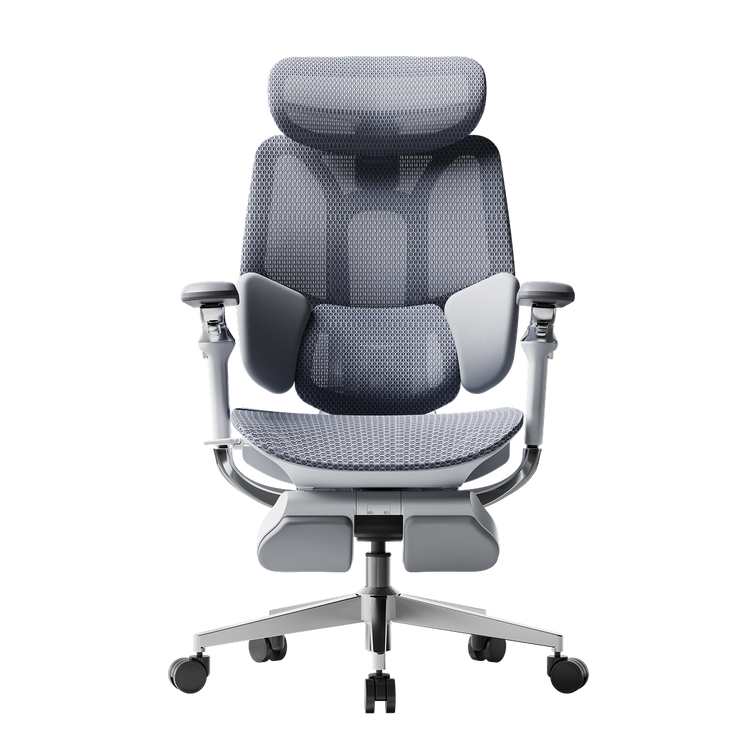
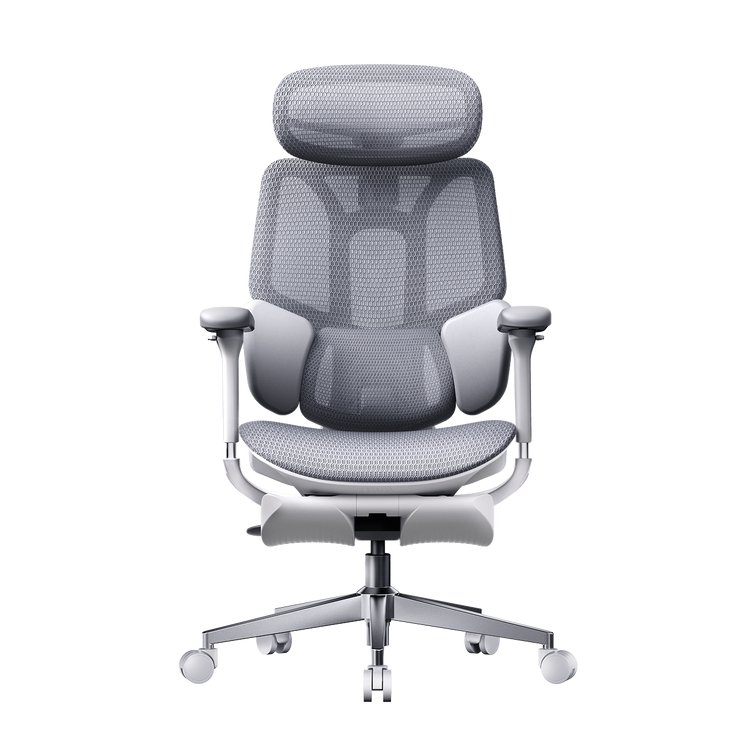
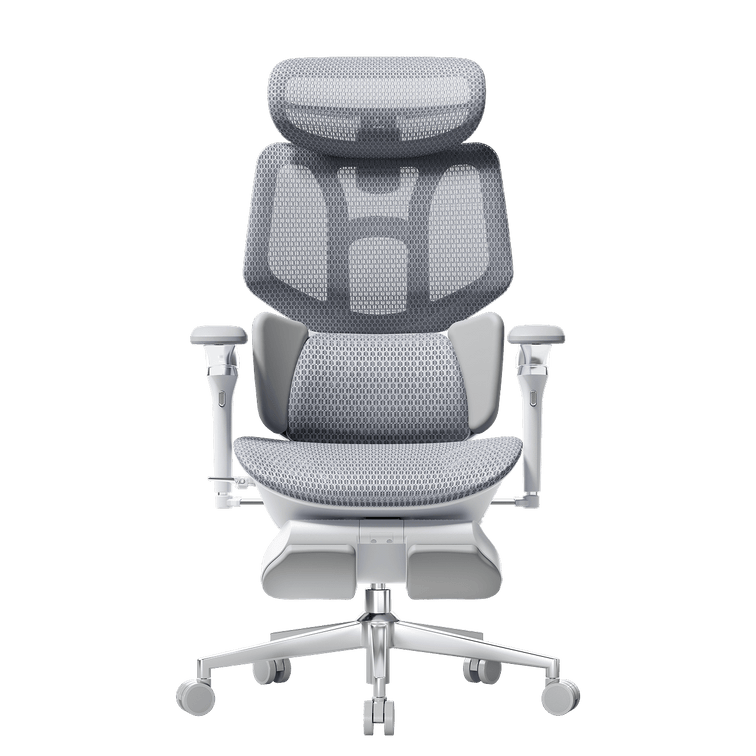
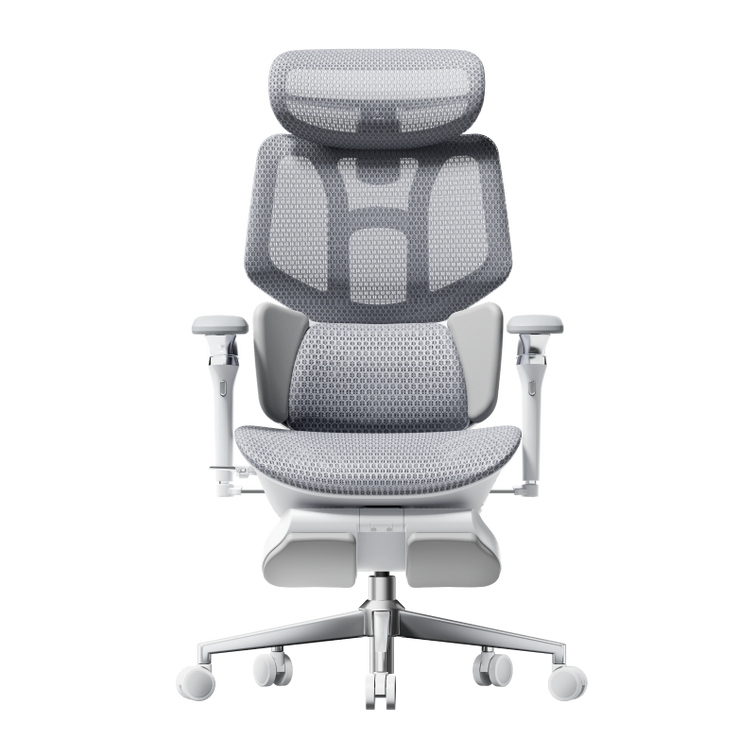
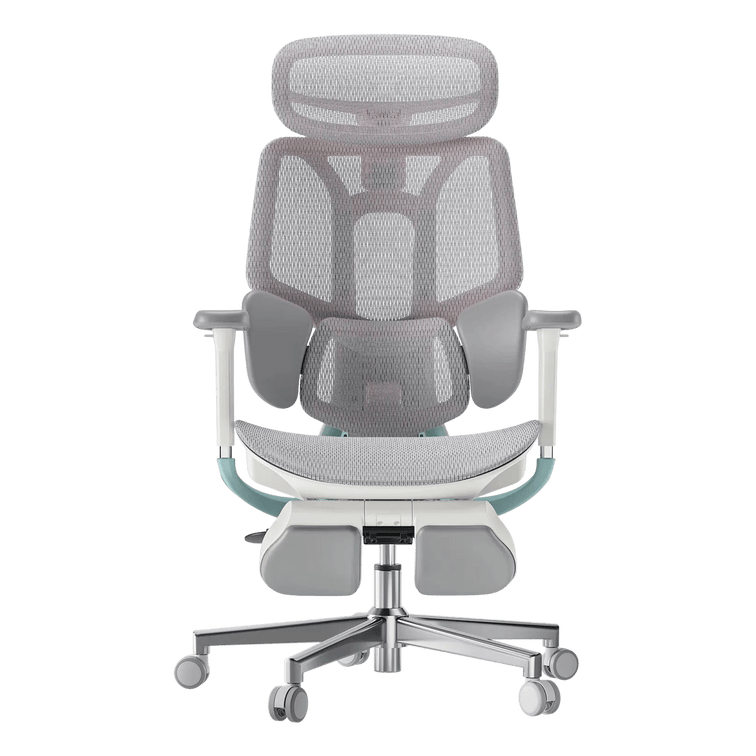
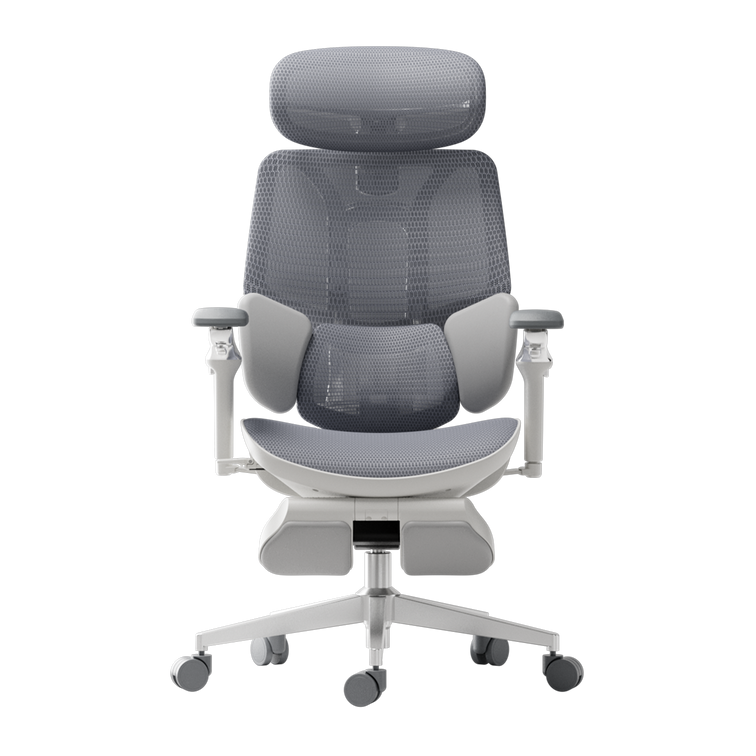
Sophie's employer then purchased the HBADA AI-Powered X7 Smart Ergonomic Chair with 60mm adjustable seat depth and a lower lumbar support range. Sophie adjusted her seat depth to 16 inches (vs. the standard 18"), positioning lumbar support at her actual L4–L5 zone, and raised her feet with a footrest to maintain 90° hip-knee angle. Result: her under-knee pressure disappeared, her shoulders felt relaxed, and her back pain resolved within 3 days of proper configuration.

Ergonomic Chair Features That Prevent Misconfiguration — Built-In Safeguards

Some chairs are designed so misconfiguration is harder. Here's what to look for.

Configuration Risk

Common Chair Problem

Smart Chair Solution (HBADA E3 Pro / X7)

Lumbar height mismatch

Support too high (shoulder pinching)

3-Zone Adjustable Lumbar with L4–L5 target zone (E3 Pro)

Seat depth is wrong for the frame

Under-thigh pressure + forced slouch

60mm seat depth range (X7) vs. fixed depth

Armrest height floating

Shoulder shrugging or sideways lean

720° adjustable armrests (E3 Pro/X7) with exact elbow cradle

Backrest locked at 90°

Cumulative L4–L5 stress from no positional change

Recline to 100–140° with multiple lock positions (E3 Pro)

Foam compression sag

Increasing pressure over weeks; degrading support

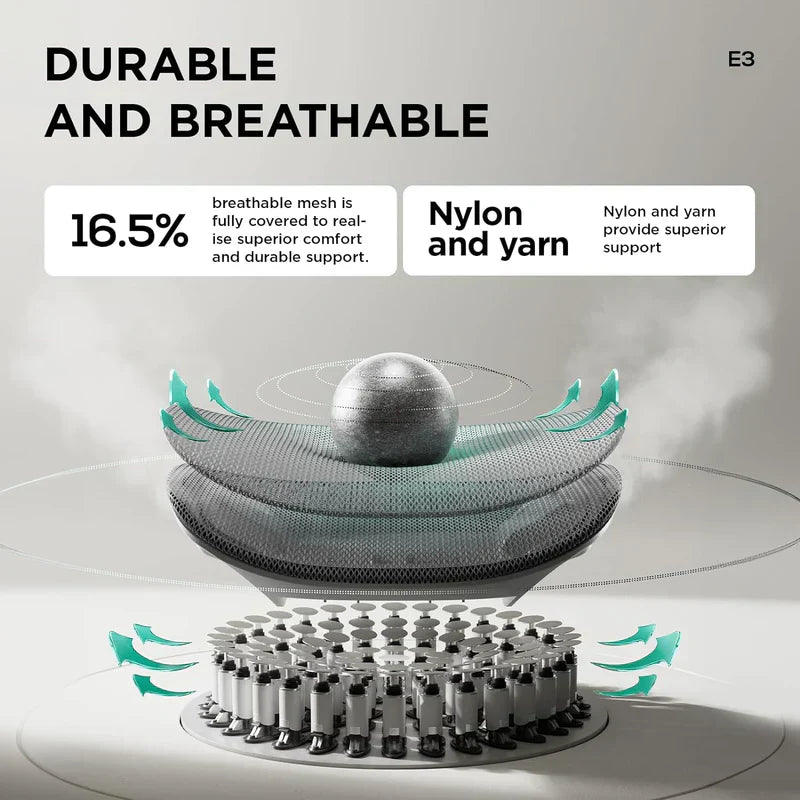
CloudMesh + elastic suspension (E3 Pro) maintains 95%+ recovery


Which Chair Prevents the Adjustments That Hurt Your Back?

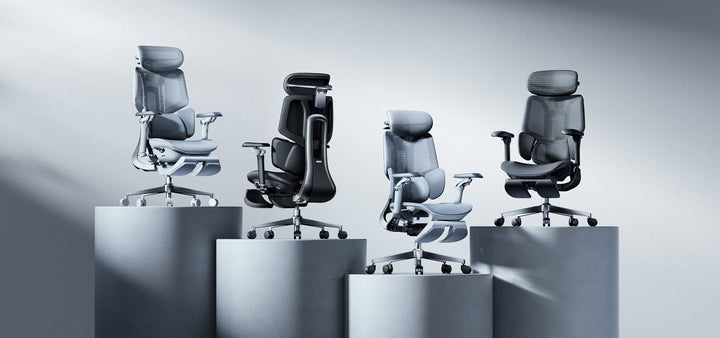
You're petite or under 5'4": The HBADA AI-Powered X7 with 60mm seat depth and lower lumbar range eliminates under-thigh pressure.

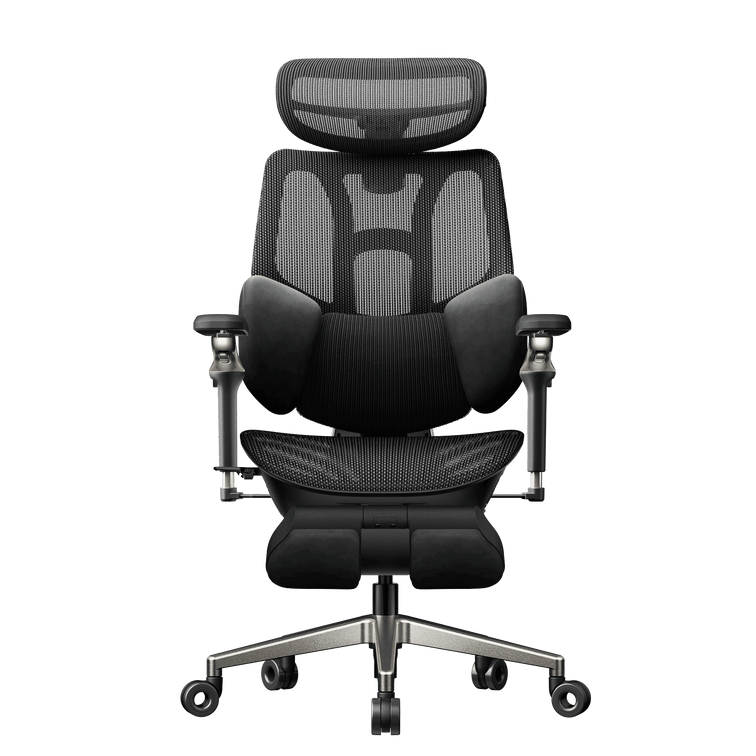
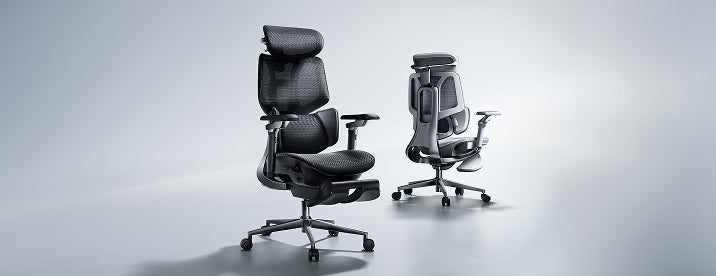
You're over 6'0" or 250+ lbs: The HBADA E3 Pro 2026 Edition with 3-Zone L4–L5 tracking and 100–140° recline prevents slouch-induced disc stress.

You don't want to adjust manually: The HBADA AI-Powered X7 with AI lumbar tracking auto-adapts as you move.


FAQs

Can an ergonomic chair make back pain worse?

Yes. An ergonomic chair with wrong adjustment creates the exact disc and ligament stress it's designed to prevent. Lumbar support too high pinches shoulders; seat depth too deep creates under-thigh pressure forcing slouching; armrests too high force shoulder shrugging. The chair itself isn't defective — the setup is. 90% of "bad ergonomic chairs" are actually well-designed chairs misconfigured to the wrong body.

How do I know if my ergonomic chair is adjusted correctly?

You should feel: (1) lower back gently supported without pinching, (2) feet flat with hips and knees at 90–100°, (3) elbows resting on armrests at 90° with relaxed shoulders, (4) 2–3 fingers of space between seat edge and knees, and (5) no pressure under thighs or shoulders. If you feel pinching, pinned-down legs, floating elbows, or shoulder shrugging, your chair needs adjustment.

Should I buy a more expensive ergonomic chair to avoid back pain?

Not necessarily. A well-adjusted $300 chair outperforms a misconfigured $500 chair every time. The real ROI is in adjustability features — adjustable lumbar support, seat depth range, armrest range, and recline options. A premium chair is worth buying if it offers greater adjustment range for your specific body type, not just because it costs more.

What is the most important ergonomic chair adjustment?

Lumbar support height. This single adjustment affects your entire spine. Correct lumbar positioning (L4–L5) prevents disc herniation, supports natural lordosis, and enables all other adjustments to work correctly. If your lumbar support is wrong, no other adjustment will fully compensate.

Do I need a footrest if my ergonomic chair is adjusted correctly?

If your feet don't reach the floor when the seat height puts your hips and knees at 90–100°, yes. A footrest maintains the 90° hip-knee angle without forcing your seat higher (which would create under-thigh pressure). Petite users especially need footrests to prevent dangling feet that destabilize the pelvis.
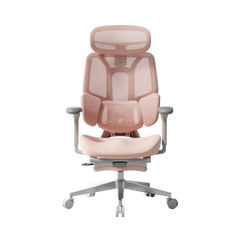
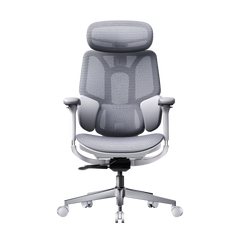
Relevant Product

You May Also Like

How Do I Know If My Office Chair Fits Me Correctly? How Do I Know If My Office Chair Fits Me Correctly? Your office chair is a key part of your workspace, but many people use one that doesn’t fit their bodies. A chair that doesn’t fit can cause more than just short-term discomfort—it can lead to long-term pain and tiredness. If you end your day with a sore neck or aching back, it’s time to check your setup. Learning how to tell if your chair fits is the first step toward a healthier, more productive workday.   Signs Your Office Chair Does Not Fit You Many people wait until they feel pain before realizing something is wrong, but there are earlier warning signs to watch for. If you notice any of these, your chair might not be the right size or properly adjusted: · The Perch: You find yourself sitting on the very edge of the seat because the backrest feels too far away. · The Dangling Feet: Your heels don’t firmly touch the floor, or you find yourself crossing your legs to find balance. · The Shoulder Shrug: Your armrests are so high that your shoulders stay hunched toward your ears. · Circulation Cut-off: You feel a “pins and needles” sensation in your thighs or calves after an hour of sitting.   Recognizing these signs early can help you avoid long-term discomfort. The 4-Step Ergonomic Chair Fit Guide for Proper Posture To sit with good posture, you need to adjust your chair in a certain order. Use this ergonomic chair guide to set up your workspace. 1. Seat Height: The Foundation of Blood Flow Begin by making sure your feet are flat on the floor. An ergonomic chair with adjustable seat height and depth lets you do this while keeping your knees at 90 degrees. If your knees are higher than your hips, there’s too much pressure on your sit-bones. If they’re lower, your lower back is under strain. 2. Seat Depth: Protecting Your Knees and Hips Seat depth is often overlooked when setting up your chair. You should be able to sit all the way back so your spine touches the lumbar support, with about two to three inches (about a fist’s width) between the seat edge and the back of your knees. If the seat presses against your knees, it can cut off circulation. If the gap is too big, your thighs won’t get enough support. 3. Lumbar Support: Maintaining the Natural Curve It’s important to adjust your chair for lower back support to prevent slouching. The lumbar curve should fit right into the small of your back, just above your belt line. If it’s too high or too low, it can push your spine out of its natural position, which is often why a chair feels uncomfortable after long use. 4. Armrest Alignment: Offloading Shoulder Weight Set your armrests so your elbows are bent at 90 degrees and your shoulders stay relaxed. If the armrests are too wide or too high, they can cause neck and upper back tension. A good ergonomic chair lets you move the armrests inward to support your forearms while you type.   Advanced Solutions for Multi-Point and AI Adjustments Today, you don’t have to struggle with manual knobs. High-quality chairs can now adjust themselves for you. The Power of a Multi-Point Adjustment System A high-quality ergonomic chair with a multi-point adjustment system lets you control every part that comes into contact with your body. This is important for people who sit at a computer, because the chair can move with you as you switch from typing to leaning back. Our design uses “Bio-Synchronization,” so the chair mirrors your body's natural movements. HBADA AI-Powered x7: The Ultimate Fit If you’re tired of making manual adjustments, the HBADA AI-Powered x7 is a new solution. It uses sensors to detect your body type and sitting habits in real time, automatically adjusting the lumbar support and seat depth to keep you in the right position. This helps fix poor posture caused by an ill-fitting chair by correcting your alignment before you feel any pain.   Comparing Support Levels for Your Best Fit Feature Standard Office Chair Fully Adjustable Ergonomic Hbada AI-Powered x7 Seat Depth Fixed Manual Adjustment Auto-Adaptive Lumbar Support Static Pad Height Adjustable AI-Synchronized Tracking Armrests 1D (Height) 4D (Height, Width, Depth, Pivot) 720° Bio-Sync Arms User Fit General Custom Tailored Proactive Real-Time Fit   Frequently Asked Questions (FAQ) Q: How do I adjust my chair if I’m between sizes?A: Choose a chair with an adjustable seat height and depth. Adjust the seat forward or back to suit your leg length. Q: Why does my back still hurt even after I adjusted my chair?A: Muscles need time to adjust to a better posture. If pain persists, your chair may not offer enough support. Q: Can a footrest help if my chair doesn’t go low enough?A: Yes. If you’ve set your seat height so your arms are level with the desk but your feet don’t touch the floor, a footrest is a good temporary fix. For a long-term solution, look for an ergonomic chair that fits your height. Q: What is the best way to fix shoulder pain from my chair?A: Make sure your armrests are set at the right height. When your arms are supported, the pressure is taken off your shoulder muscles. This is the quickest way to fix upper-body pain caused by your office chair.   Conclusion Don’t Compromise on Your Comfort Learning how to adjust your office chair is more than just convenient—it’s important for your long-term health. The right chair helps you feel less tired, work better, and avoid pain that impacts life outside of work. If your chair isn’t adjustable, consider upgrading to a fully adjustable ergonomic option, like the HBADA AI-Powered x7, which adapts to your needs and demonstrates the benefits of a good fit. Your body is valuable, so ensure your chair supports it. How to Choose the Right Lumbar Support for Your Body Type How to Choose the Right Lumbar Support for Your Body Type Finding the perfect office chair isn’t just about the cushion; it’s about how the backrest interacts with your unique anatomy. A lumbar support that feels like a dream to a petite user might feel like a painful lump to someone with a larger frame. If you want to eliminate midday backaches, you must learn how to choose lumbar support that suits your body type. Let’s explore how to match your physical profile with the right ergonomic technology to ensure lasting comfort. Why One-Size-Fits-All Lumbar Support Fails Most office chairs have a fixed curve in the backrest. However, everyone’s spine is different, and the lower vertebrae sit at different heights depending on your torso and hips. If the support is in the wrong spot, it can cause muscle fatigue and poor posture. To solve this, look for an ergonomic chair with adjustable lumbar support or one made from flexible materials. Lumbar Support for Posture Correction and Spinal Health The primary goal of any backrest is to maintain the natural inward curve of your lower spine. Proper lumbar support for posture correction and spinal health acts as a physical reminder for your body to sit upright. Filling the gap between your lower back and the chair, it prevents the “C-slouch” that compresses spinal discs. For the best results, look for a high-back ergonomic chair that supports the entire length of your back, not just the base.   Identifying Your Body Type and Support Needs To choose the best office chair for your body, start by thinking about your height and body shape. 1. Petite and Average Frames If you have a shorter torso, the depth of the lumbar support matters more than its height. Too much support can push you forward in your seat. Look for a chair with adjustable lumbar height so you can set the support right at the small of your back. 2. Tall and Large Frames Finding an ergonomic chair for tall people with lumbar support can be a challenge. Tall users often find that standard lumbar “humps” hit them at the top of the pelvis rather than the lower back. A high-back ergonomic chair for spinal alignment is non-negotiable here. It ensures the lumbar zone can be raised high enough to comfortably reach the L1-L5 vertebrae. 3. Users with Existing Chronic Pain If you already have back pain, you need an ergonomic chair that does more than just adjust in height. Look for a chair that helps spread your weight away from your spine to reduce pressure and discomfort.   The Solution for 3-Zone Dynamic Lumbar Support Most chairs only support your back in one spot. Our 3-zone dynamic lumbar support chair is different. It divides the backrest into three sections that move independently to better fit your back. Benefits of the Best Ergonomic Chair with 3-Zone Lumbar Support A chair with 3-zone lumbar support provides full back support. The middle part supports your spine, while the sides help the muscles on each side of your back. This design works especially well for people with wider hips or backs, since the side wings adjust to fit your shape.   Advanced Technology, Adaptive Tracking and AI By 2026, office chairs will no longer rely on manual knobs. If you want a chair, you can adjust it once and not worry about it; adaptive technology is the way to go. The Adaptive Lumbar Tracking Ergonomic Chair An adaptive lumbar tracking chair uses sensors to keep the support in contact with your back as you move. Whether you lean forward to type or lean back to relax, the support stays with you. This way, your lower back is always protected. Hbada AI-Powered x7: The Peak of Personalization For the best fit for any body type, we suggest the Hbada AI-Powered x7. It uses sensors to track your posture in real time. No matter your height, the chair automatically changes the lumbar support to match your needs. It helps you stay in the best position for your back.   Comparison of Support Technologies Feature Standard Ergonomic 3-Zone Dynamic Hbada AI-Powered x7 Adjustment Type Manual Knob/Slide Flex-Wing Gravity Fully Automated Body Type Fit Limited Broad Range Universal Adaptation Support Feel Firm/Static Wrap-around/Supportive Adaptive/Bio-sync Best For Short-term use Best for back pain Long-term Spinal Health   Frequently Asked Questions (FAQ) Q: How do I know if the lumbar support is in the right spot?A: The lumbar support should fit comfortably in the curve of your lower back, just above your belt. It should feel firm but not hurt. If your shoulders are pushed forward or your feet lift off the floor, the support is probably too low or too strong. Q: Is a mesh backrest better than foam for lumbar support?A: Mesh is usually better for fitting different body types. Foam can lose its shape over time, but strong mesh stays supportive and feels more flexible. Mesh chairs also let air flow through and fit your body’s shape more naturally. Q: Does lumbar support really help with sciatica?A: Yes. Sciatica often happens when discs in your lower back are pressed too much. An adaptive lumbar tracking chair can help take pressure off those discs, which may ease the nerve pain that causes leg discomfort. Q: Why should tall people avoid “mid-back” chairs?A: Mid-back chairs usually have lumbar support that sits too low for tall people, which can make you hunch over. Tall users should pick a high-back ergonomic chair so the headrest and lumbar support fit their height.   Conclusion Everyone’s body is different, so your office chair should fit you. The right lumbar support can mean the difference between feeling good at the end of the day and having back pain. Look for features such as 3-zone support and adaptive tracking to help keep your spine healthy. Don’t settle for a chair that doesn’t fit—choose one like the Hbada AI-Powered x7 that adjusts to you. Your back deserves the best support. Your First 30 Days With HBADA: Tips for 2026 New Users Your First 30 Days With HBADA: Tips for 2026 New Users Congratulations on choosing HBADA to upgrade your workspace. Unboxing your new chair is just the start—getting used to better ergonomics takes some time. If you’re used to regular chairs, your body will need about a month to adjust. This guide will help you get the most out of your new chair by showing you how to use it properly and what to expect in your first 30 days.   Week 1: The Setup and Initial Calibration The first week is focused on setting up your chair correctly. Before you start working, follow the HBADA chair setup guide for new users. Adjusting your chair properly helps features like the 3-zone dynamic lumbar support work with your body, not against it. Step-by-Step Adjustment Guide for Beginners Begin with the “Rule of 90.” Make sure your knees, hips, and elbows are all at 90-degree angles. Follow this step-by-step adjustment guide for beginners: 1. Seat Height: Adjust the lever until your feet are flat on the floor. If you are petite, you may need a footrest to keep your knees level with your hips. 2. Seat Depth: Use the slider to leave a two-inch gap between the seat edge and the back of your knees. 3. Lumbar Height: Position the lumbar support so it fits the natural inward curve of your lower back. 4. Armrests: Raise them until your shoulders are relaxed and your elbows are supported at desk height. Why the First Week Might Feel “Different” It’s normal if your ergonomic chair feels uncomfortable at first. If you’ve spent years sitting in regular chairs, your muscles have adapted to a slouched, “C-shaped” posture. A chair like the HBADA AI-Powered x7 helps your spine return to its natural “S-curve.” As your muscles stretch and adjust, you might feel some mild soreness, much like after starting a new workout.   Week 2: Mastering the Lumbar and Motion By the second week, any soreness from your new chair should start to go away. This is a good time to fine-tune your lumbar support. Unlike regular chairs, our premium models have an adaptive lumbar tracking system that adjusts as you move. How to Set Lumbar Support for Correct Sitting Posture To get the best support, sit all the way back in your chair. You should feel the 3-zone dynamic lumbar support gently holding your waist from the center and sides. In models like the HBADA AI-Powered x7, sensors track your small movements. Feel free to move—the chair is built to adjust with you. Adjust the lumbar support until it feels firm but not uncomfortable against your spine. Correct Sitting Posture on a Chair with Proper Fit In the second week, focus on your head and neck position. Adjust the headrest so it supports the base of your skull, not your neck. This helps you avoid leaning forward and developing “Tech Neck.” Building these habits early will protect your neck and spine in the long run.   Week 3: Adapting to Long-Duration Work By the third week, your chair should feel more comfortable as the mesh adapts to your weight and your body gets used to the new alignment. This is when you’ll start to notice the benefits, especially if you sit for long periods (6 to 10 hours). Transitioning from a Regular Chair to an Ergonomic Chair To get comfortable during long hours, use your chair’s recline features. Sitting at a 90-degree angle for long periods can strain your spine. Try tilting back to 110 or 120 degrees during calls. This shifts your upper-body weight to the backrest, taking pressure off your lower back. Posture Correction and Spinal Alignment Over time, you’ll notice your chair feels more comfortable. As your core muscles get stronger, sitting upright will feel natural. Instead of struggling to sit up straight, you’ll feel the chair supporting you. This is a sign that your posture and alignment are improving.   Week 4: Total Bio-Synchronization By the last week of your first month, you should notice you have more energy at the end of the day. Less physical strain means you can think more clearly. The Hbada AI-Powered x7 Experience If you have the Hbada AI-Powered x7, the AI tracking should feel seamless by now. The chair has learned your usual recline angles and weight distribution. Its sensors make real-time adjustments, so even if you move around during a busy meeting, your lumbar and neck support stay just right.   Comparison of HBADA Core Models for New Users Feature E3 Series (Standard) E3 Pro (Advanced) Hbada AI-Powered x7 Lumbar System 3-Zone Dynamic 3-Zone Dynamic Active AI Tracking Armrests 3D Adjustable 720° Omni-Adjustable 720° Omni-Adjustable Adjustment Manual Manual Auto-Adaptive Sensors Best For Daily Office Work Pro Professionals Elite 10+ Hour Users   Frequently Asked Questions (FAQ) Q: How long does it take to get used to an ergonomic chair?A: For most users, the ergonomic chair break-in period lasts between 7 and 14 days. During this time, your body is unlearning years of poor posture. If you continue to feel discomfort after 21 days, revisit your HBADA chair setup guide for new users to ensure your seat height and depth are correctly calibrated. Q: How to use an ergonomic chair correctly in the first 30 days?A: Start by sitting all the way back so your spine is in contact with the backrest. Use the ergonomic chair adjustment guide for beginners, step by step, to set your height and depth. Most importantly, take “micro-breaks”—even the best chair benefits from you standing up for 2 minutes every hour to stimulate blood flow.  Q: Why does my lower back feel sore after switching chairs?A: This is part of adjusting to an ergonomic chair after a regular chair. Your lower back muscles are being forced to work in a healthy alignment for the first time. As long as the soreness is muscular, not sharp nerve pain, it is a sign that your posture correction and spinal alignment chair are doing their job. Q: Best way to adapt to an ergonomic chair for long hours?A: Variation is key. Switch between an upright typing position and a relaxed recline every hour. Ensure you use the adaptive lumbar-tracking ergonomic chair features by keeping your back pressed against the mesh. This ensures the chair’s mechanical “muscles” take the weight, not your own. Conclusion A Lifetime of Healthy Sitting Starts Now Your first 30 days with HBADA are an investment in your long-term health. By following the setup guide and giving your body time to adjust, you’re taking steps to avoid chronic back pain. Remember, your chair works best when you use its features. Pay attention to your posture, trust the technology, and enjoy the extra energy that comes from good support. Welcome to a better way to work. For more information, you can click to check: https://hbada.eu/pages/faq