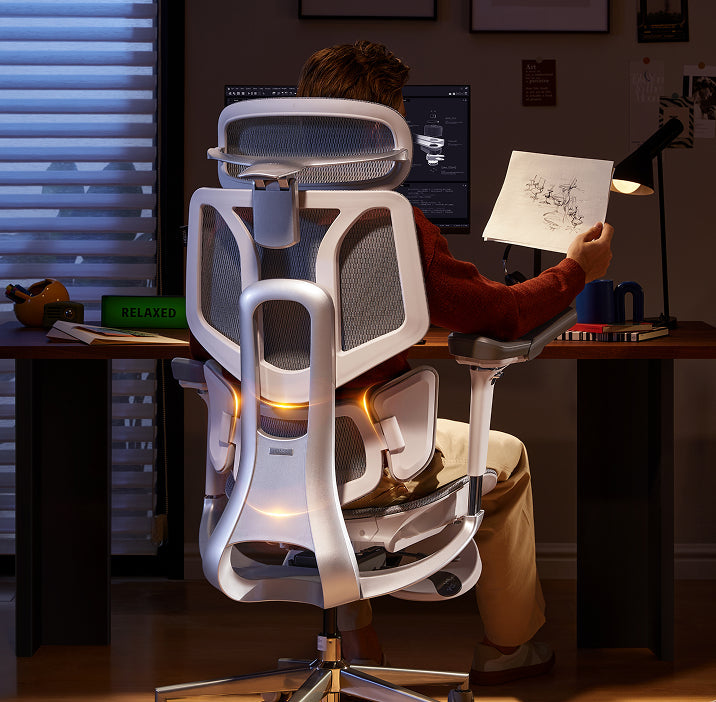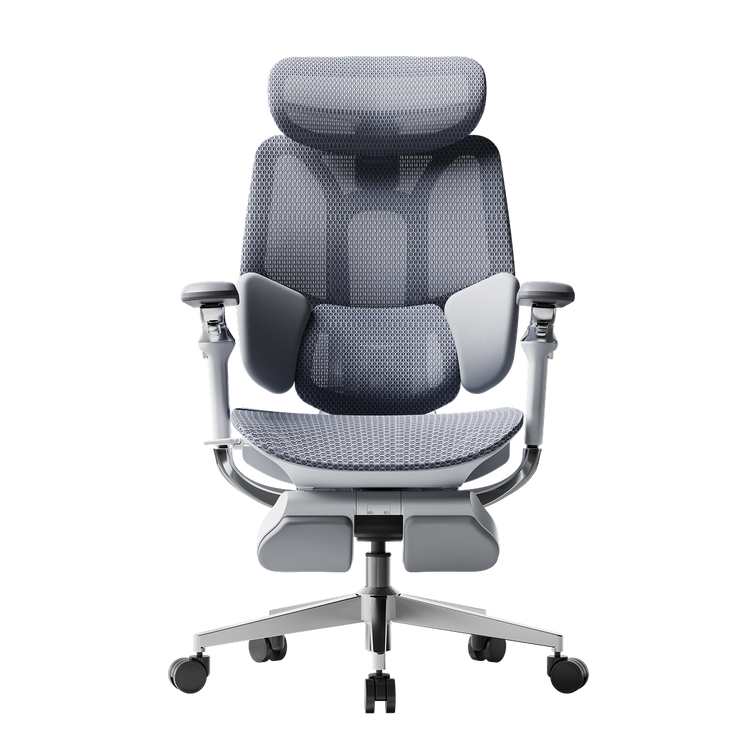
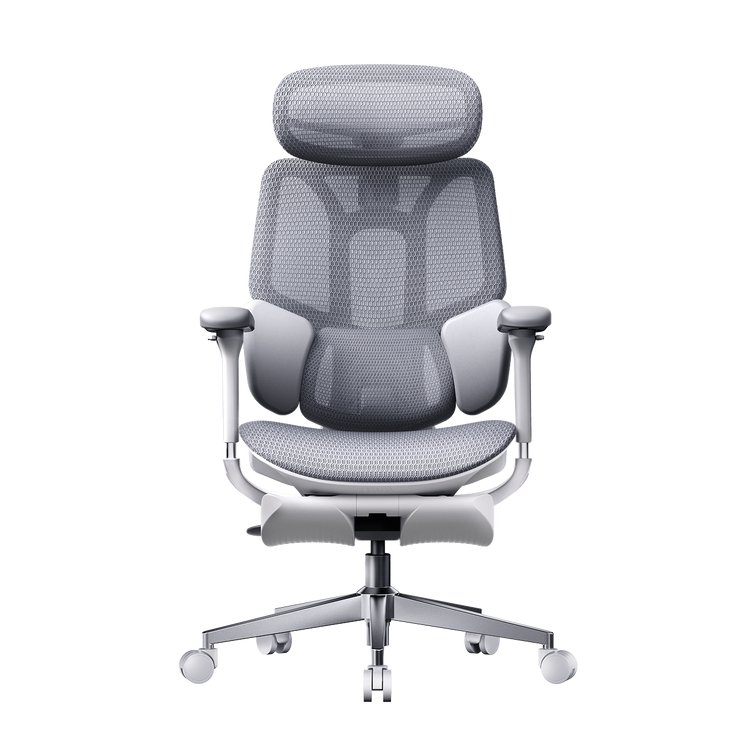
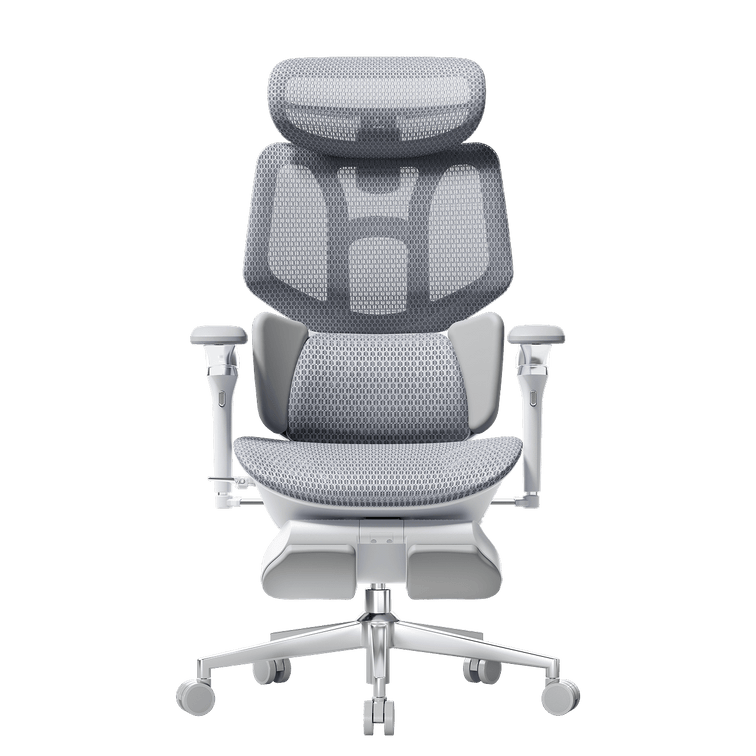
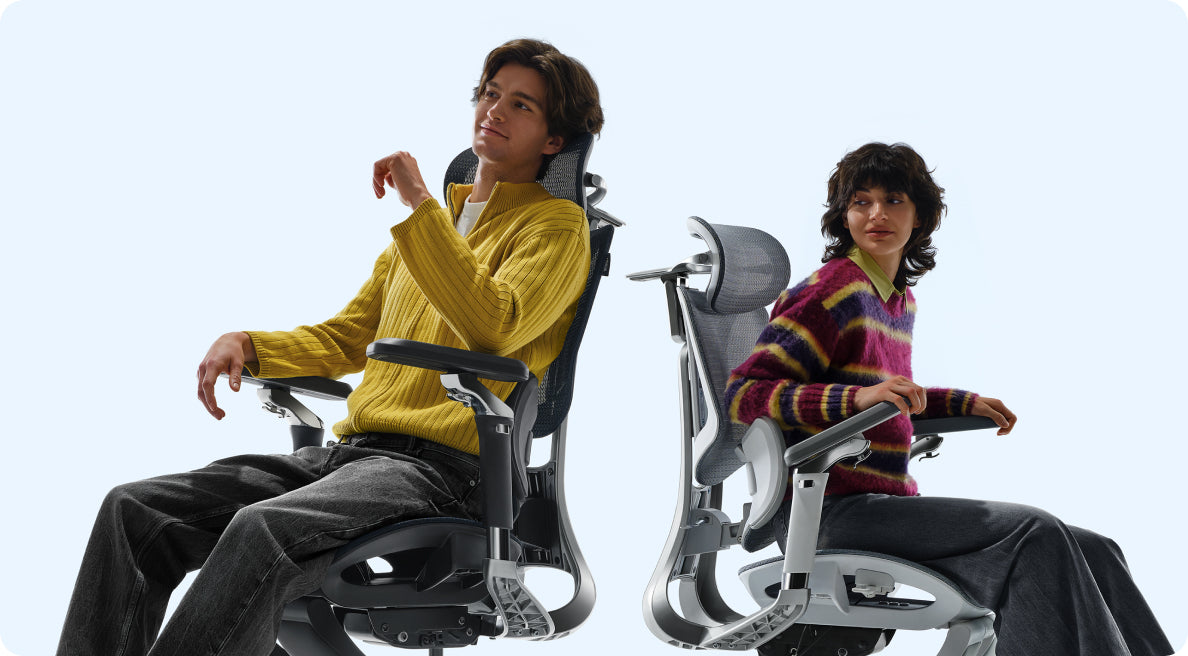


A shared desk.
A setup that is yours.
Someone else’s chair settings do not have to become your working posture. A simple reset helps you make a shared ergonomic office chair fit your body before the day begins.
How do you adjust a shared ergonomic office chair? Start with seat height, then seat depth, lumbar support, armrests and recline. Check the desk and screen afterwards. Once you know the controls, aim for a quick one-minute check, taking longer whenever you need to fine-tune the fit.
Why must you reset a shared chair?
A hot-desk chair usually arrives set for whoever used it last. Their legs, back and arms may differ from yours, so the seat, lumbar support and armrests may not be in the right position for you.
A seat that feels slightly too high or armrests that keep you away from the desk can become distracting over a full day. Resetting the chair gives you a better starting point than adapting your posture to someone else’s settings.
EU-OSHA’s guidance on office ergonomics specifically discusses hot desking: shared workstations should be easy to adjust, and users need clear information about making those adjustments. Read the office ergonomics guidance.
What order should you adjust the chair in?
Start with the settings that establish your overall position. Seat height sets your relationship to the desk; seat depth determines how far back you can sit. You can then position the lumbar support and armrests around that foundation.
Your reset sequence:
Seat height → seat depth → lumbar support → armrests → recline → desk and screen check.
At a height-adjustable desk, set the chair for supported feet and then bring the work surface to a comfortable working height. At a fixed-height desk, you may need to raise the chair to reach the keyboard comfortably and add a separate floor footrest.
Use the sequence as a starting point, not a rigid rule. Recheck earlier settings if a later adjustment changes how you sit.
The 60-second hot-desking reset
Learn the controls first, then use these five steps as a quick daily routine. The aim is a repeatable setup—not finishing before a timer runs out.
-
Set the seat height
Sit back and position yourself so you can use the keyboard with relaxed shoulders. Keep your feet supported on the floor or a stable floor footrest. Avoid pressure from the seat edge under your thighs.
-
Slide the seat to fit your legs
Adjust the depth while keeping your back against the backrest. Leave roughly two to three fingers of clearance behind your knees as a starting point, then check comfort.
-
Position the lumbar support
Move the support towards the curve of your lower back. It should feel supportive rather than push you forwards. If the chair has automatic tracking, check the initial position and available settings.
-
Bring the armrests to you
Adjust the available height, width or rotation so your forearms can rest without lifting your shoulders. Make sure the armrests do not stop you moving close enough to the desk.
-
Check the recline
Lean back gently and familiarise yourself with the tilt lock. Adjust resistance if the chair offers a manual tension control; on an automatic mechanism, check that the movement feels controlled and supportive.
| Adjustment | Aim for | Quick check |
|---|---|---|
| Seat height | Comfortable access to the work surface | Feet supported; shoulders relaxed |
| Seat depth | Thigh support with knee clearance | You can sit against the backrest without pressure behind the knees |
| Lumbar support | Contact with the lower-back curve | Support feels comfortable, not forceful |
| Armrests | Supported forearms and relaxed shoulders | You can move close to the keyboard |
| Recline | Controlled, supported movement | You understand the lock and resistance controls |
| Floor footrest | Foot support when the floor is out of reach | Both feet rest securely without stretching down |
What makes a chair good for hot desking?
A shared chair earns its place when different users can adjust it easily and understand how its controls work. Look beyond the number of features to how practical they are in daily use.
- A useful adjustment range: compare seat height, depth and width with the people using the space. One chair may not fit everyone.
- Clear, accessible controls: levers and buttons should be easy to identify and reach.
- Suitable build and service support: check intended use, maintenance needs, replacement parts and warranty coverage for the shared workspace.
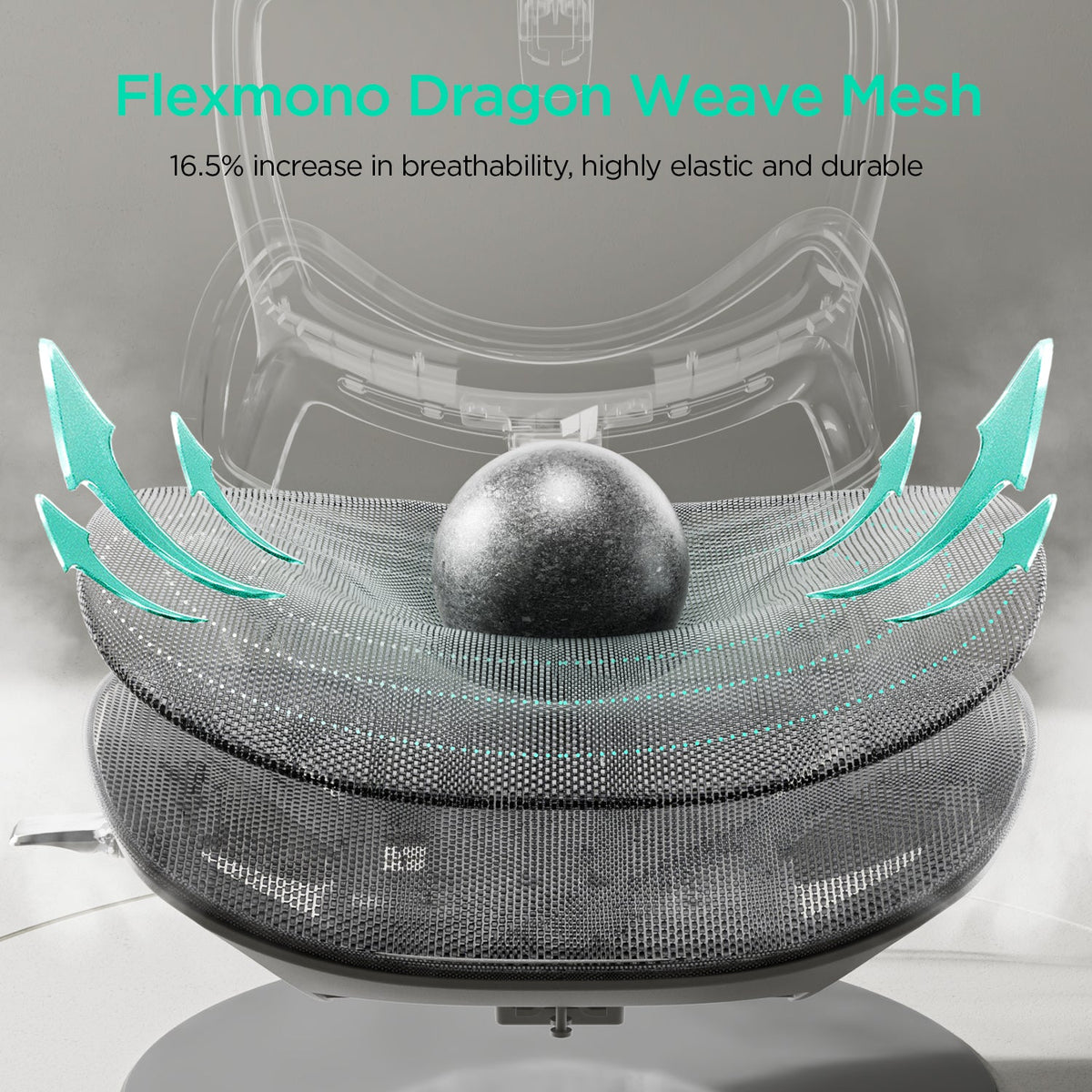
- Practical materials: breathable mesh can help with airflow, but cleaning suitability depends on the material and manufacturer’s instructions.
- Appropriate capacity and dimensions: check both the weight limit and physical fit.
A useful office addition: keep a simple adjustment card or a link to the chair’s instructions at each desk. Users should not have to guess which lever changes which setting.
How do you keep a shared chair hygienic?

Armrests, adjustment controls and headrests are frequent touch points. A consistent cleaning routine helps keep the chair pleasant for the next person.
- Follow the chair’s care instructions and your workplace cleaning procedure.
- Use a suitable cloth and a cleaner approved for the relevant surface. Do not assume every disinfectant is compatible with mesh, padding or finishes.
- Avoid soaking the seat or spraying liquid directly into controls, ventilation openings or electrical components.
- Allow cleaned surfaces to dry before the next use.
- Report spills, loose parts or damaged controls promptly. Remove an unsafe chair from use.
Breathability and hygiene are different considerations: mesh allows airflow, but it still needs appropriate care.
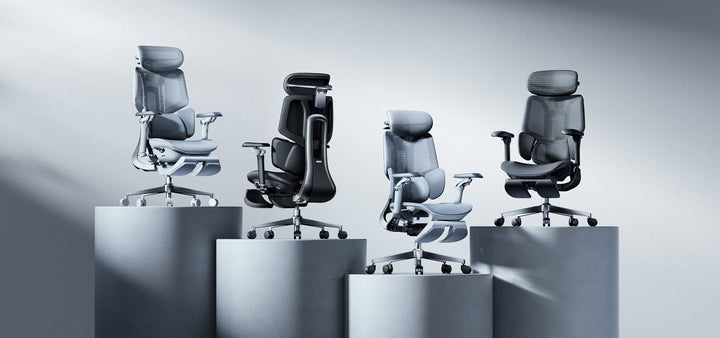
Which HBADA chair suits shared desks?
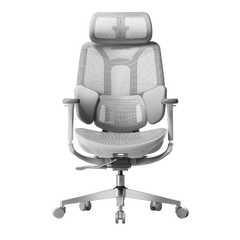
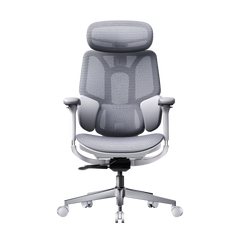
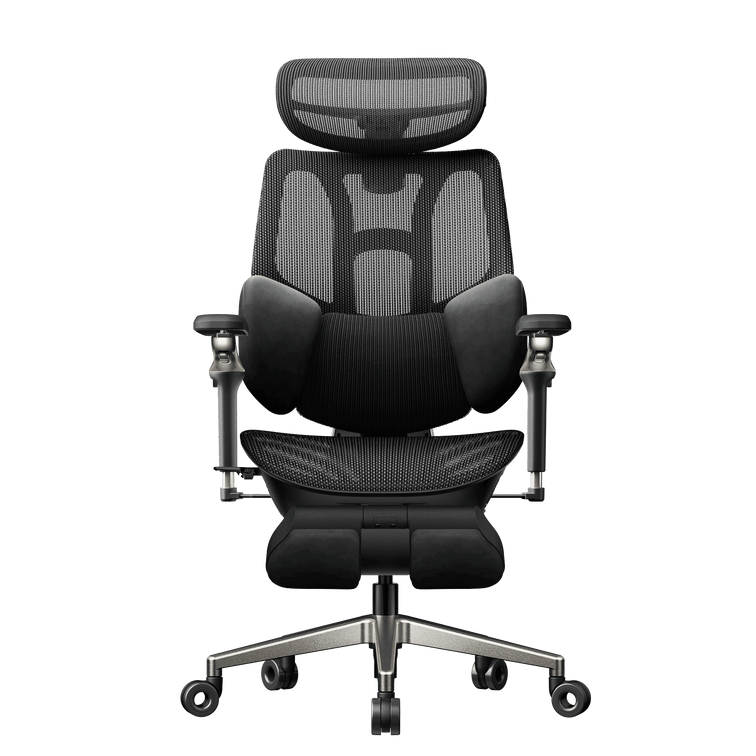
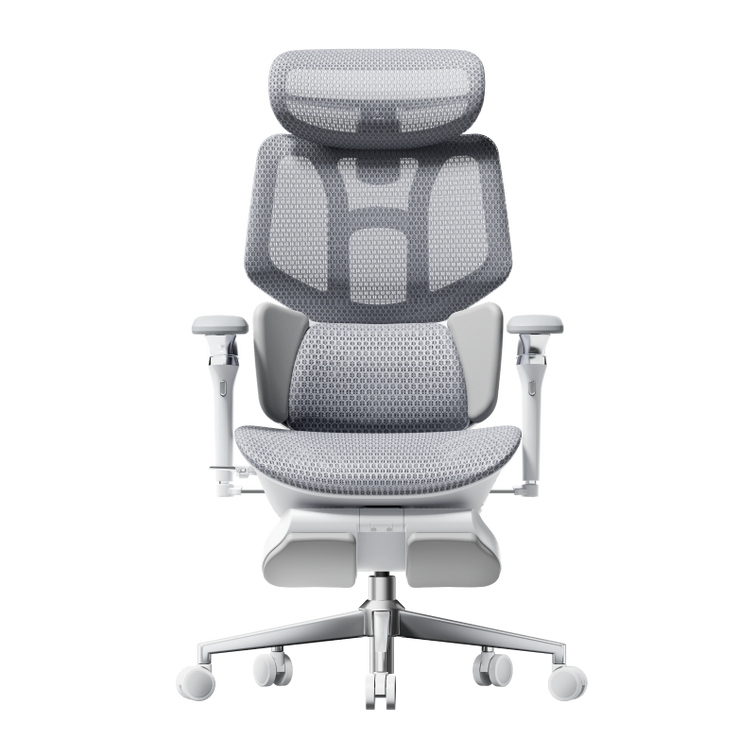
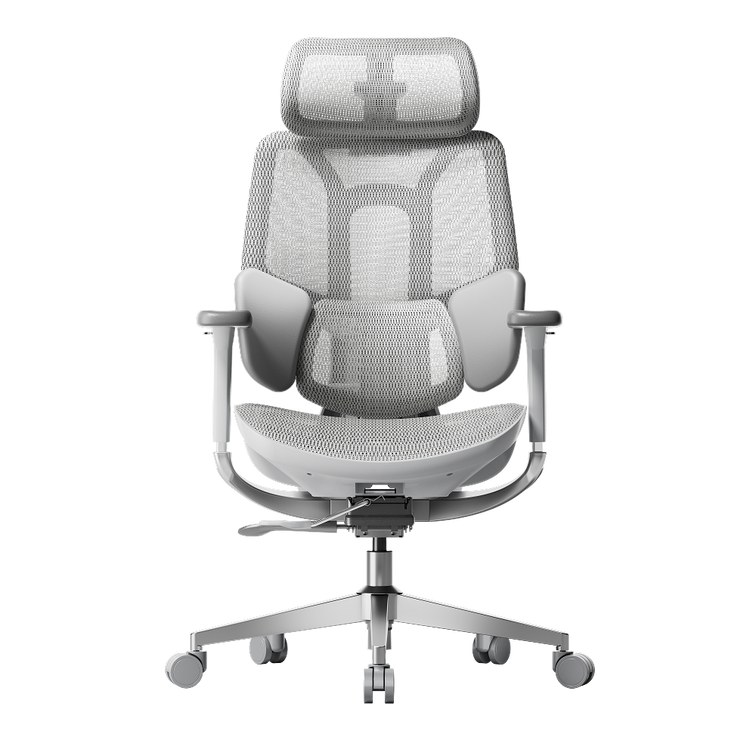
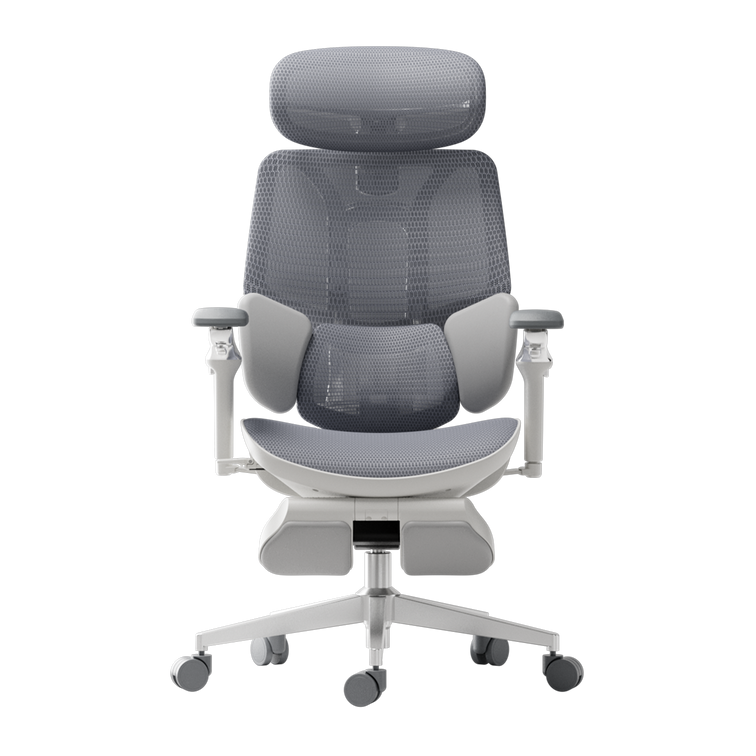
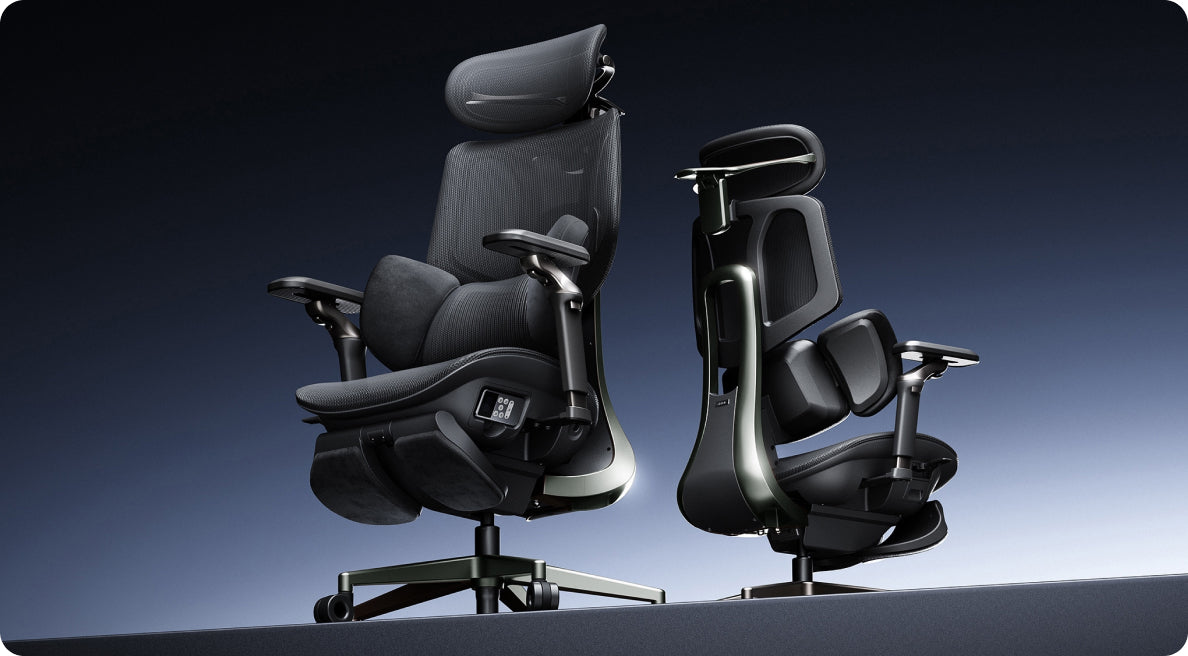
The X7 and E3 Pro 2026 offer different approaches to lumbar support. Compare their adjustment ranges with your users, then decide whether powered tracking or mechanical adjustment better suits the workspace.
| Feature | HBADA X7 | E3 Pro 2026 |
|---|---|---|
| Seat height | 44.5–53 cm | 46–54.5 cm |
| Seat depth | 40.5–45.5 cm | 45–50 cm |
| Seat width | 52 cm | 51.5 cm |
| Lumbar support | Powered automatic tracking | 3-zone adaptive support; 60 mm height adjustment across six levels |
| Seat material | Breathable mesh | CloudMesh |
| Maximum weight capacity | 150 kg | 150 kg |
| Recommended user height | 150–195 cm | 155–195 cm |
X7: powered lumbar tracking
Consider the X7 if you want lumbar support that responds automatically to posture changes. Each user should still check seat fit, armrests and their preferred support settings.
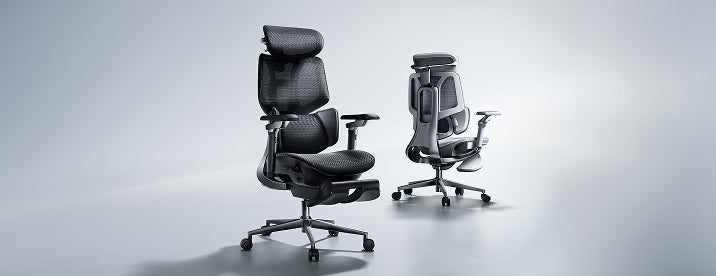
Explore HBADA X7 →E3 Pro 2026: mechanical adjustment
Consider the E3 Pro 2026 if you prefer hands-on adjustment with adaptive lumbar support and a breathable mesh seat.
Explore E3 Pro 2026 →Specifications refer to the linked EU listings. User-height ranges are a guide, not a substitute for checking fit. For office-wide purchasing, confirm shared or intensive use requirements and warranty terms before ordering.
Limitations and when to get help
A chair reset is one part of setting up a shared workstation. It cannot compensate for every desk, screen or individual fit issue.
- Check screen position, keyboard reach and available leg space after adjusting the chair.
- If the chair’s adjustment range does not fit you, ask for a suitable alternative rather than forcing a position.
- Change posture and take movement breaks throughout the day.
- Seek a workstation assessment if you cannot find a comfortable setup.
- For severe, persistent or radiating pain, consult a qualified healthcare professional.
The takeaway: reset the chair, not your expectations
Hot desking works better when you take a moment to make the workstation yours. Start with seat height, then work through depth, lumbar support, armrests and recline. Finish by checking the desk and screen.
Choose powered lumbar tracking if that suits your workspace, or mechanical adjustment if you prefer a hands-on setup. Either way, learning the controls once makes every future reset more straightforward.
Frequently asked questions
How do you adjust an office chair for your body?
Begin with seat height and depth, then position the lumbar support and armrests. Check the recline controls and finish by reviewing the desk and screen. Your feet should be supported, your shoulders relaxed and the seat clear of the backs of your knees.
Is hot desking bad for your back?
Hot desking does not automatically mean an uncomfortable setup. Problems can arise when the chair or workstation does not fit the user or is difficult to adjust. Familiarise yourself with the controls, review your fit and keep movement in your day.
What should you look for in a shared office chair?
Look for an appropriate adjustment range, clear controls, suitable seat dimensions and materials you can maintain according to the care instructions. Check intended use, weight capacity and after-sales support. Do not assume a single model will suit every colleague.
How do you know a chair fits after resetting it?
Check that your feet are supported, your thighs rest comfortably, there is clearance behind your knees and the lumbar support meets your lower back. You should also be able to reach the keyboard with relaxed shoulders. These are useful starting checks; reassess comfort as you work.
Should a shared chair have a footrest?
Some users need a separate floor footrest when a fixed desk requires a higher seat position. A retractable chair footrest is intended for supporting the legs while reclining and serves a different purpose. Choose support according to the user’s working position.
Does automatic lumbar tracking adjust the whole chair?
No. Automatic lumbar tracking responds to posture changes, but it does not replace checking seat height, seat depth, armrests or workstation fit. A new user should still run through the adjustment routine.
Can you really reset a chair in 60 seconds?
A familiar chair can be quick to check, but a minute is a practical target rather than a guarantee. Allow more time when using a new model, learning its controls or adjusting an unfamiliar desk.