


Everyday comfort · Chair setup · Movement
Your back may need a change.
Not a “perfect” posture.
It is 3 p.m. You have not done anything strenuous, yet your lower back feels tired. You sit taller, shift to one side, then stand for a moment. Let’s walk through the settings and everyday habits worth checking.
Long periods in one position and a chair setup that does not suit you can contribute to discomfort. Start with comfortable lower-back support, suitable seat height and depth, and room to change position. In this guide, we’ll help you check each element and build more movement into your workday.
The familiar tired feeling

You may notice stiffness after a meeting or find yourself shifting more often towards the end of the day. Sometimes standing or walking feels more comfortable.
Notice when it happens, how long you have been seated, and whether a different position helps. These observations can help you decide which parts of your workstation to check first.
If you are unsure where to start, our guide to choosing lumbar support for your body type explains the fit considerations to check before changing several settings at once.
Why prolonged sitting can feel tiring
Sitting is not completely passive: the effort involved changes with your task, position, and the support available. Remaining in one position for a long time may become uncomfortable, even if that position felt fine at first.
There is no single posture that everyone needs to hold throughout the day. Workstation guidance from the US Occupational Safety and Health Administration, OSHA, includes changing position and making small adjustments, rather than remaining still.
A useful starting point: aim for a setup that supports you and permits comfortable changes—not one that forces you to hold yourself rigidly upright.
How chair setup can add to discomfort
Your lumbar support works as part of a larger setup. Check your chair and desk together, starting with these four common fit issues.
Support in the wrong place
The lumbar pad may feel too high, too low, or too prominent for your body.
A seat that feels too deep
You may slide forwards to avoid pressure behind the knees and stop using the backrest.
Feet without support
Check whether seat height and desk height work together without leaving your feet dangling.
A desk that makes you reach
Keyboard, mouse, and screen placement may pull you away from an otherwise comfortable position.
For model-specific controls and instructions, visit our user manual and assembly guide hub. Select your exact model and edition before adjusting an unfamiliar mechanism.
Where should lumbar support sit?
Sit back comfortably and locate the inward curve of your lower back. Use that area as a starting point for the support position, rather than relying on the same numbered setting as someone else.
Where your model allows it, make small changes to height or depth. The support should not force you forwards or create a sharp pressure point. Reduce or reposition it if it feels intrusive.
Our guide to adjusting an ergonomic chair for better comfort brings the main settings together. Use it alongside the instructions for your specific chair.
Seat depth: support without pressure behind the knees
Check whether you can sit against the backrest while leaving a comfortable gap behind your knees. A small finger-width gap can be a practical starting check, not an exact measurement everyone must match.
If the front edge presses into your legs, check whether the seat can move backwards. If the seat feels too short, check its adjustment range without losing backrest contact.
Our office chair fit guide walks through height, depth, width, and lumbar position. Compare your measurements with the specifications for the configuration you are considering.

Reclining: find a position that suits the task
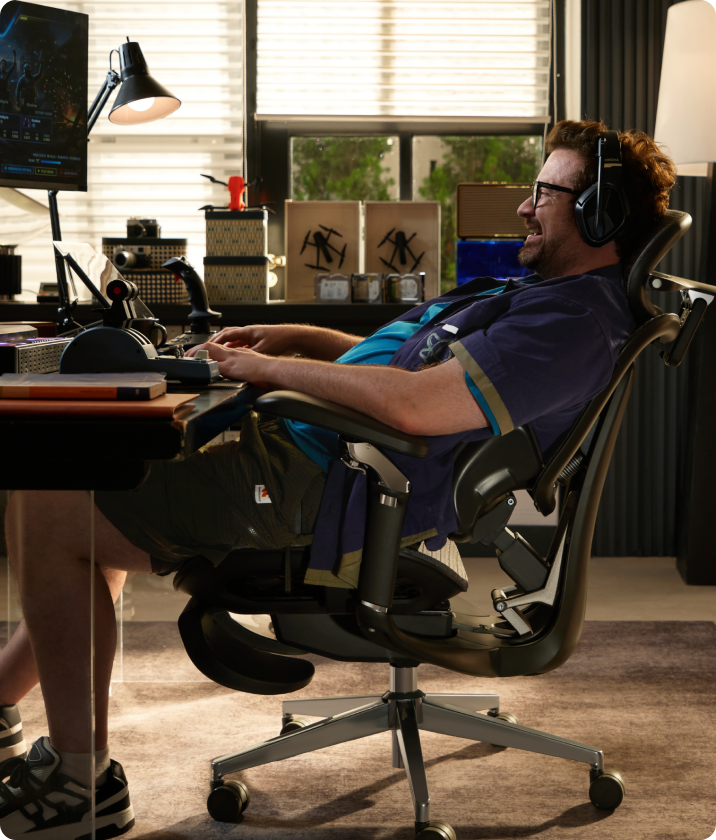
You do not need to hold an exact 90-degree position throughout the workday. Try a supported position that lets you use your keyboard and see the screen without reaching forwards.
A modest recline may feel comfortable, but no single angle is right for every person or task. If reclining makes you stretch your arms or crane your neck, reconsider the setting and desk arrangement.
Adjust tilt tension and locking controls only as described in your manual. Use deeper recline settings for suitable break activities rather than trying to type from a position that requires overreaching.
Movement breaks belong in the setup
Pair your chair adjustments with small opportunities to move: stand for part of a call, walk to refill water, or switch briefly to a different task.
A reminder can help you notice uninterrupted sitting, but it is not a reason to wait if you already feel uncomfortable. Choose movements that are comfortable and appropriate for your health and mobility.
OSHA’s workstation evaluation checklist includes opportunities for changes in posture and short recovery pauses during computer work.

Get to know our three-zone lumbar design
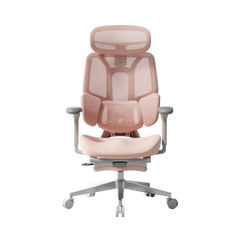
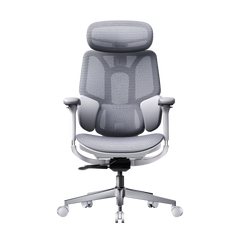
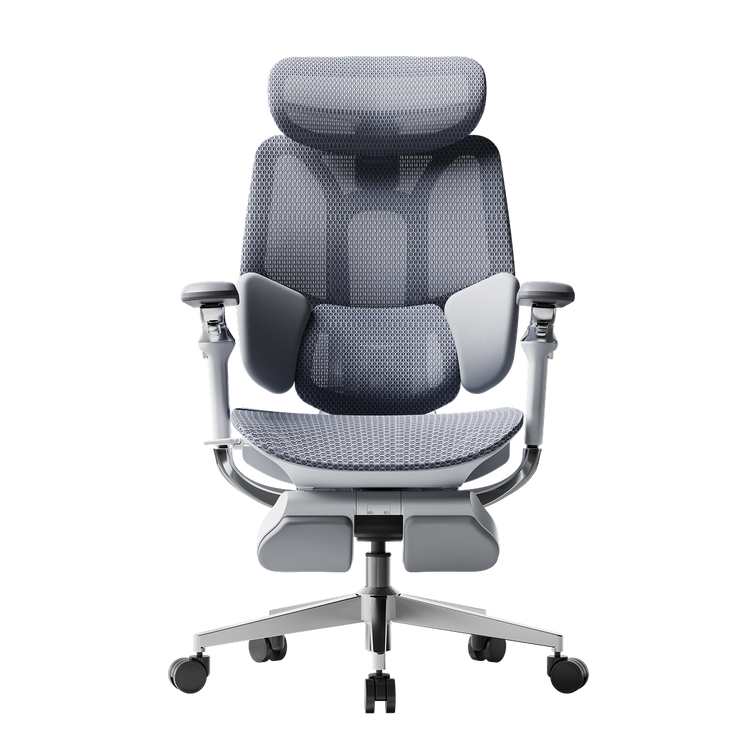
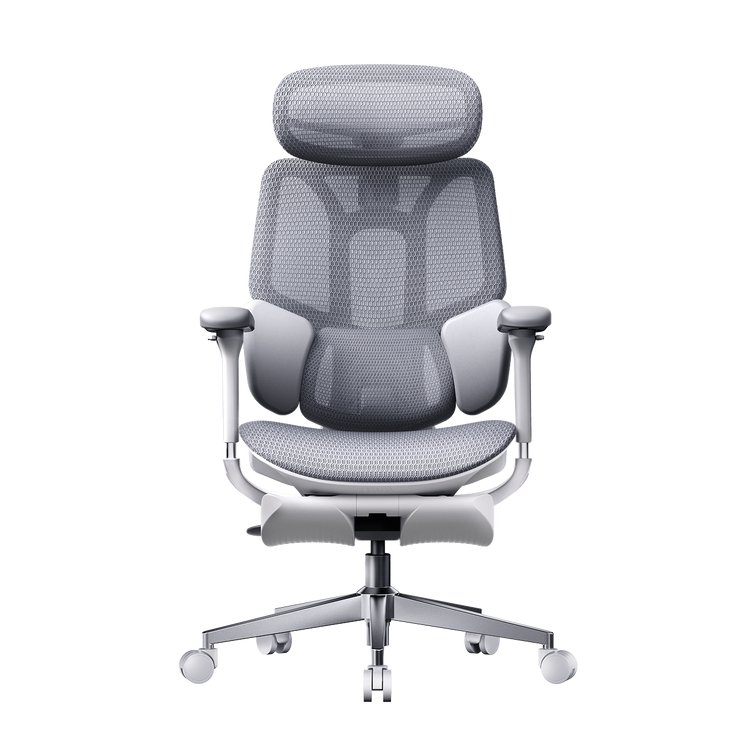
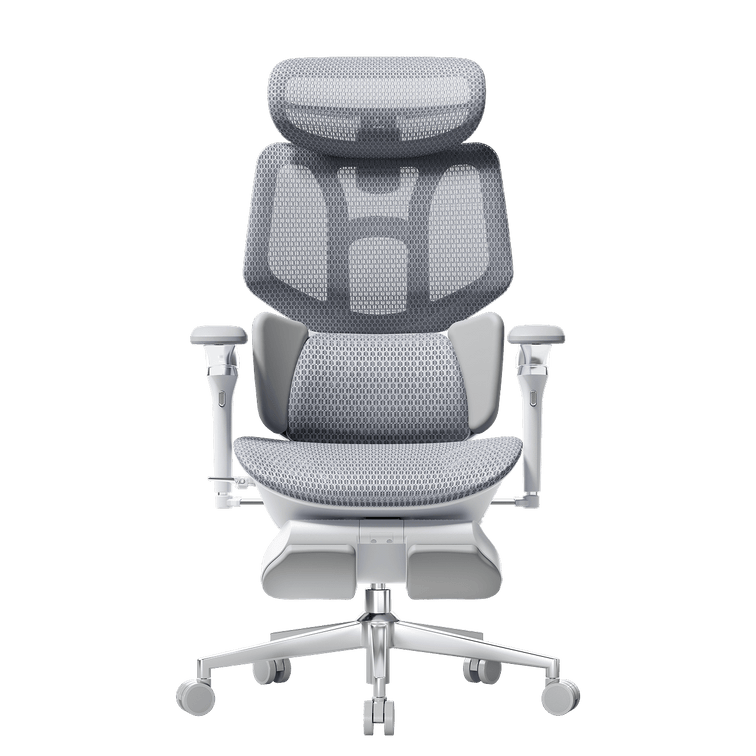
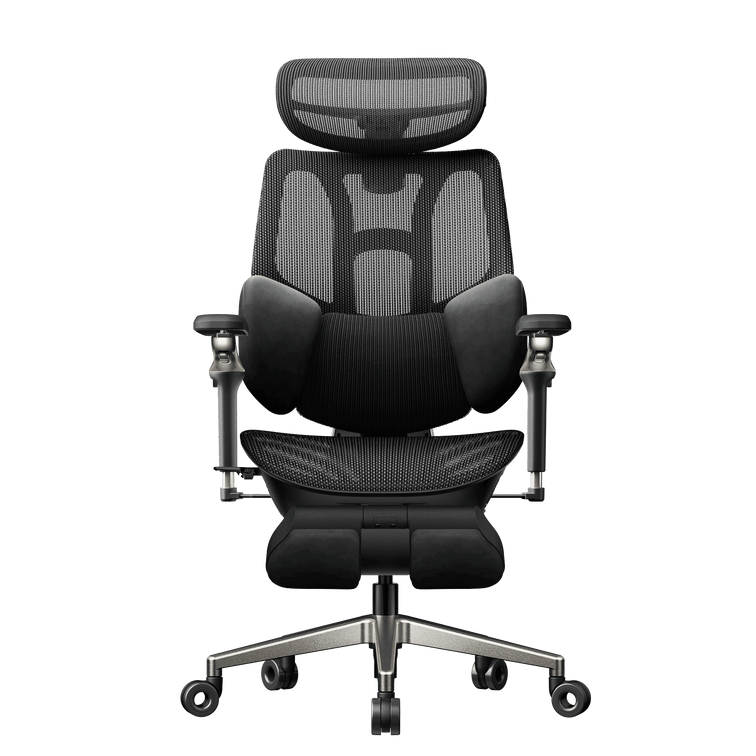
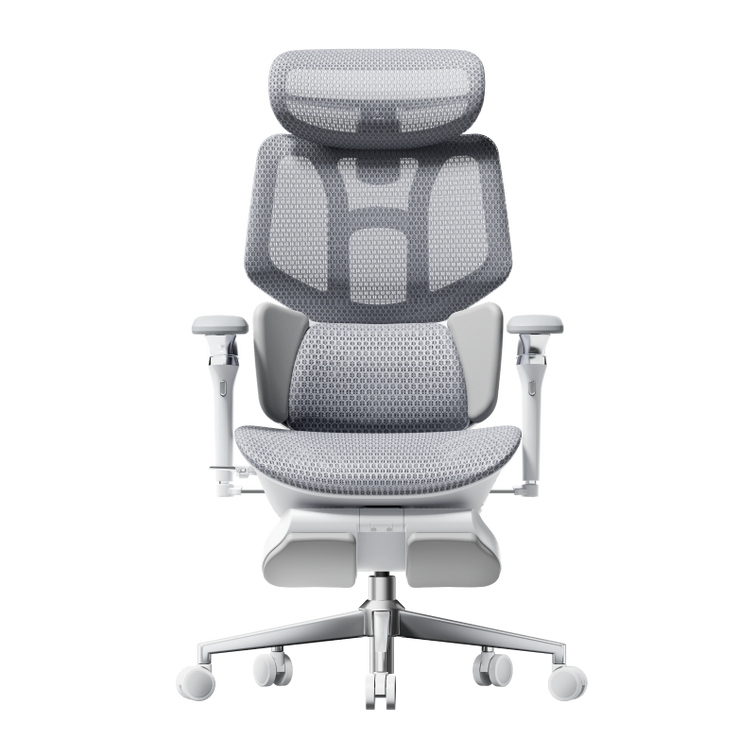
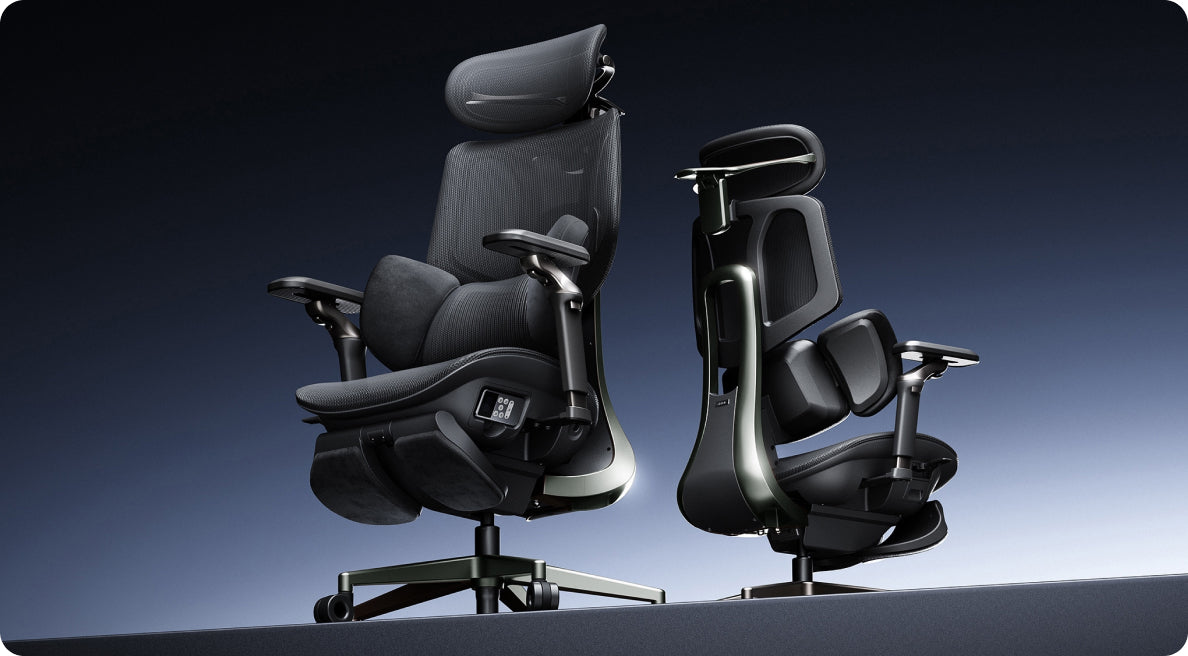
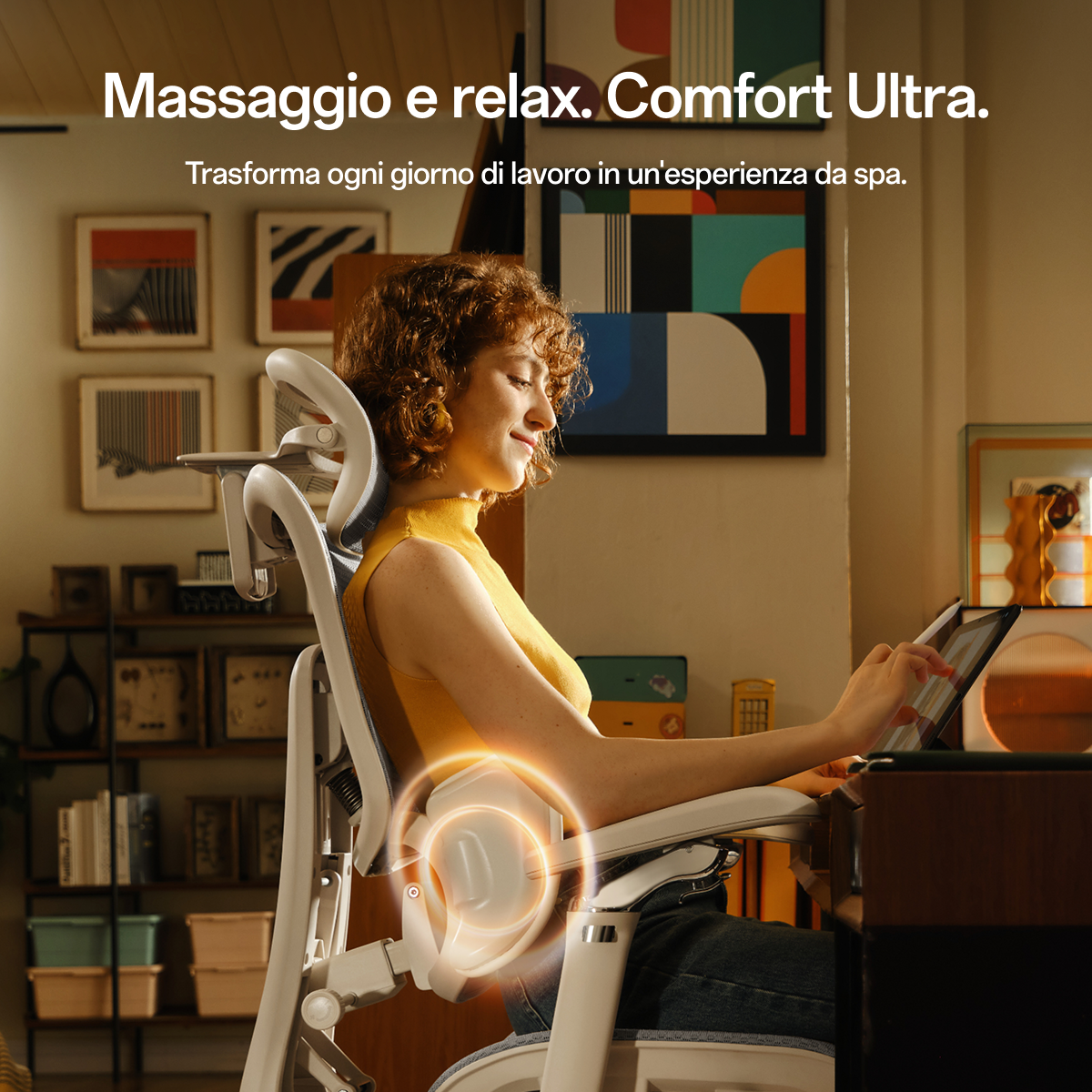
Our E3 Pro 2026 features a three-zone lumbar support system with a central support section and two side wings. Together, these elements provide contact across the centre and sides of your lower back, with adaptive movement as you change position.
To find a comfortable fit, start with your seat height and depth, then adjust the lumbar support using your model’s controls. Aim for gentle, comfortable contact rather than strong pressure against your back.
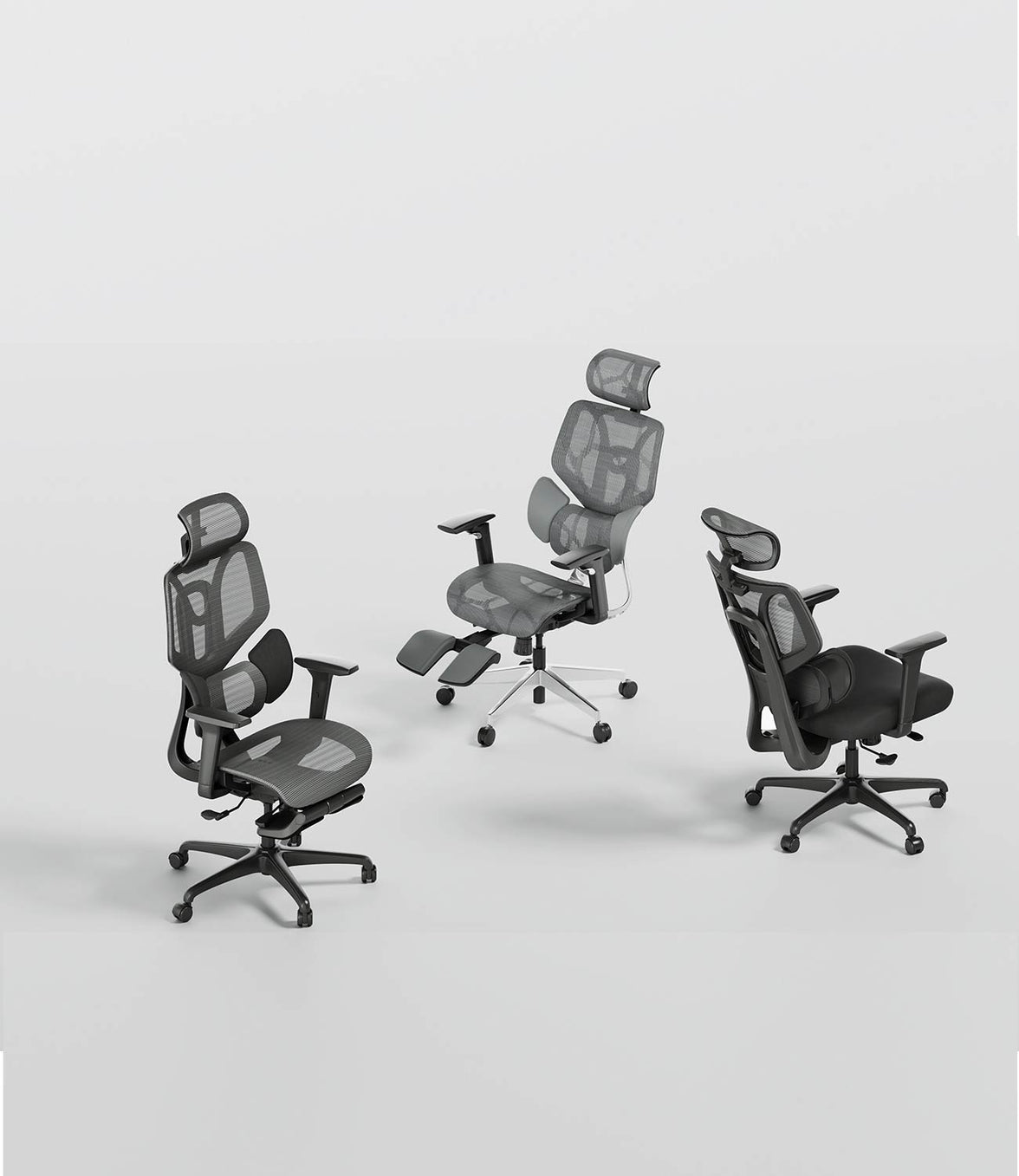
Explore the available configurations on our E3 Pro 2026 product page. You can also review the E3 Air specifications to compare the adjustment options that matter most for your workspace.
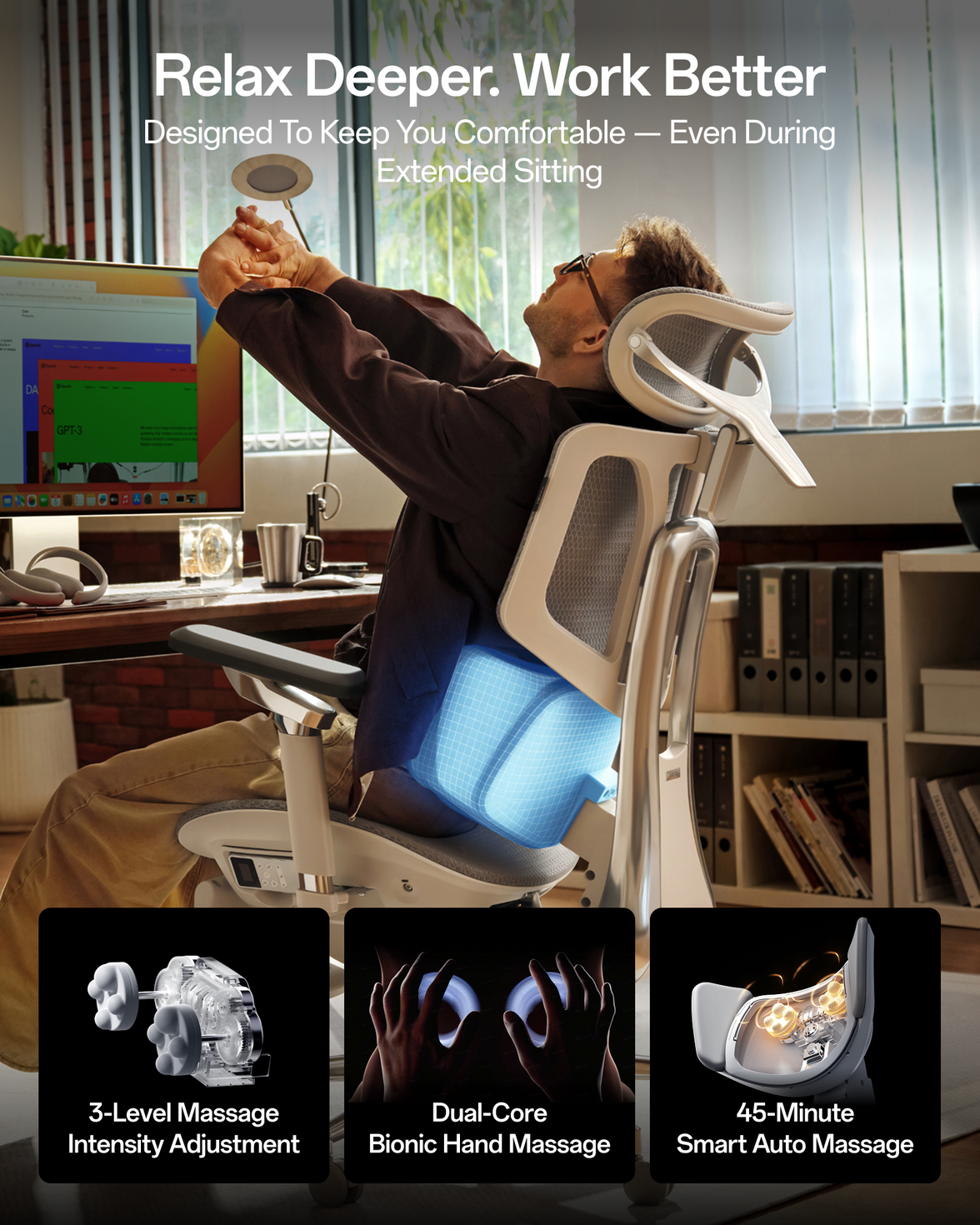
Interested in powered lumbar support? Explore our HBADA X7 and its adjustment features. Start with a comfortable fit, get familiar with the controls, and keep regular movement part of your routine.
Chair setup reference table
| Setting | What to check | Reconsider it if… |
|---|---|---|
| Lumbar position | Comfortable contact around the lower-back curve. | The support feels intrusive or pushes you forwards. |
| Seat depth | Backrest contact with comfortable clearance behind the knees. | You slide forwards to avoid the seat edge. |
| Recline | A supported position compatible with your task. | You must reach forwards to type or view the screen. |
| Seat height | Supported feet and comfortable access to the desk. | Your feet dangle or the desk forces your shoulders upwards. |
| Movement | Regular chances to change position or tasks. | You remain still for long periods despite discomfort. |
Change one setting at a time so you can tell what feels different. Stop any adjustment or activity that makes symptoms worse.
Lower-back fatigue from sitting: FAQs
Why does my lower back feel tired after sitting?
Prolonged time in one position, a setup that does not fit you, and other factors can contribute. The feeling alone cannot confirm a cause. Review your setup and seek advice if symptoms persist or worsen.
Should I ignore it if standing makes it feel better?
No. Relief with a change of position is useful information, but it is not a diagnosis. Pay attention to symptoms that recur, interfere with daily activities, or become more severe.
Where should lumbar support sit?
Start around the inward curve of your lower back. Adjust within your model’s range until contact feels comfortable rather than forceful. Individual proportions affect the right position.
Do I need to sit completely upright?
You do not need to maintain one rigid posture. Choose supported positions that suit your task and allow comfortable changes without overreaching.
Will a new chair fix my back fatigue?
A chair that fits you can make it easier to find a supported working position, but no chair can guarantee symptom relief. Setup, movement, individual circumstances, and any underlying health issue also matter.
When should I get medical advice?
Seek advice for persistent or worsening symptoms, pain that limits daily activities, or symptoms spreading into a leg. New weakness or numbness needs prompt assessment. Back pain with new bladder or bowel changes, numbness around the groin or anus, or symptoms in both legs requires emergency medical attention.
For further information on symptoms that need medical attention, see the NHS back pain guidance. Use the appropriate medical or emergency service in your country.
Comfort is a fit, not a feature
Start with a few practical checks: comfortable lower-back contact, usable seat depth, supported feet, and a desk arrangement that does not make you reach. Then make room for movement throughout the day.
At HBADA, we want to help you get more from the adjustments available on your chair. Take the time to find your settings, revisit them when your tasks change, and pay attention to what feels comfortable for you.
For more practical setup advice, explore our ergonomic chair guides.